

Managing Your Templates
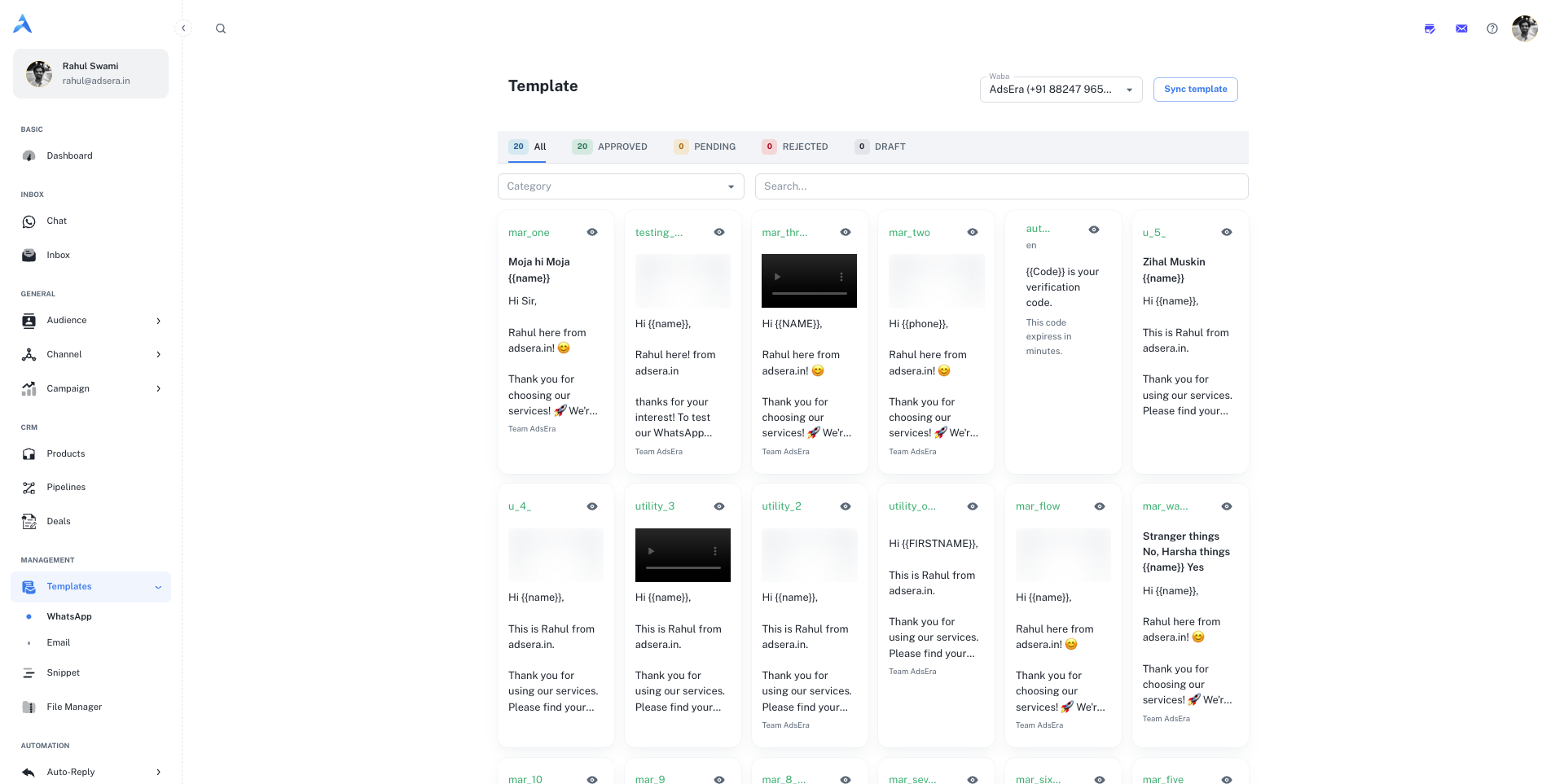
This page provides a visual gallery of all your templates, allowing you to quickly find the one you need.Select Your WABA
Use the Waba dropdown at the top of the page to select the specific WhatsApp Business Account whose templates you want to view.
Sync Templates
Click the “Sync template” button to fetch the latest status of all your templates directly from Meta. This is useful after you’ve submitted a new template for approval or made changes in the Meta Business Manager.
Create a New Template on Meta
All templates must be created and submitted for approval directly on Meta’s platform. You can create a new one here: Create Template .
Filtering and Viewing Templates
To help you organize and find templates quickly, you can filter the gallery in several ways:Filter by Status
Use the tabs at the top of the gallery to filter templates by their current approval status:- All: Shows every template associated with the selected WABA.
- APPROVED: Shows only templates that are approved by Meta and ready to use.
- PENDING: Shows templates you have submitted that are still under review by Meta.
- REJECTED: Shows templates that Meta did not approve. You will need to edit and resubmit them.
- DRAFT: Shows templates you have started but not yet submitted for approval.
Filter by Category and Language
- Category: Use the category dropdown to filter for
Marketing,Utility, orAuthenticationtemplates. - Search: Use the search bar to find a template by its name.
Understanding a Template Card
Each card in the gallery gives you a preview and key details about the template.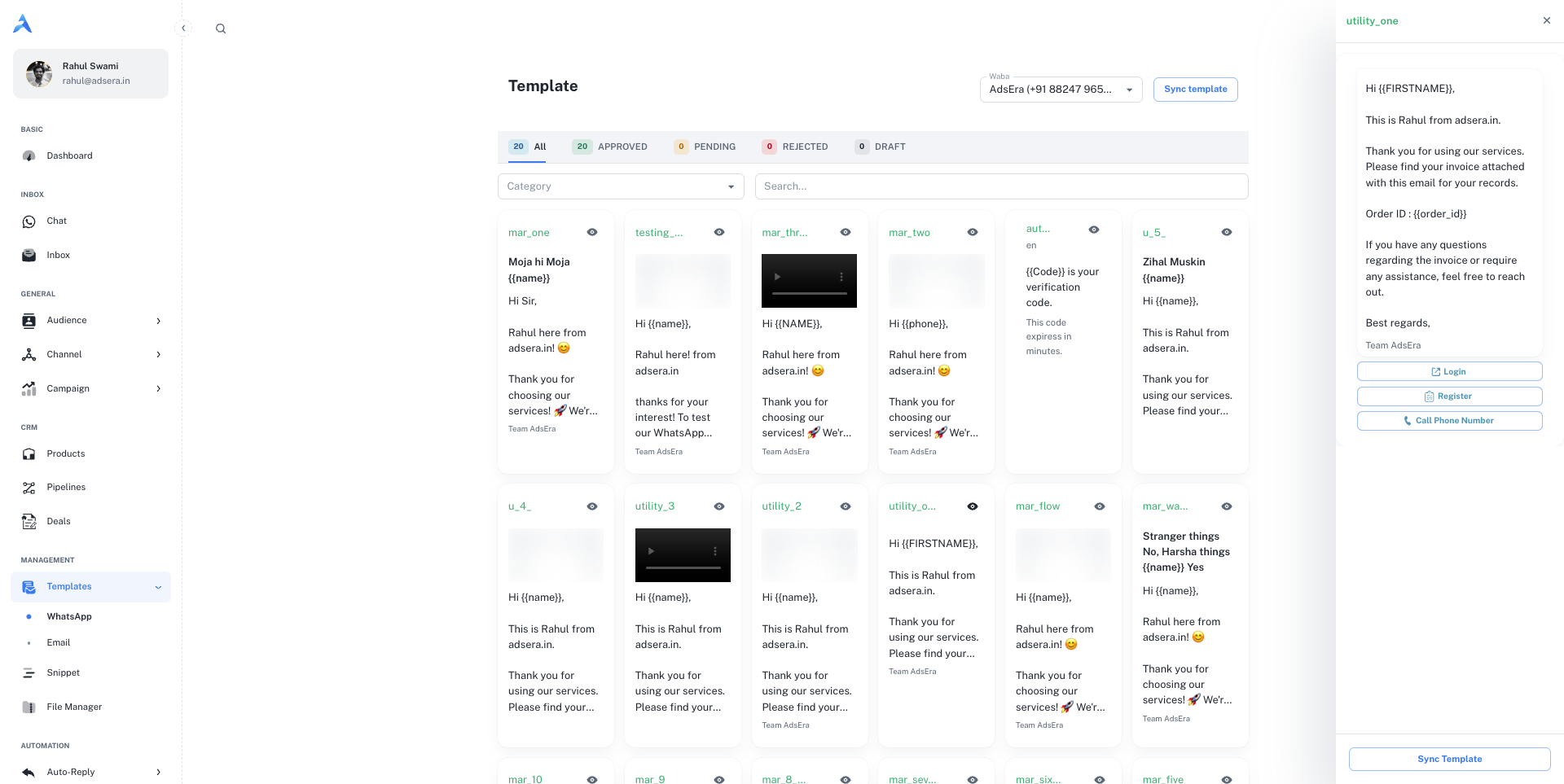
- Template Name: The unique internal name for the template.
- Preview (👁️): Click the eye icon to open a side panel with a full, device-sized preview of how the message will look, including any media, buttons, and variables.
- Header: If the template includes a header, it will display the rich media type (e.g., Image, Video, Document).
- Body Content: A preview of the main text message. Variables like
{{name}}are shown as placeholders. - Footer: Any footer text included in the template.
- Buttons: Interactive buttons like “Call Now” or “Check Now” are displayed at the bottom.
When viewing a template’s full preview in the side panel, you can also click the “Sync template” button at the bottom to refresh its status individually.