

Prerequisites
Before you start, make sure you have the following:Contact Data Ready
Have your contact information ready in a spreadsheet (like Google Sheets or Excel) or a text editor.
Required Identifier
Your data must include either an
EMAIL or a PHONE column. At least one of these is required to identify and manage contacts.Contact Consent
Remember, you must have your contacts’ consent to send them marketing campaigns.
Step-by-Step Import Process
Follow these simple steps to import your contacts using a file upload.1
1. Navigate to the Import Screen
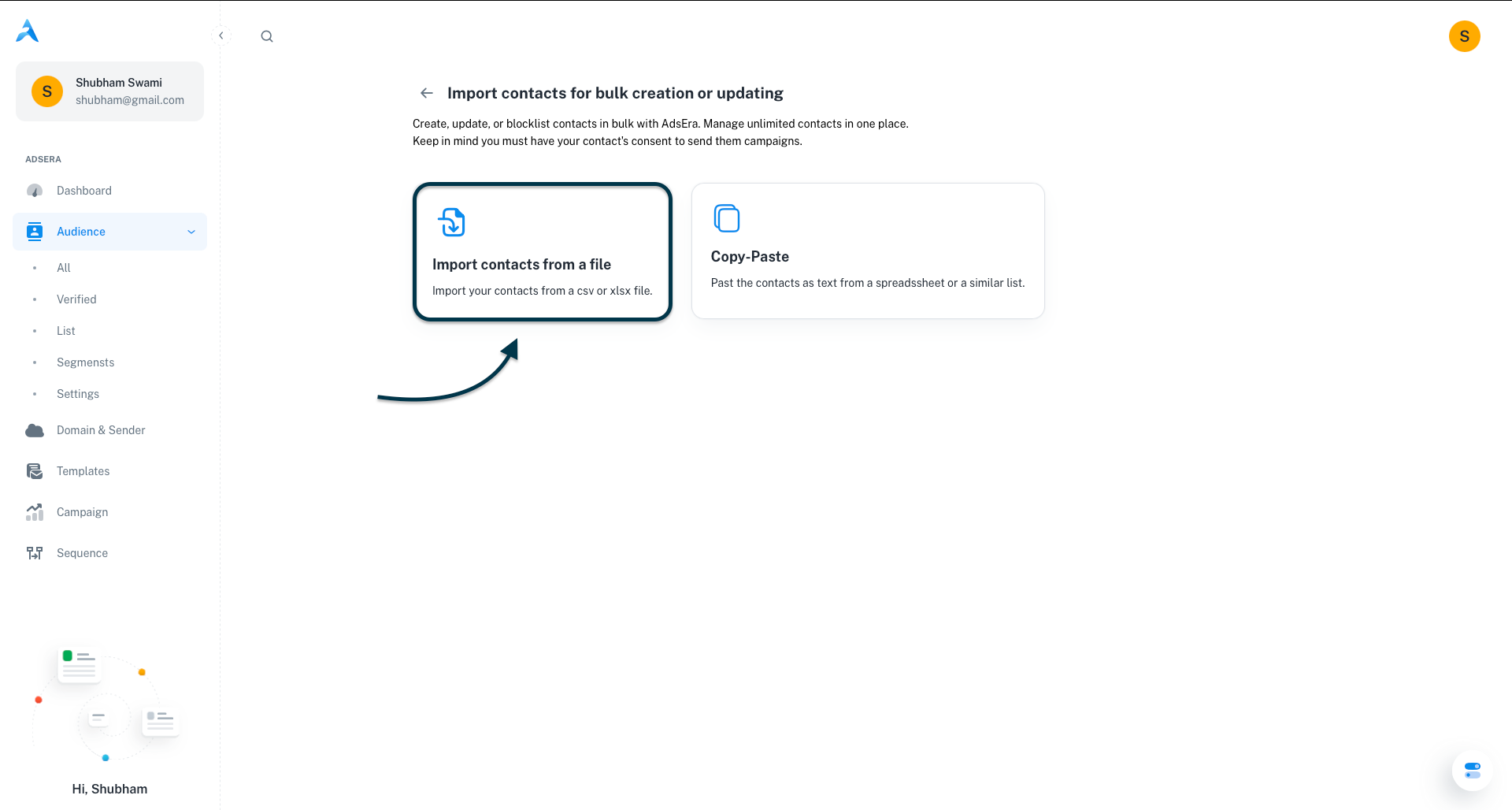
From your AdsEra Dashboard, navigate to Audience > All. In the top-right corner, click the Import contact button. On the next screen, select the Import contacts from a file option.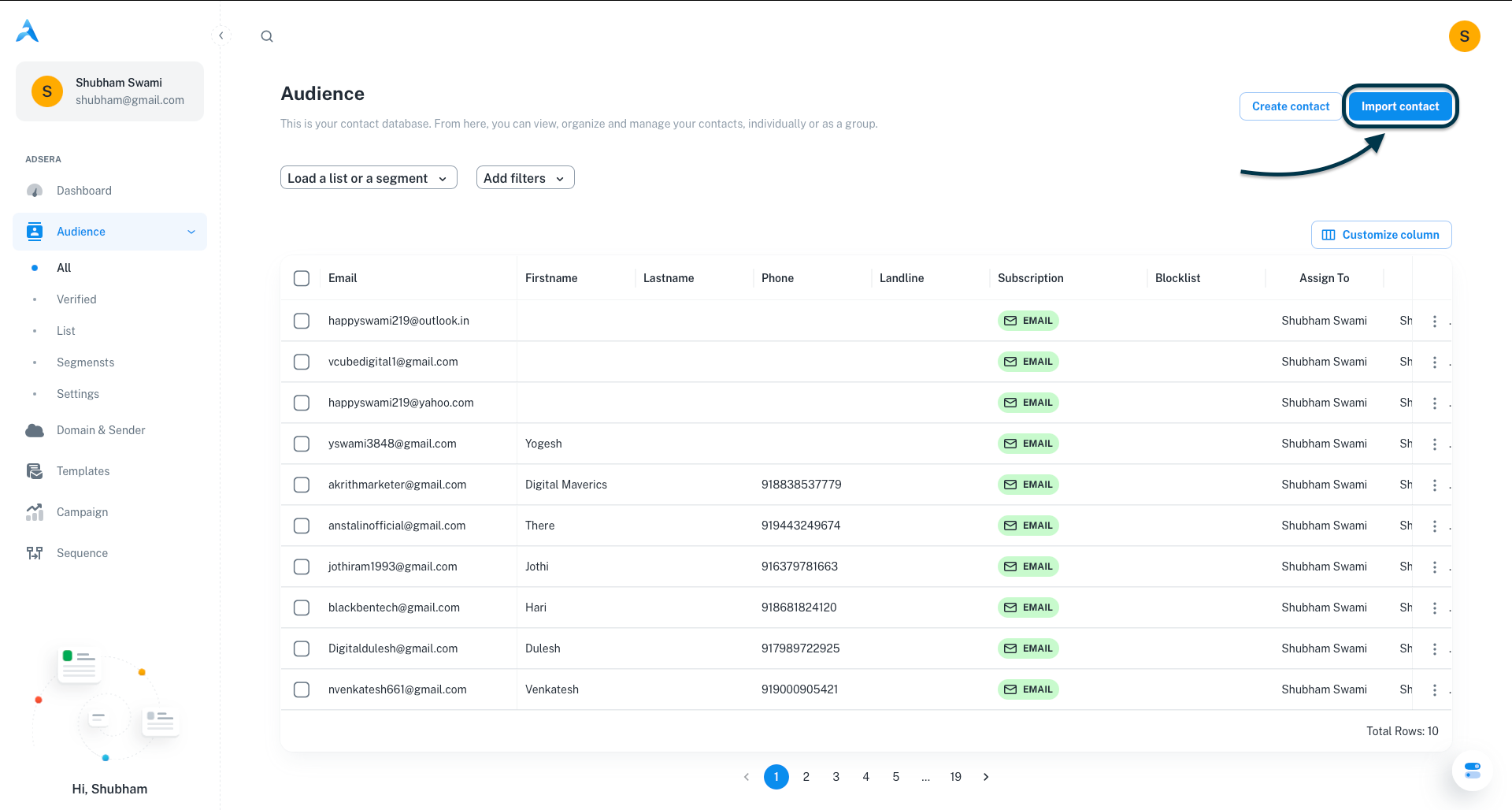
2
2. Upload Your File
On the “Upload File” screen, either drag and drop your CSV or XLSX file into the designated area, or click “browse through your machine” to select it manually.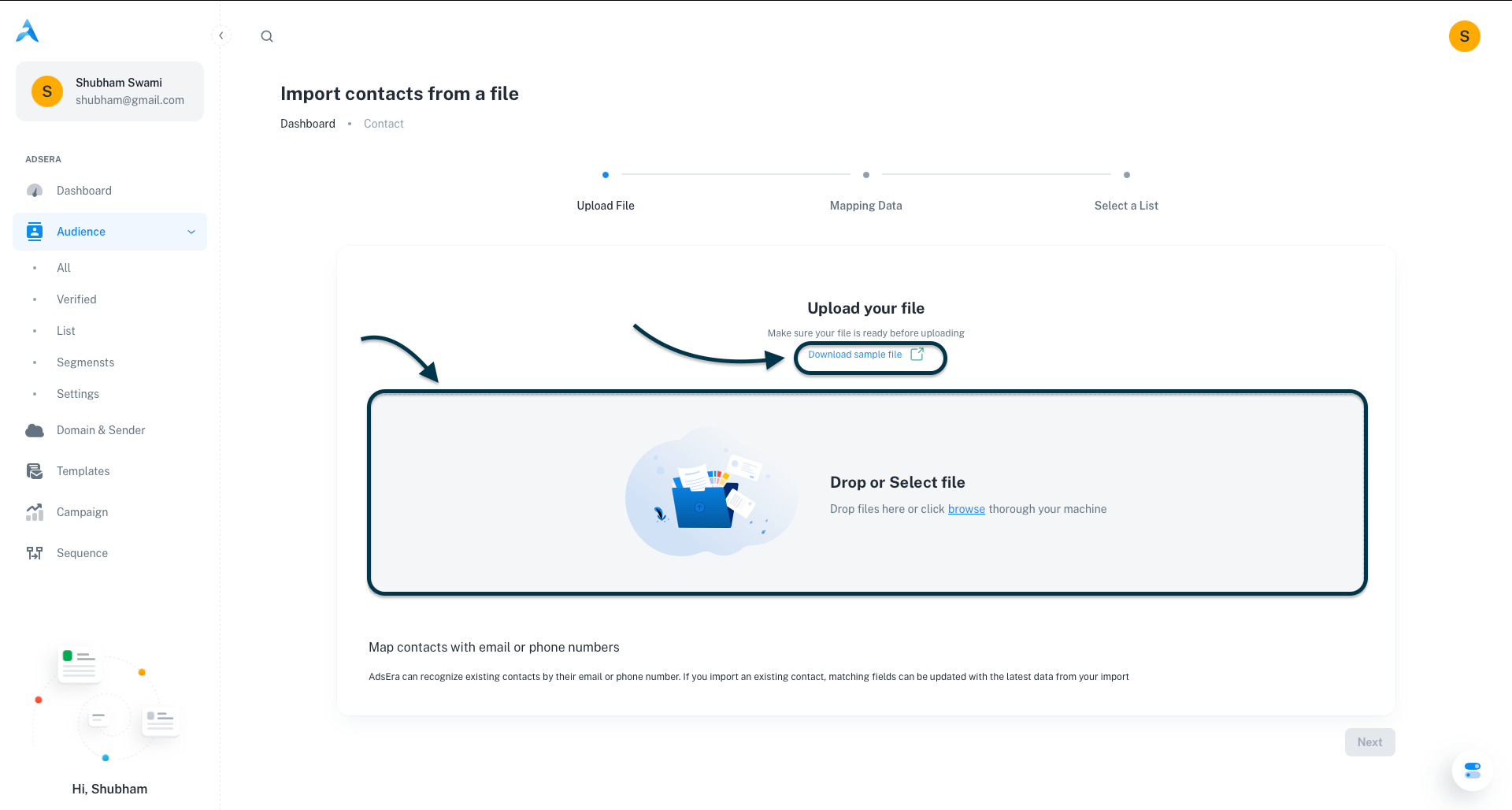
Tip: If you need a template to structure your data correctly, click the “Download sample file” link.
3
3. Confirm and Preview Your Data
After a successful upload, AdsEra will display a preview of the first few rows of your data. Review the table to ensure your columns and data appear correctly, then click Next.
4
4. Map Fields to Platform Fields
This crucial step matches your file’s columns to the corresponding fields in AdsEra.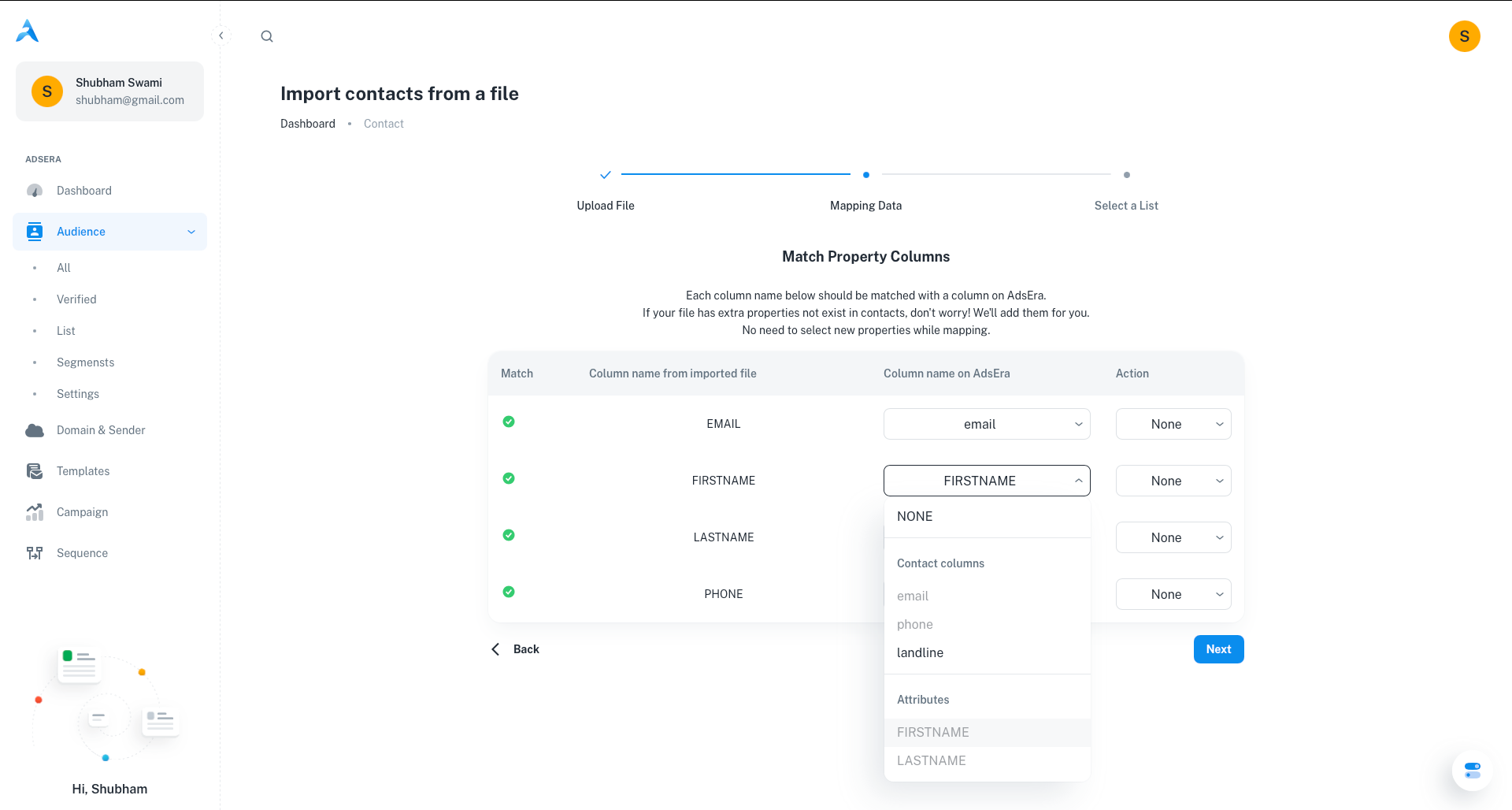
- Verify Mapping: The system will attempt to auto-map your columns. Double-check that each “Column name from imported file” is correctly matched to a “Column name on AdsEra”.
- Set Duplicate Handling: For each column, choose an action for updating existing contacts:
- Overwrite: Replaces existing data with the new data.
- Fill only if empty: Only adds data if the field is currently blank.
- Skip: Ignores the new data for that field if the contact already exists.
5
5. Assign to a Contact List
Every contact you import must be assigned to at least one list.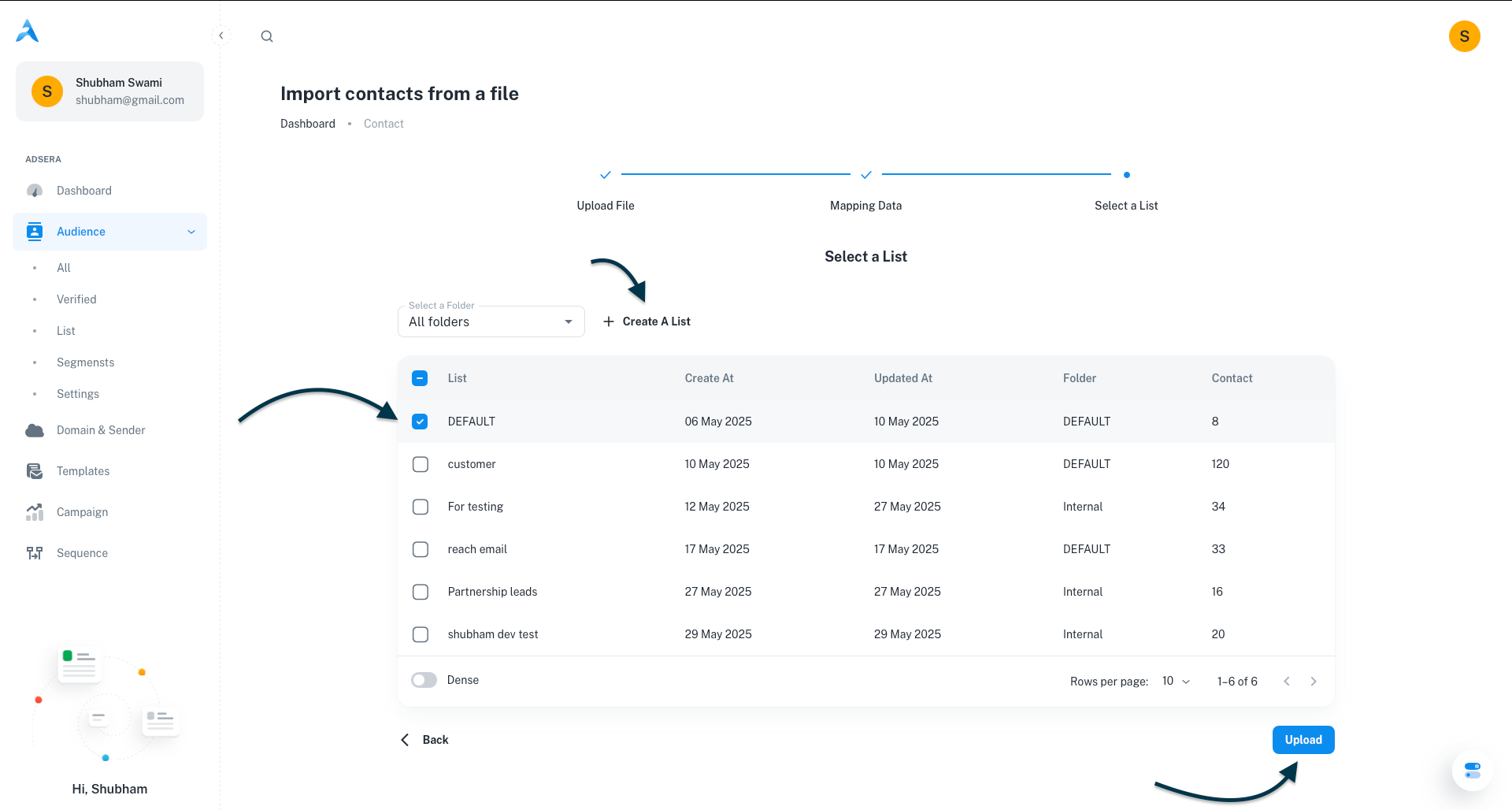 Once you’ve selected a list, click Upload.
- Select an existing list: Choose from your current contact lists.
- Create a new list: Click the “Create A List” button and give your new list a name.
Once you’ve selected a list, click Upload.After the Upload
After clicking Upload, AdsEra will process your file. You will receive a confirmation report detailing the number of successful and failed imports, along with specific reasons for any failures.Troubleshooting Common Errors
Pro Tips for a Smooth Import
Clean Your Data Before Importing
Clean Your Data Before Importing
Take a moment to clean your data first. Remove any unnecessary characters, extra spaces, or inconsistent formatting to ensure a smooth import.
Test with a Small Batch
Test with a Small Batch
If you’re importing a very large list for the first time, try importing a small sample (5-10 contacts) to ensure everything maps and imports as expected.
Review Mapping Carefully
Review Mapping Carefully
The mapping step is critical! Double-check that your columns are correctly aligned with AdsEra’s fields to avoid data discrepancies.