

Global Setting: Please note that the settings configured on this page are applied globally to all of your connected WhatsApp Business Accounts (WABAs).
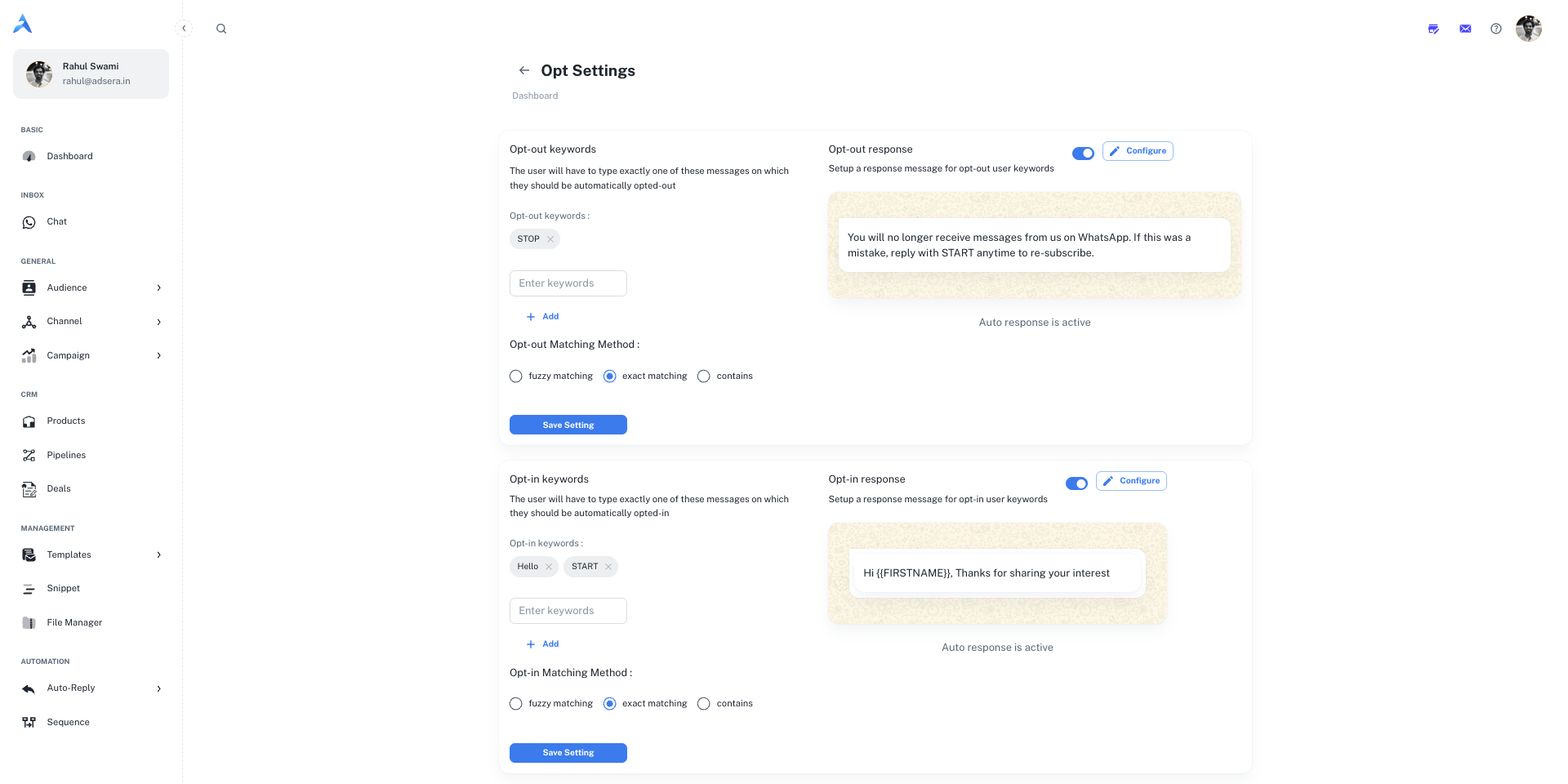
Opt-Out Settings
This section controls how users can automatically unsubscribe from your messages.Opt-Out Keywords
Here you can define a list of keywords that will automatically trigger an opt-out. When a user sends a message containing one of these exact keywords (e.g.,
STOP), their WhatsApp subscription status will be updated to “unsubscribed.”- To add a keyword: Type it into the “Enter keywords” field and click Add.
- To remove a keyword: Click the
xon the keyword’s chip.
Opt-Out Matching Method
You can choose how strictly the system matches the keywords sent by users:- Fuzzy matching: Allows for minor misspellings.
- Exact matching: The user’s message must match your keyword perfectly.
- Contains: The user’s message must contain your keyword anywhere within it.
Opt-Out Response Message
You can configure an automatic message that is sent to a user immediately after they opt out.- Enable/Disable: Use the toggle switch to turn this automated response on or off.
- Configure: Click the “Configure” button to edit the content of the response message. A common best practice is to confirm the unsubscribe action and let them know how to re-subscribe, as shown in the preview.
Opt-In Settings
This section controls how users can subscribe or re-subscribe to your WhatsApp messages.Opt-In Keywords
Define a list of keywords that will automatically opt a user in. When a user who is not currently subscribed sends one of these keywords (e.g.,
START), their WhatsApp subscription status will be set to “subscribed.”- To add a keyword: Type it into the “Enter keywords” field and click Add.
- To remove a keyword: Click the
xon the keyword’s chip.
Opt-In Matching Method
Similar to the opt-out settings, you can define the logic for matching keywords:fuzzy matching, exact matching, or contains.
Opt-In Response Message
Set up an automated welcome message for new subscribers.- Enable/Disable: Use the toggle switch to turn this automated welcome message on or off.
- Configure: Click the “Configure” button to edit the content of the response message. This is a great place to thank the user for subscribing and set expectations.