

How to Access Your Campaign Report
1
1. Navigate to Your Campaign List
From your AdsEra Dashboard, click on Campaigns then Email in the left-hand navigation bar.
2
2. Select a Campaign
On the Campaign List page, locate the sent campaign you wish to analyze.
3
3. Open the Report
On that campaign’s card, click the “View complete campaign analysis” button or open the three-dots (…) menu and select Report.
Understanding the Report Interface
At the top of your report, you’ll find essential campaign details and a graph filter that applies to all tabs.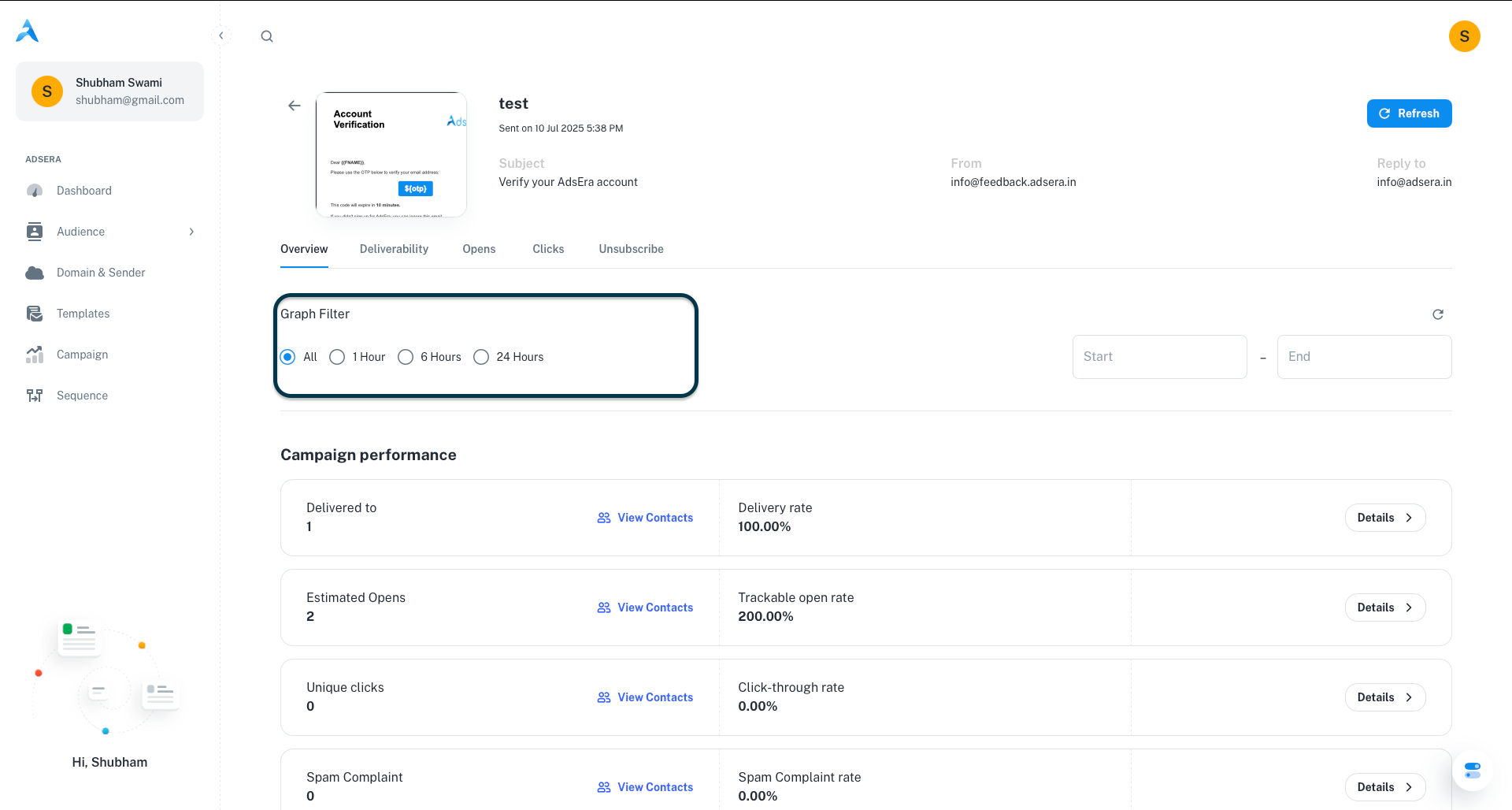
- Campaign Details: Includes the Subject, From address, and Reply to address.
- Graph Filter: Allows you to view performance data over specific timeframes: 1 Hour, 6 Hours, 24 Hours, or a custom date range.
- Overview
- Deliverability
- Opens & Clicks
- Unsubscribe
The Overview tab is your go-to for a quick summary of your campaign’s key performance indicators (KPIs).
Below these metrics, a graph visualizes key activities (Opens, Clicks, Bounces, etc.) over time.
Pro Tips for Analyzing Your Reports
Benchmark Your Performance
Compare your campaign’s performance against your own past campaigns and industry averages to set clear goals for improvement.
Create New Segments
Use the “Create New List” feature in each tab to build new segments of highly engaged users (like “All Clickers”) or unengaged users for re-engagement campaigns.