

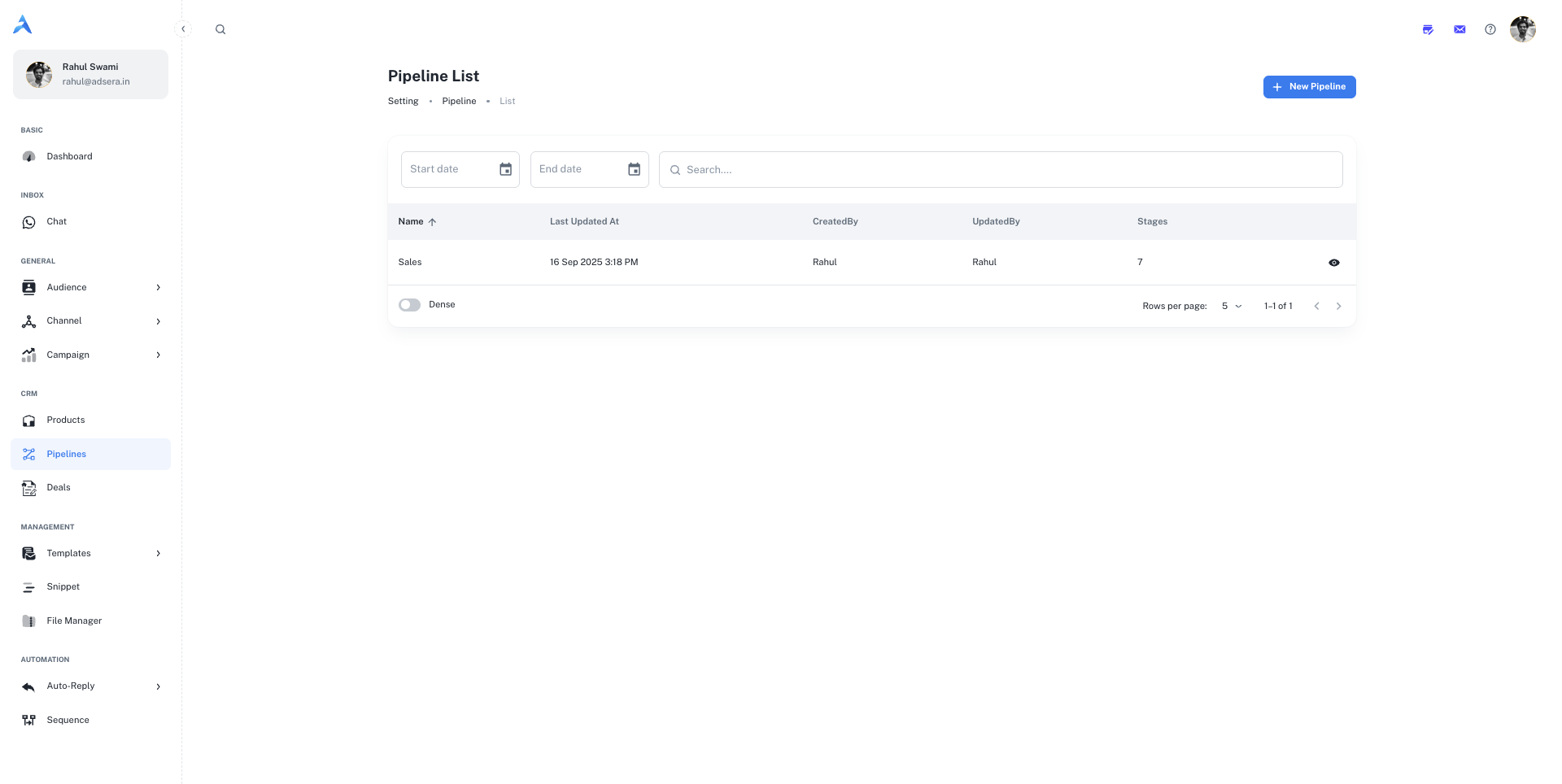
The Pipeline List
This page gives you an overview of all the sales pipelines you have created. You can search for a specific pipeline or filter the list by a date range to see pipelines created within that period.Understanding the Table Columns
Creating and Editing a Pipeline
Clicking the ”+ New Pipeline” button or editing an existing one opens a side panel where you can define the pipeline’s structure.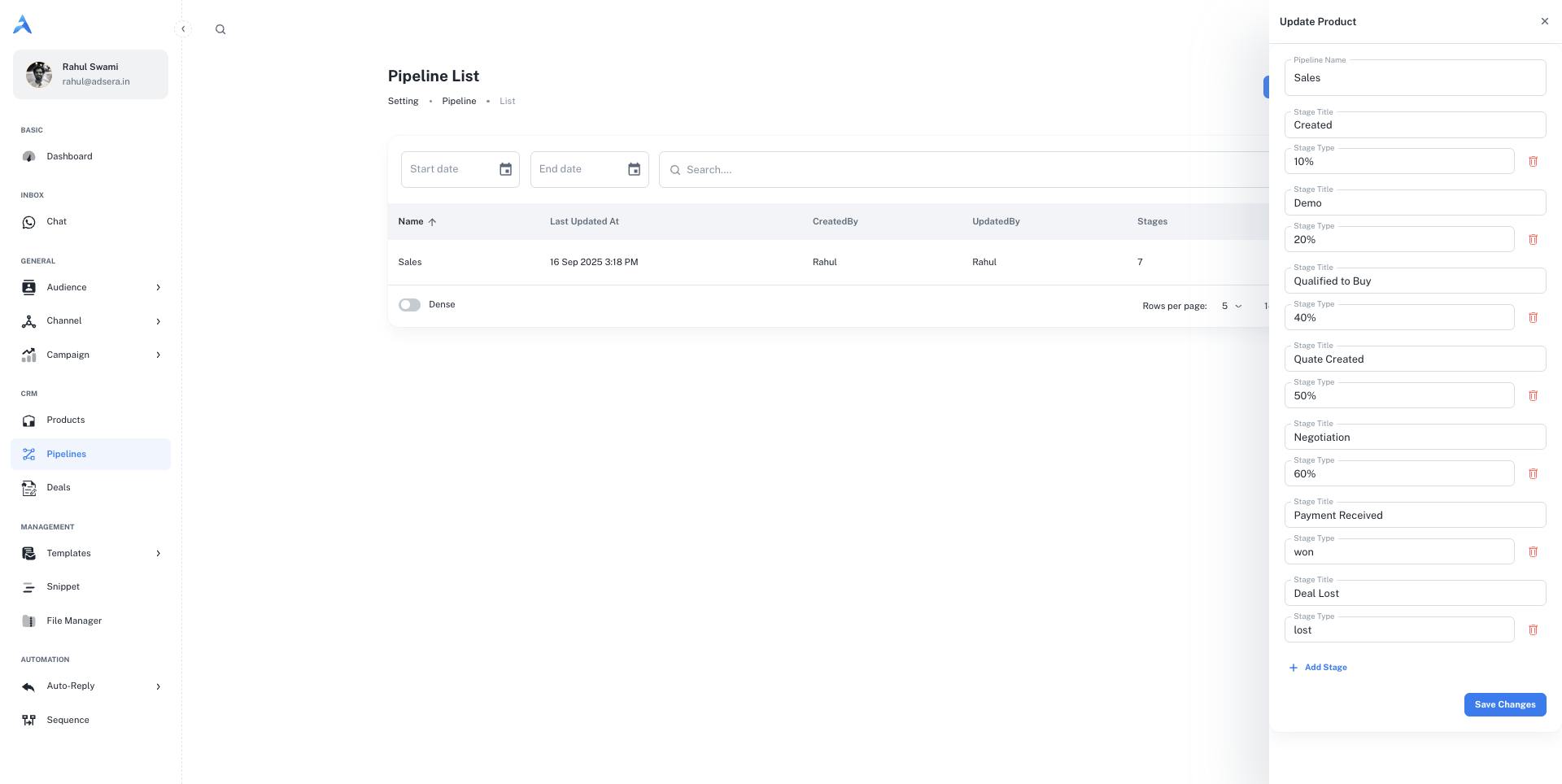 A pipeline consists of a name and a series of stages that a deal will move through.
1. Naming Your Pipeline
The first step is to give your pipeline a clear, descriptive name that reflects its purpose, such as “Standard Sales Process” or “Partnership Pipeline”.2. Defining Pipeline Stages
Stages represent the key milestones in your sales process. You can add, reorder, and customize each stage. For each stage, you must define:- Stage Title: A short, clear name for the stage (e.g.,
New Lead,Demo Scheduled,Contract Sent). - Stage Type (Probability): The likelihood of a deal in this stage being won, expressed as a percentage (e.g.,
10%,50%,90%). This is used for sales forecasting. You can also selectwonorlostfor the final stages.
Managing Stages
- Add a Stage: Click the ”+ Add Stage” button to add a new row to your pipeline.
- Reorder Stages: Use the drag-and-drop handles to rearrange the order of your stages to match your sales workflow.
- Delete a Stage: Click the trash can icon (🗑️) to remove a stage.
How Pipelines Work with Deals
The Heart of Your CRM
The pipelines you create here are the framework for managing your sales opportunities. Each opportunity is represented as a Deal, which is then placed in a specific stage of a pipeline. As the deal progresses, you simply drag and drop it from one stage to the next, giving your entire team a real-time visual update on your sales efforts.Learn more about Managing Deals.