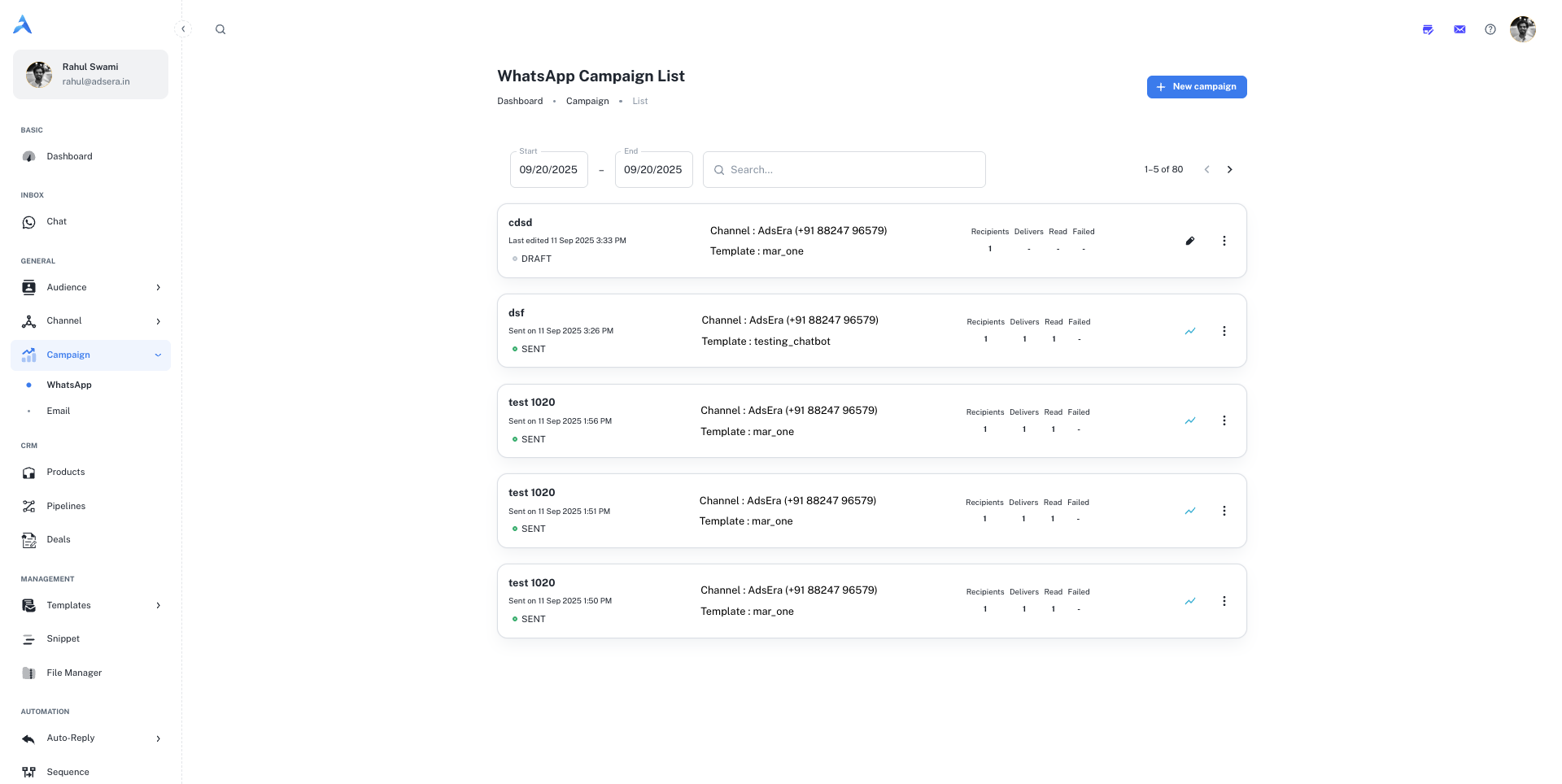
Want to Manage WhatsApp Campaigns? Go to the AdsEra WhatsApp Campaign Page → The WhatsApp Campaign List is your command center for managing all your WhatsApp marketing efforts. This page provides a real-time snapshot of all your campaigns, allowing you to quickly assess performance, create new campaigns, and manage existing ones with ease. The WhatsApp Campaign List page. Accessing your list is simple:
1

Select Campaigns

From your AdsEra Dashboard, click on Campaigns in the left-hand navigation bar.
2

Choose WhatsApp

From the campaign submenu, select WhatsApp to view your list.

Anatomy of a WhatsApp Campaign Card

Each card on the list represents an individual WhatsApp campaign and provides key information at a glance. Here’s a detailed breakdown:
SectionField / MetricDescription
HeaderCampaign NameThe internal name you assigned to your campaign for easy identification.
Sent On / Last UpdatedThe date and time the campaign was sent. For drafts, this shows the last time it was modified.
Status TagA color-coded tag indicating the campaign’s current status: DRAFT or SENT.
DetailsChannelThe specific WhatsApp Business Account (WABA) number used to send the campaign.
TemplateThe name of the pre-approved WhatsApp Message Template used for the campaign.
MetricsRecipientsThe total number of unique contacts the campaign was sent to.
DeliversThe number of messages successfully delivered to the recipients’ devices.
ReadThe number of recipients who have read the message (indicated by blue ticks).
FailedThe number of messages that failed to deliver.

Searching and Filtering Your Campaigns

To help you find specific campaigns quickly, you have powerful filtering options at the top of the page:
  • Date Range Filters: Use the Start and End date pickers to narrow down your list to campaigns sent within a specific period.
  • Search Bar: Type into the Search… field to find campaigns by their name.

Actions: Managing Your Campaigns

Each campaign card provides direct actions to help you manage your campaigns effectively.
To start building a new broadcast, click the ”+ New campaign” button located at the top right of the page. This will take you to the WhatsApp campaign creation wizard.For a full walkthrough, see our guide on Creating a WhatsApp Campaign.
For any sent campaign, click the analytics icon (📊) to navigate to a detailed report. Here you can find in-depth statistics, including a timeline of delivery and read receipts for each contact.Learn more in our guide to Analyzing WhatsApp Campaign Reports.
The three-dots (…) menu on each card reveals a dropdown with several key actions:
  • Start: For Draft campaigns, this allows you to initiate the sending or scheduling process.
  • Copy: Creates an exact duplicate of the campaign, including its template, settings, and recipients.
  • Edit: (Appears as a pencil icon ✏️ on Drafts) Allows you to make changes to the campaign’s setup before sending.
  • Delete: Permanently removes the campaign from your list.
    This action cannot be undone. All data associated with the campaign will be lost.