

Prerequisites
Before you start, make sure you have the following:Contact Data Ready
Have your contact information ready in a spreadsheet (like Google Sheets or Excel) or a text editor.
Required Identifier
Your data must include either an
EMAIL or a PHONE column. At least one of these is required to identify and manage contacts.Contact Consent
Remember, you must have your contacts’ consent to send them marketing campaigns.
Step-by-Step Import Process
Follow these steps to import your contacts using the copy-paste method.1
1. Navigate to the Import Screen
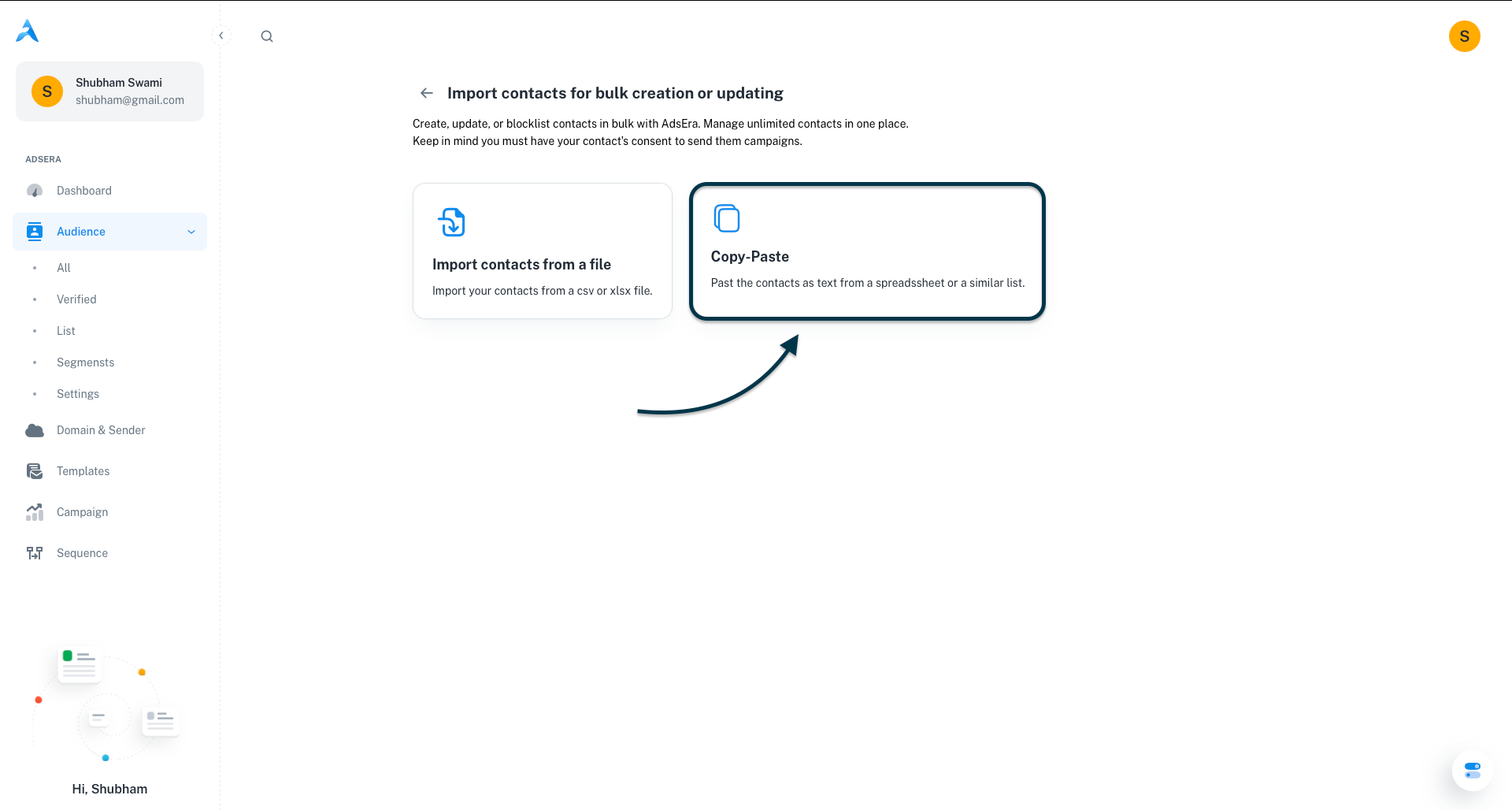
From your AdsEra Dashboard, navigate to Audience > All. In the top-right corner, click the Import contact button. On the next screen, select the Copy-Paste method.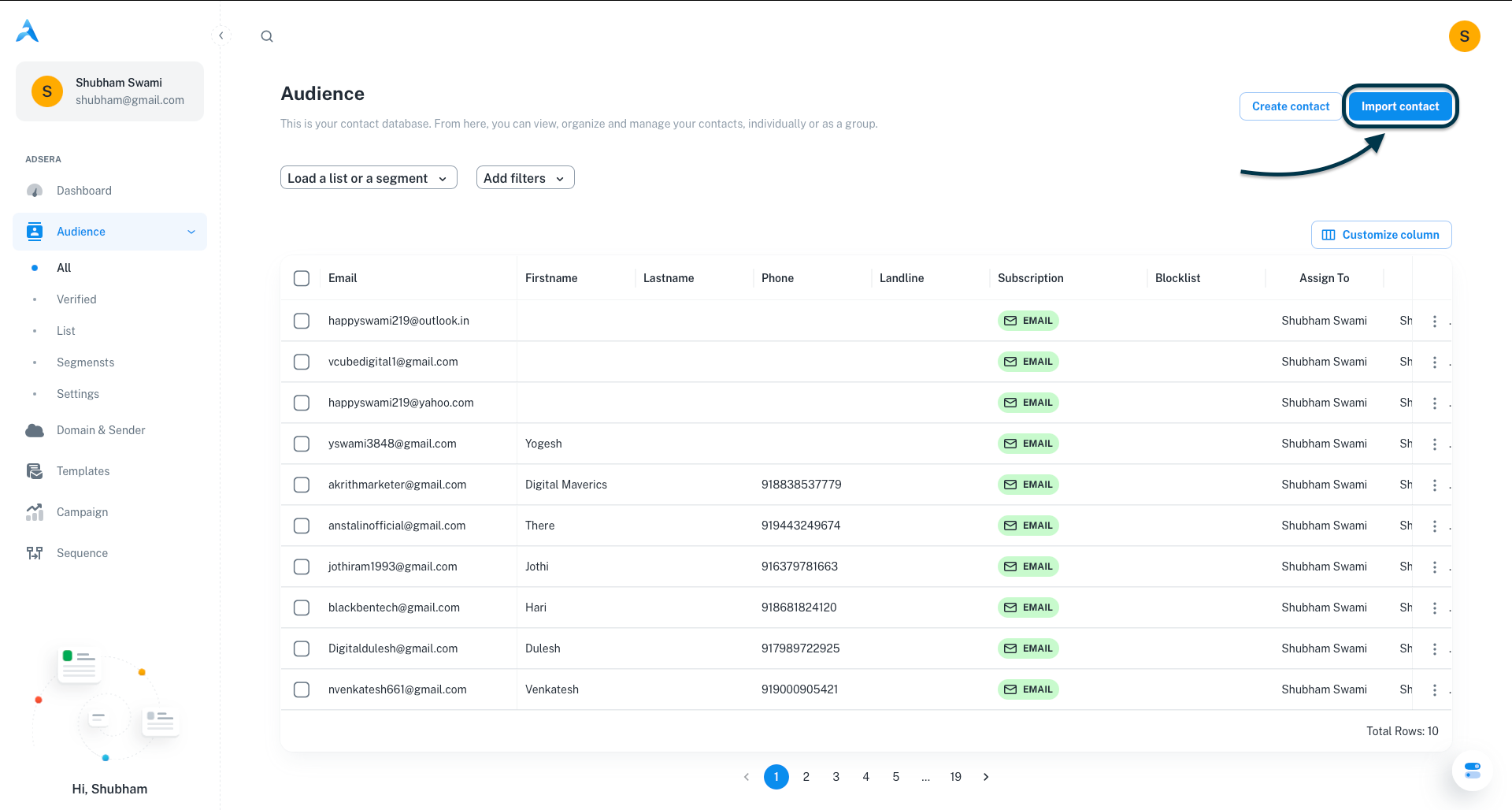
2
2. Format and Copy Your Data
Before pasting, ensure your data is correctly formatted in your spreadsheet or text file.Once formatted, select and copy your data (including the header row).
- Column Headers: Your data must start with a header row (e.g.,
EMAIL,FIRSTNAME). - Comma-Separated: Each value in a row must be separated by a comma.
- Required & Optional Columns:
EMAILis mandatory. You can also includeFIRSTNAME,LASTNAME,PHONE, andLANDLINE. Any extra columns will be saved as custom attributes.
3
3. Paste Your Data
Paste your copied data directly into the text area provided on the import screen, then click Next.
4
4. Confirm Your Data
AdsEra will display a preview of your data in a table. Review it to ensure your columns and rows appear correctly, then click Next.
5
5. Map Your Fields
This crucial step matches your data columns to the corresponding fields in AdsEra. The system will attempt to auto-map them.Verify Mapping: Ensure each “Column name from imported file” is correctly matched to a “Column name on AdsEra”.Set Duplicate Handling: For each column, choose an action for updating existing contacts:Overwrite: Replaces existing data with the new data.Fill only if empty: Only adds data if the field is currently blank.Skip: Ignores the new data for that field if the contact already exists.
6
6. Assign to a Contact List
Every contact you import must be assigned to at least one list.Select an existing list: Choose from your current contact lists.Create a new list: Click the “Create A List” button and give your new list a name.Once you’ve selected a list, click Upload.
7
7. Review the Confirmation Report
Congratulations! Your contacts are now being imported. After processing, you’ll receive a confirmation report detailing the number of successful and failed imports, along with reasons for any failures.