

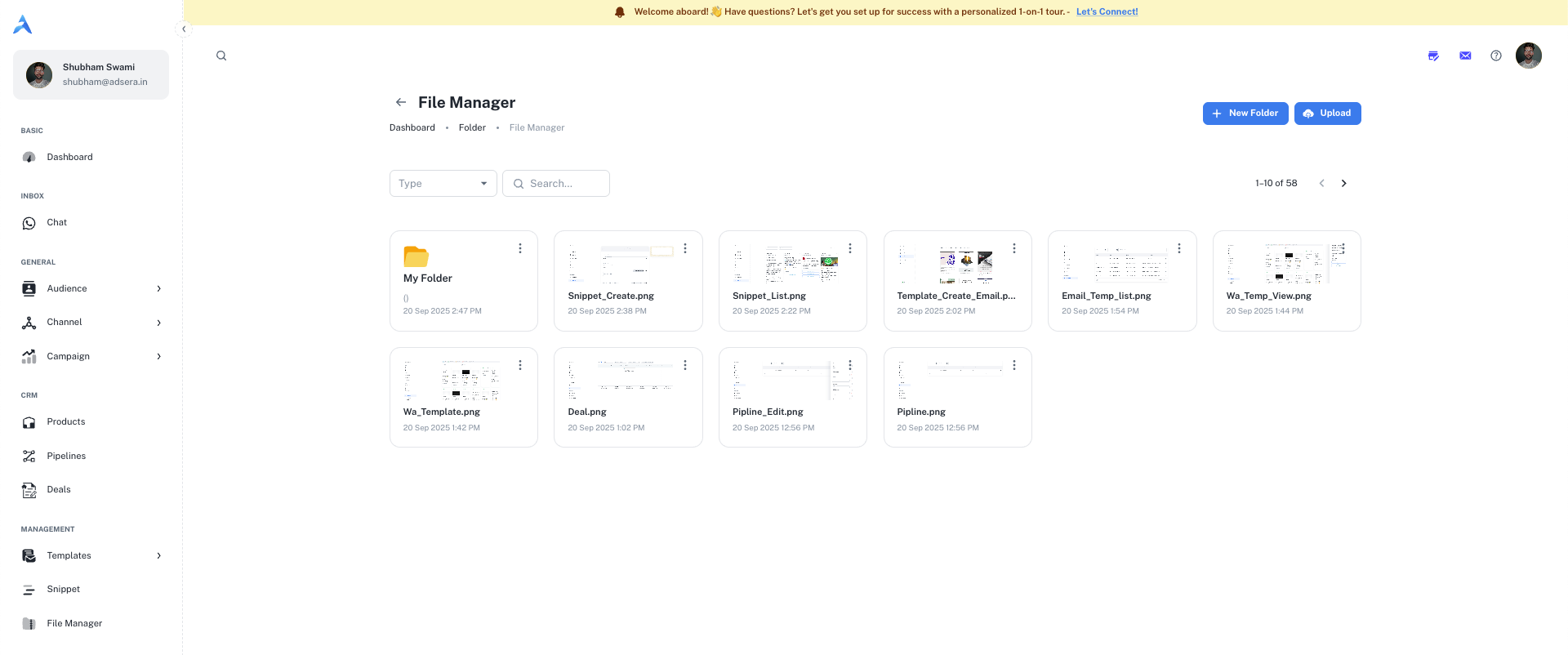
Navigating Your File Manager
The File Manager uses a standard folder-based system.- Root View: The main page displays all your top-level folders.
- Folder View: Clicking on a folder will take you inside it, showing all the files and sub-folders it contains. Use the breadcrumbs at the top to navigate back to parent folders.
Managing Folders and Files
You can manage your assets using the actions at the top of the page and on individual items.New Folder
Click the “New Folder” button to create a new folder. A pop-up will appear asking for a Folder name and an optional Description.
Upload
Click the “Upload” button to add new files. This will open a modal where you can select the file type and choose whether the file should be Public or Private.
Search
Use the Search… bar to quickly find a specific file or folder by its name within your current view.
File & Folder Actions (⋮)
Each file and folder has a three-dots (…) menu that appears when you hover over it. This menu contains two actions:- View: Opens the file in a new browser tab for a full preview.
- Delete: Permanently removes the file or folder from your library.
Public vs. Private Files
When uploading a file, you must choose its visibility. This is a critical security setting.Public Files
Public Files
- Accessibility: Public files are accessible to anyone with the direct link.
- Use Case: Ideal for images in email campaigns, marketing materials, or any asset you intend to share widely. The URL for these files does not expire.
Private Files
Private Files
- Accessibility: Private files are secure and cannot be accessed directly via a public URL.
- Use Case: Perfect for sensitive documents like invoices, contracts, or internal reports.
- Secure Viewing: When you need to view a private file, AdsEra generates a temporary, secure URL that expires after 60 seconds. This ensures the file cannot be shared or accessed later.
The File Manager is your single source of truth for assets. When you build a Snippet or an Email Template and need to add an image or document, you can select it directly from your File Manager.