

How to Access Your Campaign Report
1
1. Navigate to Your Campaign List
From your AdsEra Dashboard, click on Campaigns > WhatsApp.
2
2. Select a Campaign
On the Campaign List page, locate the sent campaign you wish to analyze.
3
3. Open the Report
On that campaign’s card, click the analytics icon (📊) to open the detailed report.
Understanding the Report Interface
At the top of your report, you’ll find a preview of your message, essential campaign details, and a graph filter that applies to all tabs.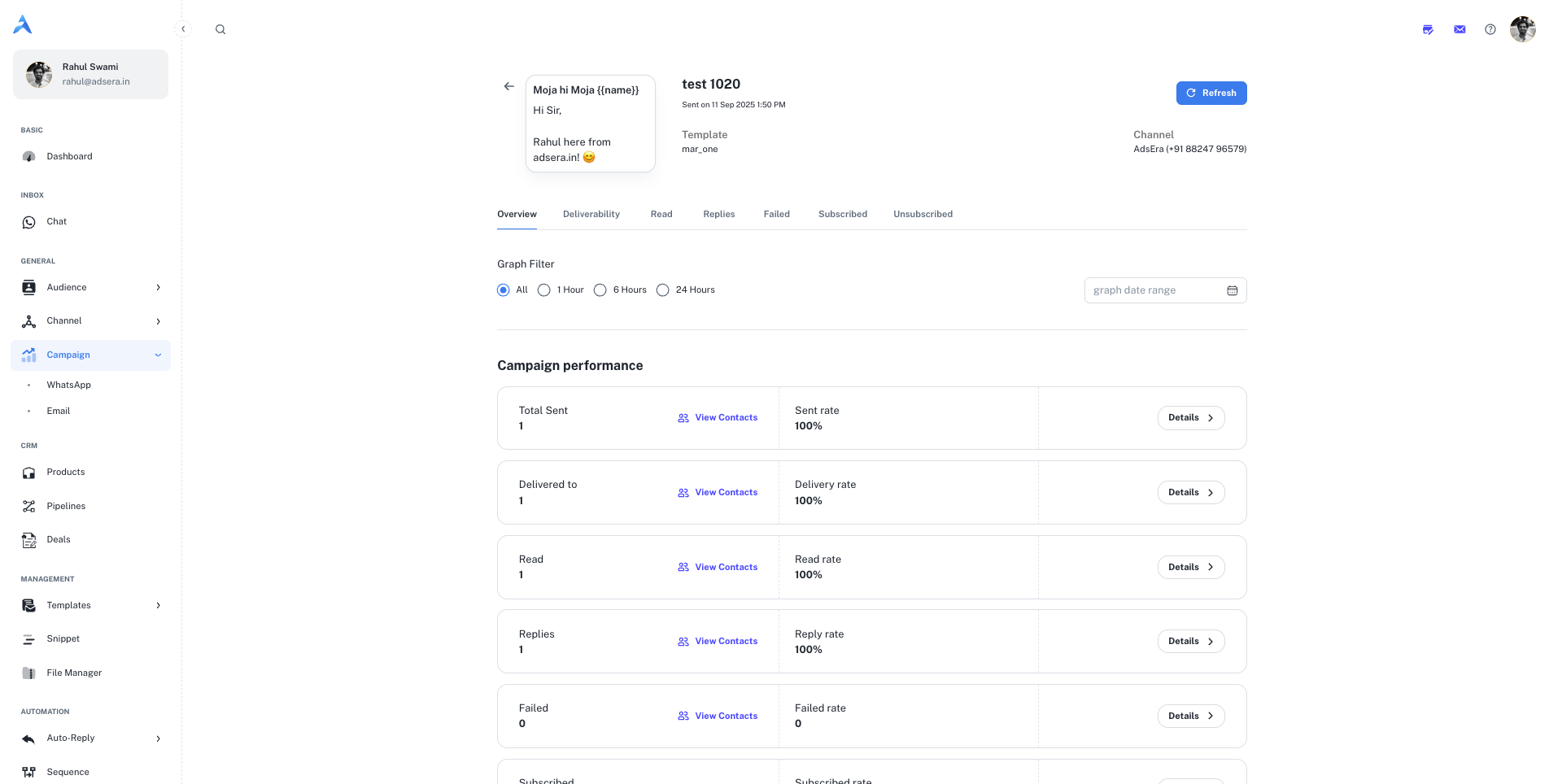
- Campaign Details: Includes the Campaign Name, Sent On time, the Template used, and the sending Channel (WABA).
- Graph Filter: Allows you to view performance data over specific timeframes: 1 Hour, 6 Hours, 24 Hours, or a custom date range.
- Overview
- Deliverability
- Read
- Replies
- Failed
- Subscribed & Unsubscribed
The Overview tab provides a high-level summary of your campaign’s key performance indicators (KPIs).
Below the metrics, a graph visualizes these key activities over time, helping you identify trends.
Pro Tips for Analyzing Your Reports
Focus on the Read Rate
Unlike email, WhatsApp’s read receipts give you a very accurate measure of engagement. A high delivery rate but a low read rate might indicate that your message was sent at a bad time or that the contact is no longer active.
Analyze Replies for Insights
The “Replies” tab is a goldmine of customer feedback. Analyze the
Reply Msg column to understand customer questions, feedback, and interest levels, which can inform your next campaign.Use Smart Segregation for Retargeting
The “Retargeting” button is a powerful feature. Create follow-up campaigns for users who read but did not reply, or for those who replied with specific keywords, to create highly personalized customer journeys.