

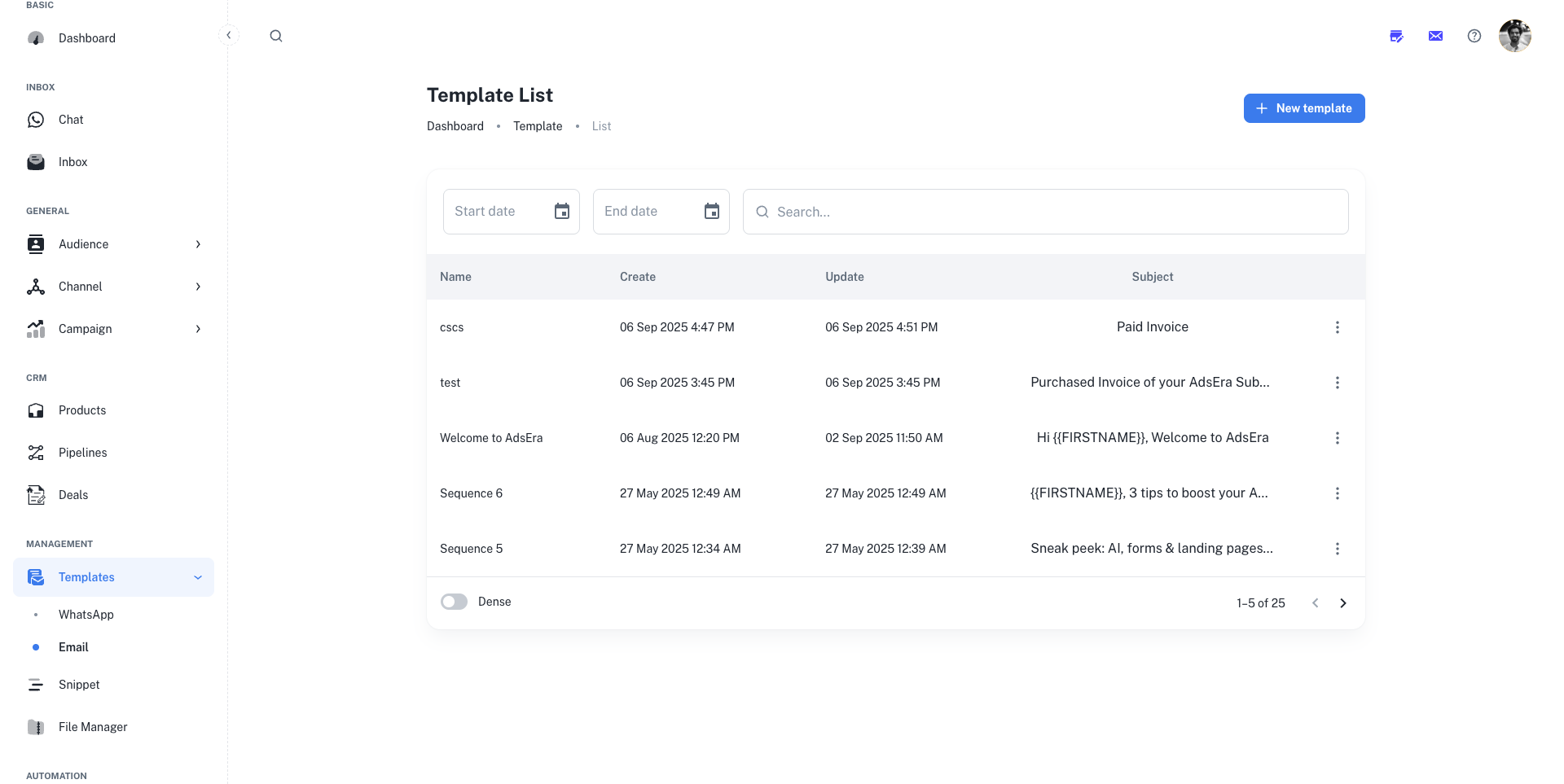
Your Template Library
The main page gives you an organized view of all your existing templates in a table format, allowing you to quickly find what you need.Understanding the Template List
Filtering and Searching
- Search Bar: Use the search bar at the top to find a template by its Name or Subject.
- Date Range Filters: Use the Start date and End date fields to narrow down your list to templates created or updated within a specific period.
Creating a New Template: Step-by-Step Guide
Clicking the ”+ New template” button launches the creation wizard, which is broken down into two main phases: Setup and Design.1
Phase 1: Setup Your Template
The first screen focuses on the essential details of your template: its internal name and the subject line your recipients will see.
- Template Name: Enter a clear and descriptive internal name. This is only for you and your team. Pro Tip: Use names that reflect the template’s purpose, like “Welcome Series - Email 1” or “Monthly Newsletter - August.”
-
Subject Line: Craft your subject line. To make it more engaging, click the “Add personalization” button to insert dynamic variables like
{{FIRSTNAME}}. Example:Hello {{FIRSTNAME}}, here are your weekly insights!
2
2. Phase 2: Choose a Design Method
AdsEra offers four flexible ways to design your template, catering to all needs and skill levels. Choose one of the following tabs: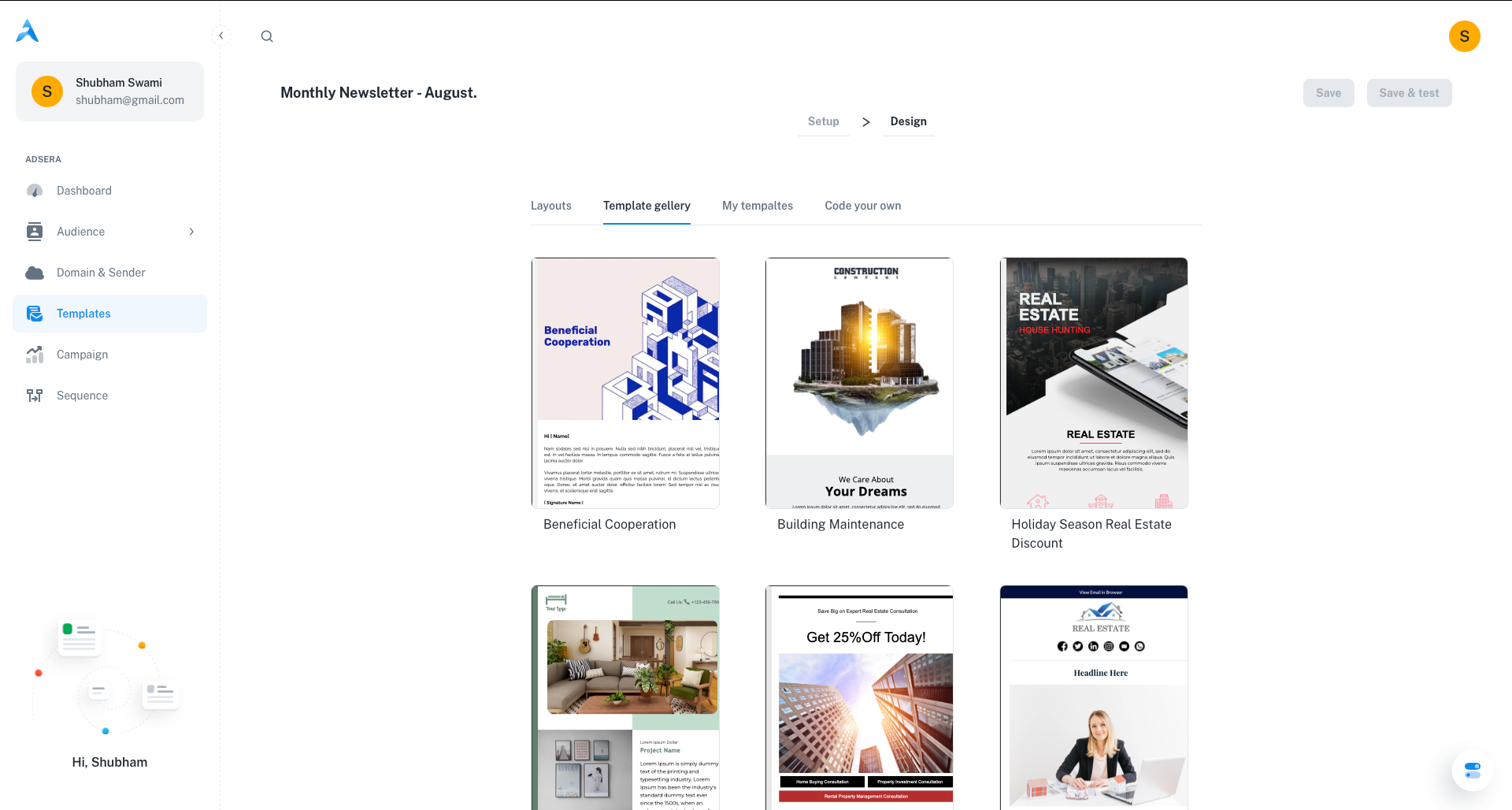
Layouts & Template Gallery
Layouts & Template Gallery
- Layouts: Start with a basic, pre-defined structure. Layouts provide a clean foundation with placeholders for you to drag and drop your own content blocks, images, and text.
- Template Gallery: Browse a collection of professionally designed, pre-built templates for various use cases (e.g., newsletters, promotions). These are fully customizable and a great way to get started quickly.
My Templates
My Templates
Select one of your previously saved templates to edit or duplicate. This is the best option for maintaining consistent branding across your campaigns and saving time.
Code Your Own
Code Your Own
For advanced users, this option provides maximum flexibility with three different editors:
- Email Builder: Use our intuitive drag-and-drop editor to build a template visually.
- Paste your code: Switch to the HTML editor to paste in your own custom code directly.
- Text builder: A rich text editor for creating simple, text-based emails. This is great for a more personal, less-designed feel.
3
3. Phase 3: Design Your Content
Once you’ve chosen a starting point, you’ll enter the template design environment.
- Using the Drag & Drop Email Builder: Drag content blocks (text, images, buttons) onto your template. Click on any block to edit its content and styling. This requires no coding knowledge.
- Using the HTML / Text Editor: If you chose to paste your own code or use the text builder, you can write and format your content directly in the editor provided.
4
4. Phase 4: Save and Test Your Template
Once you’re satisfied with your design, use the buttons at the top right of the screen.
Save
Saves the template to your “My Templates” library for future use in campaigns or automations.
Save and Test
Highly Recommended! This allows you to send a test version to a contact (like yourself) to check for typos, broken links, correct personalization, and how it renders in a real inbox.
Pro Tips for Effective Templates
Mobile-Friendly Design
Mobile-Friendly Design
Always keep mobile users in mind. Use responsive templates or test your custom HTML to ensure it looks great on all devices, as a majority of emails are opened on mobile.
Branding Consistency
Branding Consistency
Incorporate your brand’s colors, logos, and fonts to maintain a consistent look and feel across all your communications. This builds recognition and trust.
Clear Call-to-Actions (CTAs)
Clear Call-to-Actions (CTAs)
Make your CTAs prominent and easy to understand. Use action-oriented language on your buttons to tell recipients exactly what you want them to do next (e.g., “Shop Now,” “Read More,” “Get Your Free Trial”).