

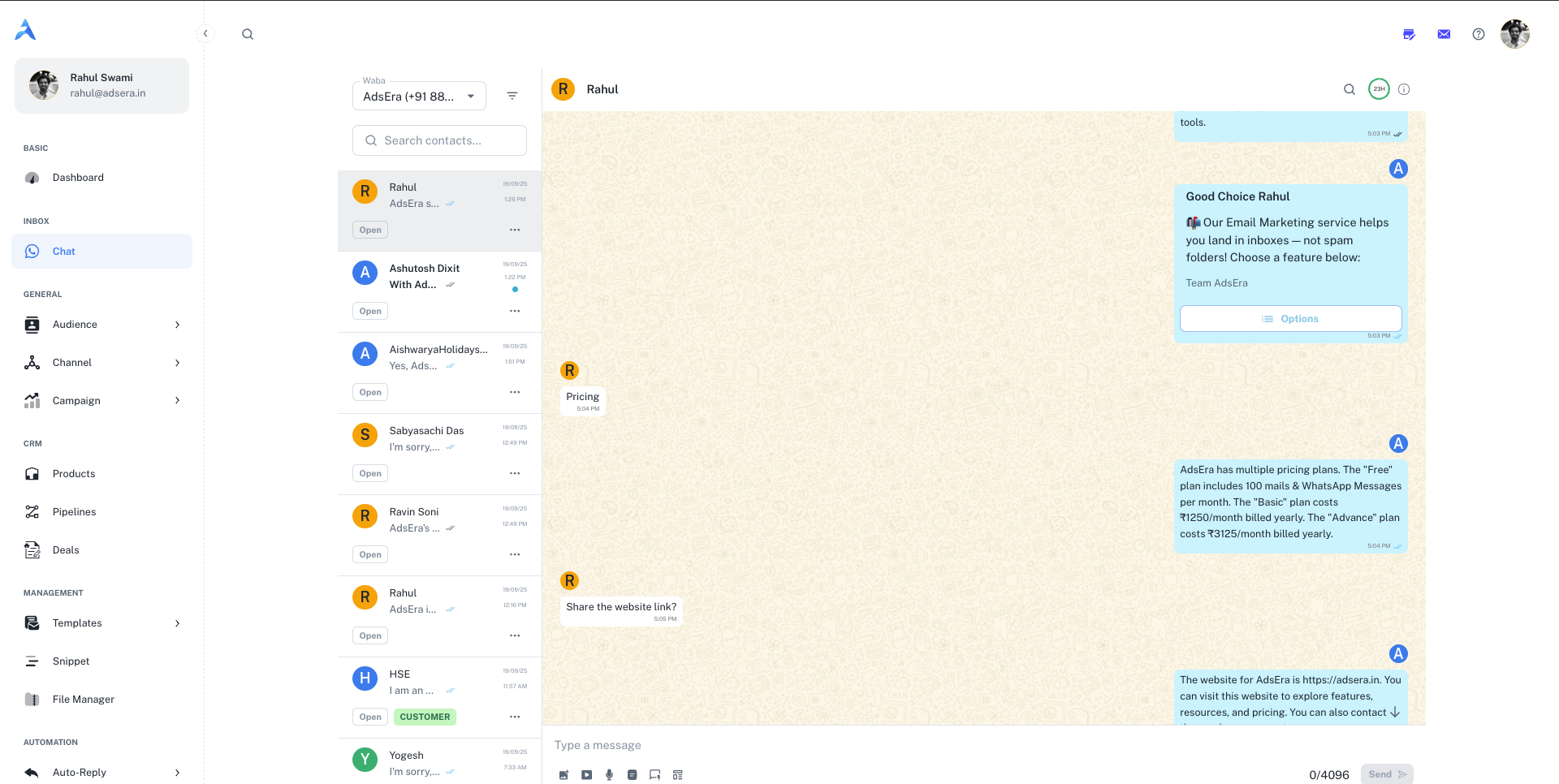
 The inbox is organized into three main panels: the Conversation List, the Chat Window, and the Contact Details panel. Each is packed with tools to make your workflow faster and more organized.
1. The Conversation List (Left Panel)
This panel on the left displays all your ongoing conversations. It’s designed to help you quickly find and prioritize customer chats.WABA Selector
At the very top, you’ll find a dropdown menu to select your WhatsApp Business Account (WABA). If you have multiple WhatsApp numbers connected to AdsEra, you can switch between them here to view and respond from the correct number.Searching and Advanced Filtering
- Simple Search: Use the Search contacts… bar to quickly find a conversation by name or phone number.
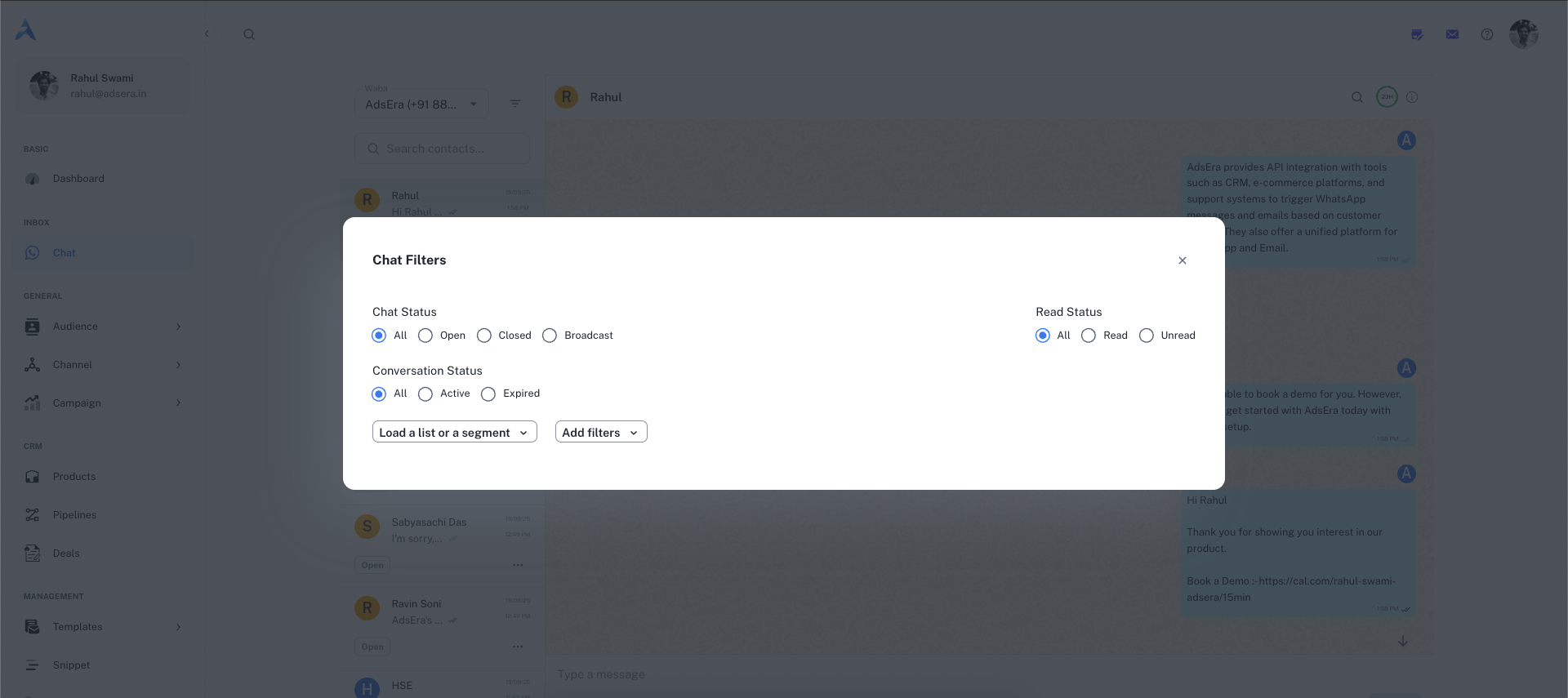
- Advanced Filters: Click the filter icon (ᯤ) next to the search bar to open the “Chat Filters” modal. This powerful tool allows you to create specific views of your inbox based on multiple criteria.
Filter by Status
Filter by Status
- Chat Status: Find conversations that are
All,Open,Closed, or part of aBroadcast. - Read Status: Isolate
All,Read, orUnreadmessages. - Conversation Window: Filter for
All,Active(within the 24-hour window), orExpiredconversations.
Filter by Audience
Filter by Audience
Use the “Load a list or a segment” dropdown to instantly view chats from contacts who are part of a specific list or dynamic segment you’ve created in the Audience section.
Filter by Custom Rules
Filter by Custom Rules
For the most granular control, you can build your own filter logic:
- Select a condition (e.g., “Recipient of campaign(s)”, “Email address”, “Subscribed whatsapp”).
- Choose an operator (e.g., “is equal to”, “contains”).
- Provide a value to filter by.
- Chain multiple rules together using the AND / OR buttons to create complex queries.
2. The Chat Window (Center Panel)
This is where the direct interaction with your customer happens.Chat Header
- Contact Info: Shows the name and avatar of the customer.
- Message Search: Click the search icon to find specific text within the current conversation history.
- 24-Hour Session Timer: A circular progress bar that shows how much time is left in WhatsApp’s 24-hour customer service window.
- Contact Details: Click the information icon (
ⓘ) to open the full Contact Details panel on the right.
Message Timeline & Status
To see the exact delivery timeline of a message you’ve sent, hover over the message bubble. An info icon (ⓘ) will appear. Clicking it opens a “Message info” drawer from the left.
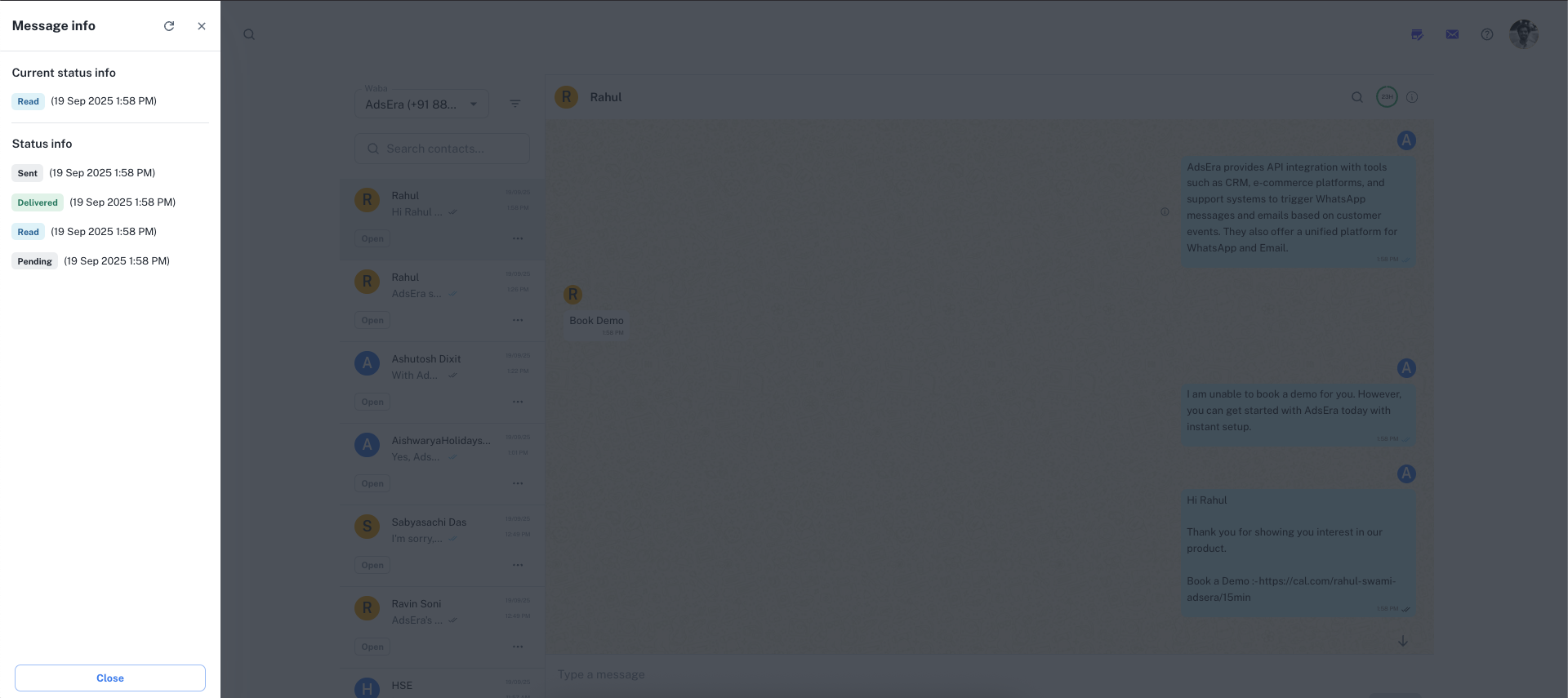 This drawer shows the precise timestamps for each status:
- Sent: The time the message left AdsEra’s servers.
- Delivered: The time the message was successfully delivered to the recipient’s device.
- Read: The time the recipient opened and read the message.
The Message Composer
This is where you write your replies. The composer’s functionality changes based on the 24-hour session window.- Active Conversation (Within 24 Hours)
- Expired Conversation (After 24 Hours)
While the session timer is active, you have full access to the composer:
- Text Area: Type any free-form message up to 4096 characters.
- Attachments: Send rich media like images (5MB), videos (16MB), audio (16MB), or documents (100MB).
- Snippets & Templates: Use quick replies or pre-approved templates to respond faster.
Using Snippets and Message Templates
Using Snippets (Quick Replies)
Using Snippets (Quick Replies)
Snippets are saved, reusable text blocks for answering common questions quickly and consistently.
- Click the snippet icon in the composer.
- In the “Snippets” modal, search or select the snippet you need. They can include personalization variables like
{{FIRSTNAME}}. - Clicking a snippet will instantly populate it in your message composer.
To learn how to create and manage your own snippets, see our Snippets Management guide.
Using Message Templates
Using Message Templates
Message Templates are required to start a new conversation or to reply to a customer after the 24-hour window has expired. These must be pre-approved by Meta.
- Click the template icon in the composer.
- In the “Select template” modal, browse and choose your desired template.
- If the template contains variables (e.g.,
{{name}}), a new “Variables” modal will appear. Here you can fill in the dynamic content. You can either select a contact property (likeFirst Name) or enter static text. - Preview the final message and click Send.
3. Contact & Conversation Details (Right Panel)
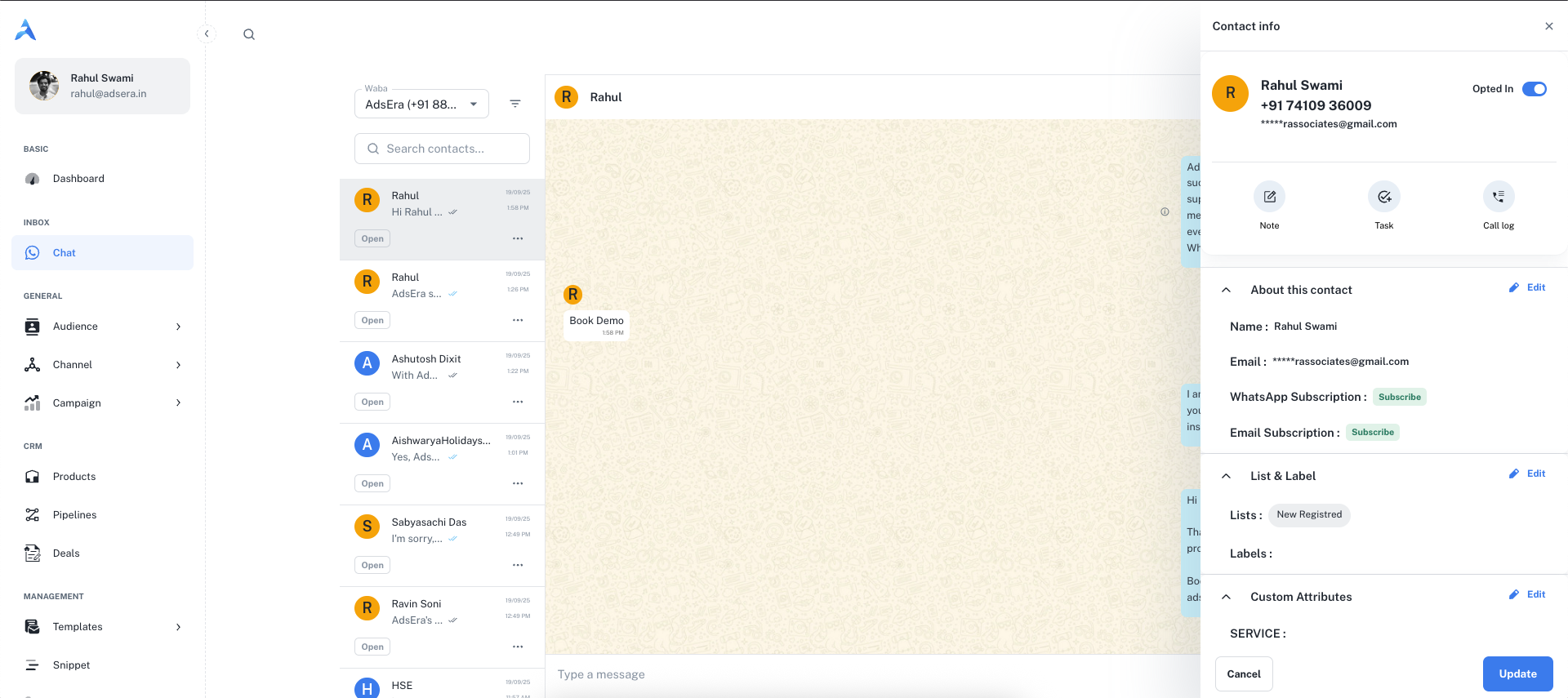
Clicking the info icon (ⓘ) in the chat header opens this powerful CRM panel, giving you a full 360-degree view of the contact.
About This Contact
About This Contact
View and edit the contact’s core information, such as their name, email, and subscription status for both WhatsApp and Email.
Lists & Labels
Lists & Labels
See which contact Lists the user belongs to and which Labels (tags) have been applied. This helps you understand their customer segment at a glance.
Custom Attributes
Custom Attributes
View any custom data fields you’ve stored for this contact, such as
LEAD_STATUS or SERVICE_TYPE, for highly personalized conversations.Activity Management
Activity Management
Quickly add CRM activities without leaving the chat:
- Note: Add an internal note for your team.
- Task: Create and assign a follow-up task.
- Call Log: Log details from a phone call.