

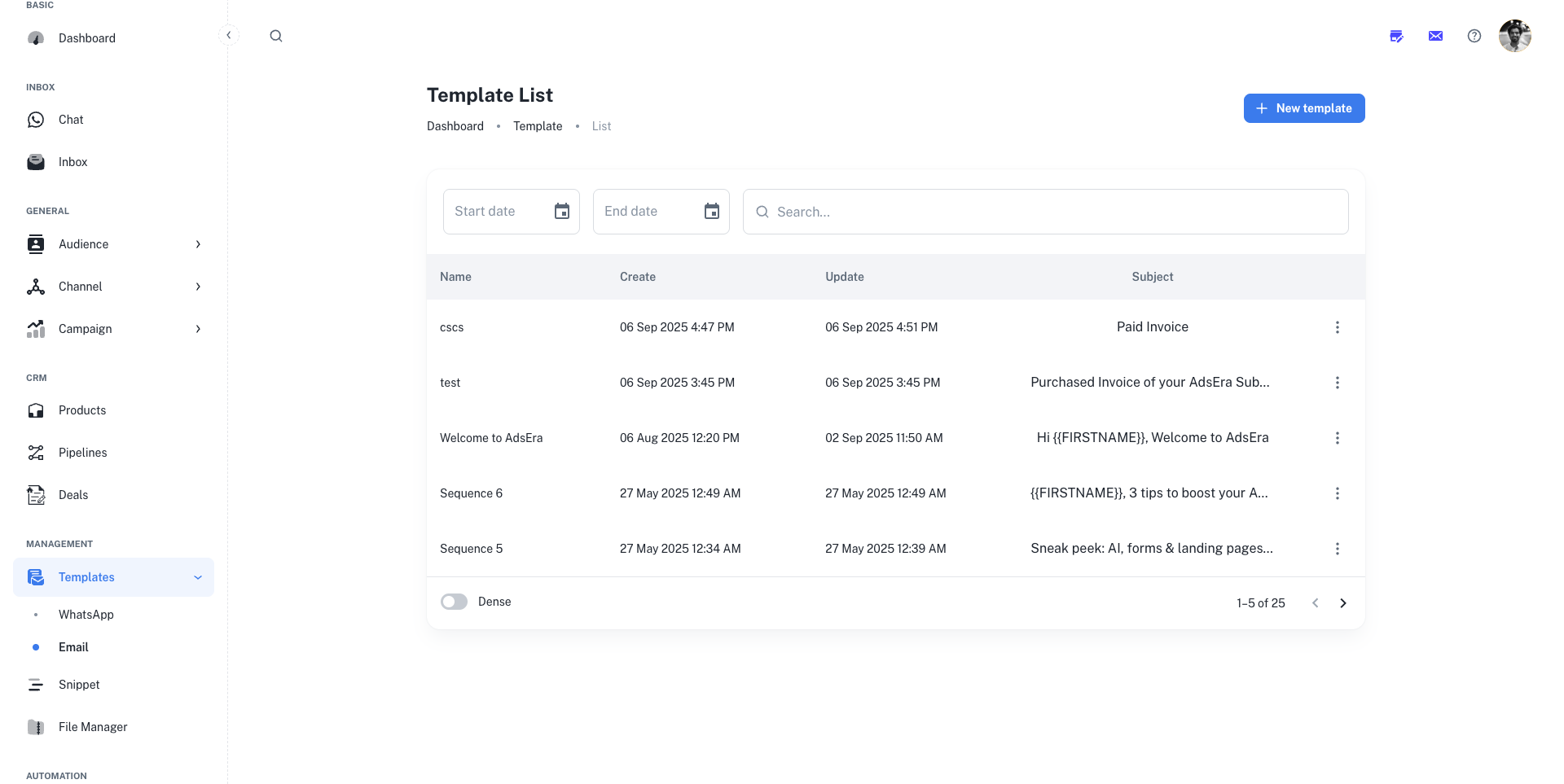
Understanding the Template List
Your Template List displays important information about each template in an easy-to-read table format.Filtering and Searching
To find a specific template quickly:- Search Bar: Use the search bar at the top to find a template by its Name or Subject.
- Date Range Filters: Use the Start date and End date fields to narrow down your list to templates created or updated within a specific period.
Template Actions
Create a New Template
Click the ”+ New template” button to launch the design wizard and build a new template from scratch.
Edit an Existing Template
To modify a template, simply click on its name in the list or use the Edit option in the three-dots (⋮) menu. This will open the template in the editor.
Delete a Template
Select Delete from the three-dots (⋮) menu to permanently remove a template. This action cannot be undone.