

List View vs. Kanban View
You can visualize your deals in two different ways using the toggle buttons at the top of the page:- List View (📝): A traditional table layout that provides a detailed, sortable list of all your deals. This view is great for seeing specific data points like
Subtotal,Discount, andGSTin a structured format. - Kanban View (📋): A visual board that organizes your deals into columns representing each stage of your selected pipeline. This is the default and most popular view for tracking sales flow.
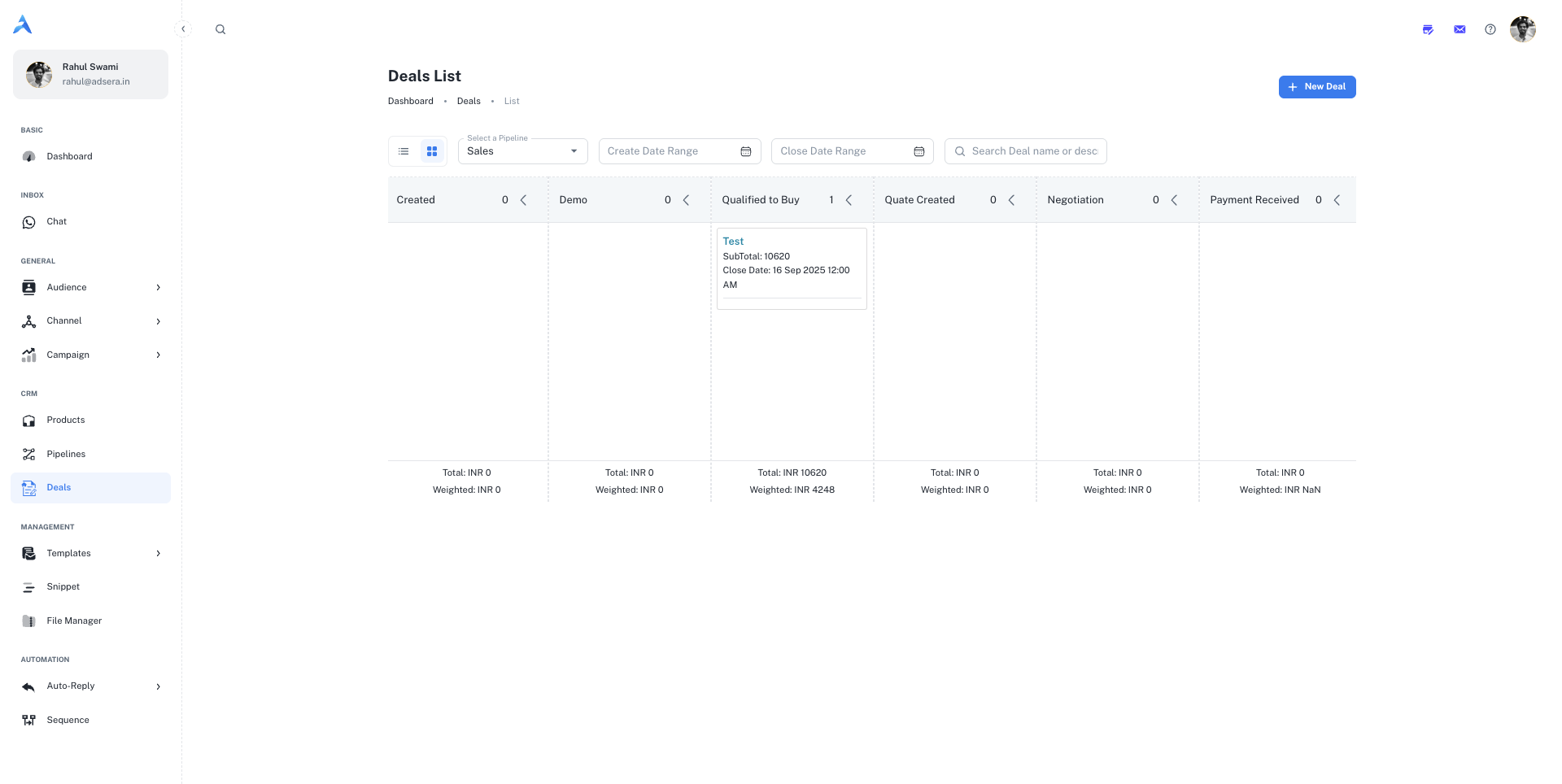
The Kanban View
The Kanban view is designed for an active, visual approach to sales management.Filtering Your View
At the top of the board, you can filter the deals that are displayed:- Select a Pipeline: Choose which sales pipeline you want to view from the dropdown. The columns on the board will update to show the stages of the selected pipeline.
- Date Range Filters: Filter deals by their Create Date or Close Date.
- Search: Find a specific deal by its name or description.
Anatomy of a Kanban Column
Each column on the board represents a stage from your selected pipeline (e.g.,Created, Demo, Negotiation).
- Stage Title & Deal Count: The header of each column shows the stage name and the number of deals currently in it.
- Total & Weighted Value: At the bottom of each column, you’ll find:
- Total: The sum of the total value of all deals in that stage.
- Weighted: The total value multiplied by the stage’s win probability (set in the Pipeline settings). This provides a forecast of expected revenue.
Managing Deals with Drag-and-Drop
The power of the Kanban view is its simplicity. To move a deal from one stage to the next, simply click and drag the deal card and drop it into a new column. The Total and Weighted values for the columns will update automatically.Creating and Editing a Deal
Clicking the ”+ New Deal” button or editing an existing deal opens a side panel where you can manage all its information.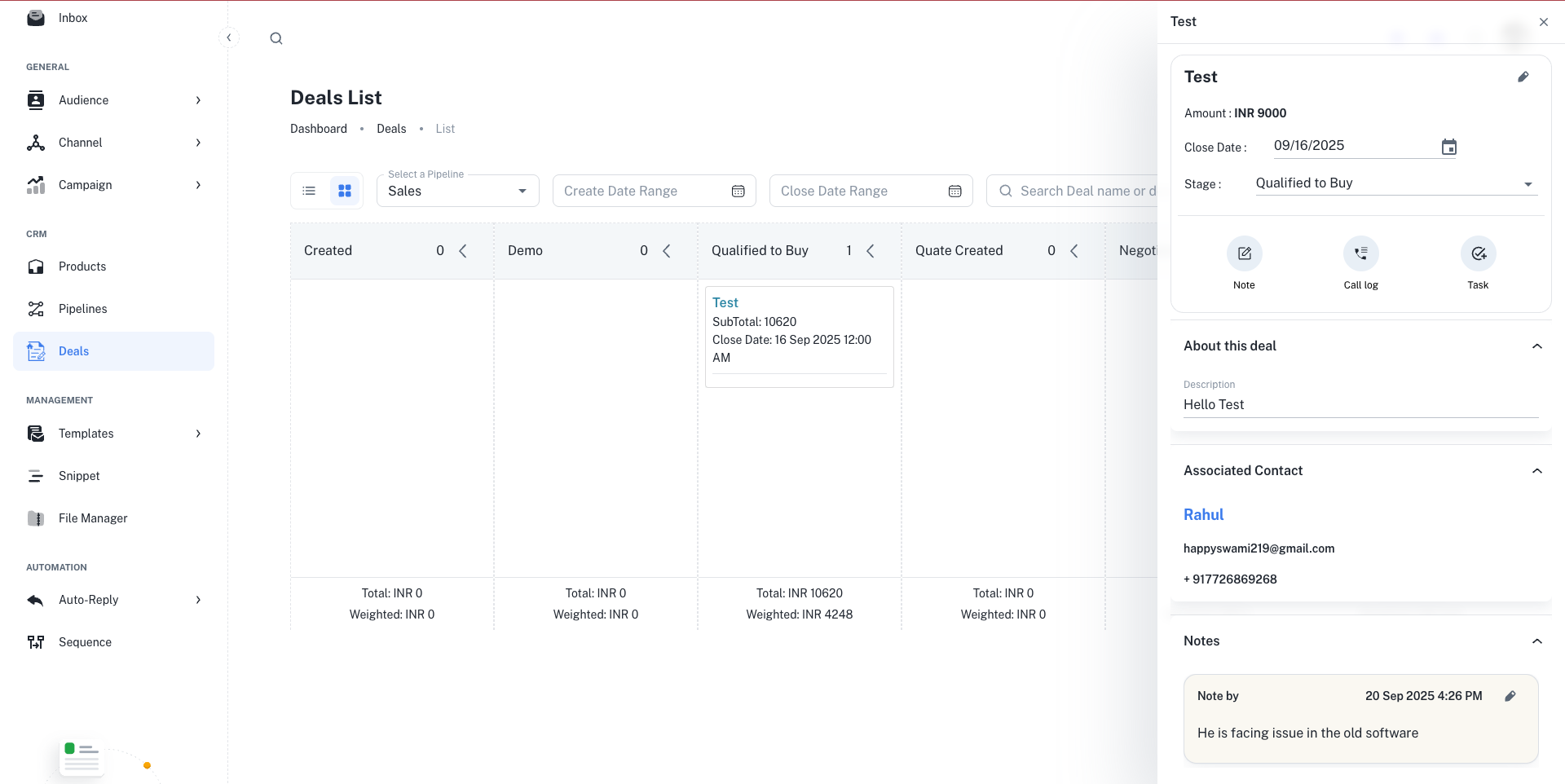
Core Deal Information
Core Deal Information
- Title & Description: Give your deal a clear name and add any relevant notes.
- Contact: Associate the deal with a specific contact from your audience list.
- Select a stage: Assign the deal to its current stage within the pipeline.
- Closing Date: Set an expected closing date for sales forecasting.
Products & Value
Products & Value
This is where you add the products or services the deal is for.
- Select a Currency.
- Click ”+ Add Product” to add a line item.
- Choose a product from your Product Catalog.
- Enter the Quantity and adjust the Unit Cost if needed. The Product Total will calculate automatically.
- Repeat for all products in the deal.
Financials (Subtotal, Discount & GST)
Financials (Subtotal, Discount & GST)
- Subtotal: Automatically calculated from the sum of all product totals.
- Discount: Apply a discount amount to the subtotal.
- GST: Toggle the GST switch on to add tax. You can then select the GST type (
IGSTorSGST) and enter the percentage. The final tax amount and Total are calculated for you.