

The Auto-Reply Creation Process
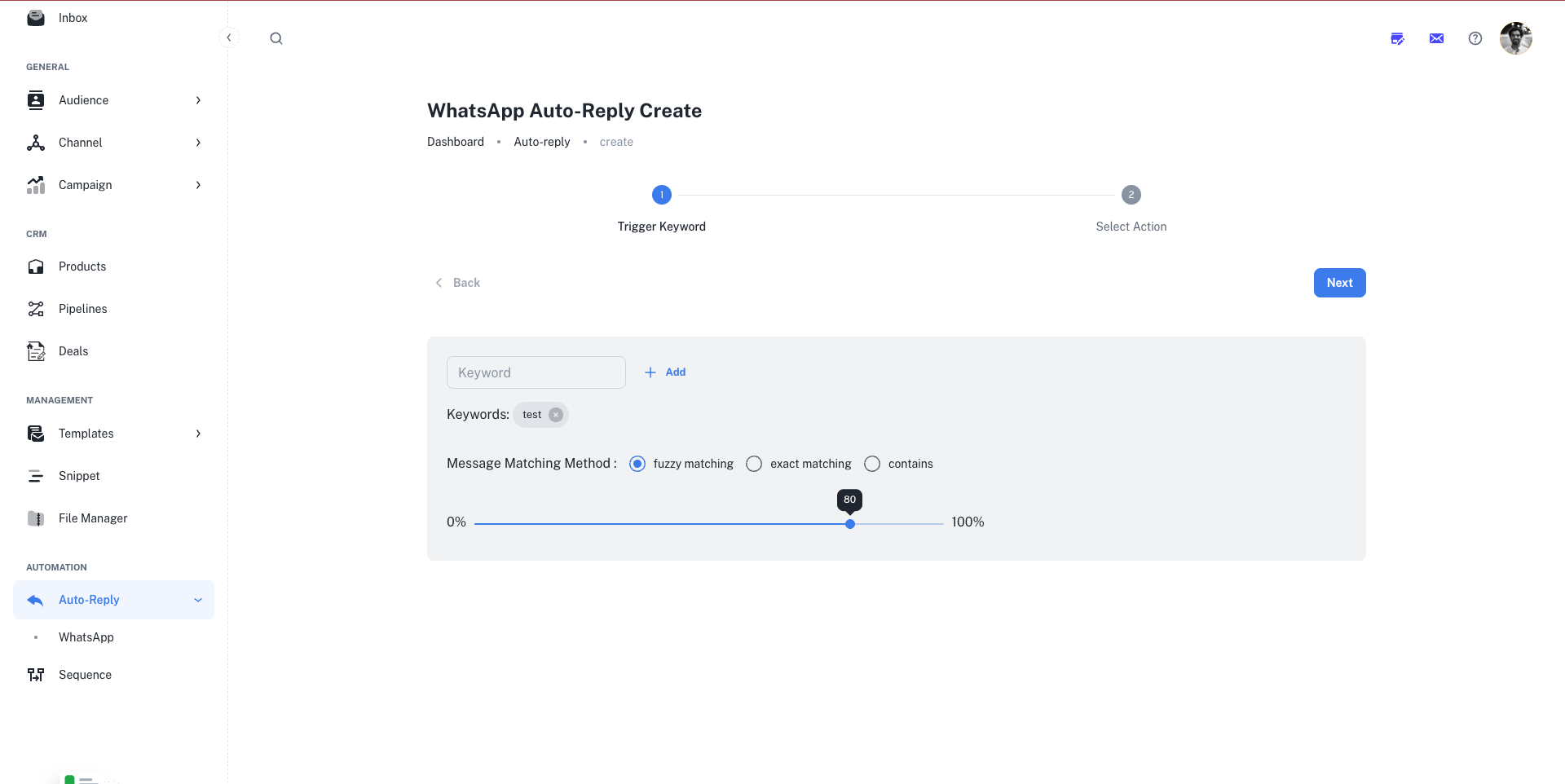
To begin, navigate to Automation > Auto-Reply > WhatsApp and click the ”+ New AutoReply” button. This will launch a two-step creation wizard.1
Step 1: Configure the Trigger Keywords
This step defines what the user needs to say to trigger your automated response.
Keywords
- Add Keywords: In the “Keyword” field, type a word or phrase (e.g.,
Hello,Pricing,Demo) and click “Add”. You can add multiple keywords that will all trigger the same reply. The keywords will appear as chips in the list below. - Remove a Keyword: Click the
xon any keyword chip to remove it.
Message Matching Method
This setting determines how strictly AdsEra should match the incoming message to your keywords.- Fuzzy matching: (Recommended) Allows for minor misspellings and variations. You can use the slider to set the sensitivity, with 100% being a very close match and a lower percentage being more lenient.
- Exact matching: The user’s message must match one of your keywords perfectly.
- Contains: The user’s message must contain one of your keywords anywhere within it.
2
Step 2: Select the Action (Reply)
This step defines how the system will respond. Here, you will select one or more Snippets to send as the reply.The selected snippets will appear in a list on the right. Once you’re ready, click “Save” to activate your new auto-reply.
- Filter and Search: Use the Type dropdown and the Search bar to find the snippets you want to use for the reply.
- Select Snippets: Click the checkbox on one or more snippet cards.
Sending Multiple Snippets: If you select multiple snippets, AdsEra will send them one after another in the order you select them, creating a sequence of replies. This is great for sending an image followed by a text message with buttons.
Managing Your Auto-Replies
Once created, your auto-reply will appear in the main WhatsApp Auto-Reply List. From this list, you can:- View the keywords and associated reply snippets.
- Toggle the Status to make an auto-reply
ActiveorInactive. - Edit or Delete the auto-reply using the three-dots (⋮) menu.