

- Personalize your email and WhatsApp content for a more individual touch.
- Create highly specific segments for targeted campaigns.
- Refine your targeting in automation sequences.
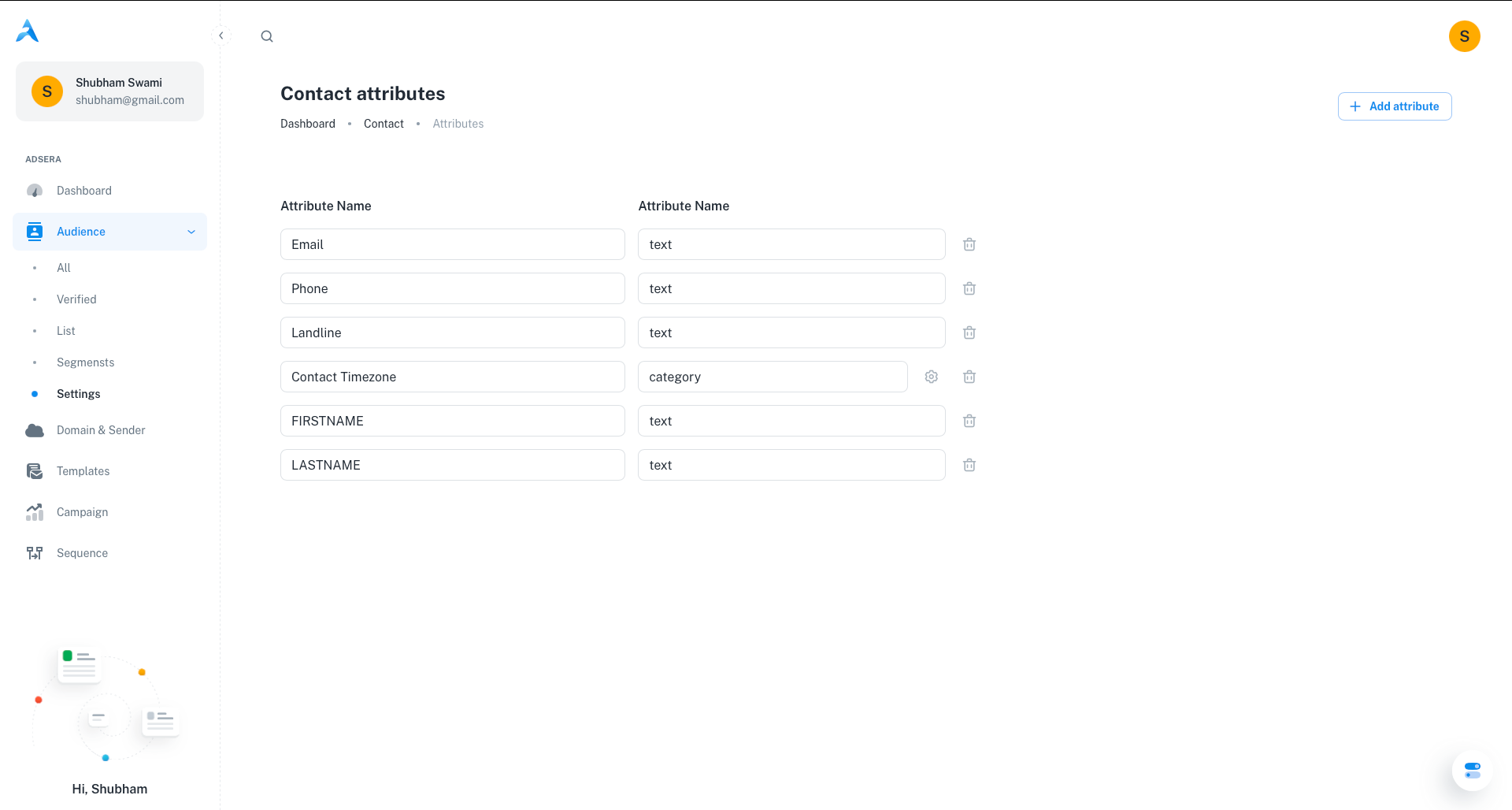
Creating a New Attribute
Adding a new custom field to store specific data about your contacts is simple.1
1. Open the 'Add Attribute' Modal
Click the “+ Add attribute” button located at the top of the page.
2
2. Define Your Attribute
An “Add Attribute” modal will appear, prompting you for two key details:
- Attribute Name: A clear, descriptive name (e.g., “Job Title”, “Preferred Language”, “Last Purchase Date”).
-
Attribute Type: Select the type of data this attribute will store.
- Text: For free-form text.
- Number: For numerical values like scores or IDs.
- Date: For specific dates like birthdays or subscription start dates.
- Boolean: For true/false values (displays as a checkbox).
- Dropdown: A predefined list where a contact can only have one value.
- Multi-select: A predefined list where a contact can have multiple values.
3
3. Configure and Save
If you choose a “Dropdown” or “Multi-select” type, you will be able to add the specific choices for that attribute. Once finished, click Save. Your new attribute will now appear in the list.
Managing Existing Attributes
Editing Options for Multi-Select Attributes (⚙️)
Editing Options for Multi-Select Attributes (⚙️)
For attribute types like Dropdown or Multi-select, a gear icon (⚙️) will appear next to the attribute name. Clicking this opens a configuration modal where you can:
- Add new choices to the list.
- Edit the wording of existing choices.
- Remove choices that are no longer relevant.
Deleting Attributes (🗑️)
Deleting Attributes (🗑️)
To permanently remove an attribute, click the trash can icon next to it.
How Attributes Power Your Marketing
Effectively using contact attributes will significantly enhance the relevance and impact of your marketing efforts.Powering Segmentation
Custom attributes are the building blocks of targeted segments. Use them in the All Audience filter builder to create dynamic groups like “Contacts where ‘Job Title’ is ‘Manager’”.
Personalizing Campaigns
Attribute values can be inserted directly into your email and WhatsApp campaigns using personalization tokens (e.g.,
{{contact.job_title}} or {{contact.city}}) to create highly individualized content.Customizing Your View
The attributes you create here can be displayed as columns in the main “All Audience” contact table, allowing you to see your most important custom data at a glance.