

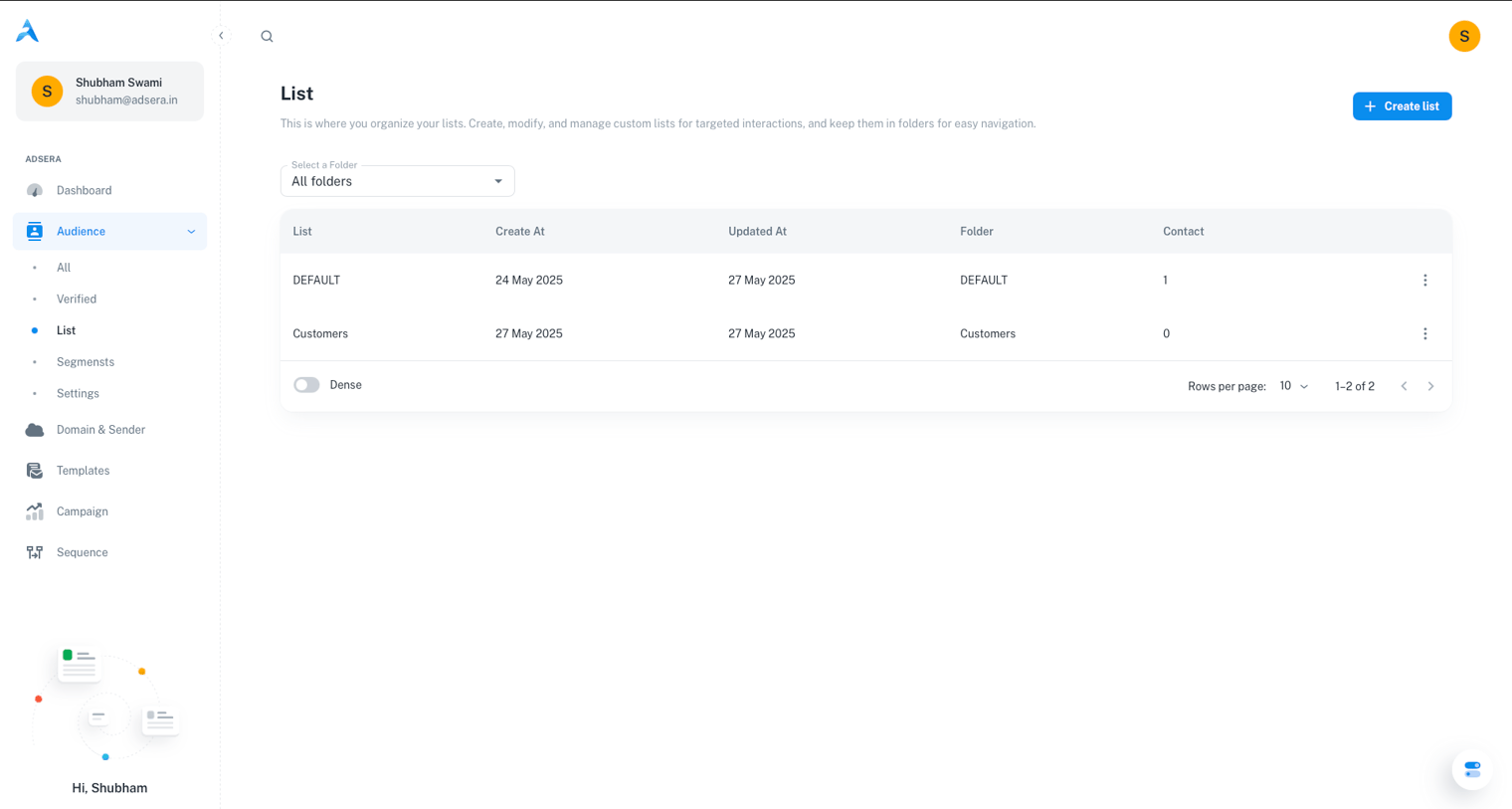
 A key feature of AdsEra is flexibility: individual contacts can belong to multiple Lists. To keep your workspace tidy, Lists can be grouped into Folders, ensuring you can easily find the specific groups you need as your audience grows.
Page Layout & UI Elements
The page is designed for clarity and ease of use. Here are the main elements:Create List Button
Located in the top-right, this is your primary action for creating a new, empty contact list.
Folder Dropdown
In the top-left, this menu allows you to filter the table view by folder or create new folders to organize your lists.
List Table View
The main area of the page, displaying all your lists (within the selected folder) and their key details.
Creating and Managing Lists & Folders
How to Create a New Contact List
How to Create a New Contact List
- Click the “Create List” button in the top-right corner.
- A modal window will appear, prompting you for:
- List Name (required): A descriptive name for your new list.
- Select Folder (dropdown): Choose an existing folder to organize your list in. You can also select “Create New Folder” from this menu.
- Click Create to save your new list. It will now appear in the table.
How to Manage Folders
How to Manage Folders
Folders are essential for keeping your contact lists organized.
- Switching Folders: Use the Folder Dropdown in the top-left corner. Selecting a folder filters the table to show only the lists within it.
- Creating Folders: You can create a new folder from the “Select Folder” dropdown when creating a new list, or directly from the main Folder Dropdown.
Understanding the List Table
The main table provides key information about each of your lists:Performance at Scale: The table uses lazy loading to handle massive datasets with ease. It loads a manageable number of lists initially and smoothly loads more as you scroll, ensuring a fast experience whether you have 10 lists or 10,000.
List Actions (The ⋮ Menu)
Clicking the three-dot menu on any list row reveals several actions:- Duplicate: Creates an exact copy of the list, including all its current contacts.
- Rename: Allows you to change the name of the list.
- Move: Lets you move the list to a different folder.
- Add to a Sequence: Enrolls all contacts currently in the list into a specific automation sequence.
Lists vs. Segments: A Quick Refresher
It’s important to understand the difference between the static Lists you create here and the dynamic Segments you create from the All Audience view.- Lists (Static): A manually curated group. Contacts only get on a list if you explicitly add them (e.g., via import, form, or bulk action). The group is fixed until you change it.
- Segments (Dynamic): A “smart” group defined by rules. Contacts automatically enter or leave the segment as their data and behavior change to match your rules.