# Accept Call
Source: https://docs.adsera.in/api-reference/call/accept
POST /api/pub/wa/call/accept
Formally accepts an inbound WhatsApp call. Transitions the call status to `CONNECTED` and records the `startTimestamp`.
# Initiate Outbound Call
Source: https://docs.adsera.in/api-reference/call/connect
POST /api/pub/wa/call/connect/{whatsapp}
Initiates a new outbound WhatsApp voice call to a contact. Creates a `WaCall` record and a linked `WhatsAppMsg` of type `call` in the conversation thread. The `callId` returned should be used for all subsequent call operations.
# End Call
Source: https://docs.adsera.in/api-reference/call/end
POST /api/pub/wa/call/end
Terminates an active WhatsApp call. Transitions the call status to `END` and records the `endTimestamp`. This endpoint does not require plan validation and can always be called to terminate a call.
# Pre-Accept Incoming Call
Source: https://docs.adsera.in/api-reference/call/pre-accept
POST /api/pub/wa/call/pre/accept
Sends a WebRTC SDP answer to Meta before formally accepting an inbound call. Transitions the call status to `CONNECTING`. This must be called before `/accept` during inbound call negotiation.
# API Authentication
Source: https://docs.adsera.in/api-reference/introduction
A guide on how to get started and authenticate with the AdsEra REST API.
Welcome to the [AdsEra](https://adsera.in) REST API! This guide will walk you through the authentication process required to make requests to our API. Follow these simple steps to generate your credentials and start building.
Once logged in, navigate to the API settings section of your AdsEra panel to create your unique `App Id` and `App Secret`.
### Authentication
All API endpoints are authenticated using a unique `App Id` and `App Secret` pair. These credentials must be included as custom headers in **every** API request you send.
Your `App Id` and `App Secret` can be generated from the [**API Settings**](https://app.adsera.in/dashboard/user/account?tab=API%20Key) section of your AdsEra panel. Keep them secure and do not share them publicly.
Here is the required format for the request headers:
```http theme={null}
# Required Headers for Every API Call
x-api-key: YOUR_APP_ID
x-api-secret: YOUR_APP_SECRET
```
# Get Media by ID
Source: https://docs.adsera.in/api-reference/media/get
GET /api/pub/wa/media/url/{mediaId}
Retrieves the media file content associated with a specific media ID.
Retrieves the media file content associated with a specific media ID. This endpoint redirects to or serves the actual file content, allowing direct browser access.
# Send Generic Message
Source: https://docs.adsera.in/api-reference/msg/msg
POST /api/pub/wa/send/msg
Sends a generic message (text, media, etc.) to a contact. Note: This kind of message can only be sent within the 24-hour open window.
# Send WhatsApp Template
Source: https://docs.adsera.in/api-reference/msg/send
POST /api/pub/wa/send/template
Queues a pre-approved WhatsApp template message for sending to a contact.
# Send Snippet Message
Source: https://docs.adsera.in/api-reference/msg/snippet
POST /api/pub/wa/send/snippet
Sends a pre-defined snippet message to a contact.
# List Snippets
Source: https://docs.adsera.in/api-reference/snippet/list
GET /api/pub/wa/snippet/list
Retrieves a paginated list of snippets.
# List WhatsApp Templates
Source: https://docs.adsera.in/api-reference/template/list
GET /api/pub/wa/template/list/{whatsapp}
Retrieves a paginated list of WhatsApp templates for a specific WABA account.
# Generate Onboarding Link
Source: https://docs.adsera.in/api-reference/whatsapp/link
GET /api/pub/wa/waba/link
Generates a WhatsApp onboarding link that expires in 6 hours and can be used only once.
# List WABA
Source: https://docs.adsera.in/api-reference/whatsapp/list
GET /api/pub/wa/waba/list
Retrieves a list of all WhatsApp Business Accounts (WABA) associated with your company.
# Account Settings
Source: https://docs.adsera.in/help/account/account
Manage your personal information, change your password, and generate API keys for integrations.
Your Account Settings page is where you can manage all your personal details, update your security credentials, and create API keys for connecting AdsEra to other applications.
**Want to manage profile? [Go to the AdsEra Profile Page →](https://app.adsera.in/dashboard/company)**
## How to Access Account Settings
You can easily navigate to your account settings from the main dashboard.
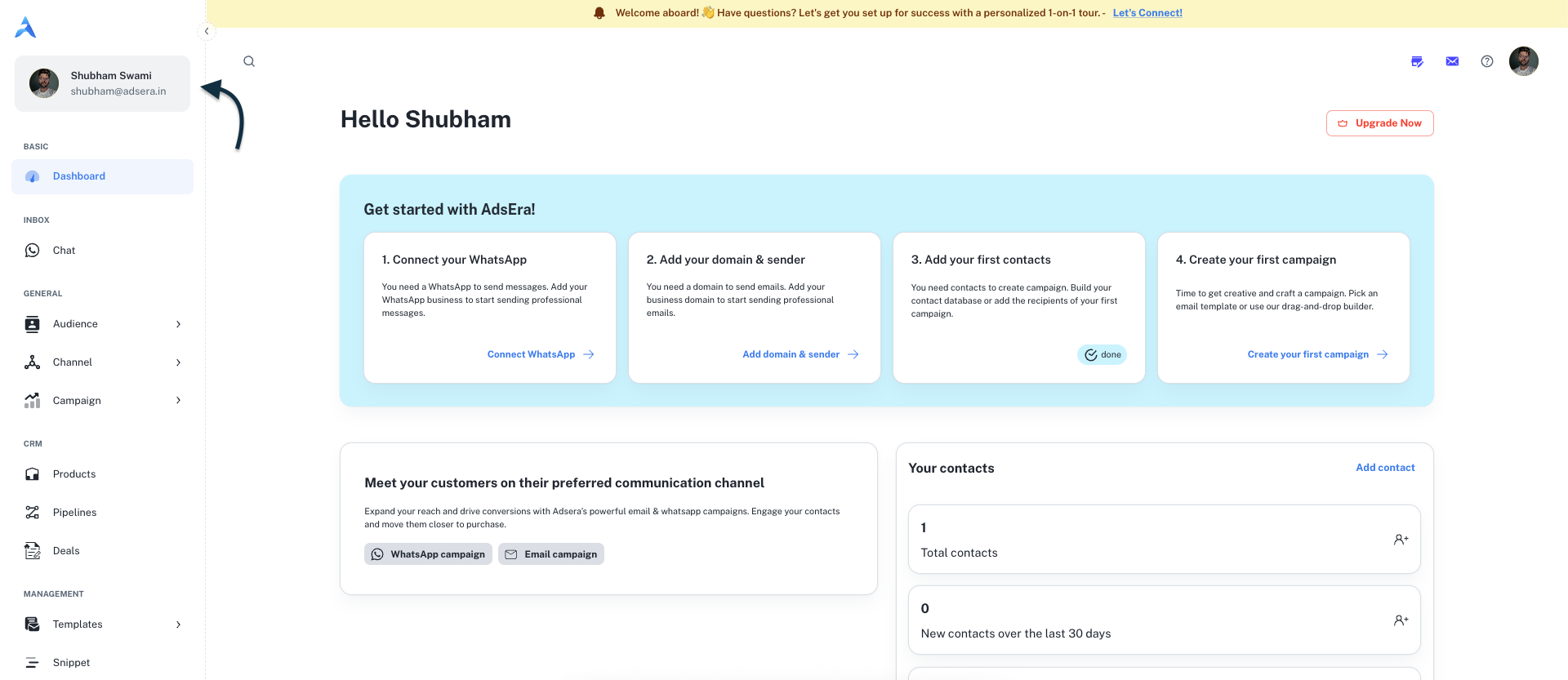
1. Log in to your AdsEra dashboard.
2. In the top-left corner of the navigation sidebar, **click on your name and avatar**.
3. You will be taken directly to the Account Settings page.
***
## Account Tabs
The **Information** tab allows you to update your personal details and profile picture.
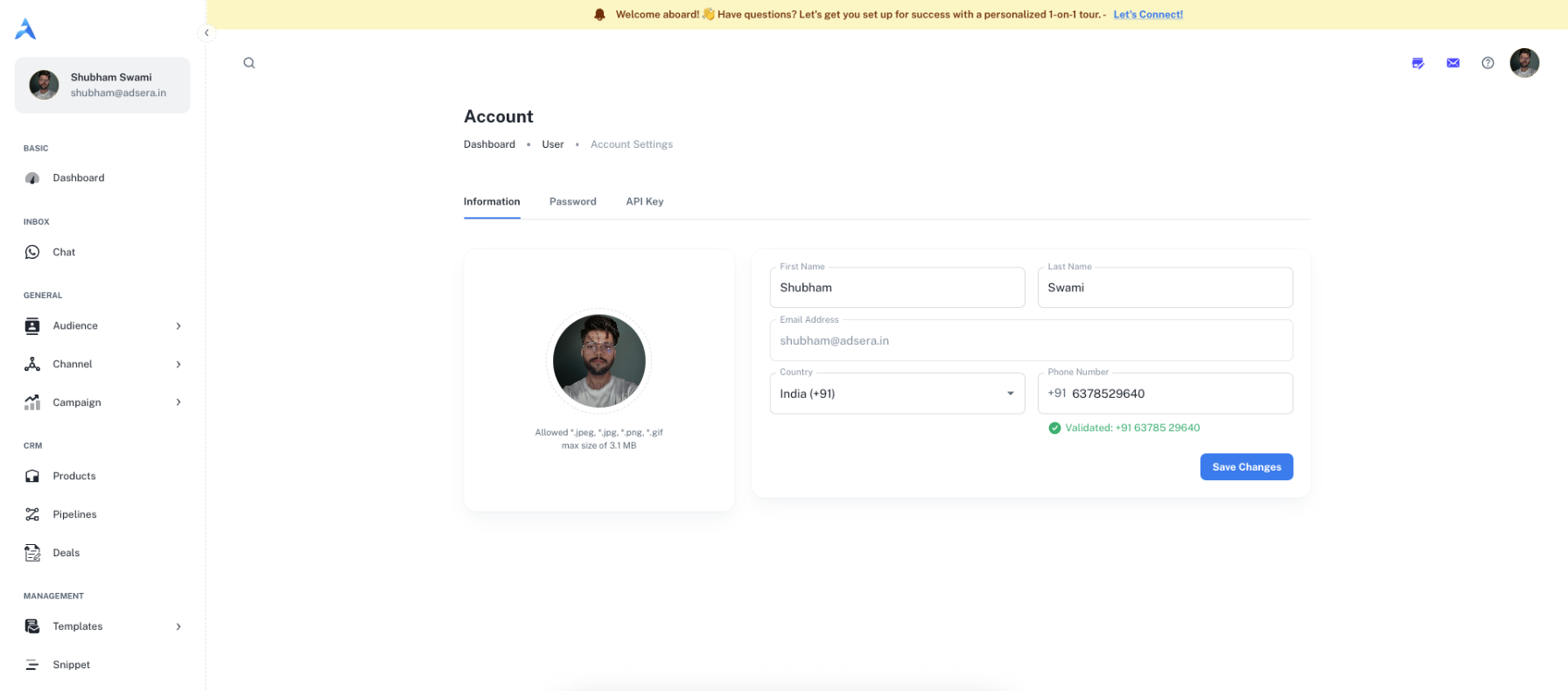
### Profile Photo
You can upload a custom photo to personalize your account.
* **To upload:** Click on the camera icon overlaying your current avatar.
* **File types:** `*.jpeg`, `*.jpg`, `*.png`, `*.gif`
* **Max size:** 3.1 MB
### Personal Details
Update your user information using the fields provided:
* **First Name:** Your first name.
* **Last Name:** Your last name.
* **Email Address:** This field is linked to your account and **cannot be changed**.
* **Country:** Your country of residence.
* **Phone Number:** Your contact phone number.
After making your desired changes, click the **Save Changes** button to apply them.
### Change Password
The **Password** tab allows you to securely change the password for your AdsEra account. For your security, this process requires email verification.
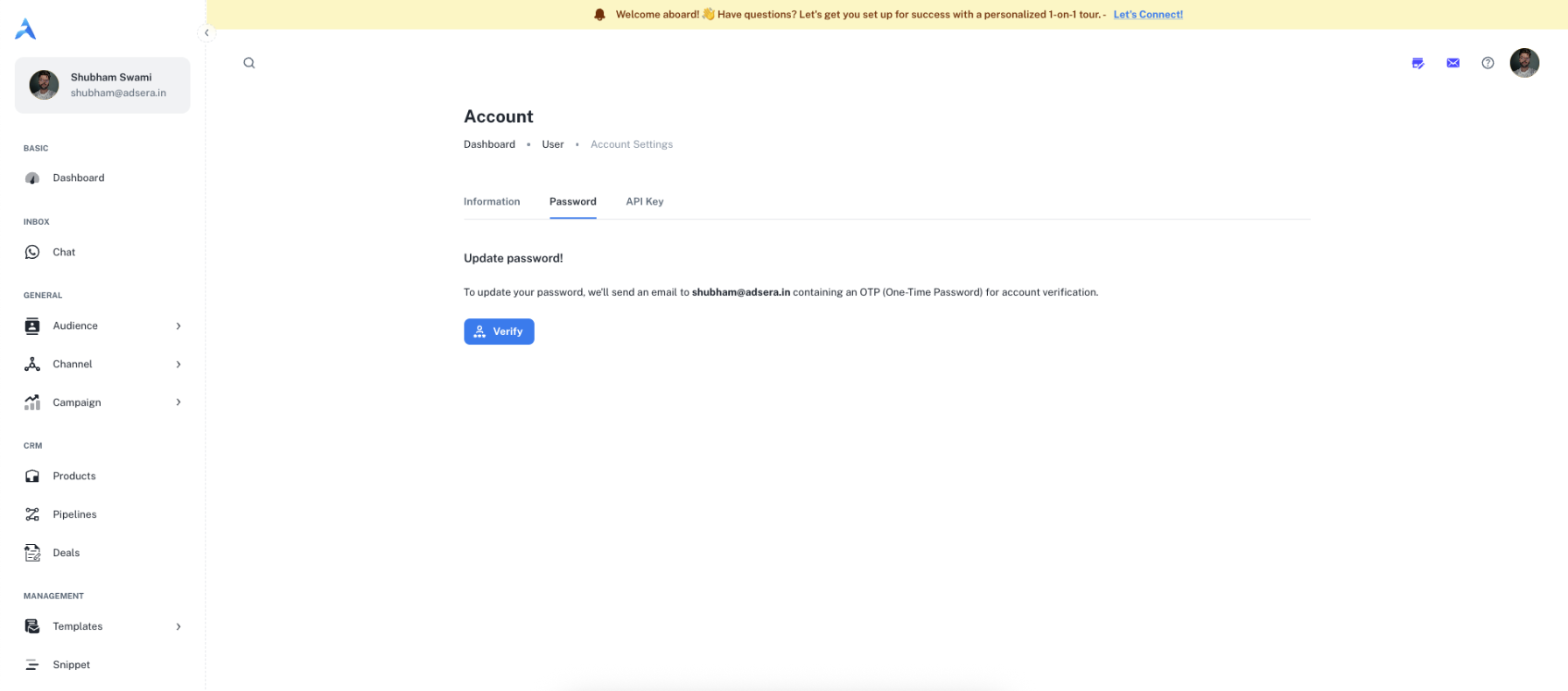
Click the **Verify** button. This will send a one-time password (OTP) to your registered email address (`shubham@adsera.in`).
Check your email for the OTP, and enter it on the verification screen that appears.
Once verified, you will be prompted to enter and confirm your new password.
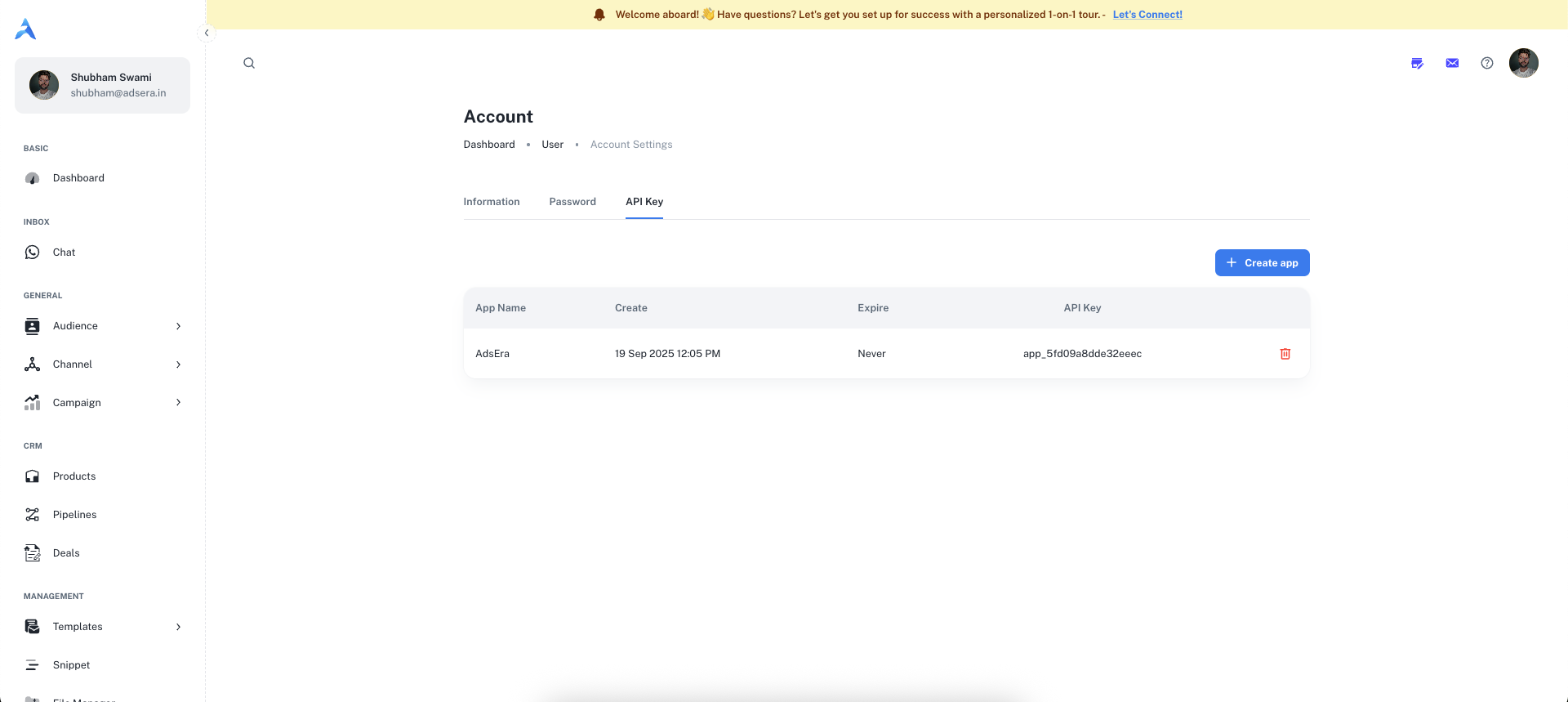
This tab allows you to generate and manage API keys. API keys are used to integrate your AdsEra account with third-party applications and services securely.
### Creating an API Key
Click the **+ Create app** button to open the API key creation dialog.
In the pop-up window, provide the following details:
* **App Name:** A descriptive name for your key (e.g., "My Custom CRM").
* **Never Expire:** Check this box if you want the key to be valid indefinitely.
* **End date:** If "Never Expire" is unchecked, select a date when the key should automatically expire.
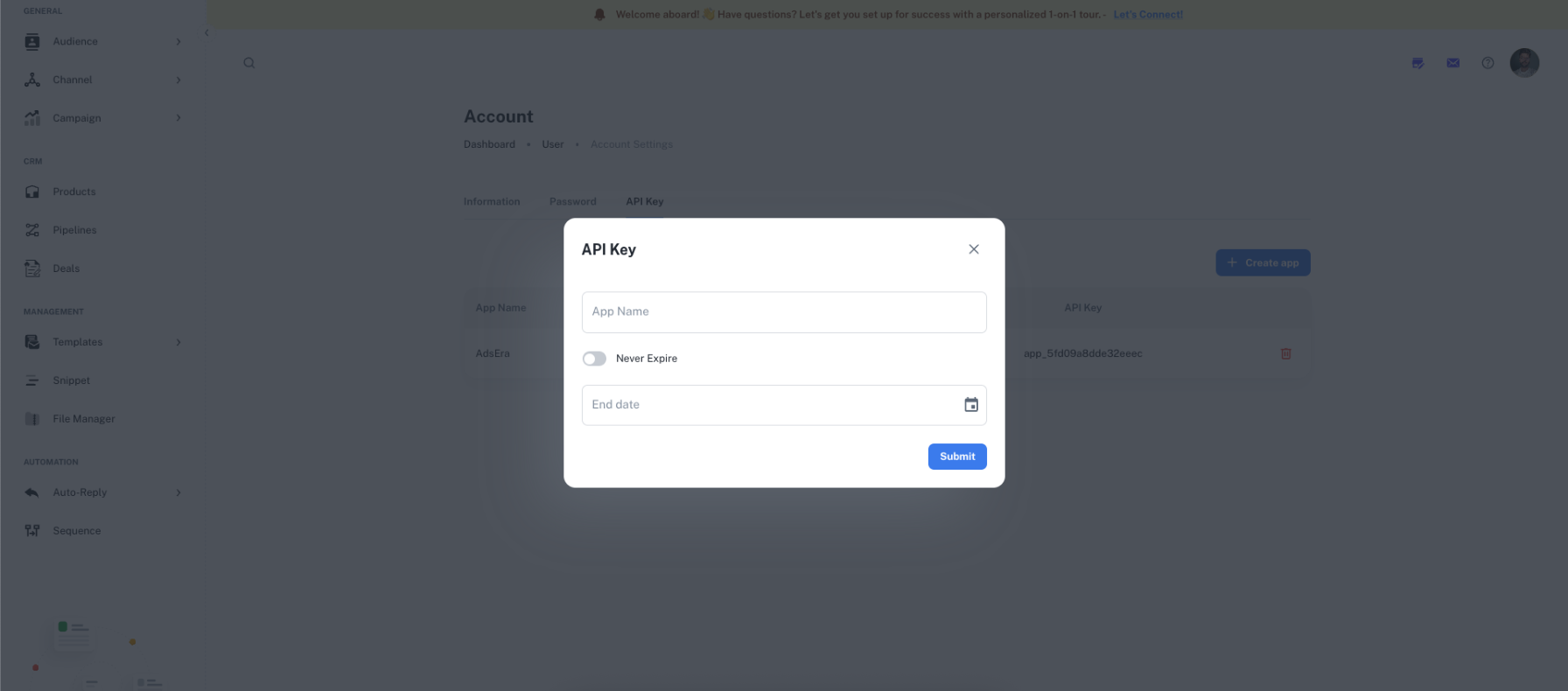
Click **Submit**. Your new API Key and Secret will be generated and displayed.
**Important:** Your **API Secret** will only be displayed **once**, immediately after creation. Make sure to copy it and store it in a secure location like a password manager. **You will not be able to retrieve it again.**
Once created, your API key will appear in a list on this tab, allowing you to manage or delete it in the future.
# Company Settings
Source: https://docs.adsera.in/help/account/company
Update your company profile, contact details, and business information.
The **Company Settings** page allows you to manage the core details of your organization within AdsEra. Keeping this information accurate is important for billing, timezone-specific campaign scheduling, and overall account management.
**Want to manage billing & company profile? [Go to the AdsEra Company Page →](https://app.adsera.in/dashboard/company)**
### Navigating to Company Settings
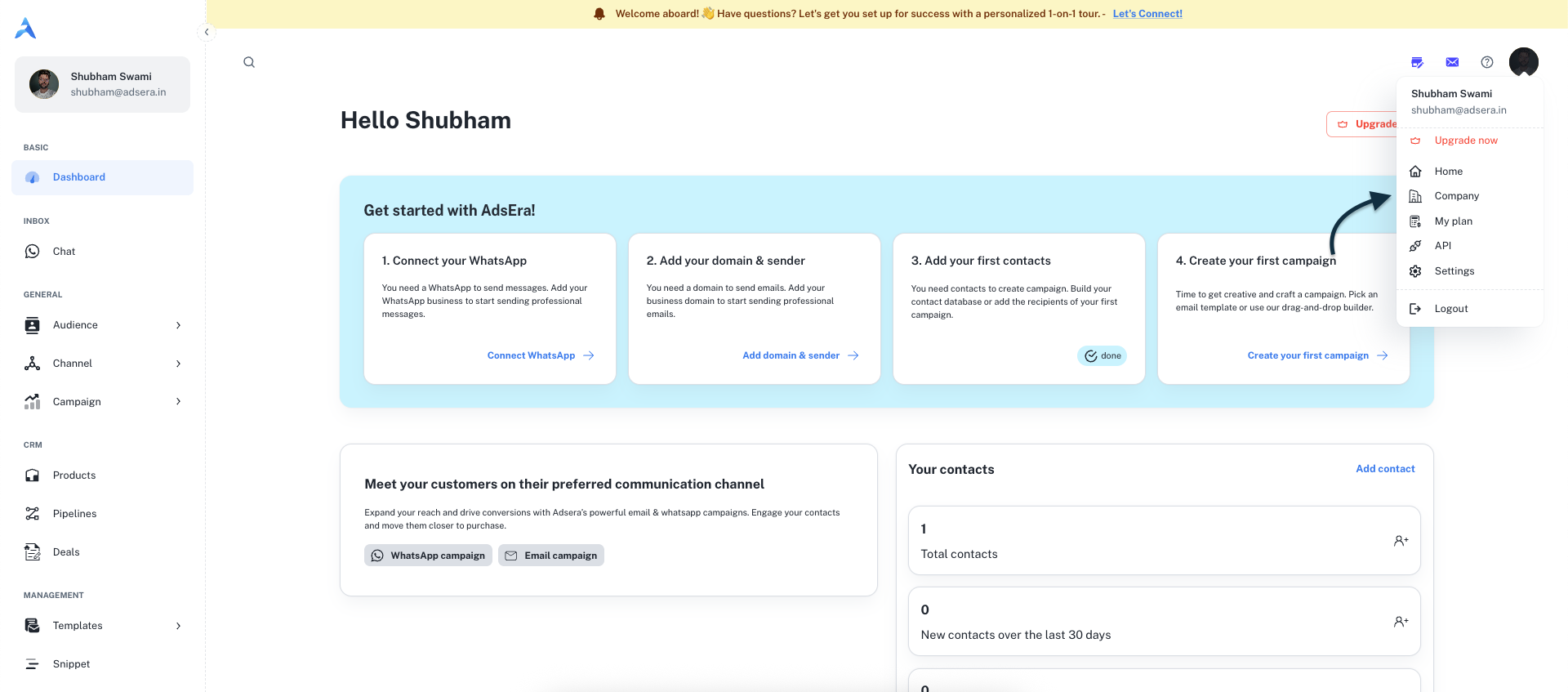
You can access your company's settings directly from the main header bar in your dashboard.
1. Click on your **profile avatar** in the top-right corner.
2. A dropdown menu will appear.
3. Select **Company** from this menu to open the Company Settings page.
***
## Company Information Form
This page contains a single form to update all your company's details.
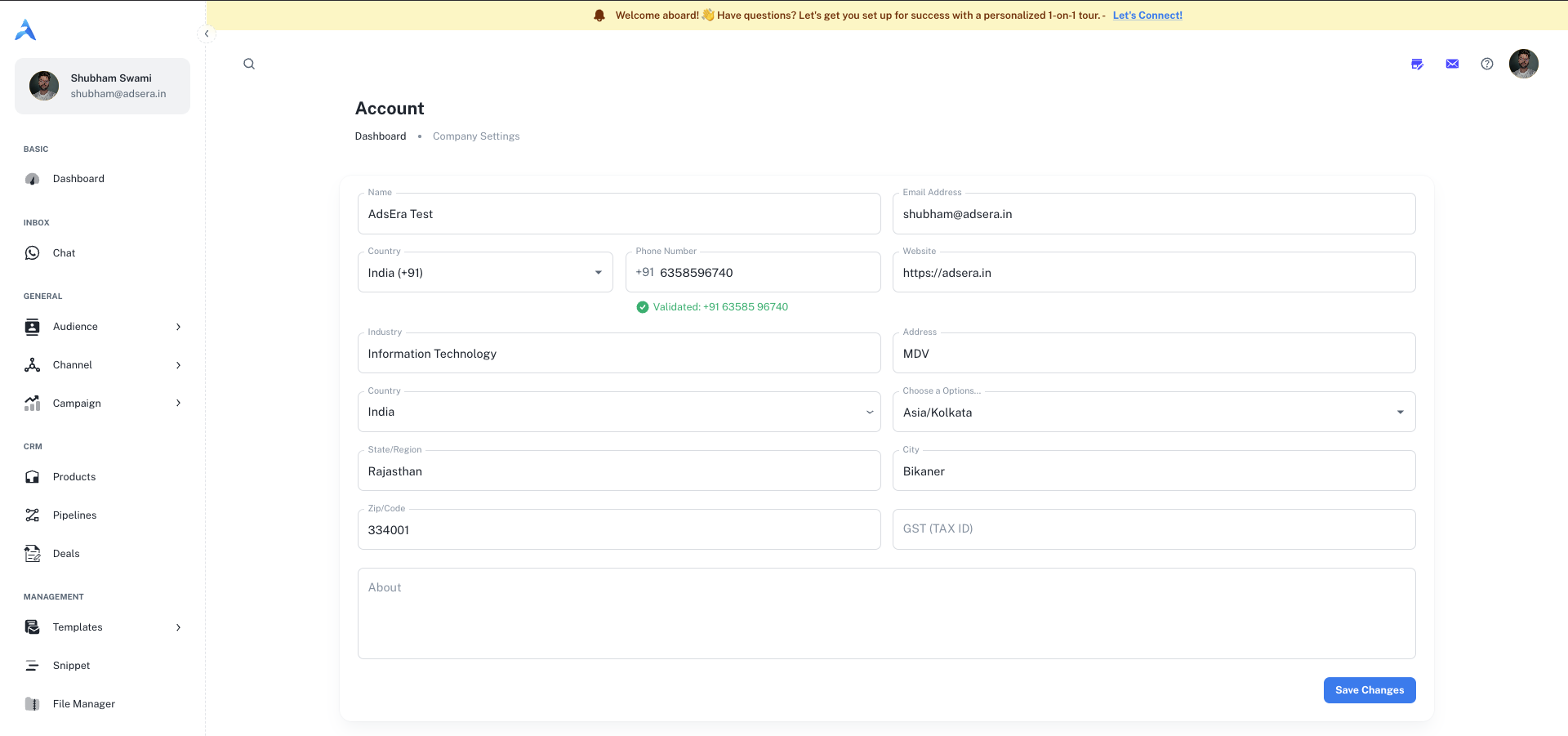
### Basic Details
The official name of your company or organization.
The primary email address for your company. This may be used for billing and important notifications.
Your company's primary contact phone number, including the country code.
The URL of your company's official website (e.g., `https://adsera.in`).
The industry your business operates in (e.g., "Information Technology", "E-commerce").
### Location & Timezone
The physical street address of your company.
The country where your company is located.
The state, province, or region.
The city where your company is based.
The postal or zip code for your address.
Select your company's primary time zone. This is crucial for accurate campaign scheduling and reporting.
### Billing & Invoicing
"Accuracy in your billing details isn't just about numbers; it's about seamless operations. The information here ensures your invoices are correct and your service remains uninterrupted."
Your company's Goods and Services Tax number or other relevant tax identification number. This will appear on all official invoices.
A brief description of your company. This is for internal reference.
***
### Saving Your Changes
After you have finished updating your company's information, click the **Save Changes** button at the bottom of the page to apply your updates.
# Forgot Password
Source: https://docs.adsera.in/help/account/forgot
Learn how to reset your AdsEra account password if you have forgotten it or lost access.
If you've forgotten your password, you can easily reset it by requesting a secure link to be sent to your email address.
**Need to reset your password now? [Go to the Forgot Password Page →](https://app.adsera.in/auth/reset-password)**
***
## Password Reset Process
The process involves two main stages: requesting the reset link and creating your new password.
On the "Forgot Password" page, you'll see a field to enter your email.
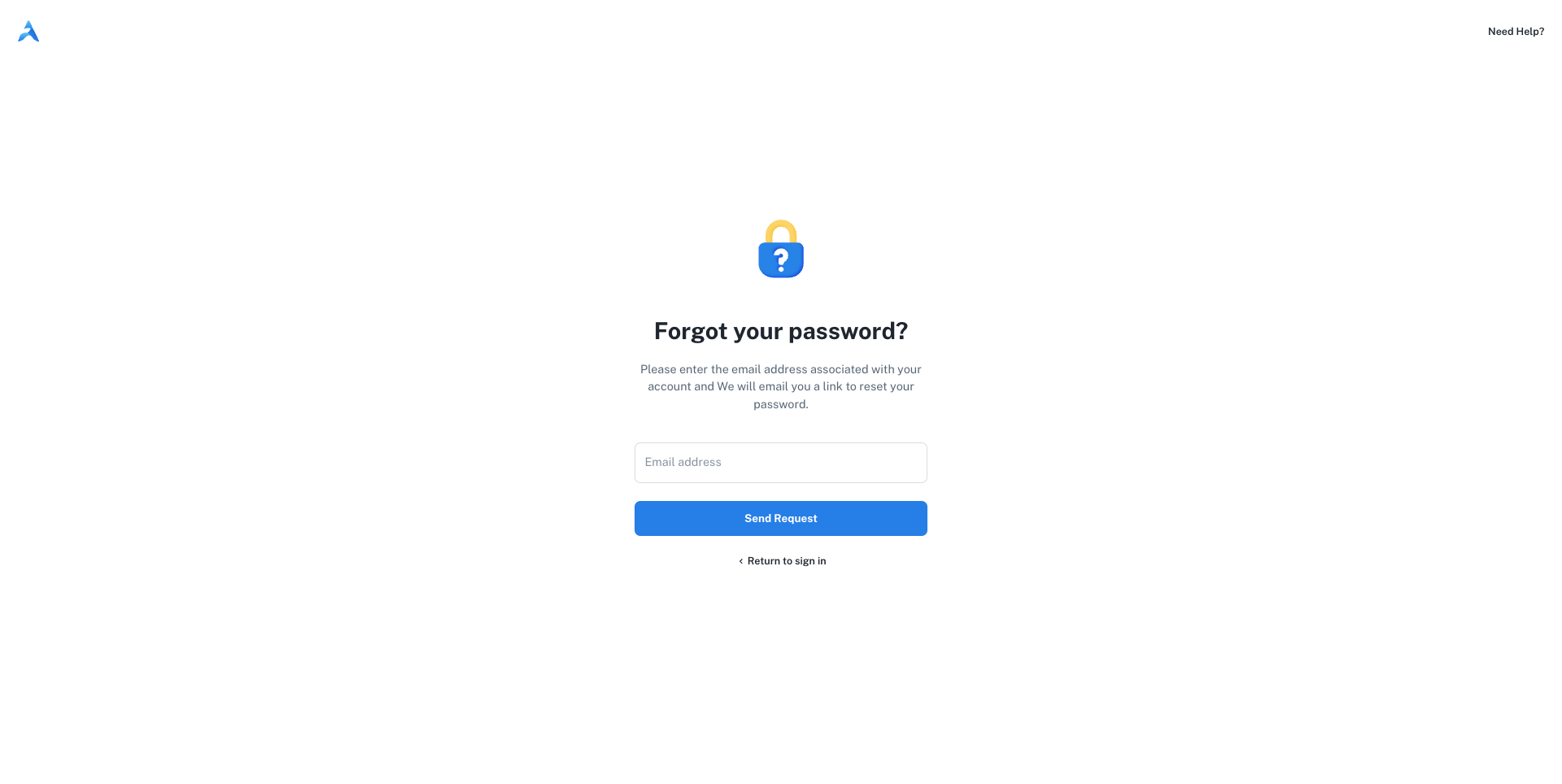
1. In the **Email address** field, type the email associated with your AdsEra account.
2. Click the **Send Request** button.
A confirmation will appear, and a password reset link will be sent to your email inbox.
Open your email client and look for a new email from AdsEra.
The password reset link is only **valid for 10 minutes**. If you don't use it within that time, you'll need to start the process over.
If you can't find the email, please check your spam or junk folder.
Click the reset link in the email to proceed to the final step.
Clicking the link will take you to the "Create your new password" page. Your email address will be pre-filled and disabled for security.
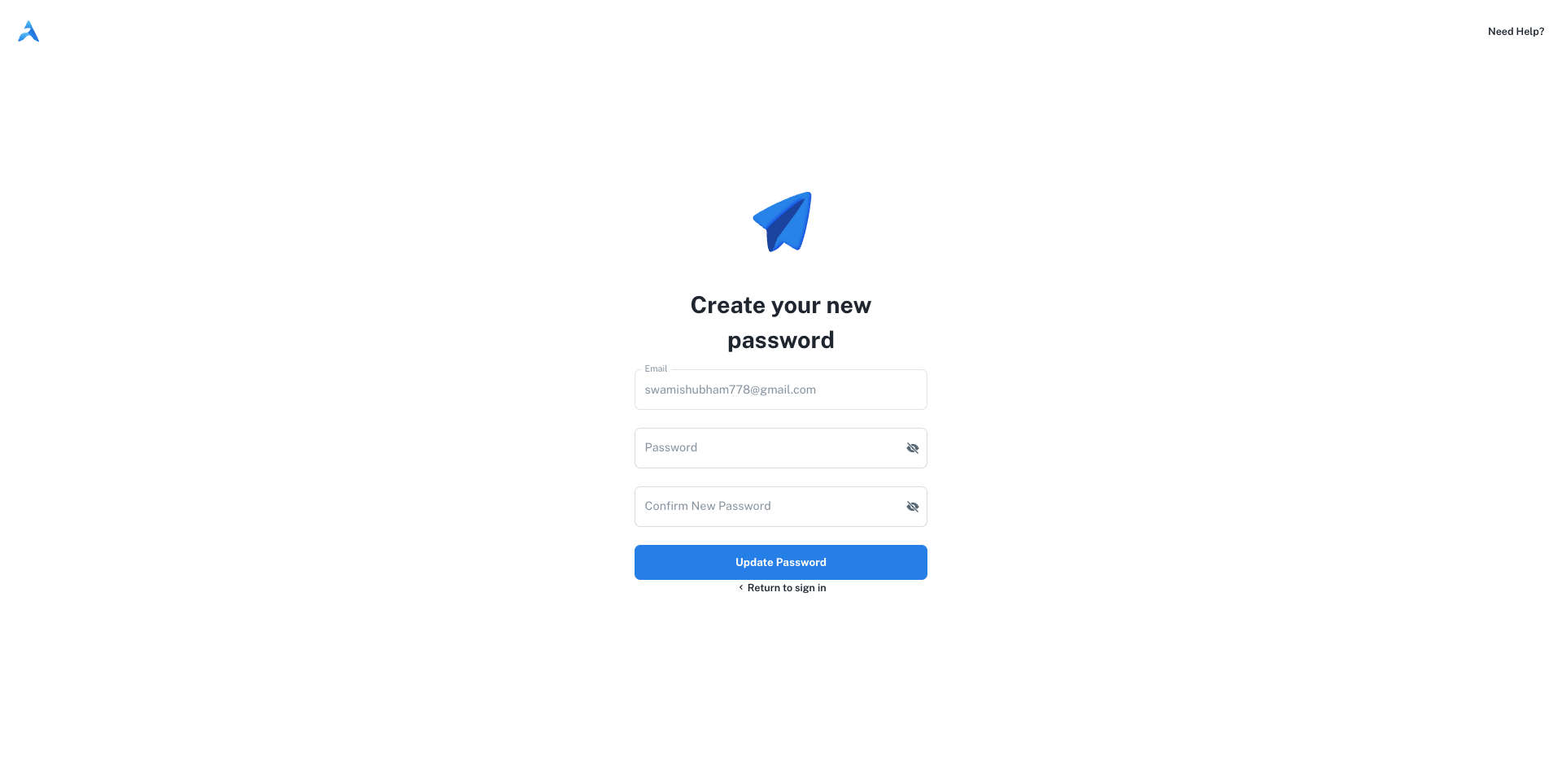
1. In the **Password** field, enter your new, secure password.
2. In the **Confirm New Password** field, enter the same password again to ensure it's correct.
3. Click the **Update Password** button.
***
### You're all set!
Once you update your password, you will be redirected to the login page. You can now sign in with your email and your new password.
After resetting your password, proceed to the sign-in page.
# Sign In
Source: https://docs.adsera.in/help/account/login
Learn how to access your AdsEra account by signing in with your credentials or using social login.
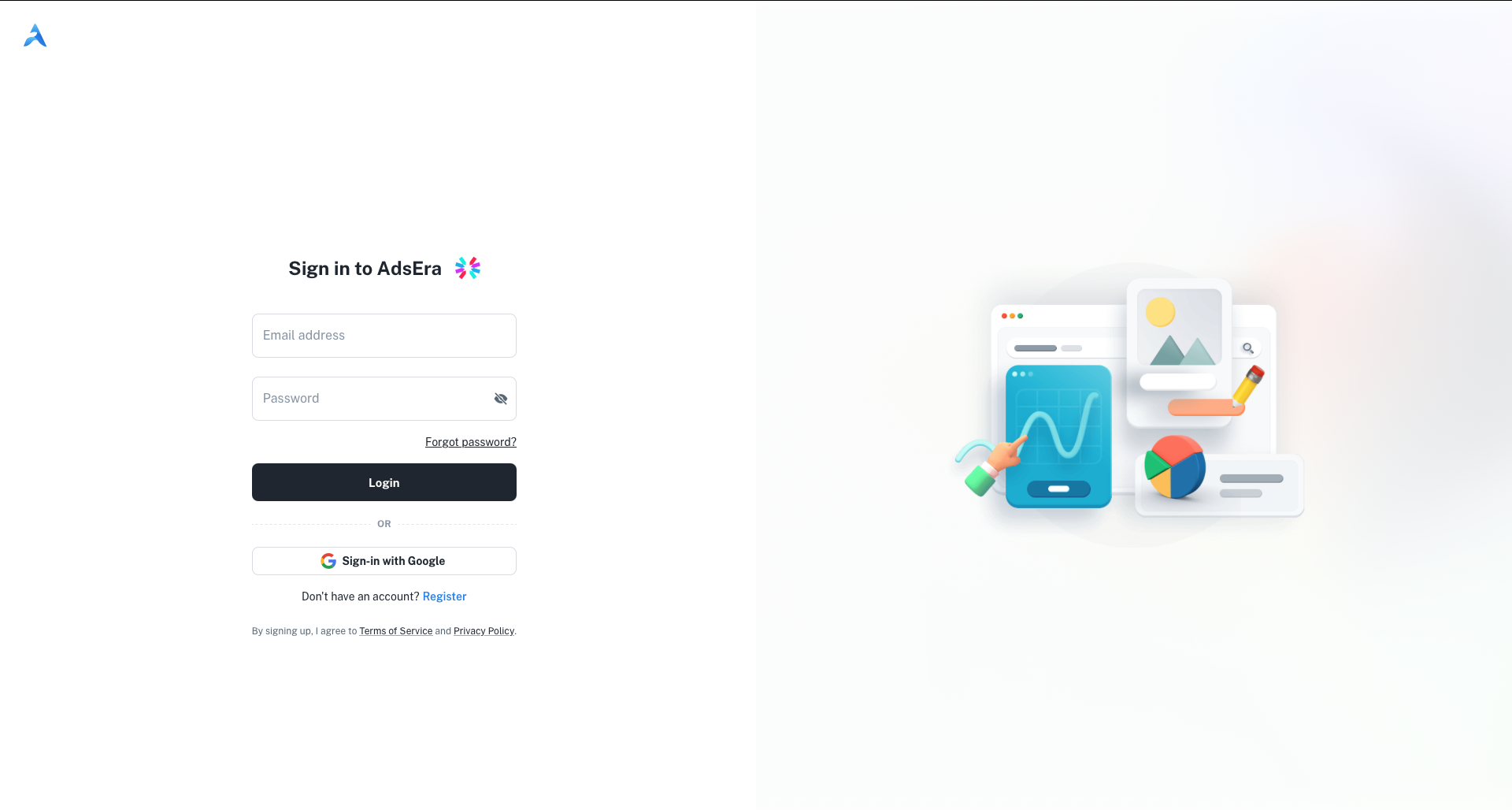
To access your AdsEra dashboard, you need to sign in to your account. The login page provides two methods: using your registered email and password or signing in with your Google account.
**Login to your account? [Go to the AdsEra Login Page →](https://app.adsera.in/auth/login)**
***
## Standard Login
This is the primary method for signing into your account.
In the **Email address** field, type the email you used to register your account.
In the **Password** field, type your secret password. You can click the eye icon to show or hide the characters you're typing.
Click the **Login** button to be redirected to your dashboard.
***
## Sign in with Google
For quick access, you can authenticate using your existing Google account.
1. Below the main login form, click the **Sign-in with Google** button.
2. A pop-up window will appear, prompting you to choose a Google account.
3. Select the desired account and follow the authentication steps.
4. Upon successful authentication, you will be redirected to the AdsEra dashboard.
***
## Other Options
Links are available for account recovery and for new users to register.
If you've forgotten your password, click this link. You'll be taken to a new page to start the password reset process.
If you don't have an account yet, click the **Register** link to be taken to the sign-up page.
# Register a New Account
Source: https://docs.adsera.in/help/account/register
A step-by-step guide to creating your AdsEra account using an email address or a Google account.
Welcome to AdsEra! Creating an account is a simple, multi-step process. You can either register with your **email and password** or use your **Google account** for a faster setup.
**Ready to create your account? [Go to the AdsEra Registration Page →](https://app.adsera.in/auth/register)**
Follow the guide below that matches your preferred method.
***
This is the standard method for creating an account. It involves filling out a form, verifying your email with a one-time password (OTP), and selecting a plan.
### Step 1: Fill Out the Registration Form
First, you'll need to provide your personal and account details.
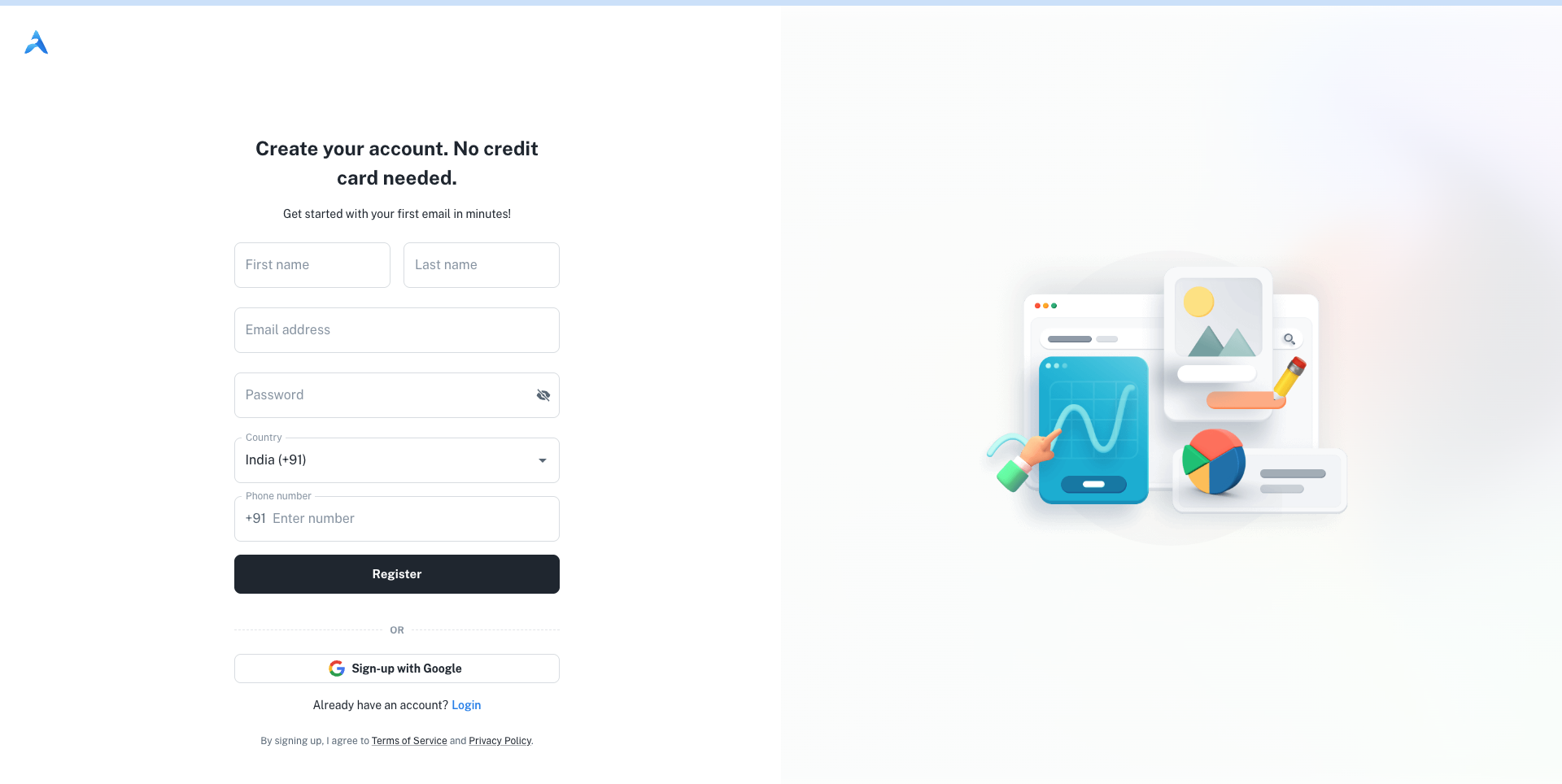
Fill in your **First name** and **Last name**.
Provide a valid **Email address** and create a secure **Password**.
Select your **Country** from the dropdown list and enter your **Phone number**.
After filling in all fields, click the **Register** button to proceed.
***
### Step 2: Verify Your Email Address
To ensure your email is valid, we'll send you a verification code.
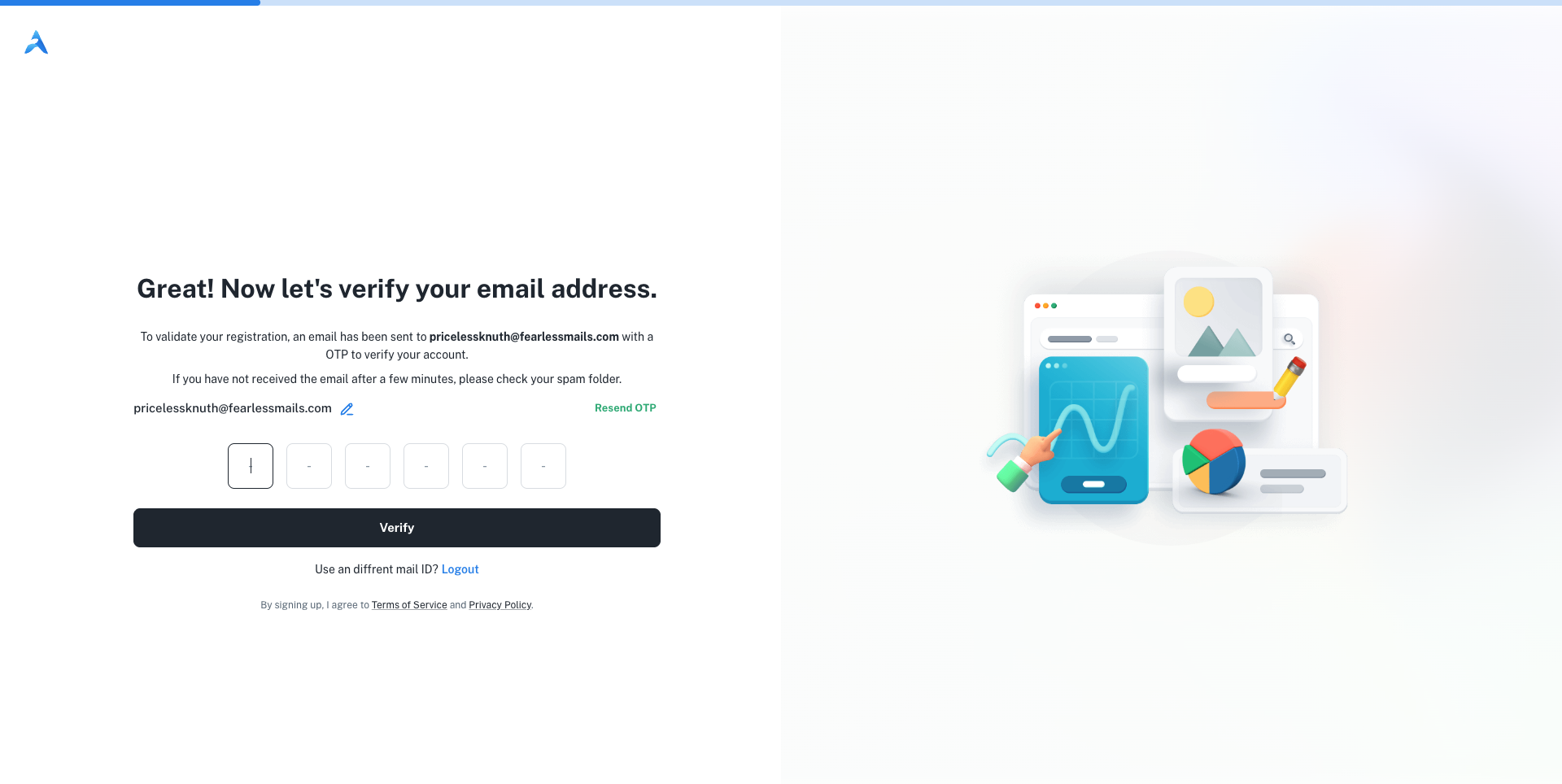
Look for an email from AdsEra containing a 6-digit one-time password (OTP). If you don't see it, check your spam folder.
Type the 6-digit code into the input fields on the verification page.
Click the **Verify** button. If the code is correct, your account will be successfully created.
If you haven't received the code, you can use the **resend OTP** button.
***
### Step 3: Select Your Plan
After successful verification, you'll be logged in and directed to the **Plans & Subscriptions** page.
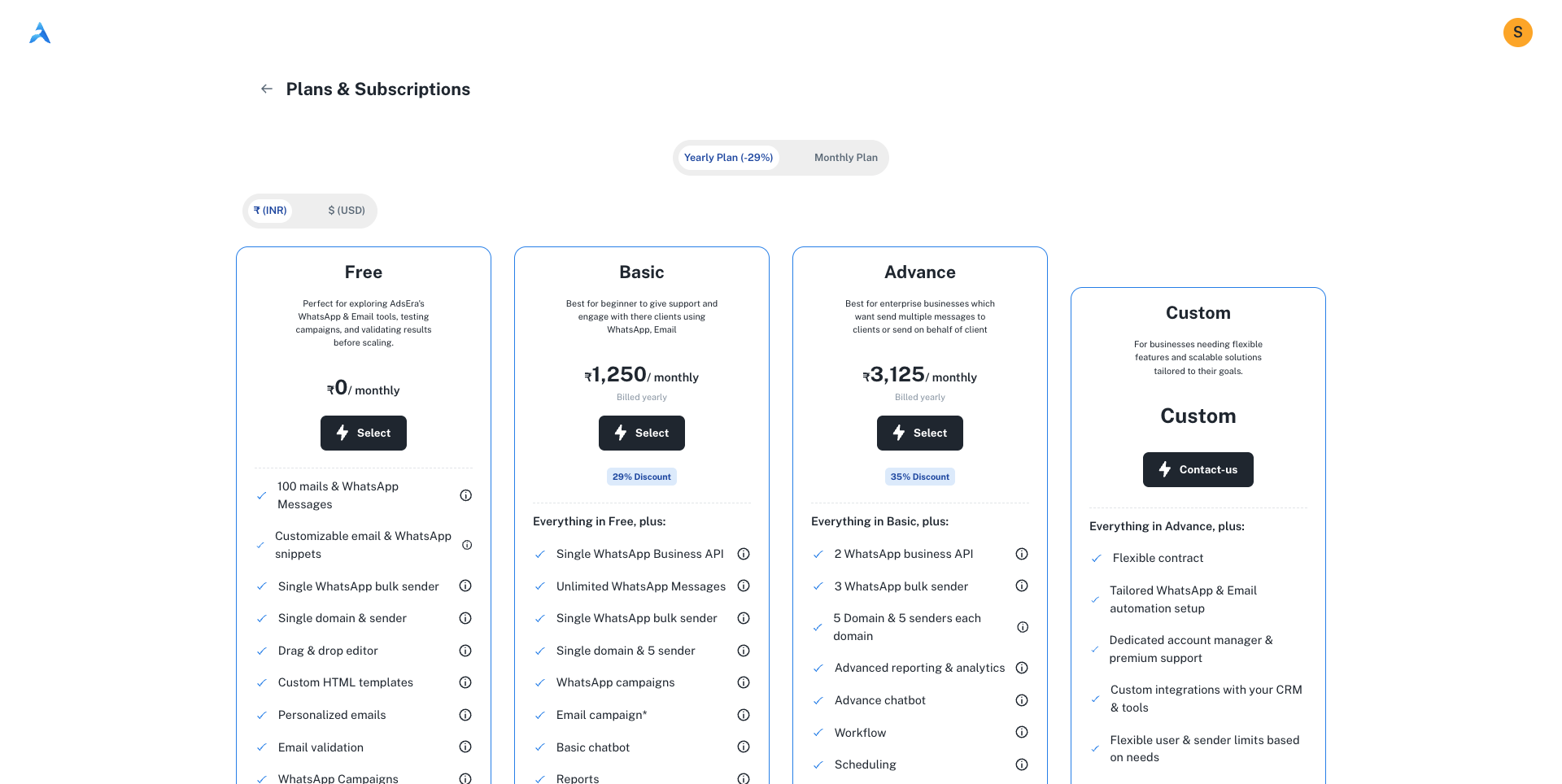
Your account is automatically placed on the **Free plan**, which allows you to start exploring AdsEra's features immediately. You can choose to upgrade to a paid plan at any time. Your registration is now complete!
This method allows you to create an account using your existing Google profile, which simplifies the initial steps.
### Step 1: Authenticate with Google
Begin by selecting the Google sign-up option on the registration page.
1. Click the **Sign-up with Google** button.
2. A pop-up window will appear. Choose the Google account you wish to use.
3. Grant the necessary permissions to link your Google account with AdsEra.
***
### Step 2: Provide Additional Details
After authenticating with Google, we just need a few more details to complete your profile.
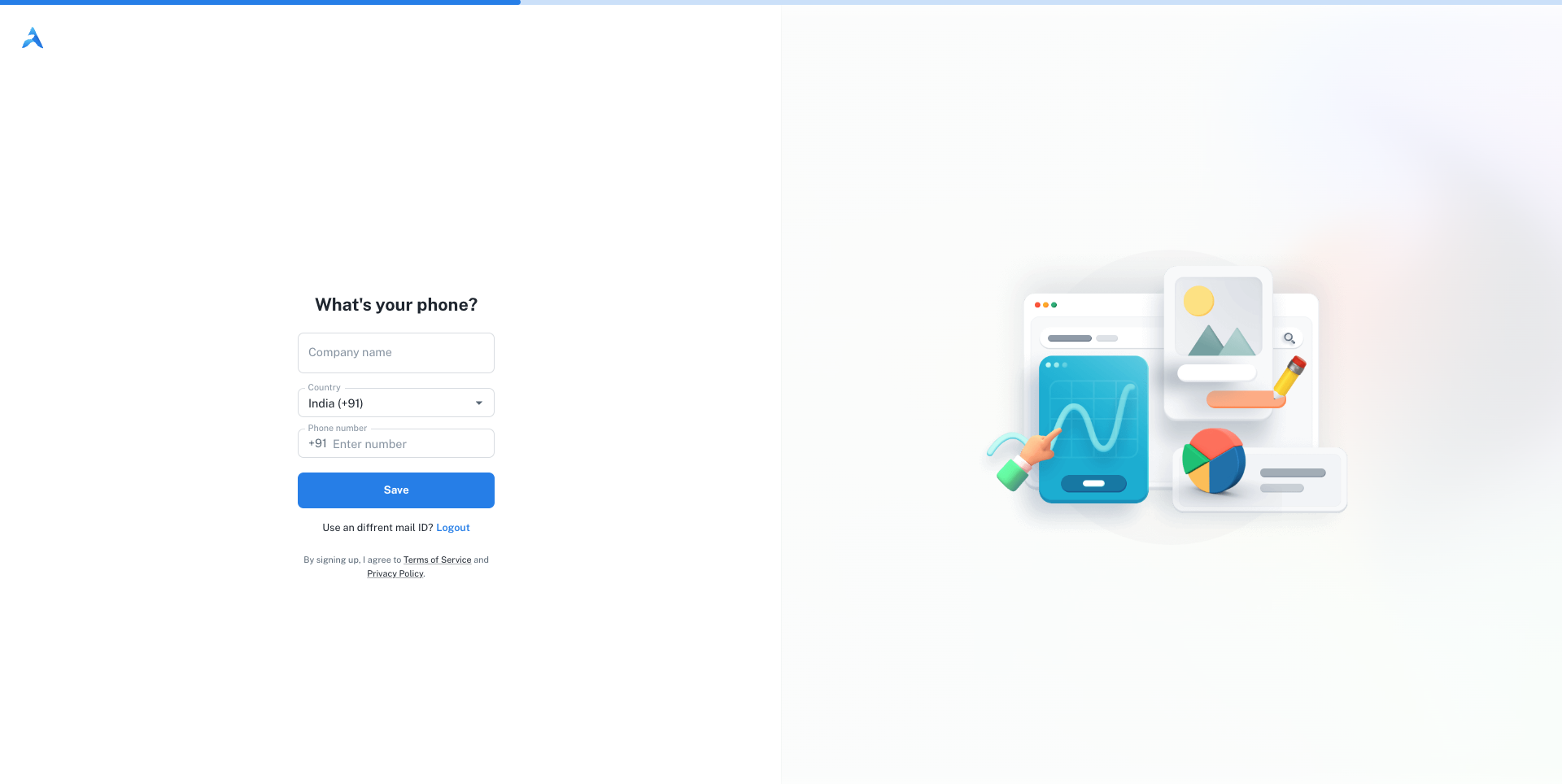
Fill in your **Company name** and **Phone number**. Your country should be pre-selected.
Click the **Save** button to finalize your account details.
***
### Step 3: Select Your Plan
Just like with the email sign-up, you'll be directed to the **Plans & Subscriptions** page after saving your details.

Your account is automatically started on the **Free plan**. You can begin using the platform right away or explore options to upgrade. Your registration is now complete!
***
### Next Steps
Now that your account is created, learn how to sign in.
# Contact Attributes Settings
Source: https://docs.adsera.in/help/audiance/attribute
Create and manage custom data fields to store personalized information about your contacts.
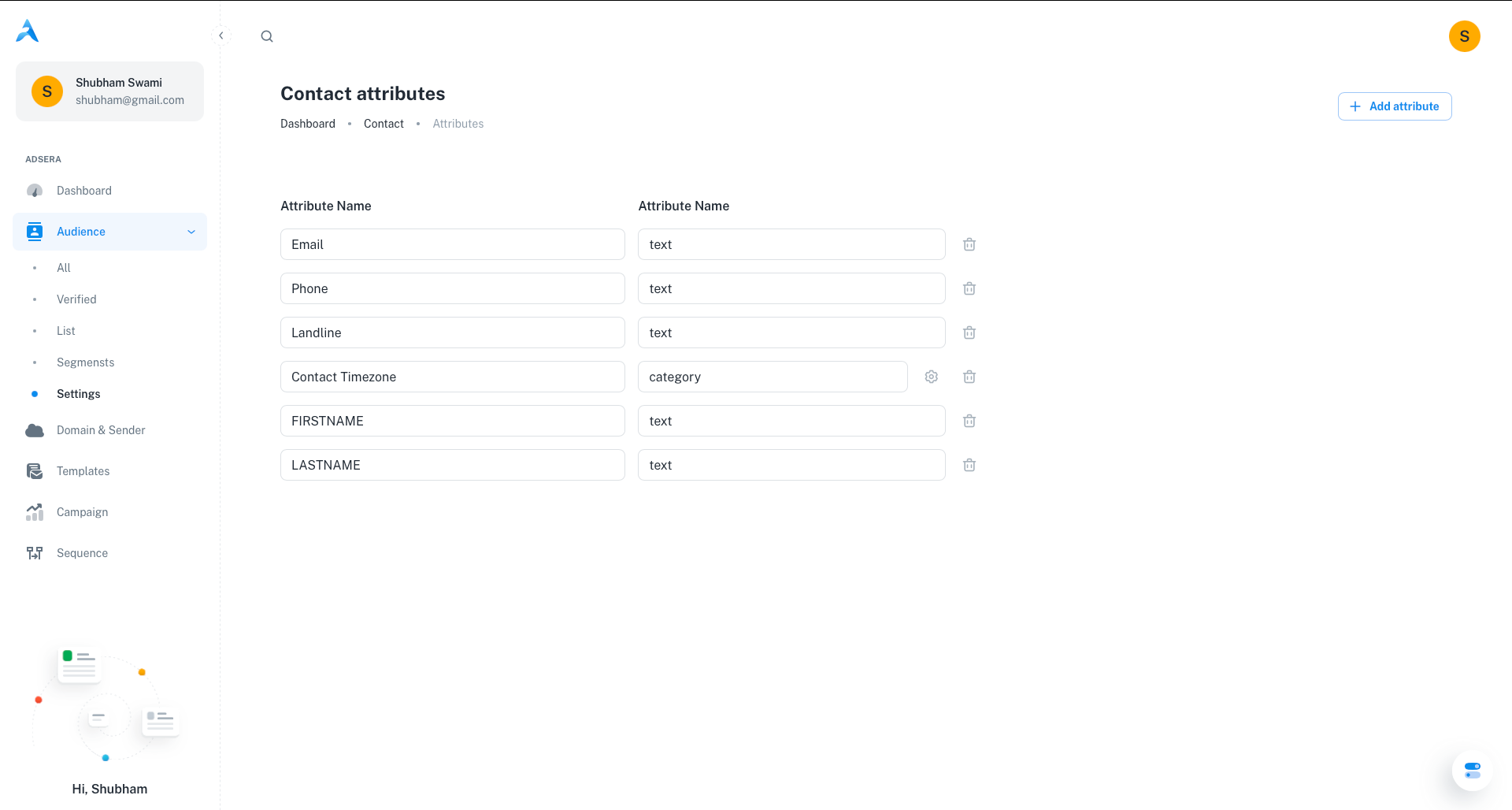
Contact attributes are custom fields used to store additional information about your contacts beyond standard details like email and name. Think of them as personalized data points such as job title, city, product preferences, or subscription tier.
**Want to manage Attributes? [Go to the AdsEra Attributes Settings →](https://app.adsera.in/dashboard/contact/attributes)**
These attributes are incredibly powerful, enabling you to:
* **Personalize** your email and WhatsApp content for a more individual touch.
* **Create** highly specific segments for targeted campaigns.
* **Refine** your targeting in automation sequences.
***
## Creating a New Attribute
Adding a new custom field to store specific data about your contacts is simple.
Click the **“+ Add attribute”** button located at the top of the page.
An “Add Attribute” modal will appear, prompting you for two key details:
* **Attribute Name:** A clear, descriptive name (e.g., "Job Title", "Preferred Language", "Last Purchase Date").
* **Attribute Type:** Select the type of data this attribute will store.
* **Text:** For free-form text.
* **Number:** For numerical values like scores or IDs.
* **Date:** For specific dates like birthdays or subscription start dates.
* **Boolean:** For true/false values (displays as a checkbox).
* **Dropdown:** A predefined list where a contact can only have one value.
* **Multi-select:** A predefined list where a contact can have multiple values.
If you choose a "Dropdown" or "Multi-select" type, you will be able to add the specific choices for that attribute. Once finished, click **Save**. Your new attribute will now appear in the list.
***
## Managing Existing Attributes
For attribute types like **Dropdown** or **Multi-select**, a **gear icon (⚙️)** will appear next to the attribute name. Clicking this opens a configuration modal where you can:
* Add new choices to the list.
* Edit the wording of existing choices.
* Remove choices that are no longer relevant.
To permanently remove an attribute, click the **trash can icon** next to it.
**This action is permanent and cannot be undone.** Deleting an attribute will remove it and **all its associated data** from every contact in your database.
***
## How Attributes Power Your Marketing
Effectively using contact attributes will significantly enhance the relevance and impact of your marketing efforts.
Custom attributes are the building blocks of targeted segments. Use them in the [All Audience](/help/audiance/audiance) filter builder to create dynamic groups like "Contacts where 'Job Title' is 'Manager'".
Attribute values can be inserted directly into your email and WhatsApp campaigns using personalization tokens (e.g., `{{contact.job_title}}` or `{{contact.city}}`) to create highly individualized content.
The attributes you create here can be displayed as columns in the main "All Audience" contact table, allowing you to see your most important custom data at a glance.
# All Audience
Source: https://docs.adsera.in/help/audiance/audiance
A central hub to view, manage, filter, and take bulk actions on all your contacts.
The **All Audience** table is your command center for contact management. It's a powerful, interactive database designed to give you a complete and actionable view of every person you connect with, whether they came from a CSV import, a form, or were added manually.
**Want to manage you Audience? [Go to the All Audience Page →](https://app.adsera.in/dashboard/contact/list)**
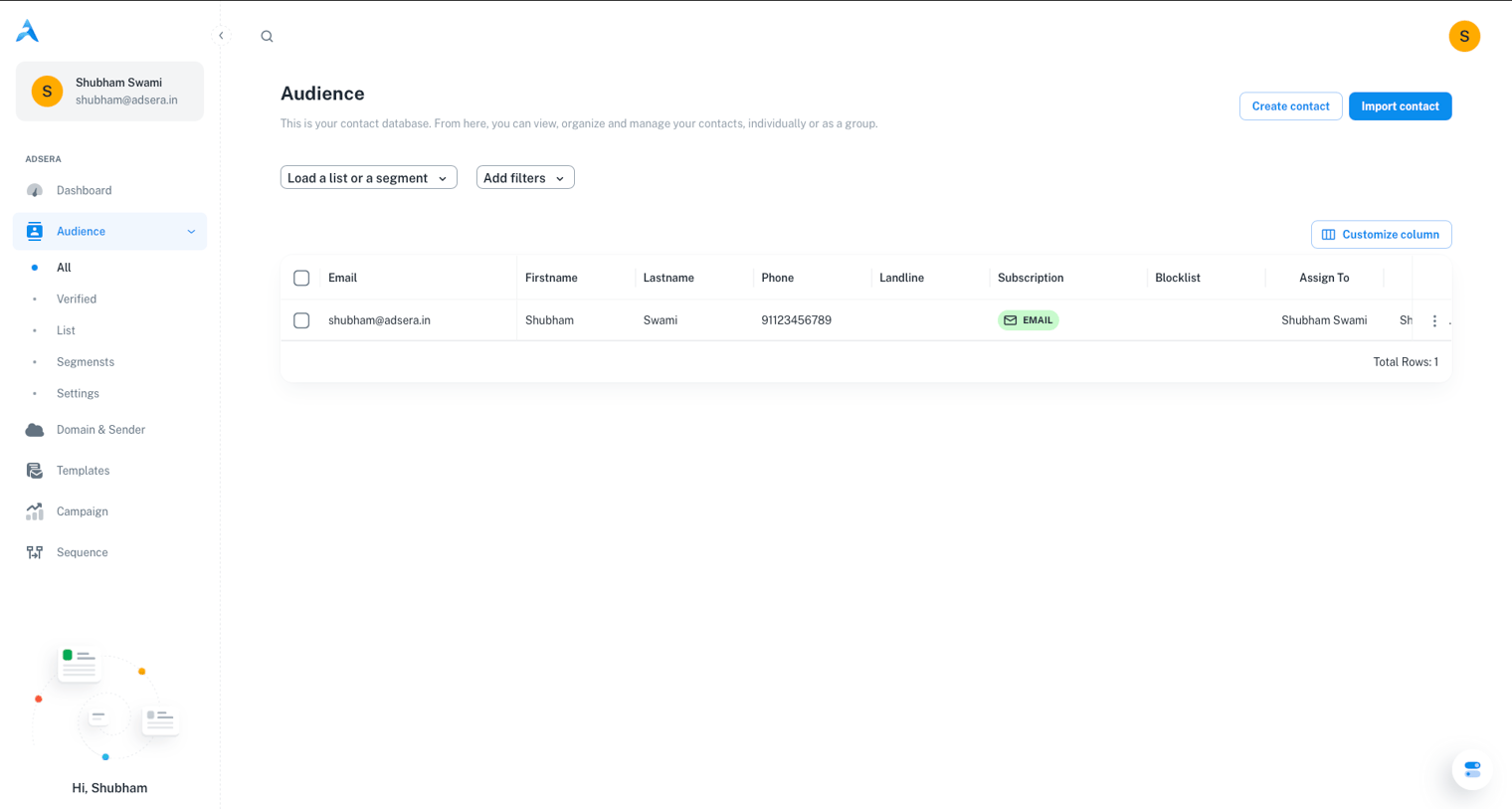
From this single screen, you can get a quick overview, search for specific people, sort data, and use powerful filters to find hyper-specific groups for your campaigns.
Grow your audience by adding contacts one by one or by importing them in bulk from a file.
Use the advanced filter builder to find any group of contacts based on their data and behavior.
Show, hide, and reorder columns to create a personalized table view that matches your workflow.
Save time by applying tags, adding contacts to lists, exporting, or deleting thousands of contacts at once.
***
## Adding Contacts
Your audience table grows with your business. Here’s how to add new contacts and when to use each method:
This is perfect for adding a single contact on the fly, like a new prospect you just met. Click the **"Create Contact"** button, fill out the form with their details, and they'll instantly appear in your table.
This is your go-to for adding contacts in bulk. It's essential when migrating from another platform or uploading a list of event attendees. You'll upload a CSV file and **map** the columns in your file to the corresponding attributes in AdsEra.
***
## The Core Workflow: Filter, Save, Repeat
The true power of the All Audience page lies in its filtering capabilities. This workflow allows you to find hyper-specific groups and save them for reuse.
Click the **"Add filters"** button to open the filter builder. Here, you can create rules to segment your audience with precision.
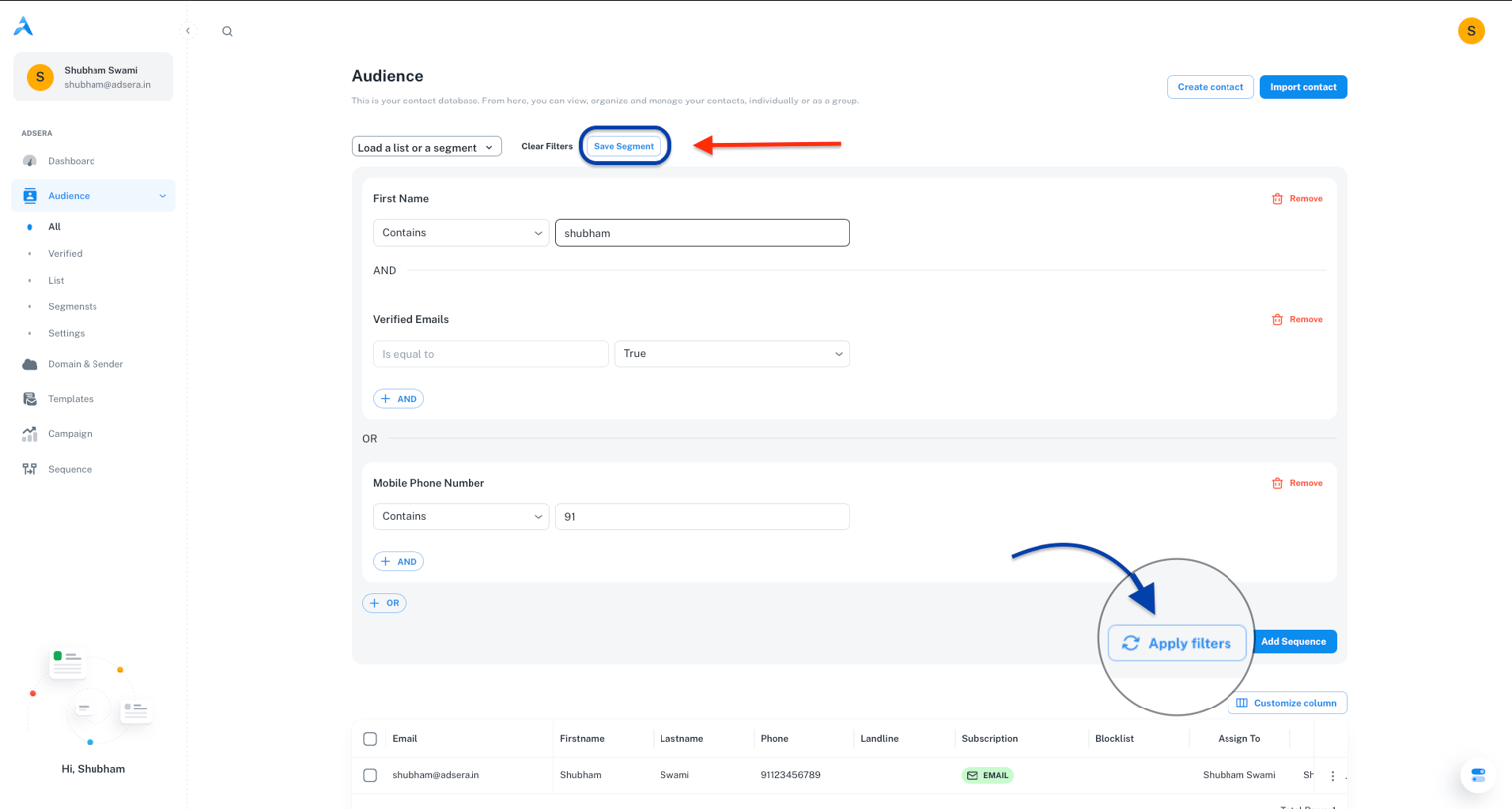
A filter consists of three parts:
* **Attribute:** The data point you want to examine (e.g., `City`, `Last Seen Date`, `Total Spent`).
* **Condition:** The logic you want to apply (e.g., `is`, `is not`, `greater than`, `contains`).
* **Value:** The specific data you're looking for (e.g., `New York`, `30 days ago`, `500`).
You can chain rules together with **AND** (for more specific results) or **OR** (for broader results).
Once you've built a filter that isolates a valuable group of contacts, don't let it go to waste! Click the **"Save as Segment"** button that appears.
Give your segment a descriptive name (e.g., "Active High-Value Customers"). This new segment is **dynamic**—it will automatically update, adding or removing contacts as they meet (or no longer meet) the filter rules you set.
Anytime you want to view a specific group, use the **"Load a list or a segment"** dropdown at the top of the page. This gives you one-click access to your manually created **Lists** (static groups) and your rule-based **Segments** (dynamic groups).
***
## Customizing and Managing the Table
Tailor the table to your needs and manage your contacts at scale.
Click the **"Customize column"** button to open a side panel. From here, you can:
* **Show/Hide Columns:** Uncheck any attribute you don't need to see to reduce clutter.
* **Reorder Columns:** Simply drag and drop the column names in the panel to reorder them in the table. Your custom view is saved automatically for your next visit.
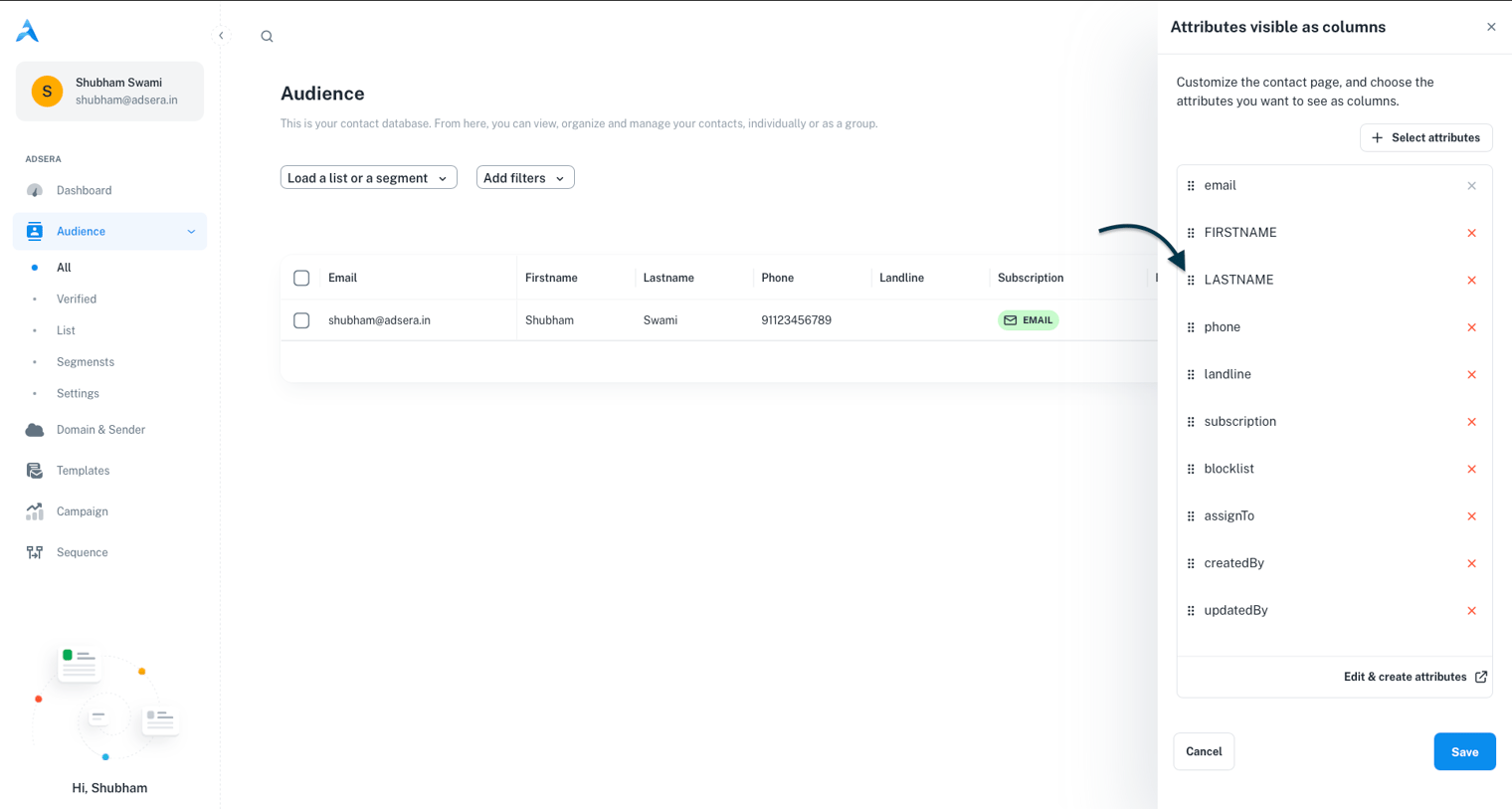
Manage thousands of contacts at once.
1. **Select contacts** using the checkboxes on the left. Use the master checkbox in the header to select all visible contacts.
2. The **Bulk Actions** menu will appear at the top.
3. Choose an action: **Assign Tag**, **Add to List**, **Export** to CSV, **Edit** an attribute for all, or **Delete**.
The **Delete** action is permanent and cannot be undone. Use it with caution.
# Import Contacts via Copy-Paste
Source: https://docs.adsera.in/help/audiance/copy
Add contacts by copying and pasting data directly from a spreadsheet without needing to upload a file.
This guide will walk you through importing your contacts quickly and easily using the copy-paste feature. This method is perfect for smaller lists or when you have data readily available in a spreadsheet.
**Want to Import Contacts via Copy-Paste? [Go to the AdsEra Contact Import Page →](https://app.adsera.in/dashboard/contact/import/option)**
### Prerequisites
Before you start, make sure you have the following:
Have your contact information ready in a spreadsheet (like Google Sheets or Excel) or a text editor.
Your data **must** include either an `EMAIL` or a `PHONE` column. At least one of these is required to identify and manage contacts.
Remember, you must have your contacts' consent to send them marketing campaigns.
***
## Step-by-Step Import Process
Follow these steps to import your contacts using the copy-paste method.
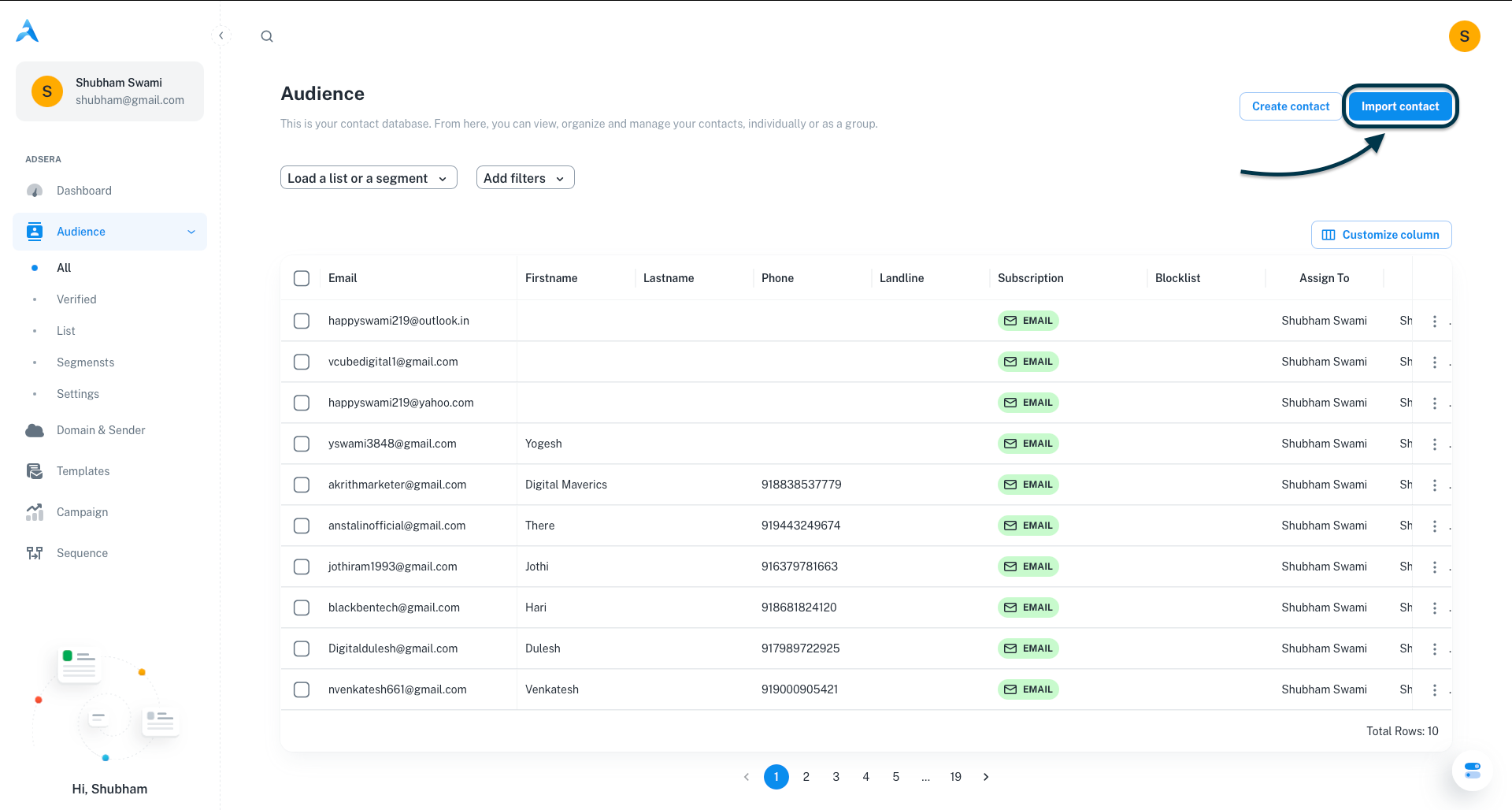
From your AdsEra Dashboard, navigate to **Audience > All**. In the top-right corner, click the **Import contact** button. On the next screen, select the **Copy-Paste** method.
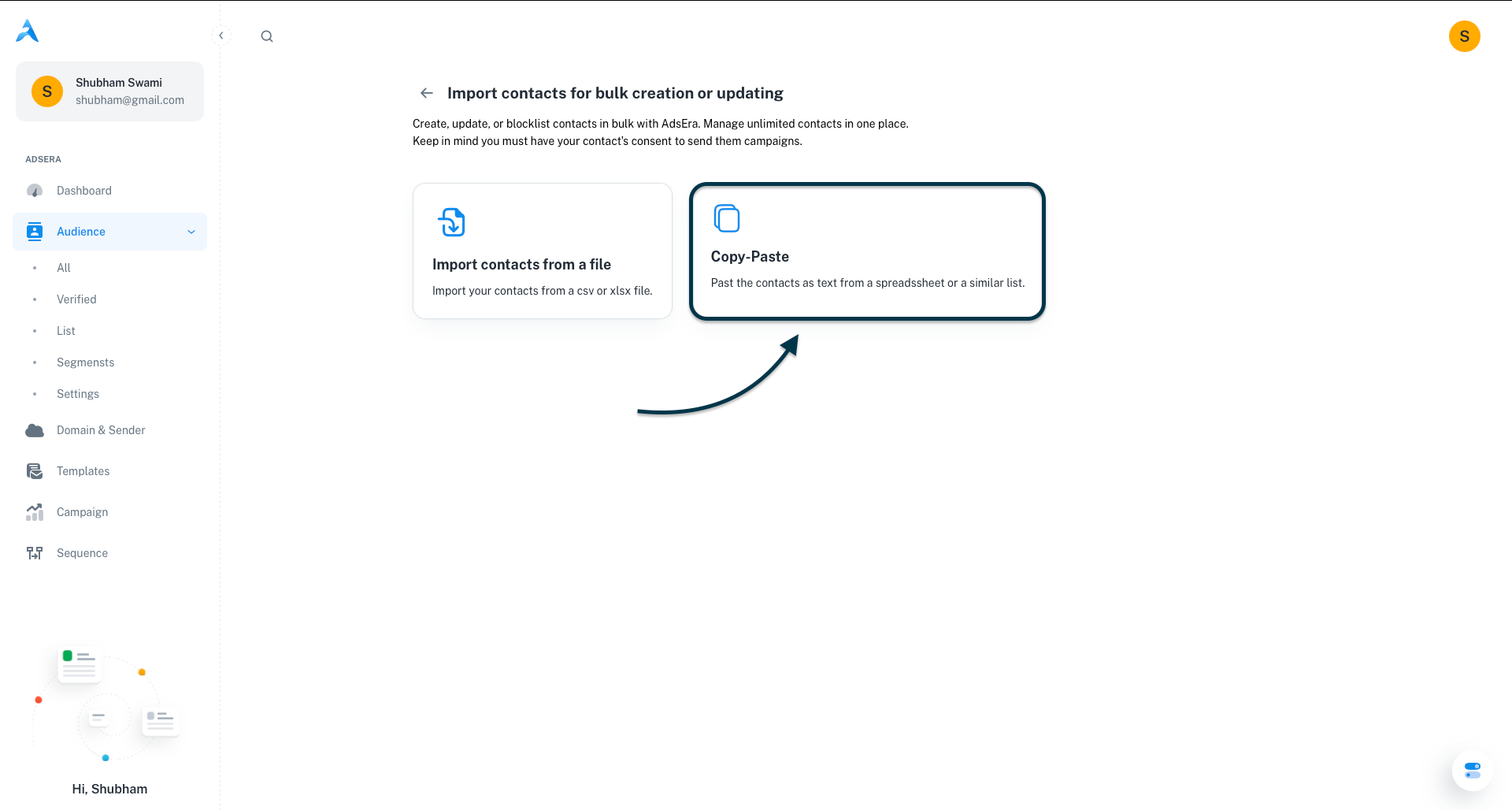
Before pasting, ensure your data is correctly formatted in your spreadsheet or text file.
* **Column Headers:** Your data must start with a header row (e.g., `EMAIL`, `FIRSTNAME`).
* **Comma-Separated:** Each value in a row must be separated by a comma.
* **Required & Optional Columns:** `EMAIL` is mandatory. You can also include `FIRSTNAME`, `LASTNAME`, `PHONE`, and `LANDLINE`. Any extra columns will be saved as custom attributes.
Here's an example of the expected syntax:
```csv theme={null}
EMAIL,FIRSTNAME,LASTNAME,PHONE,COMPANY
emma@example.com,Emma,Dubois,33612345678,Innovate Inc.
mickael@example.com,Mickael,Parker,15555551234,Solutions Corp
```
Once formatted, select and copy your data (including the header row).
Paste your copied data directly into the text area provided on the import screen, then click Next.
AdsEra will display a preview of your data in a table. Review it to ensure your columns and rows appear correctly, then click Next.
This crucial step matches your data columns to the corresponding fields in AdsEra. The system will attempt to auto-map them.
Verify Mapping: Ensure each "Column name from imported file" is correctly matched to a "Column name on AdsEra".
Set Duplicate Handling: For each column, choose an action for updating existing contacts:
Overwrite: Replaces existing data with the new data.
Fill only if empty: Only adds data if the field is currently blank.
Skip: Ignores the new data for that field if the contact already exists.
Every contact you import must be assigned to at least one list.
Select an existing list: Choose from your current contact lists.
Create a new list: Click the "Create A List" button and give your new list a name.
Once you've selected a list, click Upload.
Congratulations! Your contacts are now being imported. After processing, you'll receive a confirmation report detailing the number of successful and failed imports, along with reasons for any failures.
# Import Contacts via File Upload
Source: https://docs.adsera.in/help/audiance/file
A step-by-step guide to adding contacts in bulk to AdsEra by uploading a CSV or XLSX file.
This guide will walk you through importing your contacts by uploading a file. This method is perfect for larger lists and ensures all your contact data is seamlessly integrated into AdsEra.
**Want to Import Contacts via File Upload? [Go to the AdsEra Contact Import Page →](https://app.adsera.in/dashboard/contact/import/option)**
### Prerequisites
Before you start, make sure you have the following:
Have your contact information ready in a spreadsheet (like Google Sheets or Excel) or a text editor.
Your data **must** include either an `EMAIL` or a `PHONE` column. At least one of these is required to identify and manage contacts.
Remember, you must have your contacts' consent to send them marketing campaigns.
***
## Step-by-Step Import Process
Follow these simple steps to import your contacts using a file upload.
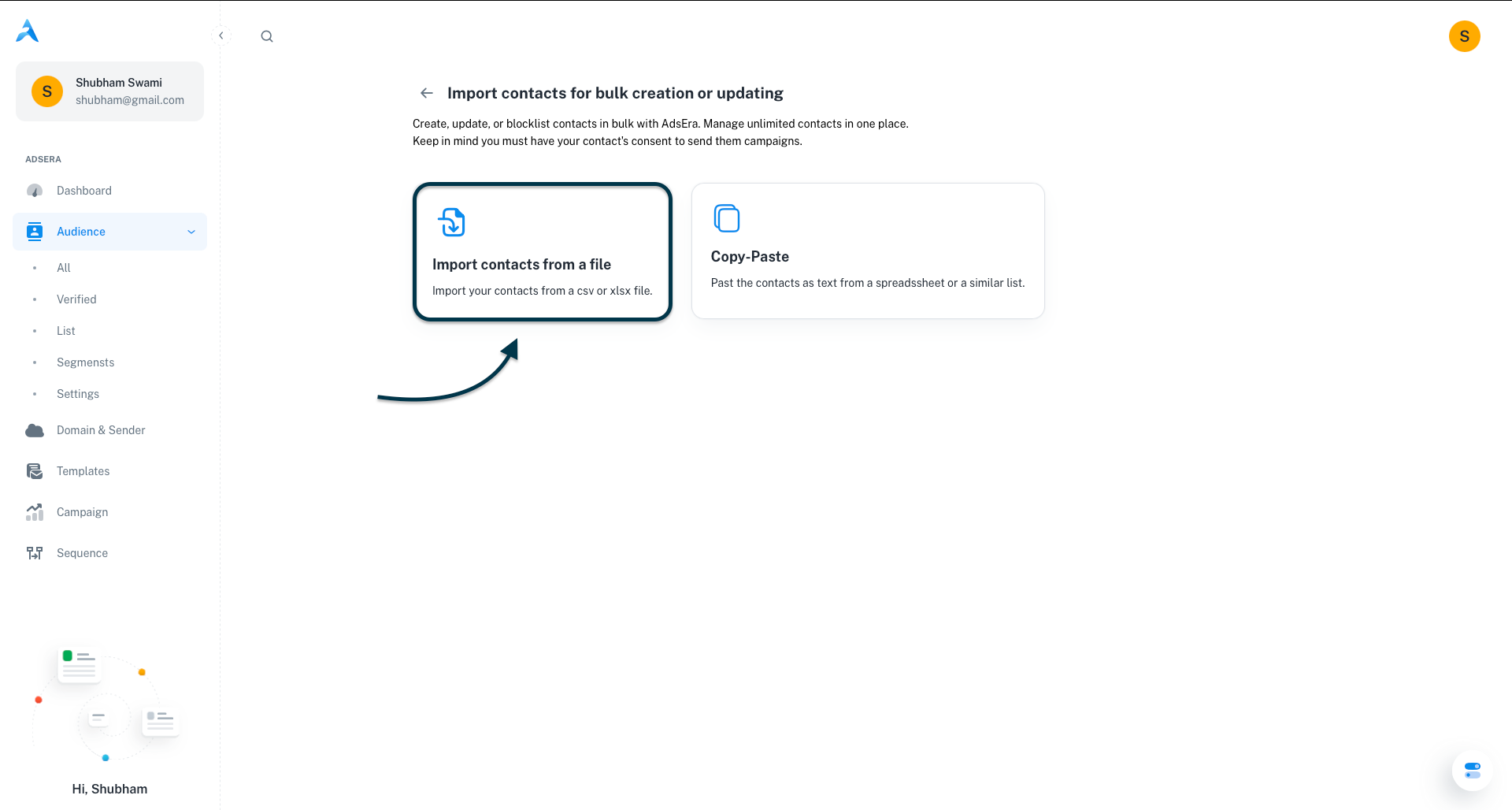
From your AdsEra Dashboard, navigate to **Audience > All**. In the top-right corner, click the **Import contact** button. On the next screen, select the **Import contacts from a file** option.

On the "Upload File" screen, either drag and drop your CSV or XLSX file into the designated area, or click "browse through your machine" to select it manually.
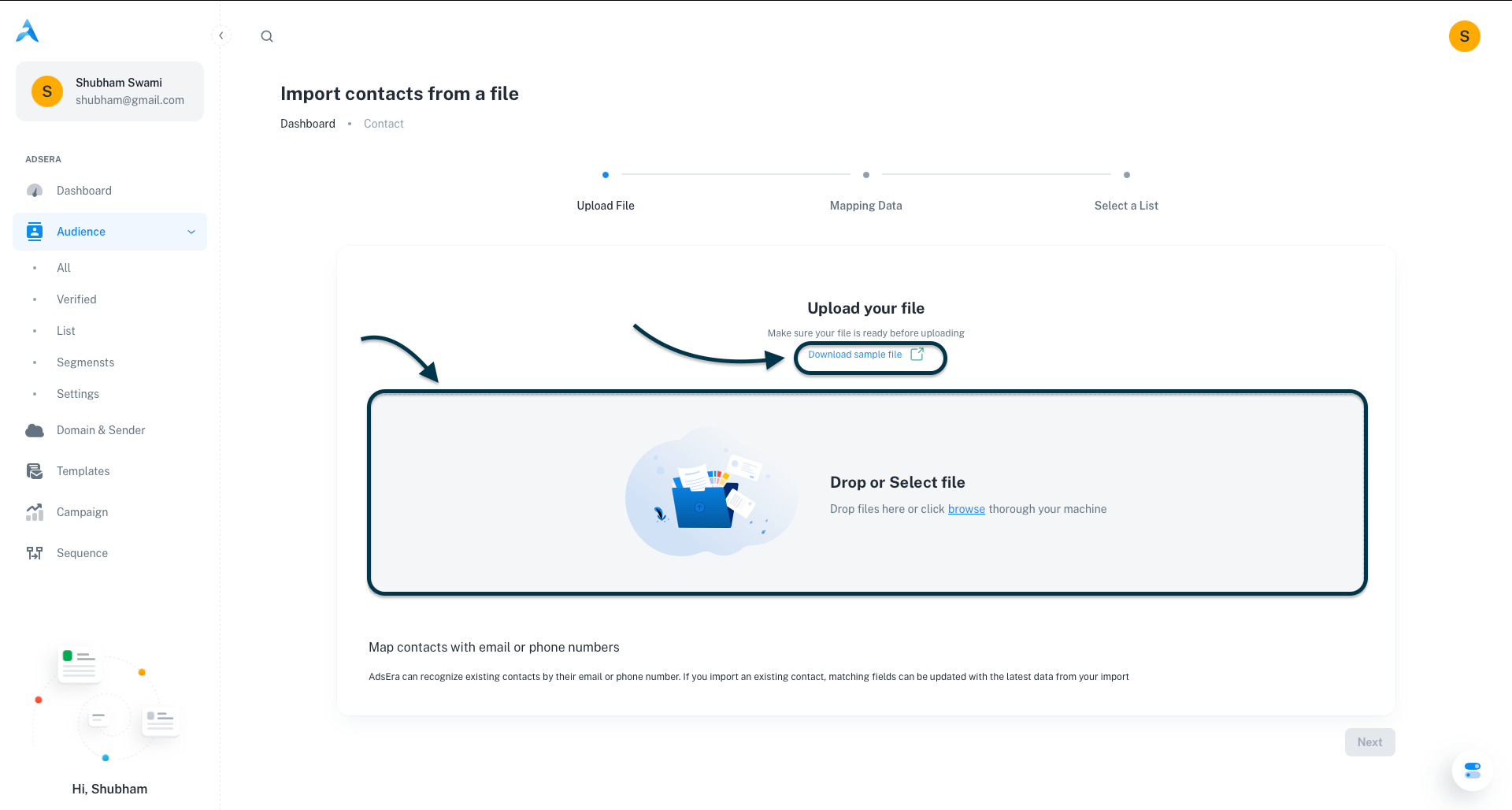
**Tip:** If you need a template to structure your data correctly, click the **"Download sample file"** link.
After a successful upload, AdsEra will display a preview of the first few rows of your data. Review the table to ensure your columns and data appear correctly, then click **Next**.
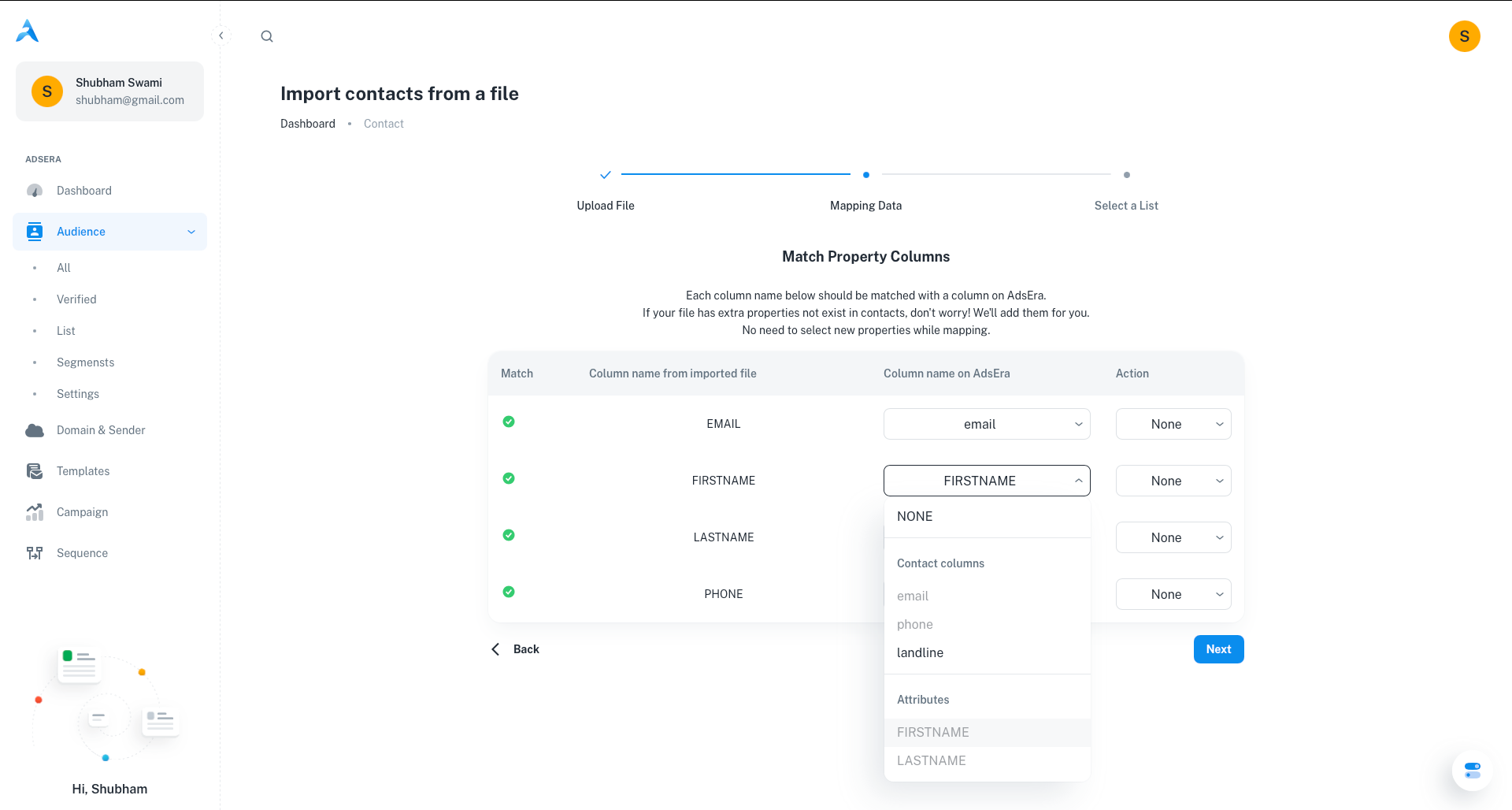
This crucial step matches your file's columns to the corresponding fields in AdsEra.
* **Verify Mapping:** The system will attempt to auto-map your columns. Double-check that each "Column name from imported file" is correctly matched to a "Column name on AdsEra".
* **Set Duplicate Handling:** For each column, choose an action for updating existing contacts:
* **Overwrite:** Replaces existing data with the new data.
* **Fill only if empty:** Only adds data if the field is currently blank.
* **Skip:** Ignores the new data for that field if the contact already exists.
Every contact you import must be assigned to at least one list.
* **Select an existing list:** Choose from your current contact lists.
* **Create a new list:** Click the **"Create A List"** button and give your new list a name.
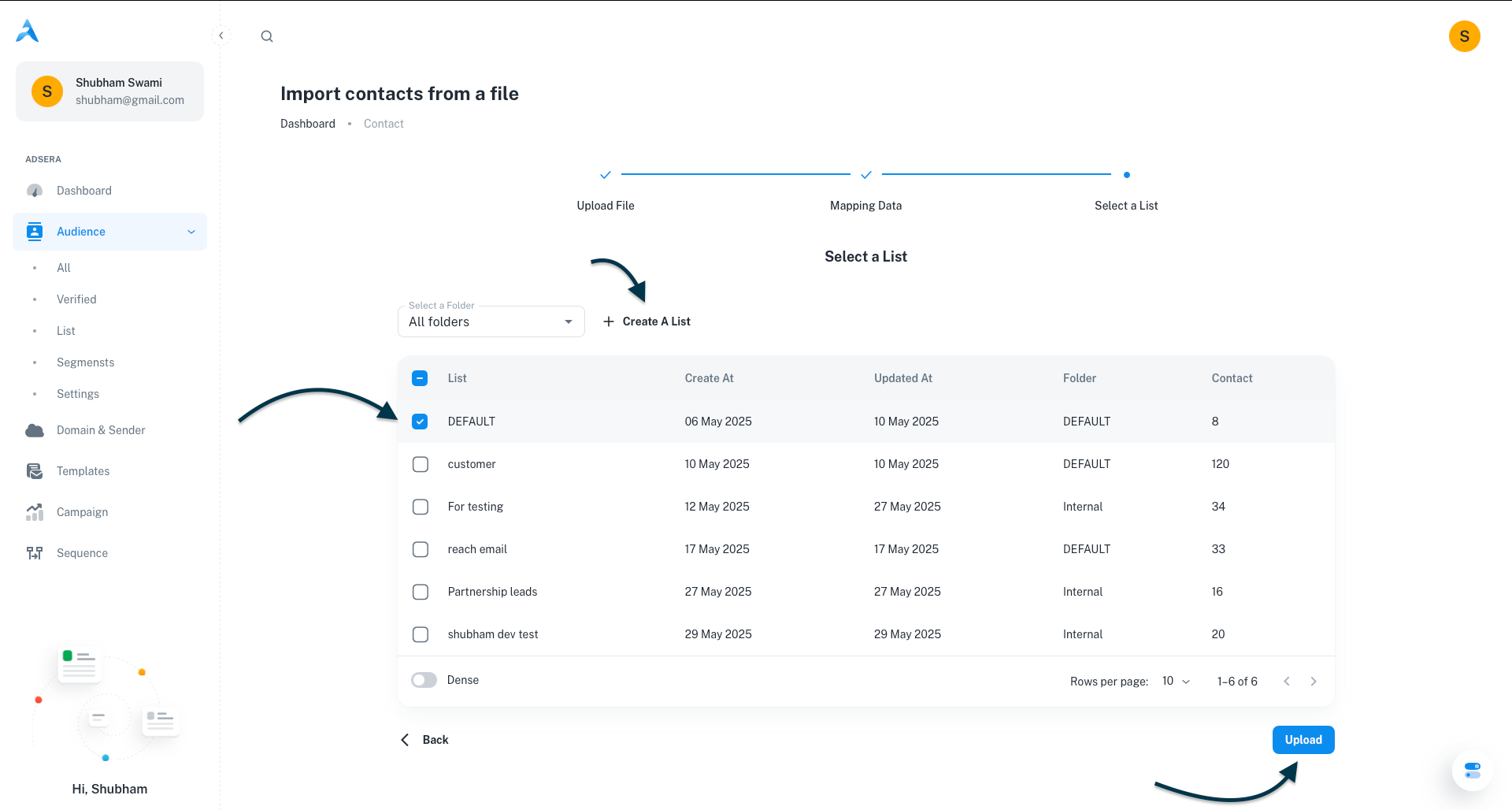
Once you've selected a list, click **Upload**.
***
## After the Upload
After clicking **Upload**, AdsEra will process your file. You will receive a **confirmation report** detailing the number of **successful** and **failed** imports, along with specific reasons for any failures.
### Troubleshooting Common Errors
| Common Error | Description & Solution |
| :---------------------- | :------------------------------------------------------------------------------------------------------------------------------------------------------------ |
| **Missing Identifier** | A row in your file is missing both an email and a phone number. **Solution:** Ensure every contact has a valid value in either the `EMAIL` or `PHONE` column. |
| **Incorrect File Type** | You've uploaded a file that isn't a CSV or XLSX. **Solution:** Ensure your file is saved in either `.csv` or `.xlsx` format. |
| **File Corrupted** | AdsEra could not read the file. **Solution:** Open your file in a spreadsheet program and save it again as a new, clean CSV or XLSX. |
| **Missing Headers** | Your file is missing the first row of column headers. **Solution:** Ensure your very first row contains clear column headers. |
***
## Pro Tips for a Smooth Import
Take a moment to clean your data first. Remove any unnecessary characters, extra spaces, or inconsistent formatting to ensure a smooth import.
If you're importing a very large list for the first time, try importing a small sample (5-10 contacts) to ensure everything maps and imports as expected.
The mapping step is critical! Double-check that your columns are correctly aligned with AdsEra's fields to avoid data discrepancies.
# Managing Contact Labels
Source: https://docs.adsera.in/help/audiance/label
Use labels (or tags) to organize contacts, trigger automations, and segment your audience for targeted messaging.
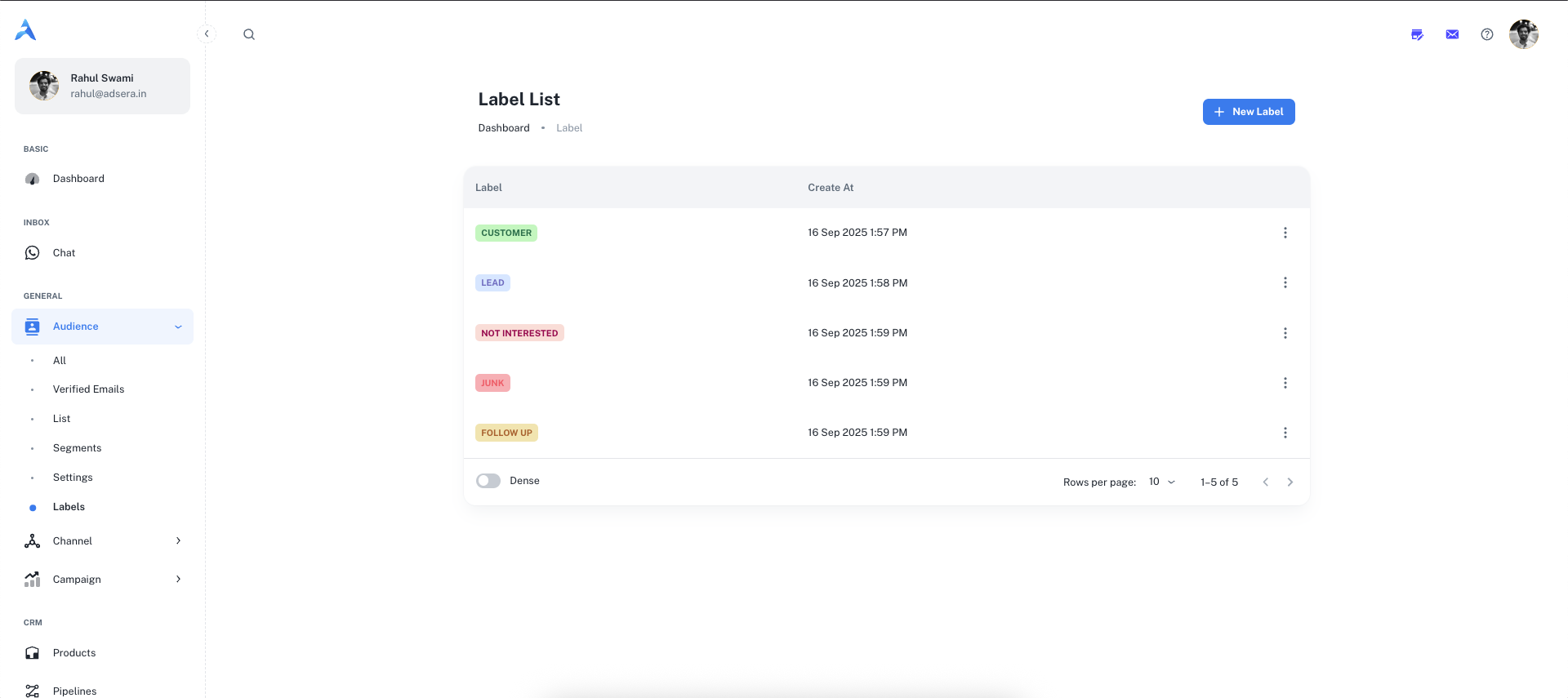
**Labels** (also known as tags) are a flexible way to categorize your contacts. You can use them to mark contacts based on their status, interests, or stage in the customer journey (e.g., `LEAD`, `CUSTOMER`, `FOLLOW UP`).
**Want to Manage Contact Labels? [Go to the AdsEra Labels Page →](https://app.adsera.in/dashboard/contact/labels)**
This system is crucial for organizing your audience, running targeted campaigns, and managing conversations in the Chat Inbox.
***
## Creating a New Label
Adding new labels to your system is quick and easy.
Click the **"+ New Label"** button located in the top-right corner of the page.
A "Create label" modal will appear. You need to provide two details:
* **Title:** The name of your label (e.g., `Lead`, `Support-Ticket`, `VIP`). This field has a 15-character limit.
* **Color:** Select a color from the palette to make your label easily identifiable.
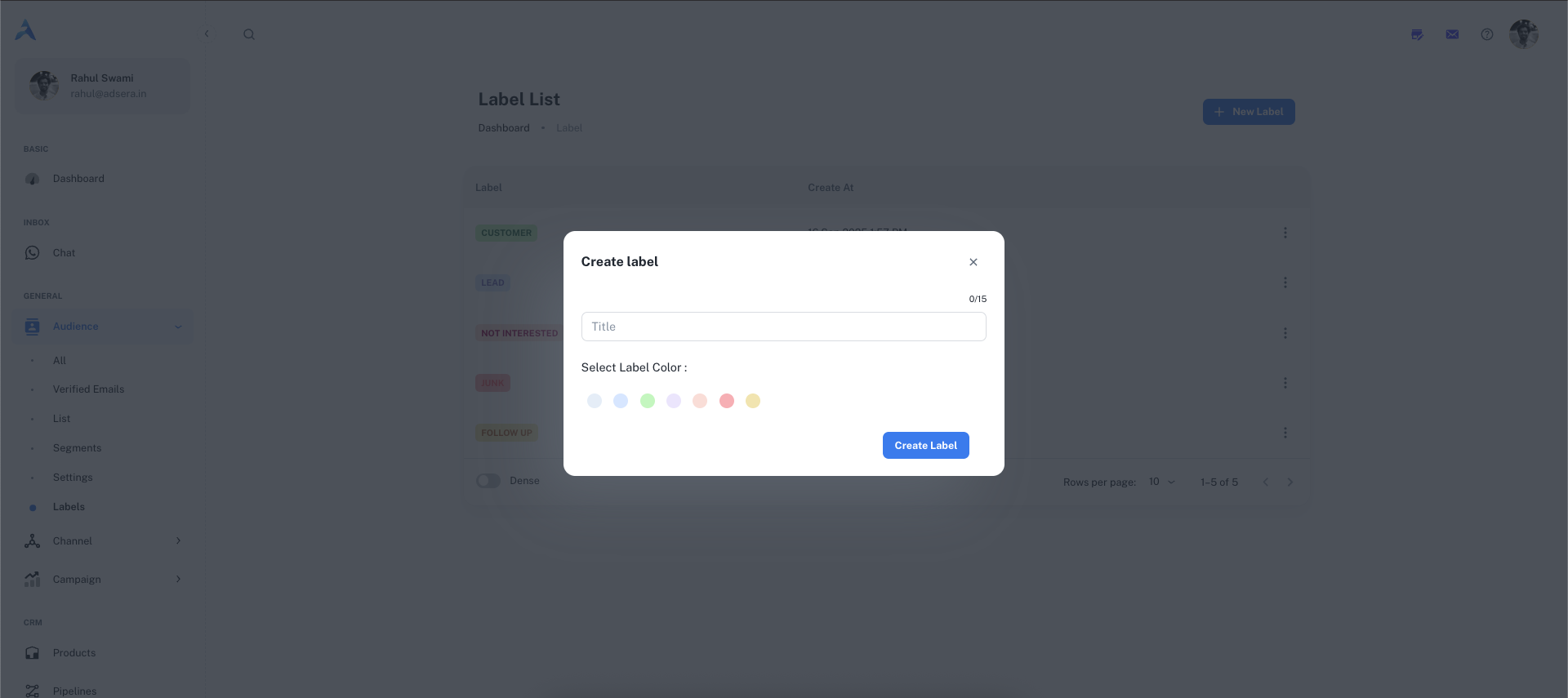
Click the **"Create label"** button to save it. It will now appear in your list of labels.
***
## Managing Your Labels
The main table on this page lists all the labels you have created.
| Column | Description |
| :-------------- | :----------------------------------------------------- |
| **Label** | A preview of the label, displayed in its chosen color. |
| **Create At** | The date and time the label was created. |
| **⋮ (Actions)** | A menu of actions you can perform on the label. |
#### Label Actions (The ⋮ Menu)
Clicking the three-dot menu on any label row allows you to manage it:
* **Edit:** This will open a modal allowing you to change the label's name and color.
* **Delete:** This permanently removes the label from the system.
Deleting a label will also remove it from all contacts it has been applied to. This action cannot be undone.
***
## How to Use Labels
Labels are integrated across the AdsEra platform to make your workflow more efficient.
Agents can apply labels directly to contacts during a conversation to categorize them in real-time. [Learn more in the Chat Inbox guide](/help/inbox/chat).
Select multiple contacts on the [All Audience](/help/audiance/audiance) page and apply or remove a label for all of them at once.
Labels are a powerful filter criterion. Create dynamic segments of contacts who have (or do not have) a specific label.
# Managing Contact Lists
Source: https://docs.adsera.in/help/audiance/list
Organize your contacts into static, reusable lists for targeted campaigns, personalization, and automation.
The **Contact List** page is your central hub for organizing your contacts within AdsEra. Its primary purpose is to help you create, manage, and group your contacts into customizable **Lists**. These lists are essential for sending targeted campaigns and implementing effective automation.
**Want to Manage Contact Lists? [Go to the AdsEra List Page →](https://app.adsera.in/dashboard/contact/list-listing)**
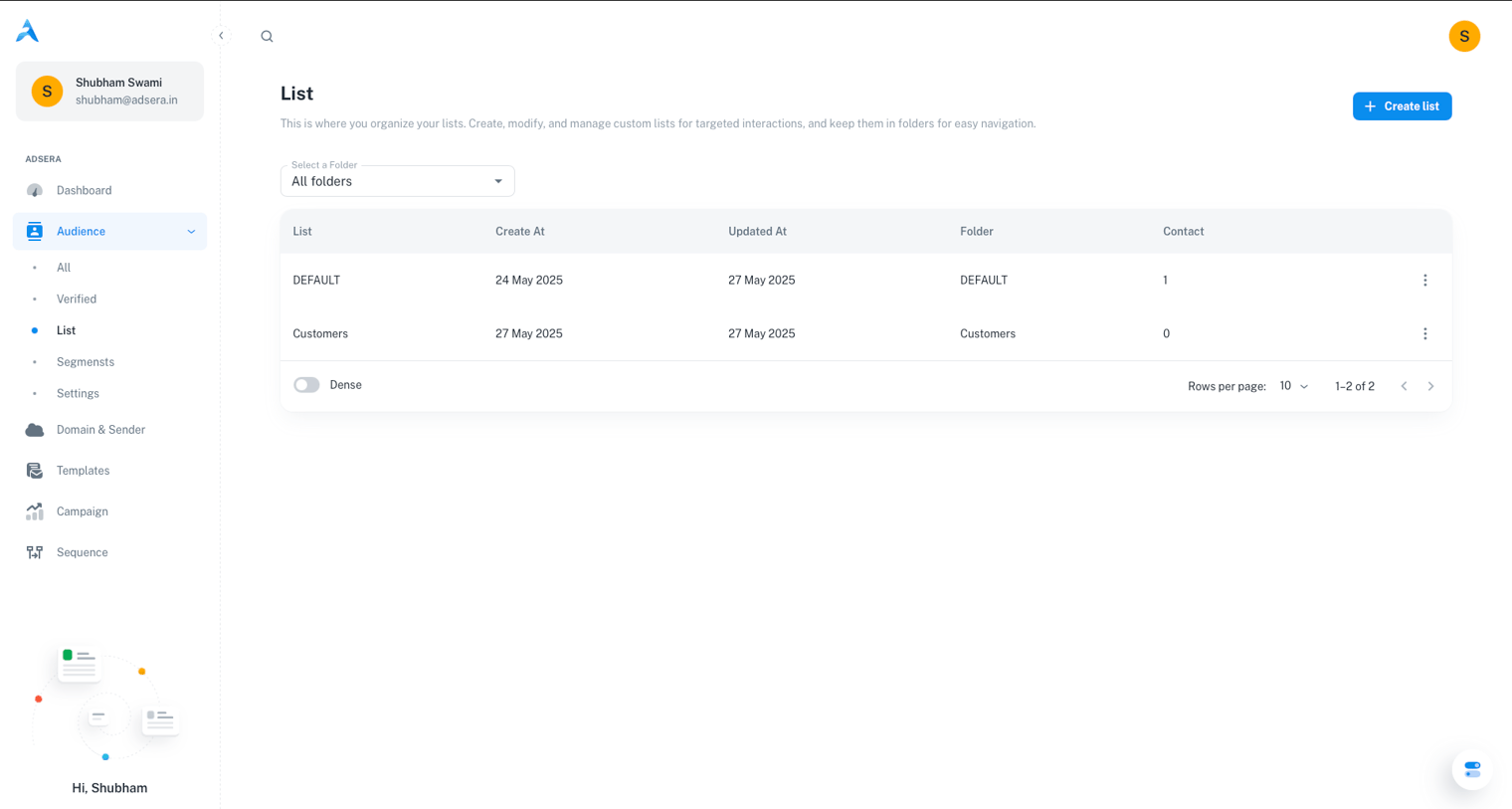
A key feature of AdsEra is flexibility: individual contacts can belong to multiple Lists. To keep your workspace tidy, Lists can be grouped into **Folders**, ensuring you can easily find the specific groups you need as your audience grows.
***
## Page Layout & UI Elements
The page is designed for clarity and ease of use. Here are the main elements:
Located in the top-right, this is your primary action for creating a new, empty contact list.
In the top-left, this menu allows you to filter the table view by folder or create new folders to organize your lists.
The main area of the page, displaying all your lists (within the selected folder) and their key details.
***
## Creating and Managing Lists & Folders
1. Click the **"Create List"** button in the top-right corner.
2. A modal window will appear, prompting you for:
* **List Name (required):** A descriptive name for your new list.
* **Select Folder (dropdown):** Choose an existing folder to organize your list in. You can also select "Create New Folder" from this menu.
3. Click **Create** to save your new list. It will now appear in the table.
Folders are essential for keeping your contact lists organized.
* **Switching Folders:** Use the **Folder Dropdown** in the top-left corner. Selecting a folder filters the table to show only the lists within it.
* **Creating Folders:** You can create a new folder from the "Select Folder" dropdown when creating a new list, or directly from the main Folder Dropdown.
***
## Understanding the List Table
The main table provides key information about each of your lists:
| Column | Description |
| :-------------- | :--------------------------------------------------- |
| **List Name** | The name you assigned to the list. |
| **Created At** | The date and time the list was originally created. |
| **Updated At** | The date and time the list was last modified. |
| **Folder** | The folder where the list is currently located. |
| **Contact** | The total number of contacts currently in that list. |
| **⋮ (Actions)** | A menu of actions you can perform on the list. |
**Performance at Scale:** The table uses **lazy loading** to handle massive datasets with ease. It loads a manageable number of lists initially and smoothly loads more as you scroll, ensuring a fast experience whether you have 10 lists or 10,000.
***
## List Actions (The ⋮ Menu)
Clicking the three-dot menu on any list row reveals several actions:
* **Duplicate:** Creates an exact copy of the list, including all its current contacts.
* **Rename:** Allows you to change the name of the list.
* **Move:** Lets you move the list to a different folder.
* **Add to a Sequence:** Enrolls all contacts currently in the list into a specific automation sequence.
***
## Lists vs. Segments: A Quick Refresher
It's important to understand the difference between the static **Lists** you create here and the dynamic **Segments** you create from the [All Audience](/help/audiance/audiance) view.
* **Lists (Static):** A manually curated group. Contacts only get on a list if you explicitly add them (e.g., via import, form, or bulk action). The group is fixed until you change it.
* **Segments (Dynamic):** A "smart" group defined by rules. Contacts automatically enter or leave the segment as their data and behavior change to match your rules.
# Managing Segments
Source: https://docs.adsera.in/help/audiance/segment
Learn how to view, manage, and use your dynamic contact segments for precision targeting.
**Segments** are dynamic groups of contacts created by applying and saving filters in the [All Audience](/help/audiance/audiance) view. Think of them as living, breathing subdivisions of your audience that automatically update based on the criteria you define. They are a powerful tool for precision targeting.
**Want to Manage Contact Segments? [Go to the AdsEra Segments Page →](https://app.adsera.in/dashboard/contact/segments)**
### Understanding How Segments Work
Segments are not static snapshots. They update in real-time. If a contact's data changes to meet a segment's criteria, they are added. If they no longer meet the criteria, they are removed automatically.
Segments are born from the filter builder on the **All Audience** page. This is where you define the rules. The Segments page is for viewing and managing the segments you've already saved.
***
## How to Create a Segment
Go to the [Audience > All Audience](/help/audiance/audiance) page.
Use the advanced filter builder to define the criteria for your desired segment. You can combine multiple conditions using **AND/OR** logic.
Once you are satisfied with the filtered view of contacts, click the **"Save as Segment"** button.
Give your segment a clear, descriptive name that reflects its rules (e.g., "Active High-Value Customers") and save it. It will now appear on this Segments page.
***
## Managing Your Segments
The Segments page provides a clean overview of all the dynamic segments you've created.
#### The Segments Table
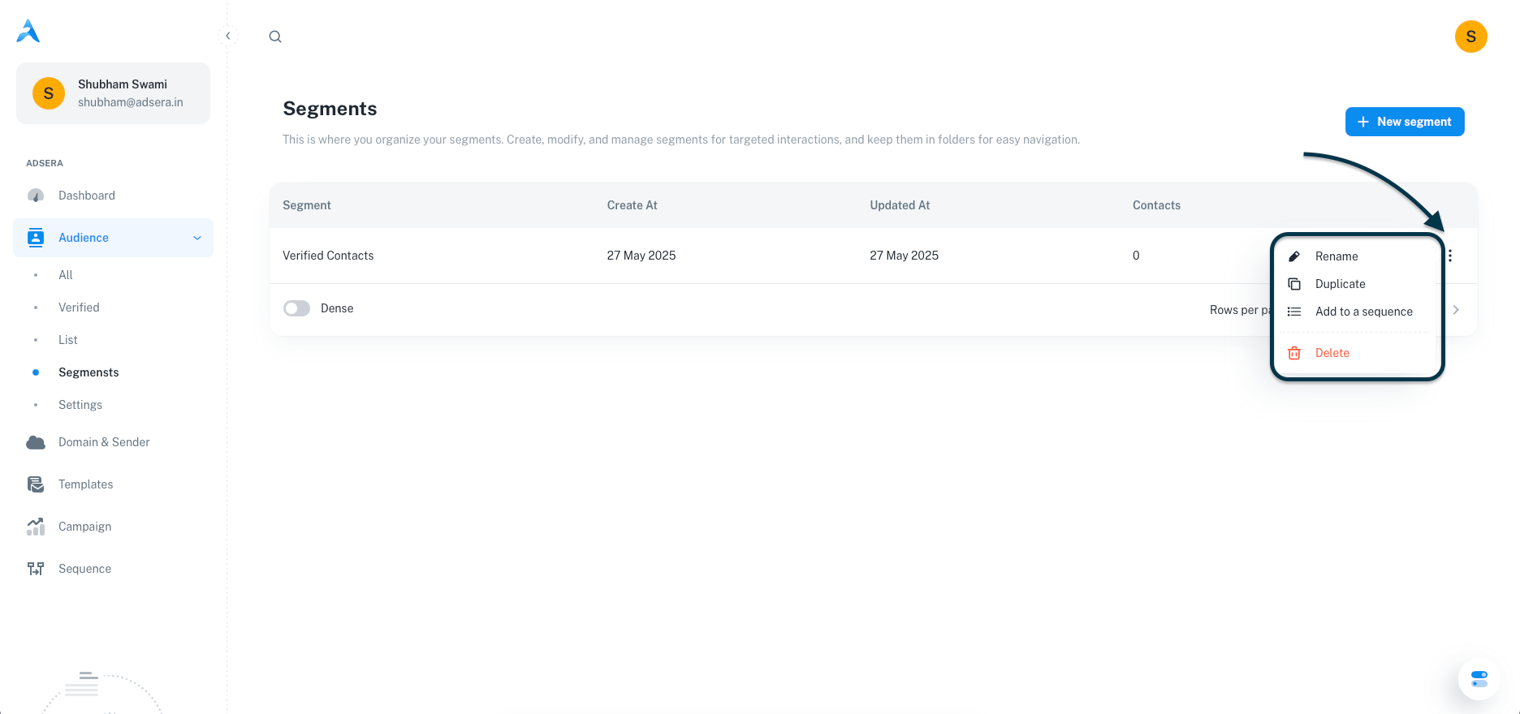
The table displays your segments with the following columns:
* **Segment name:** The name you assigned when creating the segment.
* **Created At:** The date and time the segment was originally saved.
* **Updated At:** The date and time the segment was last modified.
* **Contacts:** A **dynamic count** of contacts who currently match the segment's criteria. This number can change frequently.
#### Segment Actions (The ⋮ Menu)
Clicking the three-dot menu on any segment row reveals several actions:
* **Rename:** Opens a modal to change the segment's display name.
* **Duplicate:** Creates a new segment with the exact same filter rules, which you can then modify.
* **Add to Sequence:** Adds all contacts **currently matching** the segment to a specific automation sequence.
* **Delete:** Permanently removes the segment's definition.
Deleting a segment **does not** delete any contacts from your audience. It only removes the saved set of rules.
# Verified Contacts View
Source: https://docs.adsera.in/help/audiance/verified
Enhance email deliverability by focusing on your contacts with verified email addresses.
The **Verified** tab in your audience view is a pre-filtered list showing only those contacts with confirmed, active email addresses. Focusing on this segment is key to enhancing your email deliverability and running highly effective campaigns.
**Want to see Verified Audience? [Go to the Verified Audience Page →](https://app.adsera.in/dashboard/contact/verified/list)**
### Benefits of Using the Verified View
* **Improved Deliverability:** Sending emails to verified addresses dramatically reduces your bounce rates, protecting your sender reputation.
* **Enhanced Compliance:** Ensures you are contacting users with valid email accounts, which is a crucial best practice.
### Understanding the Verified View
The table in this view contains the same powerful features as the "All Audience" table, including inline editing, column customization, and bulk actions.
**Note:** The filter for `Email Status is Verified` is automatically applied on this page. You do not need to add it manually. Any additional filters you apply will be layered on top of this default rule.
A primary use case for this view is to create and run campaigns exclusively for your most engaged and reachable audience, leading to better overall performance.
Want to see your full contact list, including unverified emails? Simply switch to the **All** tab or visit our main All Audience guide.
# The 360° Contact View
Source: https://docs.adsera.in/help/audiance/view
A complete guide to viewing, editing, and interacting with a contact using the all-in-one 360° profile view.
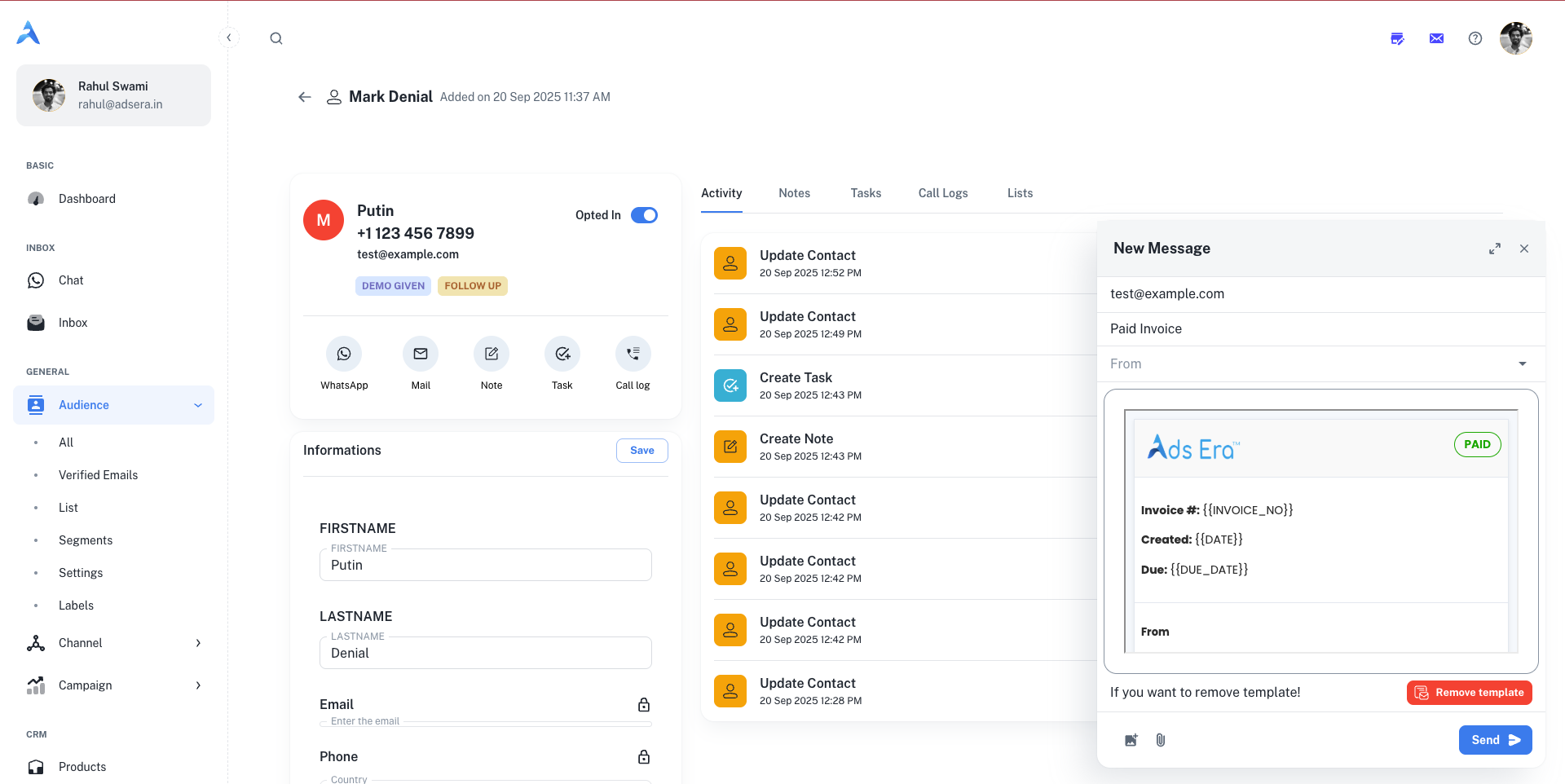
The **Contact View** provides a complete, 360-degree profile of an individual in your audience. This is your central hub for understanding a contact's history, managing their information, and engaging with them across multiple channels. To access this view, simply click on any contact from your [Audience Lists](/help/audiance/audiance).
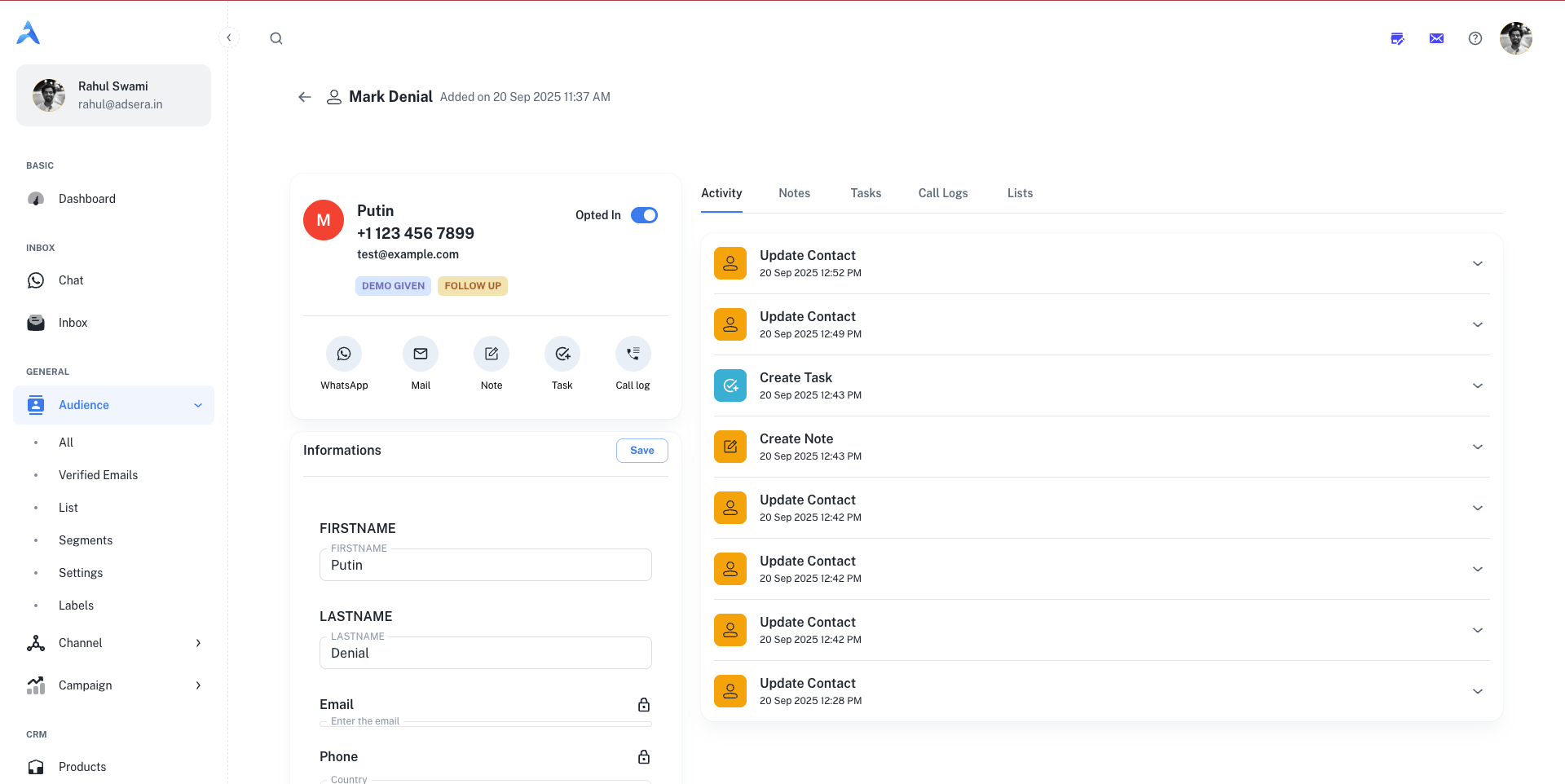
The page is divided into two main sections: the **Contact Information Panel** on the left and the **Activity & Engagement Panel** on the right.
***
## The Contact Information Panel
This left-hand panel contains all the stored data and properties associated with the contact.
#### Profile Header
* **Avatar, Name, and Contact Details:** At a glance, you can see the contact's name, phone number, and email address.
* **Opt-in Status:** A toggle switch shows if the contact is currently subscribed to your communications.
* **Labels:** Any labels you've assigned (e.g., `DEMO GIVEN`, `FOLLOW UP`) are displayed for quick context.
#### Quick Action Bar
Beneath the header, a row of icons allows you to instantly engage with the contact:
* **WhatsApp:** Opens the WhatsApp chat window to send a direct message.
* **Mail:** Opens the email composer to send an email.
* **Note:** Opens a modal to add a private note to the contact's timeline.
* **Task:** Opens a modal to create and assign a task related to this contact.
* **Call log:** Opens a modal to log a phone call you had with the contact.
#### Information Form
This section is a scrollable form containing all of the contact's attributes.
* **Default Fields:** Includes standard fields like `FIRSTNAME`, `LASTNAME`, `Email`, and `Phone`.
The primary Email and Phone number are locked and cannot be edited directly, as they are unique identifiers for the contact.
* **Custom Attributes:** Displays any custom fields you have created (e.g., `LEAD_TYPE`, `LEAD_STATUS`).
* **Lists & Labels:** Manage which lists the contact belongs to and add or remove labels.
* **Subscriptions:** Manually subscribe or unsubscribe the contact from your WhatsApp and Email marketing.
Click the **Save** button at the top of this section to apply any changes you make to the contact's information.
***
## The Activity & Engagement Panel
The right-hand panel is a tabbed interface that provides a complete history of all interactions and CRM-related activities for the contact.
This is a chronological timeline of every interaction you've had with the contact. It includes sent campaigns, status updates, notes, tasks, and conversations, giving you a complete historical record.
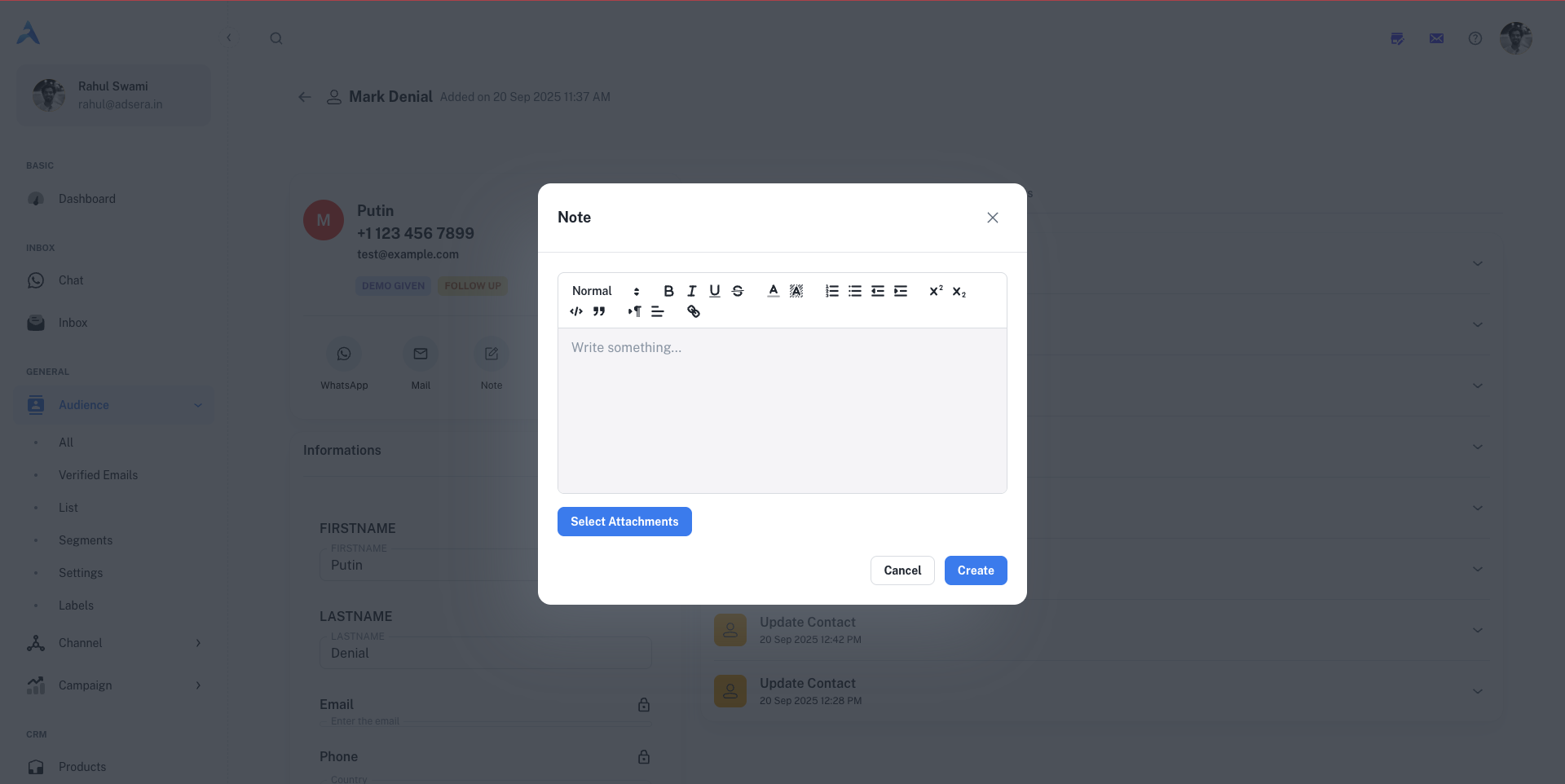
A focused view of only the notes that have been added to the contact's profile. Use the **"Note" icon** in the Quick Action Bar to add a new note using a rich text editor. Notes are internal and not visible to the contact.
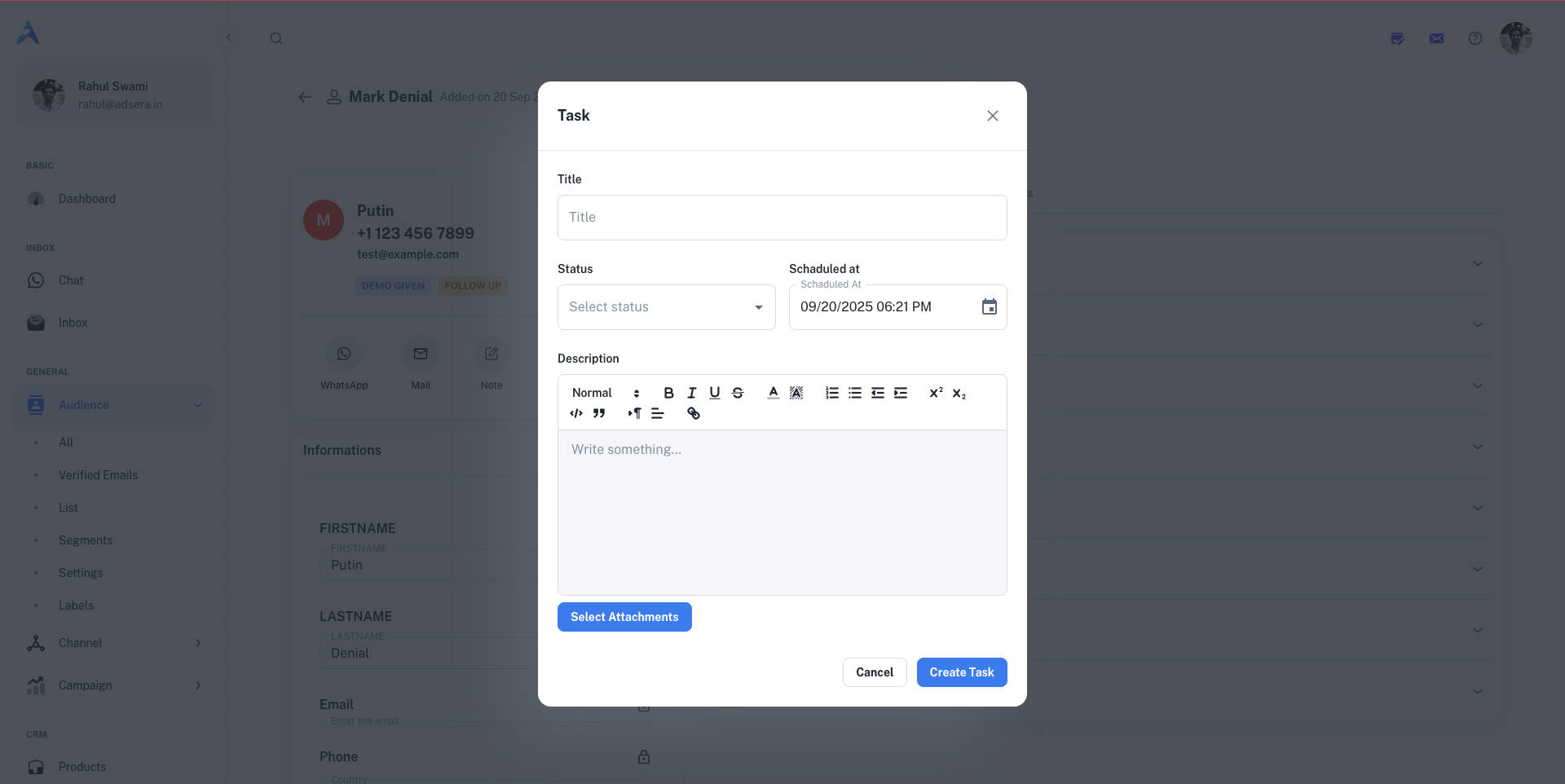
View all tasks associated with this contact. Click the **"Task" icon** to create a new task. You can set a title, status (`To-do`, `In Progress`, `Done`), schedule a due date, and add a detailed description.
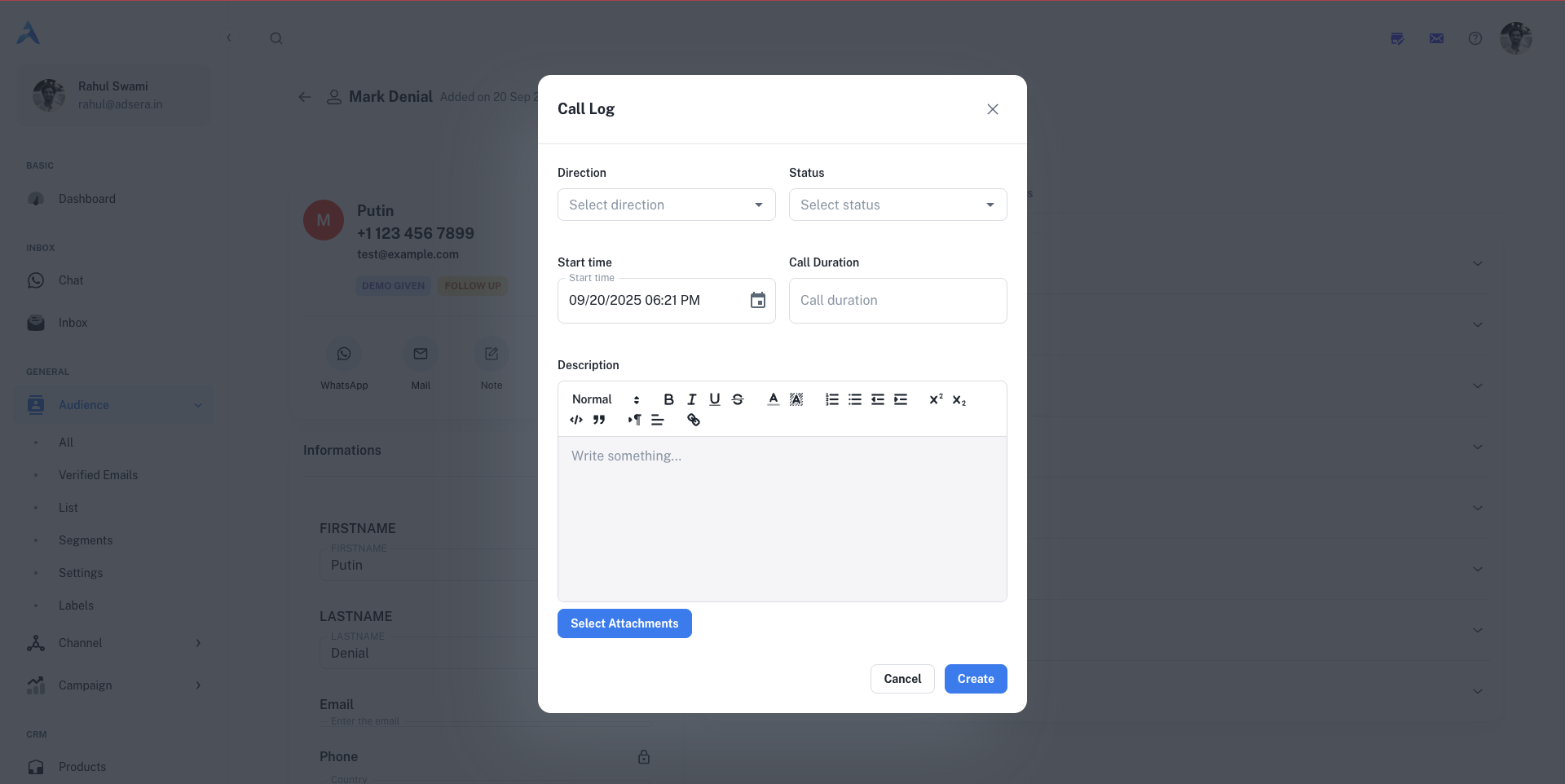
Keep a record of your phone conversations. Click the **"Call log" icon** to open a modal where you can log the call's direction (incoming/outgoing), status (completed, missed), start time, and duration, along with a detailed description.
See a simple list of all the contact lists this person is a member of.
#### Starting a Conversation
* **Clicking the WhatsApp icon** opens a side panel chat window, showing the entire conversation history with that contact. You can type a message, attach media, or use **Templates** and **Snippets** to reply instantly.

* **Clicking the Mail icon** opens a full-featured email composer, pre-filled with the contact's email address, allowing you to write and send a direct email.
# Creating a WhatsApp Auto-Reply
Source: https://docs.adsera.in/help/autoreply/wa
Set up automated replies on WhatsApp based on specific keywords to engage customers instantly and save time.
**Auto-Reply** is a powerful automation feature that allows you to set up automatic responses in your WhatsApp inbox. When a user sends a message containing a specific keyword you've defined, AdsEra will instantly trigger a pre-written reply. This is perfect for answering frequently asked questions, starting a conversation, or guiding users to the right information 24/7.
**Want to manage WhatsApp Auto-Reply? [Go to the AdsEra Auto-Reply Page →](https://app.adsera.in/dashboard/autoreply/whatsapp/list)**
### The Auto-Reply Creation Process
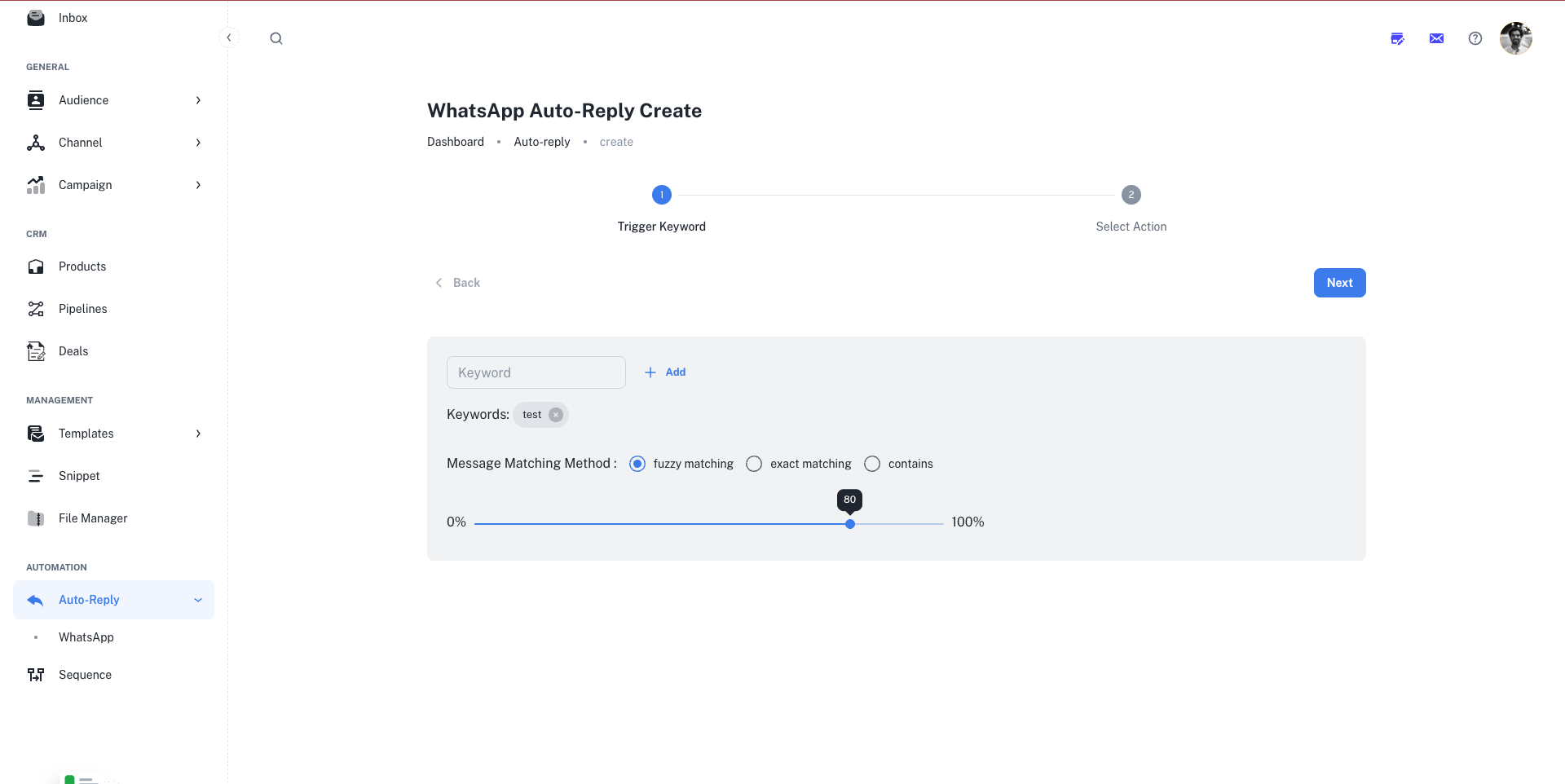
To begin, navigate to **Automation > Auto-Reply > WhatsApp** and click the **"+ New AutoReply"** button. This will launch a two-step creation wizard.
This step defines *what* the user needs to say to trigger your automated response.
#### Keywords
* **Add Keywords:** In the "Keyword" field, type a word or phrase (e.g., `Hello`, `Pricing`, `Demo`) and click **"Add"**. You can add multiple keywords that will all trigger the same reply. The keywords will appear as chips in the list below.
* **Remove a Keyword:** Click the `x` on any keyword chip to remove it.
#### Message Matching Method
This setting determines how strictly AdsEra should match the incoming message to your keywords.
* **Fuzzy matching:** (Recommended) Allows for minor misspellings and variations. You can use the slider to set the sensitivity, with 100% being a very close match and a lower percentage being more lenient.
* **Exact matching:** The user's message must match one of your keywords perfectly.
* **Contains:** The user's message must contain one of your keywords anywhere within it.
Once you've configured your keywords and matching method, click **"Next"**.
This step defines *how* the system will respond. Here, you will select one or more **Snippets** to send as the reply.
* **Filter and Search:** Use the **Type** dropdown and the **Search** bar to find the snippets you want to use for the reply.
* **Select Snippets:** Click the checkbox on one or more snippet cards.
**Sending Multiple Snippets:** If you select multiple snippets, AdsEra will send them one after another in the order you select them, creating a sequence of replies. This is great for sending an image followed by a text message with buttons.
The selected snippets will appear in a list on the right. Once you're ready, click **"Save"** to activate your new auto-reply.
***
## Managing Your Auto-Replies
Once created, your auto-reply will appear in the main **WhatsApp Auto-Reply List**. From this list, you can:
* **View** the keywords and associated reply snippets.
* **Toggle the Status** to make an auto-reply `Active` or `Inactive`.
* **Edit** or **Delete** the auto-reply using the three-dots (⋮) menu.
# Creating an Email Campaign
Source: https://docs.adsera.in/help/campaign/email/create
A step-by-step guide to building, designing, targeting, and scheduling your email campaigns for maximum impact.
**Want to Create Email Campaigns? [Go to the AdsEra Campaign Create Page →](https://app.adsera.in/dashboard/campaign/create/EMAIL)**
Creating a campaign in AdsEra involves a structured process, breaking down the task into manageable sections: **Name**, **Sender**, **Recipients**, **Design**, **Reply to**, and **Schedule**. Each step is designed to give you precise control over your campaign's identity, content, audience, and timing.
### Before You Begin: A Quick Checklist
Know what you want to achieve (e.g., promote a product, send a newsletter) and have a clear internal campaign name in mind.
Ensure your desired "From" email address has been set up as a [Sender](/help/channel/email/emaill?tab=senders) and know which contacts you want to reach (a list, a segment, or a custom filter).
Have your message ready, or an existing template in mind, and know when you want your campaign to be delivered.
***
## Building Your Campaign: Step-by-Step
After navigating to the **Campaigns** then **Email** page and clicking **"+ New campaign"**, you will be guided through the following setup wizard.
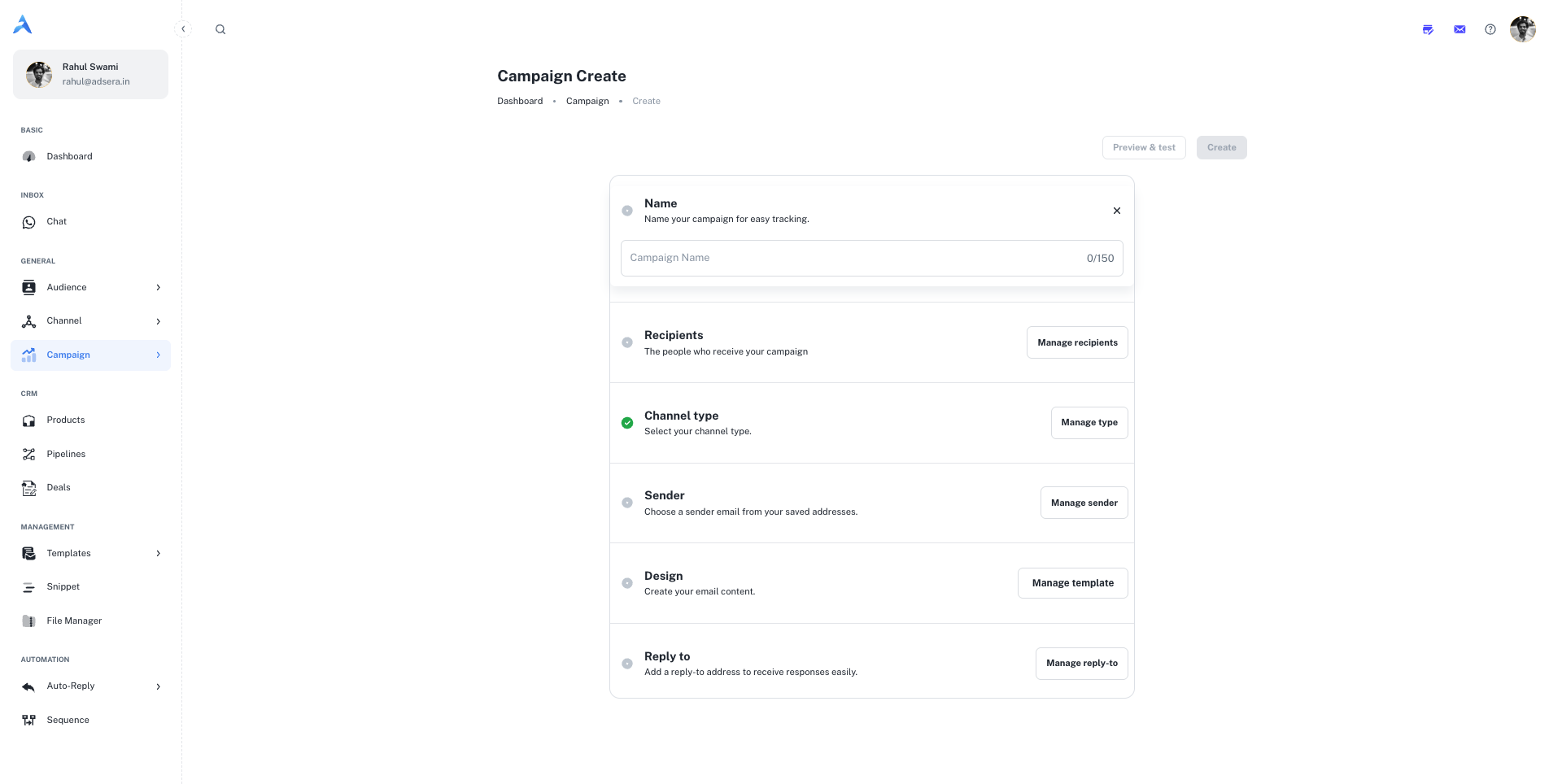
This is an internal name for easy identification within AdsEra (e.g., "Summer Sale Q3 2025," "July Newsletter"). It is not visible to recipients. The name can be up to 150 characters.
This section defines the "From Name" and "From Email" that your recipients will see. Select a pre-verified sender from the dropdown menu.
**Pro Tip:** Always use a recognizable and professional sender name and email to build trust and improve open rates. Avoid "no-reply" addresses.
This is a critical step where you select who will receive your campaign. AdsEra offers powerful options for targeting:
* **Select Lists:** Choose one or more of your static contact lists.
* **Select Segments:** Target dynamic, rule-based segments of your contacts (e.g., "Engaged Subscribers").
* **Filter Recipients (Advanced):** For the most granular control, build a custom filter for this specific campaign using various contact attributes and `AND`/`OR` logic.
For more on this, see our guide on [All Audience & Segments](/help/audiance/audiance).
This crucial step determines the type of campaign you will create. Choose the channel your audience prefers for the best engagement. The options you see in later steps, such as design and sender selection, will change based on your choice here.
Select this option to create a traditional email campaign. You will design rich HTML content, choose from your verified email senders, and track metrics like opens and clicks.
Select this option to send a message directly to contacts on WhatsApp. You will use pre-approved Message Templates and can leverage rich media for high-impact, conversational messaging.
Click **"Start designing"** to create your email. You have several options:
* **Layouts:** Start with a basic structural layout.
* **Template Gallery:** Select from AdsEra's collection of professionally pre-built, customizable templates.
* **My Templates:** Reuse any of your previously saved templates for brand consistency.
* **Code Your Own:** For advanced users, use the intuitive drag-and-drop **Email Builder** or directly **Paste your code** in the HTML editor.
Specify where you want to receive replies. It's best to use an email address that is actively monitored by your team to enable prompt engagement with interested recipients.
Decide when your campaign will be sent.
* **Send Immediately:** To send the campaign as soon as you finish the setup.
* **Schedule for a Future Date/Time:** Pick a specific date and time for delivery, allowing you to plan ahead and optimize send times for your audience.
Before launching, click the **"Preview & test"** button in the top right. Send a test email to yourself to check:
* Subject lines and preheaders.
* Content formatting and image display.
* That all links are working correctly.
* That personalization tags (like `{{FIRSTNAME}}`) are populating as expected.
***
## Pro Tips for Campaign Creation
Develop a standard naming system for your campaigns (e.g., `[Year]-[Month]-[Campaign Type]-[Audience]`) for easy organization and reporting later on.
The more targeted your recipient list, the more effective your campaign will be. Use segments and filters to deliver highly relevant content that resonates with specific audience groups.
If your audience is global, consider scheduling your campaign at optimal times across different time zones to maximize engagement.
Before hitting "Send" or "Schedule," always perform one last review of all your campaign settings: Name, Sender, Recipients, Content, Reply-To, and Schedule.
# Email Campaign List
Source: https://docs.adsera.in/help/campaign/email/list
Your central hub for managing all email campaigns, from drafts to sent, and monitoring their performance at a glance.
**Want to Manage Email Campaigns? [Go to the AdsEra Email Campaign Page →](https://app.adsera.in/dashboard/campaign/mail/list)**
The Campaign List is your central hub for managing all your email campaigns, whether they're drafted, sent, or have encountered issues. From here, you can monitor performance, create new campaigns, and manage existing ones with ease.
**Dedicated IP Required:** You can only send email campaigns from a dedicated IP address. AdsEra does not permit sending campaigns without one to protect deliverability for all users. To acquire a dedicated IP, please [Contact Us](https://adsera.in/contact-us).
### Navigating to Your Campaigns
Accessing your Campaign List is simple:
From your AdsEra Dashboard, click on **Campaigns** then **Email** in the left-hand navigation bar.
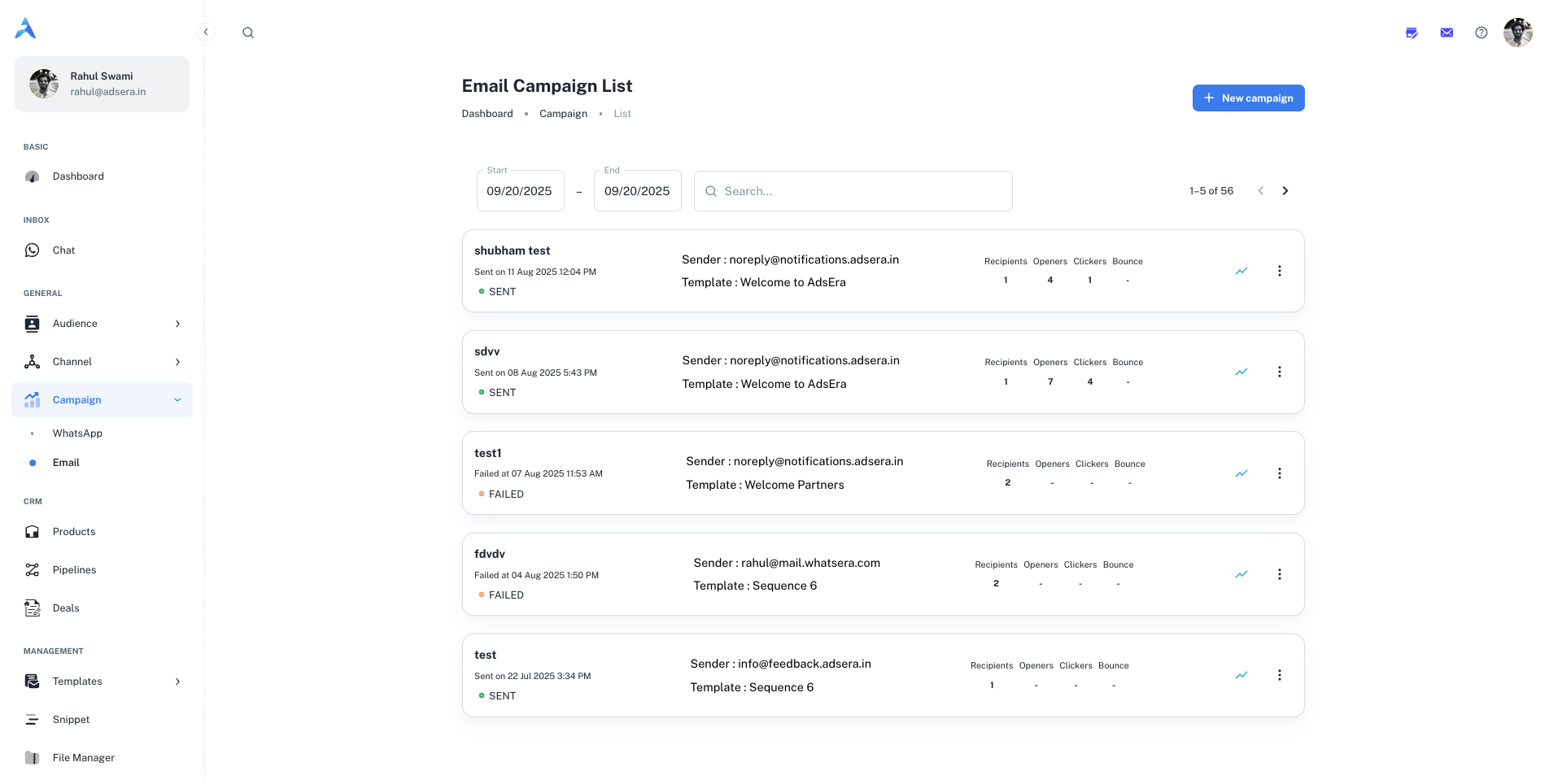
This will take you directly to your Campaign List page, displaying all your campaigns as individual cards.
***
## Anatomy of a Campaign Card
Each card on your Campaign List represents an individual email campaign and provides key information at a glance. Here's a detailed breakdown of what you'll see:
| Section | Field / Metric | Description |
| :---------- | :------------------------- | :------------------------------------------------------------------------------------------------------------------------------------------------------------------------------------------------------------------------- |
| **Header** | **Campaign Name** | The internal name you assigned to your campaign for easy identification. |
| | **Sent On / Last Updated** | The date and time the campaign was sent. For drafts, this shows the last update time. |
| | **Status Tag** | A color-coded tag indicating the campaign's current status:
- `DRAFT`: Created but not yet sent.
- `SENT`: Successfully sent to your recipients.
- `FAILED`: Encountered an error and could not be sent. |
| **Details** | **Sender** | The email address from which the campaign was sent (e.g., `info@adsera.in`). |
| | **Template** | The name of the email template used for the campaign. |
| **Metrics** | **Recipients** | The total number of unique contacts the campaign was intended for. |
| | **Openers** | The number of unique recipients who opened your email. |
| | **Clickers** | The number of unique recipients who clicked at least one link. |
| | **Failure** | The number of emails that failed to deliver (e.g., bounced). |
***
## Searching and Filtering Your Campaigns
To help you find specific campaigns quickly, you can filter your list by a date range at the top of the page.
1. Click on the **Start** date field to open a calendar and select a beginning date.
2. Click on the **End** date field to open a calendar and select an end date.
This will instantly update the list to show only campaigns sent within that specific period, which is especially helpful for quarterly or monthly performance reviews.
***
## Actions: Managing Your Campaigns
Each campaign card offers direct actions to help you manage your campaigns effectively.
To start building a brand new email campaign, click the **"+ New campaign"** button located at the top left of the page. This will take you to the campaign creation wizard.
For a full walkthrough, see our guide on [Creating an Email Campaign](/help/campaign/email/create).
For any sent campaign, click the **"View complete campaign analysis"** button to go to a detailed report. Here you can find in-depth statistics like click-through rates, unsubscribe rates, and geographical data.
Learn more in our guide to [Analyzing Campaign Reports](/help/campaign/email/report).
On the top right of each campaign card, the **three-dots (...) menu** reveals a dropdown with several powerful actions:
* **Start:** For Draft campaigns, this allows you to initiate the sending or scheduling process.
* **Copy:** Creates an exact duplicate of the campaign, including its content and settings. This is perfect for reusing successful campaign structures.
* **Report:** A shortcut that takes you directly to the detailed analytics report for that campaign.
* **Edit:** Allows you to make changes to the campaign's content, subject line, or recipients. This is only available for campaigns in `DRAFT` status.
* **Delete:** Permanently removes the campaign from your list.
This action cannot be undone. All data associated with the campaign will be lost.
# Analyzing Campaign Reports
Source: https://docs.adsera.in/help/campaign/email/report
Understand your email campaign performance with in-depth analytics on deliverability, opens, clicks, and unsubscribes.
After sending an email campaign, understanding its performance is key to optimizing your future marketing efforts. AdsEra's Campaign Report provides crucial insights into how your recipients are engaging with your emails.
### How to Access Your Campaign Report
From your AdsEra Dashboard, click on **Campaigns** then **Email** in the left-hand navigation bar.
On the Campaign List page, locate the sent campaign you wish to analyze.
On that campaign's card, click the **"View complete campaign analysis"** button or open the **three-dots (...) menu** and select **Report**.
***
## Understanding the Report Interface
At the top of your report, you'll find essential campaign details and a graph filter that applies to all tabs.
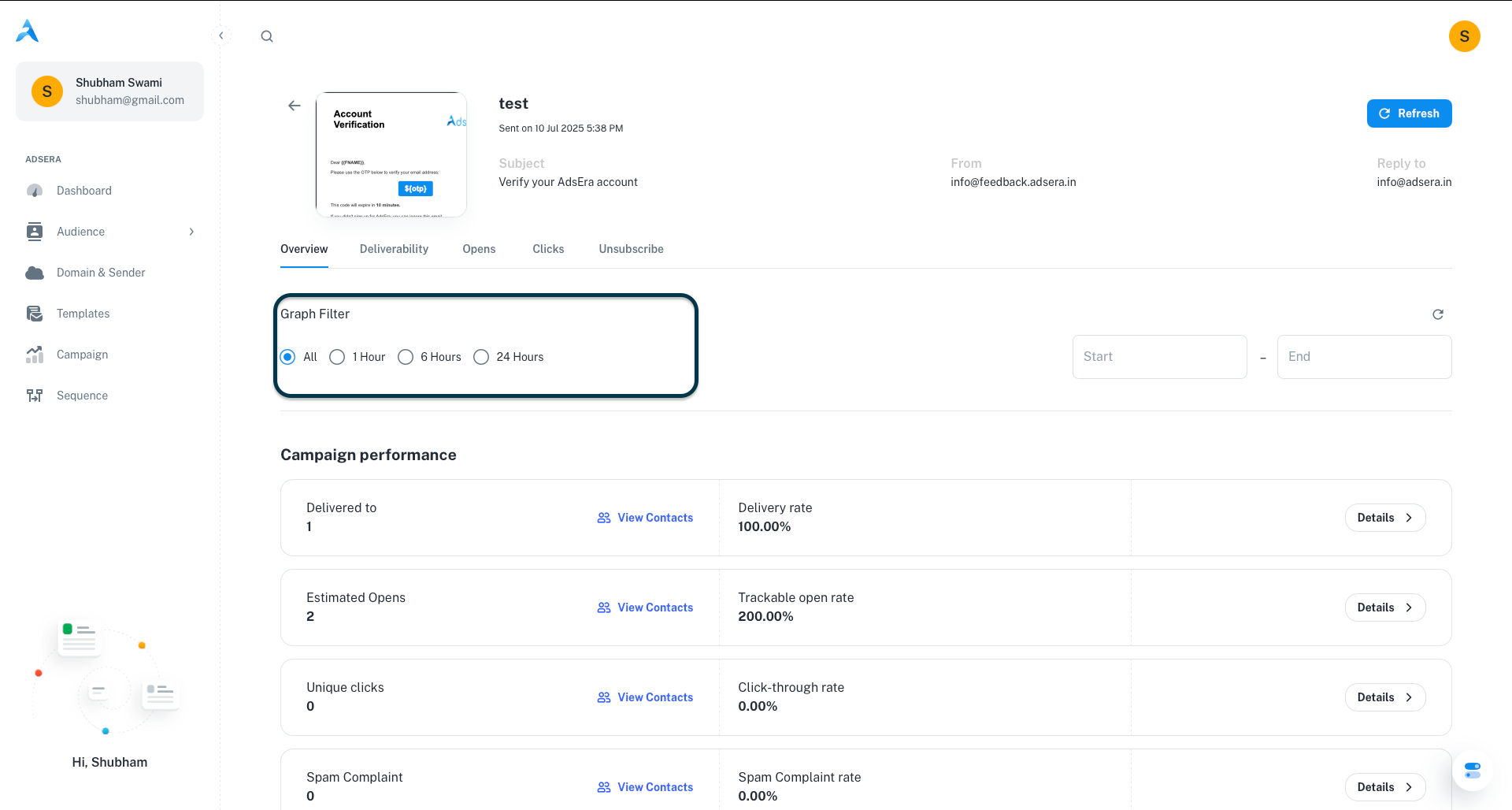
* **Campaign Details:** Includes the **Subject**, **From** address, and **Reply to** address.
* **Graph Filter:** Allows you to view performance data over specific timeframes: **1 Hour**, **6 Hours**, **24 Hours**, or a **custom date range**.
The main report is divided into the following tabs:
The **Overview** tab is your go-to for a quick summary of your campaign's key performance indicators (KPIs).
| Metric | Definition & Interpretation |
| :---------------------- | :-------------------------------------------------------------------------------------------------------------------------------------------------------- |
| **Delivery Rate** | The percentage of emails that were successfully delivered. A high rate (ideally 98%+) indicates a healthy contact list. |
| **Trackable Open Rate** | The percentage of *delivered* emails that were opened. This is a crucial metric for measuring your subject line's effectiveness. |
| **Click-through Rate** | The percentage of *delivered* emails that resulted in at least one unique click. This measures how effective your content and calls-to-action (CTAs) are. |
| **Unsubscribe Rate** | The percentage of delivered emails that resulted in an unsubscribe. A low rate suggests your content is relevant to your audience. |
| **Spam Complaint Rate** | The percentage of delivered emails marked as spam. Keep this as low as possible, as it directly impacts your sender reputation. |
Below these metrics, a graph visualizes key activities (Opens, Clicks, Bounces, etc.) over time.
This tab provides a detailed breakdown of your email delivery success. It shows the total **Recipients**, how many emails were **Sent**, and how many were successfully **Delivered**.
This section lists all contacts who received your email. You can select contacts from this list and click **"Create New List"** to generate a new, targeted list of successfully reached users.
You'll also see a breakdown of bounces:
* **Soft Bounces:** Emails that were temporarily undeliverable (e.g., mailbox full).
* **Hard Bounces:** Emails that are permanently undeliverable (e.g., invalid address). These contacts are automatically suppressed to protect your sender reputation.
These tabs offer a granular view of user engagement.
#### Opens
See the total opens vs. unique opens, your open rate, and the last open time. The list below shows exactly who opened your email and when.
#### Clicks
This is where you measure direct interaction.
* **Key Metrics:** Track total clicks, unique clicks, click-to-open rate (CTOR), and average time to click. A high CTOR indicates very effective content.
* **Click Breakdown:** See which **Browsers**, **Countries**, and **Operating Systems** your audience uses.
* **Link Performance:** The "Smart Segregation" table shows which specific **Links** each contact clicked, helping you identify your most popular content.
You can create a new list of contacts who opened or clicked your campaign directly from these tabs, allowing for powerful re-engagement campaigns.
This tab provides crucial information on recipients who opted out or marked your email as spam.
**Monitor These Metrics Closely!** A high "Unsubscribe rate" or "Spam complaint rate" can seriously harm your sender reputation and future deliverability. If these numbers are high, review your content, audience targeting, and sending frequency.
The list in this tab shows you exactly who unsubscribed or complained, helping you maintain a clean and engaged audience.
***
## Pro Tips for Analyzing Your Reports
Compare your campaign's performance against your own past campaigns and industry averages to set clear goals for improvement.
Use the "Create New List" feature in each tab to build new segments of highly engaged users (like "All Clickers") or unengaged users for re-engagement campaigns.
# Creating a WhatsApp Campaign
Source: https://docs.adsera.in/help/campaign/wa/create
A step-by-step guide to building, designing, targeting, and scheduling your WhatsApp campaigns.
**Want to Create WhatsApp Campaigns? [Go to the AdsEra Campaign Create Page →](https://app.adsera.in/dashboard/campaign/create/WHATSAPP)**
Creating a WhatsApp campaign in AdsEra is a structured process designed to give you precise control over your campaign's name, audience, content, and delivery schedule. This guide will walk you through each step of the creation wizard.
### Before You Begin: A Quick Checklist
Know what you want to achieve with this campaign (e.g., send transaction alerts, promote an offer, re-engage users).
Know which contacts you want to reach. Have a [Contact List](/help/audiance/audiance) or [Segment](/help/audiance/segment) ready for targeting.
All WhatsApp campaigns must use a pre-approved Message Template. Ensure the template you want to use has been approved by Meta.
***
## Building Your WhatsApp Campaign
After navigating to the **Campaigns > WhatsApp** page and clicking **"+ New campaign"**, you will be guided through the following setup wizard.
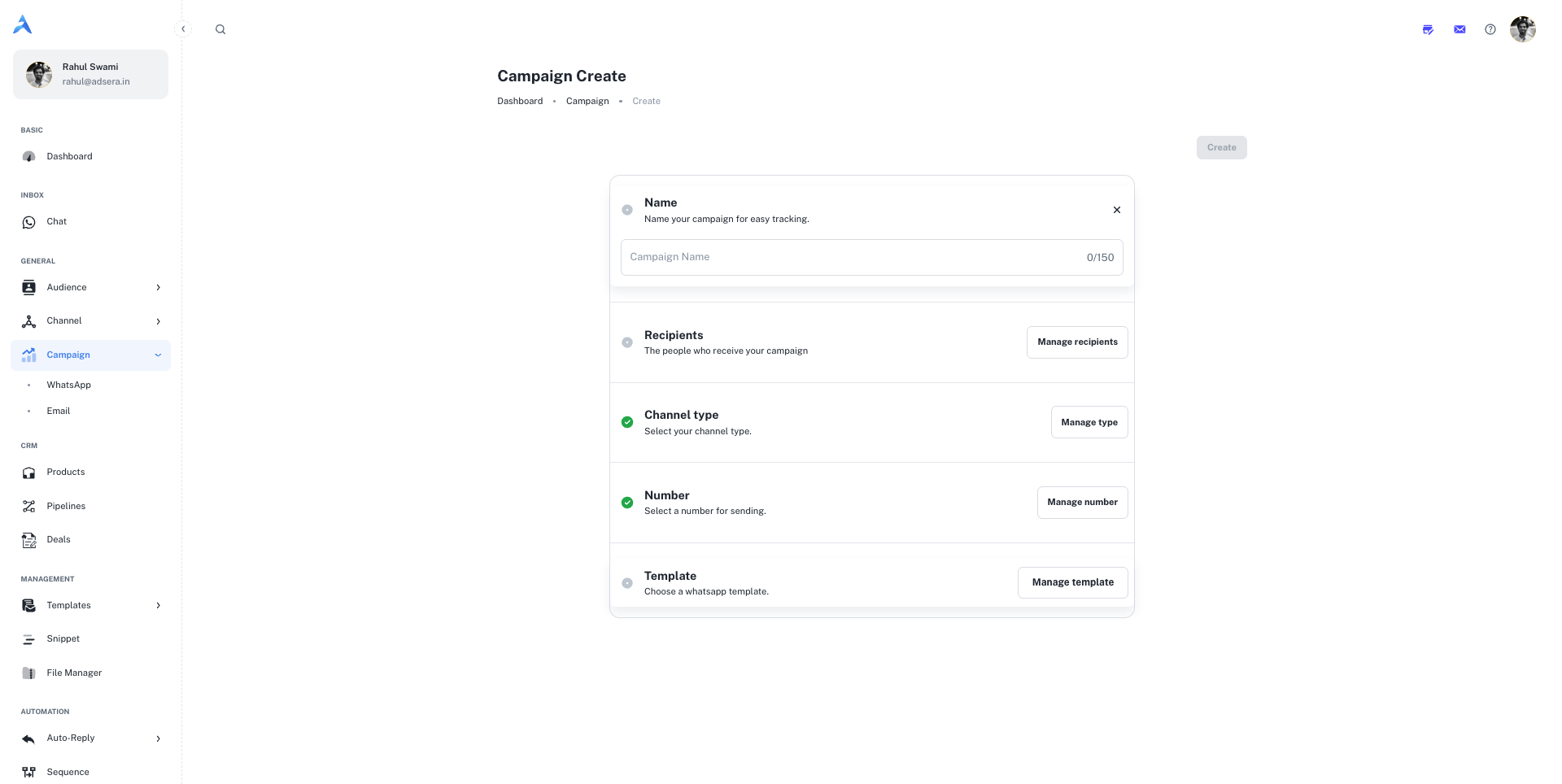
This is an internal name for easy identification within AdsEra (e.g., "Post-Purchase Follow-Up," "Diwali Sale Offer"). It is not visible to recipients. The name can be up to 150 characters.
This is where you select who will receive your campaign. AdsEra offers powerful segmentation options:
* **Select Lists:** Choose one or more of your static contact lists.
* **Select Segments:** Target dynamic, rule-based segments of your contacts.
* **Filter Recipients (Advanced):** Build a custom, one-time filter for this specific campaign using various contact attributes and `AND`/`OR` logic.
For more details, see our guide on [All Audience & Segments](/help/audiance/audiance).
Choose the specific WhatsApp Business Account (WABA) number you want to send this campaign from. This is especially important if you manage multiple numbers for different brands or departments.
All WhatsApp campaigns must use a Message Template that has been pre-approved by Meta.
* Click **"Manage template"** to open a gallery of your approved templates.
* Browse or search for the template you wish to use.
* If the template includes variables (e.g., `{{name}}`), you will be prompted to provide values for them in a subsequent step to personalize the message for each recipient.
Decide when your campaign will be sent.
* **Send Immediately:** To send the campaign as soon as you finish the setup.
* **Schedule for Later:** Pick a specific future date and time for delivery.
Once all the steps are configured and show a green checkmark, the **"Create"** button at the top of the page will become active. Click it to finalize and either send or schedule your campaign.
***
## Important Considerations
WhatsApp requires that all business-initiated conversations use pre-approved Message Templates to prevent spam and ensure a high-quality user experience. These templates can include text, rich media (images/videos), and interactive buttons.
Using variables like `{{FIRSTNAME}}` or `{{order_id}}` in your templates is key to creating personalized and engaging messages. When you select a template with variables, AdsEra will guide you through mapping these to the corresponding contact attributes.
# WhatsApp Campaign List
Source: https://docs.adsera.in/help/campaign/wa/list
Your central hub for managing all WhatsApp campaigns, from drafts to sent, and monitoring their performance at a glance.
**Want to Manage WhatsApp Campaigns? [Go to the AdsEra WhatsApp Campaign Page →](https://app.adsera.in/dashboard/campaign/whatsapp/list)**
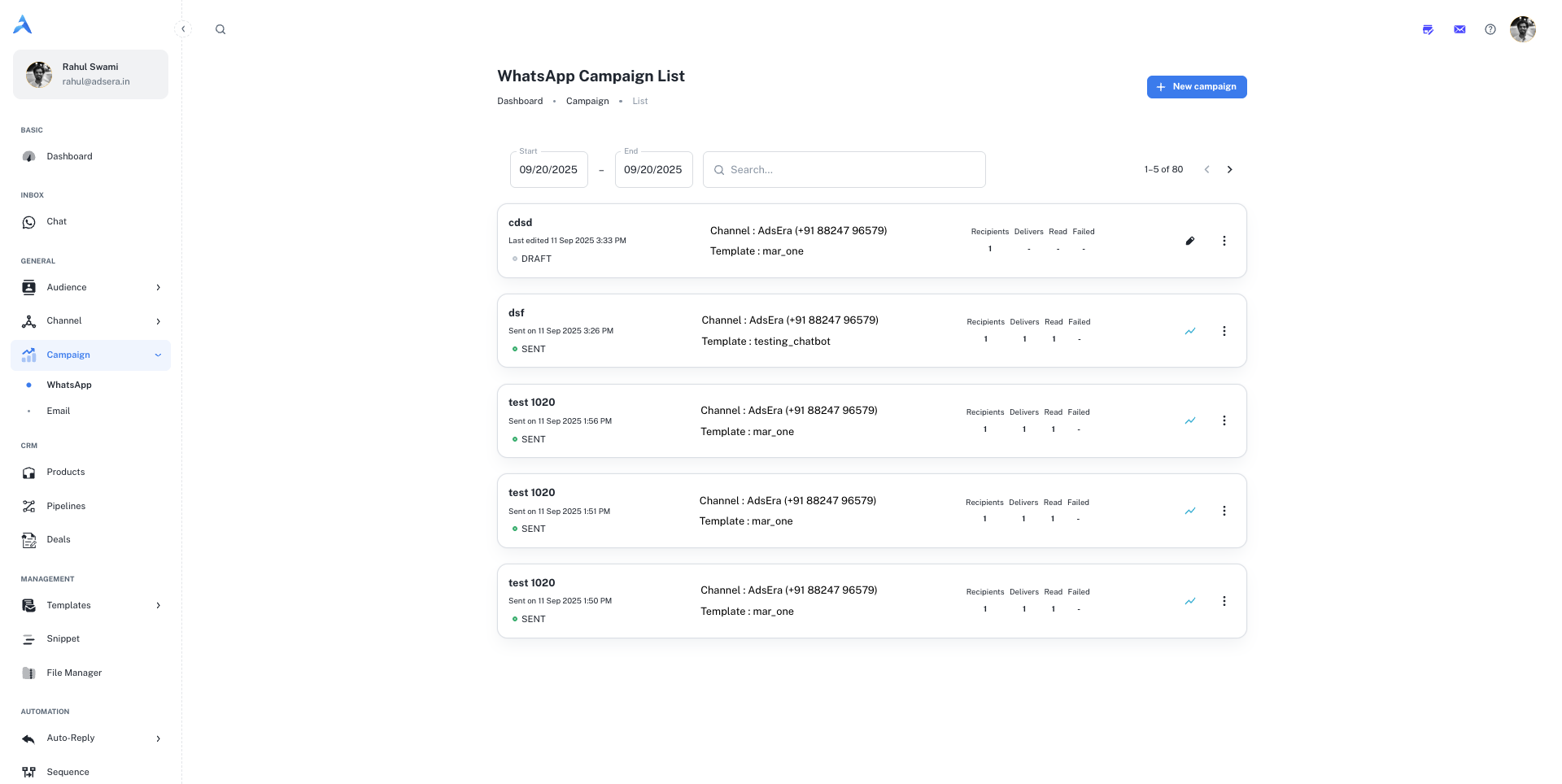
The WhatsApp Campaign List is your command center for managing all your WhatsApp marketing efforts. This page provides a real-time snapshot of all your campaigns, allowing you to quickly assess performance, create new campaigns, and manage existing ones with ease.
### Navigating to Your WhatsApp Campaigns
Accessing your list is simple:
From your AdsEra Dashboard, click on **Campaigns** in the left-hand navigation bar.
From the campaign submenu, select **WhatsApp** to view your list.
***
## Anatomy of a WhatsApp Campaign Card
Each card on the list represents an individual WhatsApp campaign and provides key information at a glance. Here's a detailed breakdown:
| Section | Field / Metric | Description |
| :---------- | :------------------------- | :--------------------------------------------------------------------------------------------- |
| **Header** | **Campaign Name** | The internal name you assigned to your campaign for easy identification. |
| | **Sent On / Last Updated** | The date and time the campaign was sent. For drafts, this shows the last time it was modified. |
| | **Status Tag** | A color-coded tag indicating the campaign's current status: `DRAFT` or `SENT`. |
| **Details** | **Channel** | The specific WhatsApp Business Account (WABA) number used to send the campaign. |
| | **Template** | The name of the pre-approved WhatsApp Message Template used for the campaign. |
| **Metrics** | **Recipients** | The total number of unique contacts the campaign was sent to. |
| | **Delivers** | The number of messages successfully delivered to the recipients' devices. |
| | **Read** | The number of recipients who have read the message (indicated by blue ticks). |
| | **Failed** | The number of messages that failed to deliver. |
***
## Searching and Filtering Your Campaigns
To help you find specific campaigns quickly, you have powerful filtering options at the top of the page:
* **Date Range Filters:** Use the **Start** and **End** date pickers to narrow down your list to campaigns sent within a specific period.
* **Search Bar:** Type into the **Search...** field to find campaigns by their name.
***
## Actions: Managing Your Campaigns
Each campaign card provides direct actions to help you manage your campaigns effectively.
To start building a new broadcast, click the **"+ New campaign"** button located at the top right of the page. This will take you to the WhatsApp campaign creation wizard.
For a full walkthrough, see our guide on [Creating a WhatsApp Campaign](/help/campaign/wa/create).
For any sent campaign, click the **analytics icon (📊)** to navigate to a detailed report. Here you can find in-depth statistics, including a timeline of delivery and read receipts for each contact.
Learn more in our guide to [Analyzing WhatsApp Campaign Reports](/help/campaign/wa/report).
The **three-dots (...) menu** on each card reveals a dropdown with several key actions:
* **Start:** For Draft campaigns, this allows you to initiate the sending or scheduling process.
* **Copy:** Creates an exact duplicate of the campaign, including its template, settings, and recipients.
* **Edit:** (Appears as a **pencil icon ✏️** on Drafts) Allows you to make changes to the campaign's setup before sending.
* **Delete:** Permanently removes the campaign from your list.
This action cannot be undone. All data associated with the campaign will be lost.
# Analyzing WhatsApp Campaign Reports
Source: https://docs.adsera.in/help/campaign/wa/report
Understand your WhatsApp campaign performance with in-depth analytics on delivery, reads, replies, and more.
After sending a WhatsApp campaign, understanding its performance is key to optimizing your future messaging strategy. The Campaign Report provides in-depth analytics, offering crucial insights into how your recipients are engaging with your messages.
### How to Access Your Campaign Report
From your AdsEra Dashboard, click on **Campaigns > WhatsApp**.
On the Campaign List page, locate the sent campaign you wish to analyze.
On that campaign's card, click the **analytics icon (📊)** to open the detailed report.
***
## Understanding the Report Interface
At the top of your report, you'll find a preview of your message, essential campaign details, and a graph filter that applies to all tabs.
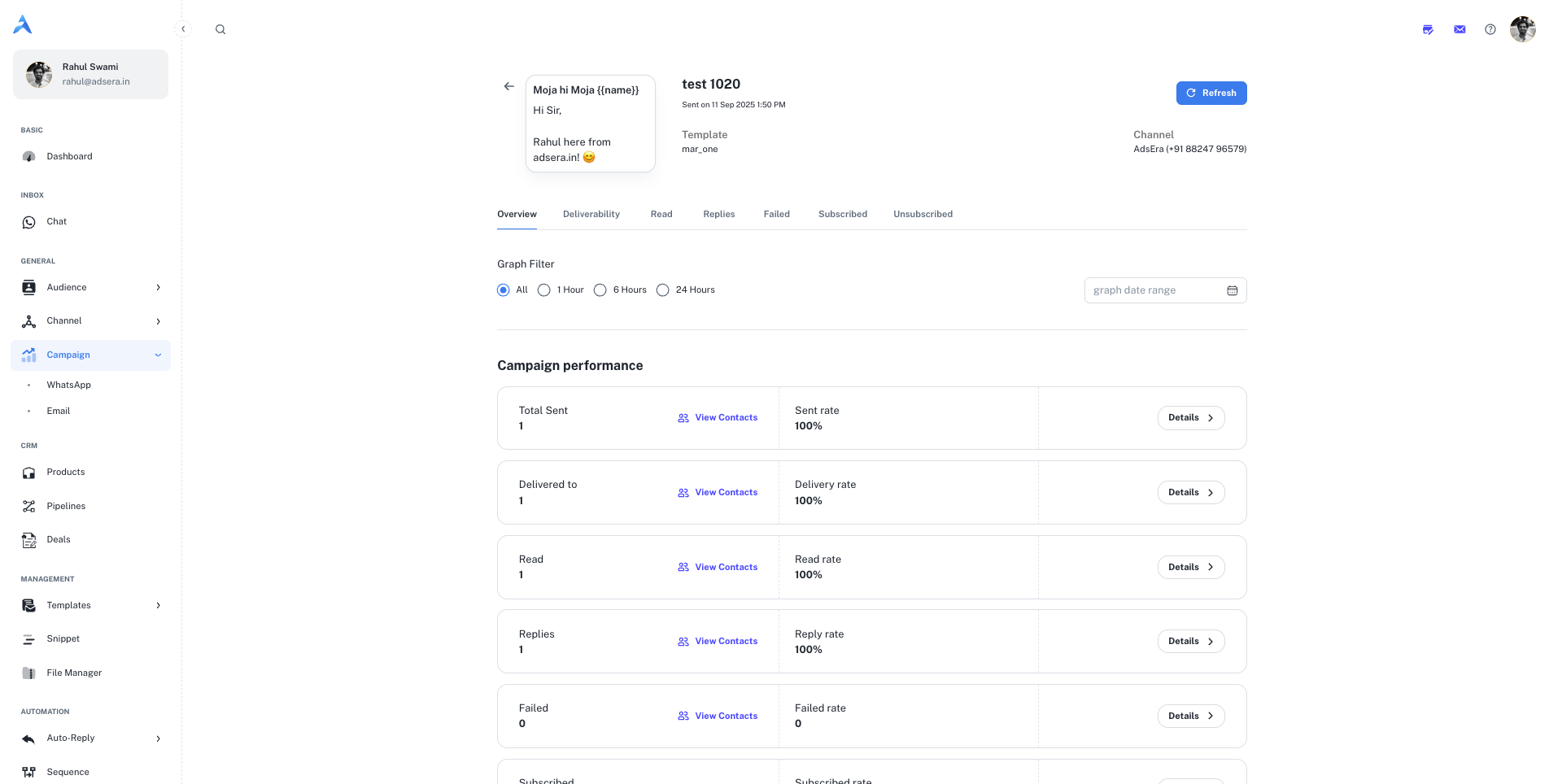
* **Campaign Details:** Includes the **Campaign Name**, **Sent On** time, the **Template** used, and the sending **Channel** (WABA).
* **Graph Filter:** Allows you to view performance data over specific timeframes: **1 Hour**, **6 Hours**, **24 Hours**, or a **custom date range**.
The main report is divided into the following tabs, each providing a unique view of your campaign's performance:
The **Overview** tab provides a high-level summary of your campaign's key performance indicators (KPIs).
| Metric | Description & Interpretation |
| :--------------- | :-------------------------------------------------------------------------------------------------------------- |
| **Total Sent** | The total number of messages dispatched from AdsEra. |
| **Delivered To** | The number of messages successfully delivered to recipients' devices. A high delivery rate is key. |
| **Read** | The number of unique recipients who have read your message (indicated by blue ticks). This measures engagement. |
| **Replies** | The number of unique contacts who replied to your campaign message. |
| **Failed** | The number of messages that failed to deliver (e.g., invalid number). |
| **Subscribed** | The number of users who opted-in as a result of this campaign. |
| **Unsubscribed** | The number of users who opted-out after receiving this campaign. |
Below the metrics, a graph visualizes these key activities over time, helping you identify trends.
This tab provides a detailed breakdown of your message delivery success. You can see the total **Recipients**, how many messages were **Sent**, and how many were successfully **Delivered**.
This section lists all contacts who received your message. You can filter this list by read status (`Has Read` / `Has not Read`) and by time frame. Use the checkboxes to select contacts and click **"Retargeting"** to create a new campaign for this specific audience.
This tab focuses on who has seen your message. It shows the total number of **Recipients**, how many have been **Delivered** to, and the final count of contacts who have **Read** the message. The **Read Rate** gives you a clear percentage of engagement. The list below allows you to segment and retarget users based on their read status.
This tab is crucial for measuring direct engagement and conversation starters. It shows the number of recipients who **Read** the message versus how many sent a **Reply**. The **Reply Rate** is a powerful indicator of how compelling your message and call-to-action were.
The **Smart Segregation** table on this tab shows the exact reply message (`Reply Msg`) from each contact, giving you direct insight into customer responses.
This tab lists all the contacts to whom the message could not be delivered. Reviewing this list is important for maintaining a clean and effective contact database. The table will show the contact details and the specific **Fail Reason** for each, helping you diagnose issues with invalid numbers.
These tabs help you track changes in your audience's consent status resulting from this campaign.
* **Subscribed:** Lists any contacts who opted-in.
* **Unsubscribed:** Lists any contacts who opted-out. Monitoring this tab is critical for understanding if your content is meeting audience expectations.
***
## Pro Tips for Analyzing Your Reports
Unlike email, WhatsApp's read receipts give you a very accurate measure of engagement. A high delivery rate but a low read rate might indicate that your message was sent at a bad time or that the contact is no longer active.
The "Replies" tab is a goldmine of customer feedback. Analyze the `Reply Msg` column to understand customer questions, feedback, and interest levels, which can inform your next campaign.
The "Retargeting" button is a powerful feature. Create follow-up campaigns for users who **read but did not reply**, or for those who **replied with specific keywords**, to create highly personalized customer journeys.
# Email Channel Setup
Source: https://docs.adsera.in/help/channel/email/email
Authenticate your sending domains and manage sender identities to improve deliverability and build brand trust.
**Want to Setup Email Channel? [Go to the AdsEra Email Channel Page →](https://app.adsera.in/dashboard/channel/email)**
The **Email Channel** page is where you manage the foundation of your email marketing identity. It's split into two key areas:
* **Domains:** Authenticating the domains you send emails from (e.g., `yourbrand.com`).
* **Senders:** Creating the specific "From" email addresses and names your audience will see (e.g., `support@adsera.in`).
Properly configuring both is crucial for improving deliverability, protecting your brand, and landing your messages in the inbox.
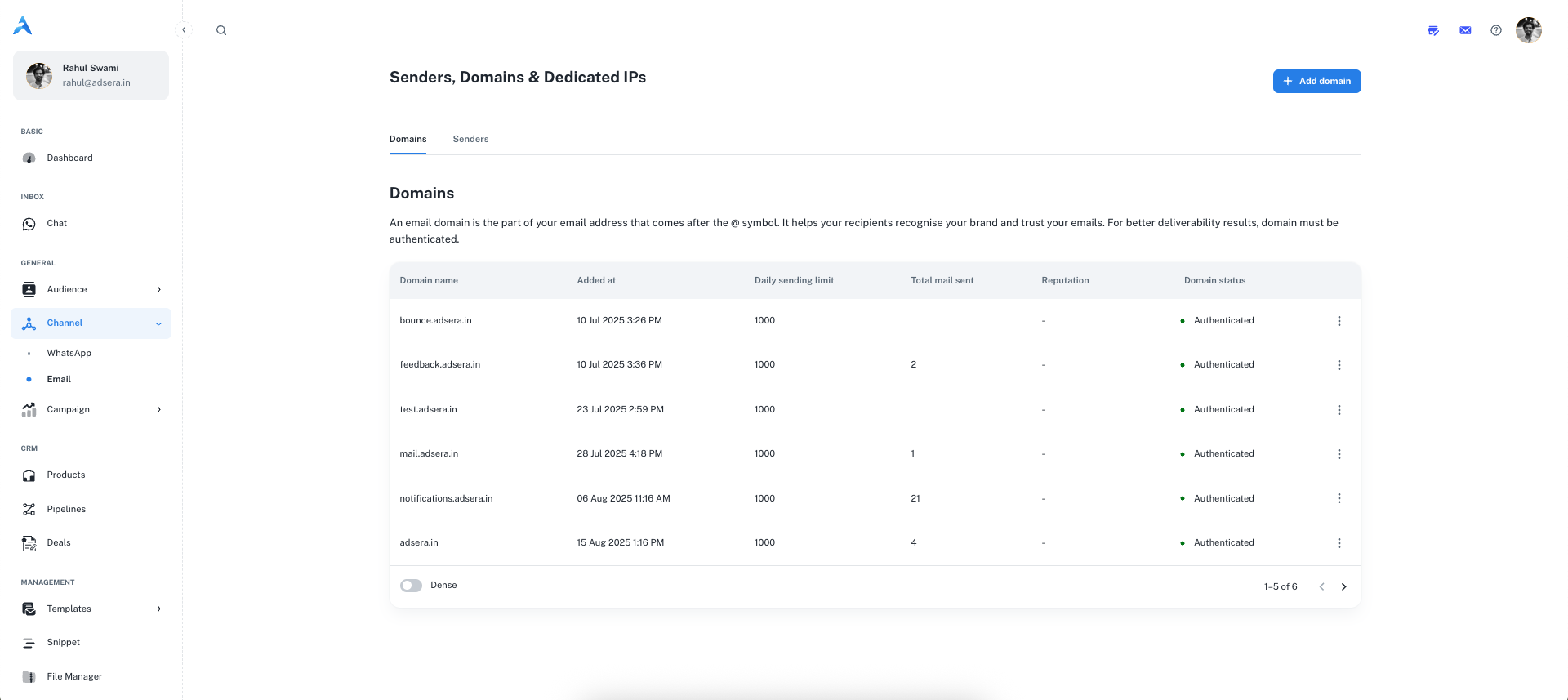
Your sending domain is your unique address on the internet. Authenticating it tells email providers like Gmail and Outlook that you are a legitimate sender.
### How to Add and Authenticate a Domain
Click the **"+ Add Domain"** button. In the pop-up, enter your domain name (e.g., `my-awesome-brand.com`) and click **"Add Domain"**.
AdsEra will provide four types of DNS records. You must add these records to the DNS settings of the provider where your domain is hosted (like GoDaddy, Cloudflare, etc.).
* **Authenticate Yourself:** Copy the Hostname and Value for each record and paste them into your DNS panel.
* **Send to a Colleague:** Email the setup instructions directly to your developer or IT team.
DNS changes can take up to 24 hours to propagate globally. Once they do, the **Domain Status** in the table will change to a green **"Authenticated"**. You can click the **"Authenticate"** action to trigger a manual re-check.
#### Understanding the DNS Records
**What it is:** A list of servers that are authorized to send email on behalf of your domain.
**Why it matters:** It prevents spammers from sending emails with forged "From" addresses that use your domain.
**What it is:** A digital signature that proves your email has not been tampered with in transit.
**Why it matters:** It verifies to the receiving email server that the message is authentic and came from you.
**What it is:** An instruction for email providers on how to handle emails that fail SPF or DKIM checks.
**Why it matters:** It protects your brand from being used in phishing and spoofing attacks.
**What it is:** Specifies the mail server responsible for accepting emails for your domain.
**Why it matters:** It ensures that replies to your campaigns are routed correctly.
**Need Help with DNS?** Check out these step-by-step tutorials for popular providers:
* [GoDaddy](https://godaddy.com/help/add-a-dns-record-19234)
* [Cloudflare](https://developers.cloudflare.com/dns/manage-dns-records/how-to/create-dns-records/)
* [Hostinger](https://support.hostinger.com/en/articles/1583227-how-to-manage-dns-records)
* [Namecheap](https://www.namecheap.com/support/knowledgebase/article.aspx/317/2237/how-do-i-add-txtspfdkimdmarc-records-for-my-domain/)
A **Sender** is the combination of a "From Name" and "From Email" that your audience sees in their inbox (e.g., "Shubham from AdsEra" ``).
### How to Add a Sender
1. Click the **“+ Add Sender”** button.
2. In the pop-up, fill in the details:
* **From Name:** The name your recipients will see (e.g., `MyCompany Newsletter`).
* **From Email:** The email address you will send from.
* **Choose a Domain:** Select one of your **verified** domains from the dropdown list.
3. Click **Save**.
You must successfully **verify a domain first** before you can add a sender email address that uses it.
### Managing Senders
The Senders table lists all your created sender identities. From the actions menu for each sender, you can:
* **✏️ Edit:** Change the "From Name" of an existing sender.
* **✉️ Get SMTP/IMAP Credentials:** Click the **email icon** to navigate to a dedicated page where you can view and manage the SMTP and IMAP credentials for that specific sender address.
The SMTP/IMAP credentials allow you to use your sender address in third-party email clients like **Thunderbird** or **Outlook**. You can also use them to manage replies in our own [AdsEra Mail Inbox](https://mail.adsera.in).
# Sender SMTP & IMAP Credentials
Source: https://docs.adsera.in/help/channel/email/smtp
Access and manage the SMTP/IMAP credentials for your sender email addresses to use in external email clients.
**Want to Setup Email SMTP/IMAP? [Go to the AdsEra Email Sender Page →](https://app.adsera.in/dashboard/channel/email)**
For each sender you create in AdsEra, you can generate a unique set of SMTP and IMAP credentials. This allows you to configure your sender email address in external applications (like Gmail, Outlook, or Thunderbird) to send and receive emails through AdsEra's servers.
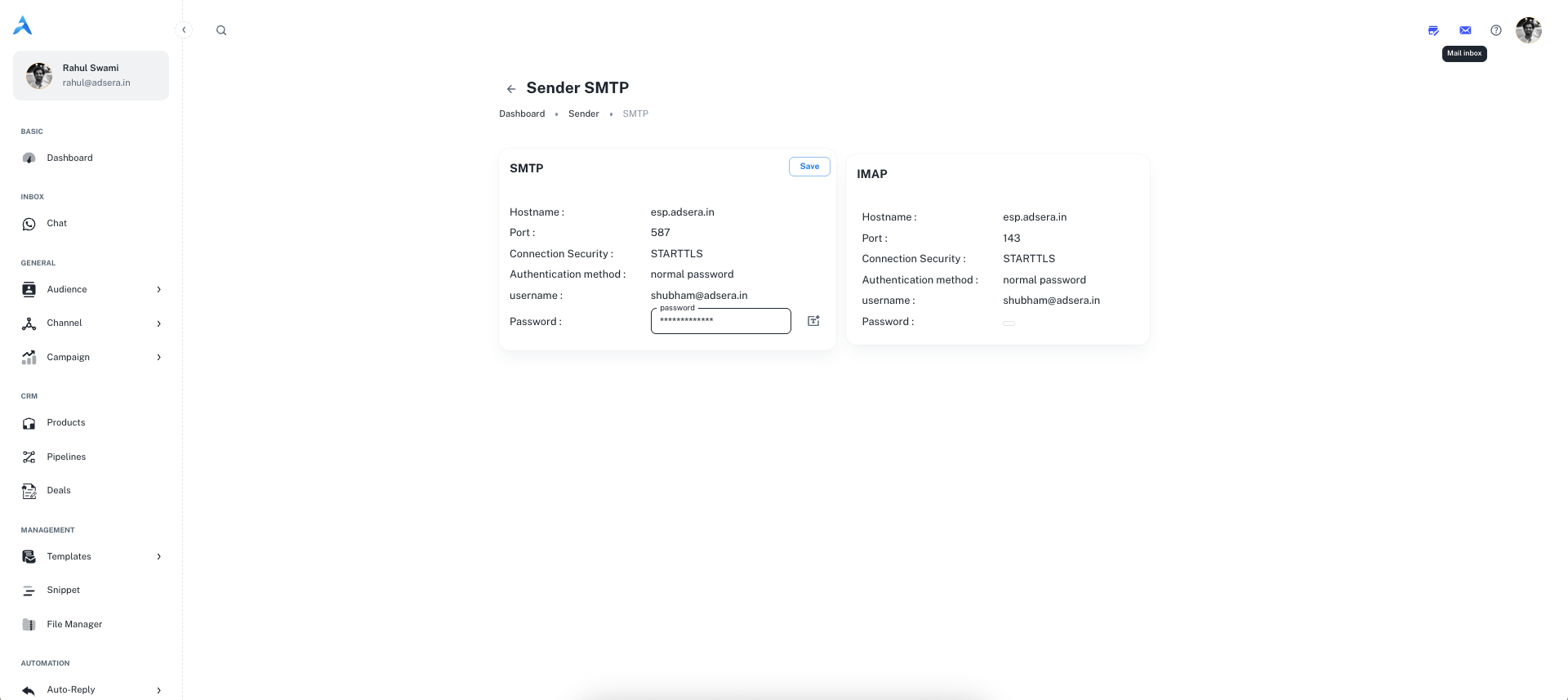
### Accessing Your Credentials
To access this page, navigate to **Channel > Email**, click the **Senders** tab, and click the **email icon (✉️)** next to the desired sender.
The SMTP/IMAP credentials allow you to use your sender address in third-party email clients like **Thunderbird** or **Outlook**. You can also use them to manage replies in our own [AdsEra Mail Inbox](https://mail.adsera.in).
### SMTP (Outgoing Mail)
Use these settings to configure an external client to **send** emails through your AdsEra sender address.
`esp.adsera.in`
`587`
`STARTTLS`
`normal password`
Your full sender email address (e.g., `noreply@adsera.in`).
The unique password generated for this sender. You can click the **wand icon (🪄)** to generate a new, secure password at any time.
### IMAP (Incoming Mail)
Use these settings to configure an external client to **receive** and sync emails sent to your AdsEra sender address.
`esp.adsera.in`
`143`
`STARTTLS`
`normal password`
Your full sender email address.
This uses the same password as your SMTP settings.
**Security Best Practice:** Treat your SMTP/IMAP passwords like any other critical password. Store them securely and use the "generate new password" feature if you ever suspect an account has been compromised.
# Connecting New WhatsApp
Source: https://docs.adsera.in/help/channel/whatsapp/connect
A step-by-step guide to connecting your WhatsApp number to AdsEra using Meta Embedded Signup flow.
Connecting a new WhatsApp Business Account (WABA) to AdsEra is a streamlined process that uses Meta's secure **Embedded Signup** pop-up window. This guide will walk you through the prerequisites and steps to get your new number live.
**Want to Add WhatsApp Account? [Go to the AdsEra WhatsApp Login Page →](https://app.adsera.in/dashboard/whatsapp/login)**
### Before You Begin: The 3 Essentials
To ensure a smooth setup, please complete the following steps first.
You must have an **admin account** for your Meta Business Manager. This is required to grant the necessary permissions. If you don't have one, you can create it at [business.facebook.com](https://business.facebook.com).
The phone number you intend to use must meet these criteria:
* It is **not** currently registered on the personal WhatsApp or WhatsApp Business app.
* It can receive an OTP (One-Time Password) via SMS or a voice call.
* It will be used exclusively for the WhatsApp API.
If you use a number that was previously active on WhatsApp, your old chats, groups, and contact history **will not** be synced or restored. The number will start completely fresh on the API.
Have the following information ready, as you will need it during the setup process:
* A professional **Display Name** that clearly represents your brand.
* Your official **Business Website URL**.
***
## The Onboarding Flow
Once your prerequisites are met, you can begin the connection process.
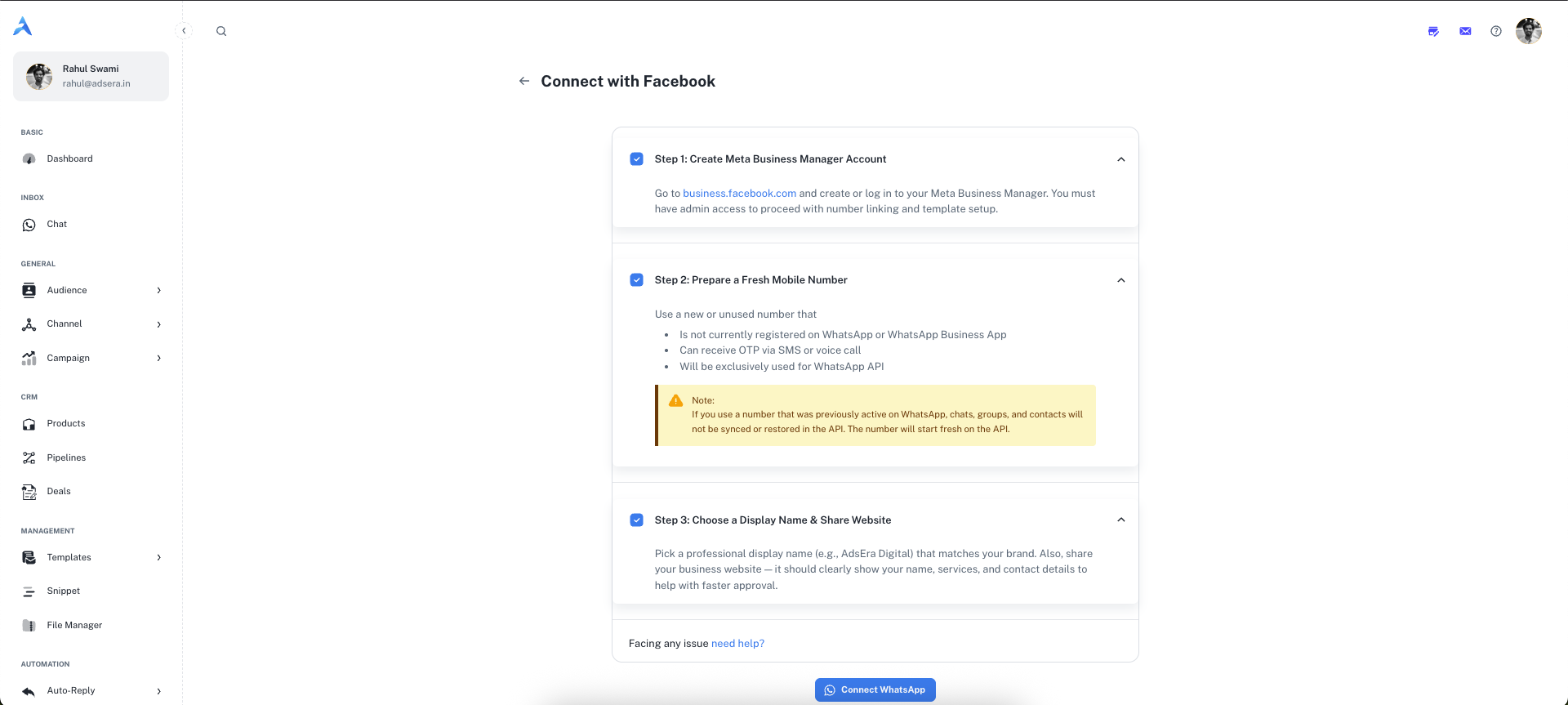
1. Navigate to the [WhatsApp Channel](/help/channel/whatsapp/whatsapp) page and click **"+ Add WABA"**.
2. On the "Connect with Facebook" page, review the steps and click the **"Connect WhatsApp"** button.
3. A secure pop-up window from Meta will open to guide you through the official onboarding.
**Official Meta Documentation:** This pop-up is a secure flow managed directly by Meta. For a detailed preview of each step within the pop-up, you can refer to Meta's official [Embedded Signup documentation](https://developers.facebook.com/docs/whatsapp/embedded-signup/).
4. Inside the pop-up, you will be asked to:
* Log in to your Facebook account.
* Create or select your Meta Business Account.
* Create or select your WhatsApp Business Account (WABA).
* Create or select your WhatsApp Business Profile.
* **Verify** your new WhatsApp Business phone number with an OTP.
5. After completing all steps, the pop-up will close automatically. Your new WABA will now be connected and will appear in the dropdown list on your AdsEra WhatsApp Channel page, ready to use!
# WhatsApp Opt-In Management
Source: https://docs.adsera.in/help/channel/whatsapp/opt
Configure the automated opt-in and opt-out keywords and responses for all your WhatsApp Business Accounts.
The **Opt Settings** page allows you to define and manage how users can subscribe (opt-in) to or unsubscribe (opt-out) from your WhatsApp communications. Properly configuring these settings is essential for respecting user consent and complying with messaging policies.
**Want to Manage WhatsApp WhatsApp Opt-In and Opt-Out? [Go to the AdsEra WhatsApp Opt-In and Opt-Out settings Page →](https://app.adsera.in/dashboard/whatsapp/opt-settings)**
**Global Setting:** Please note that the settings configured on this page are applied globally to **all** of your connected WhatsApp Business Accounts (WABAs).
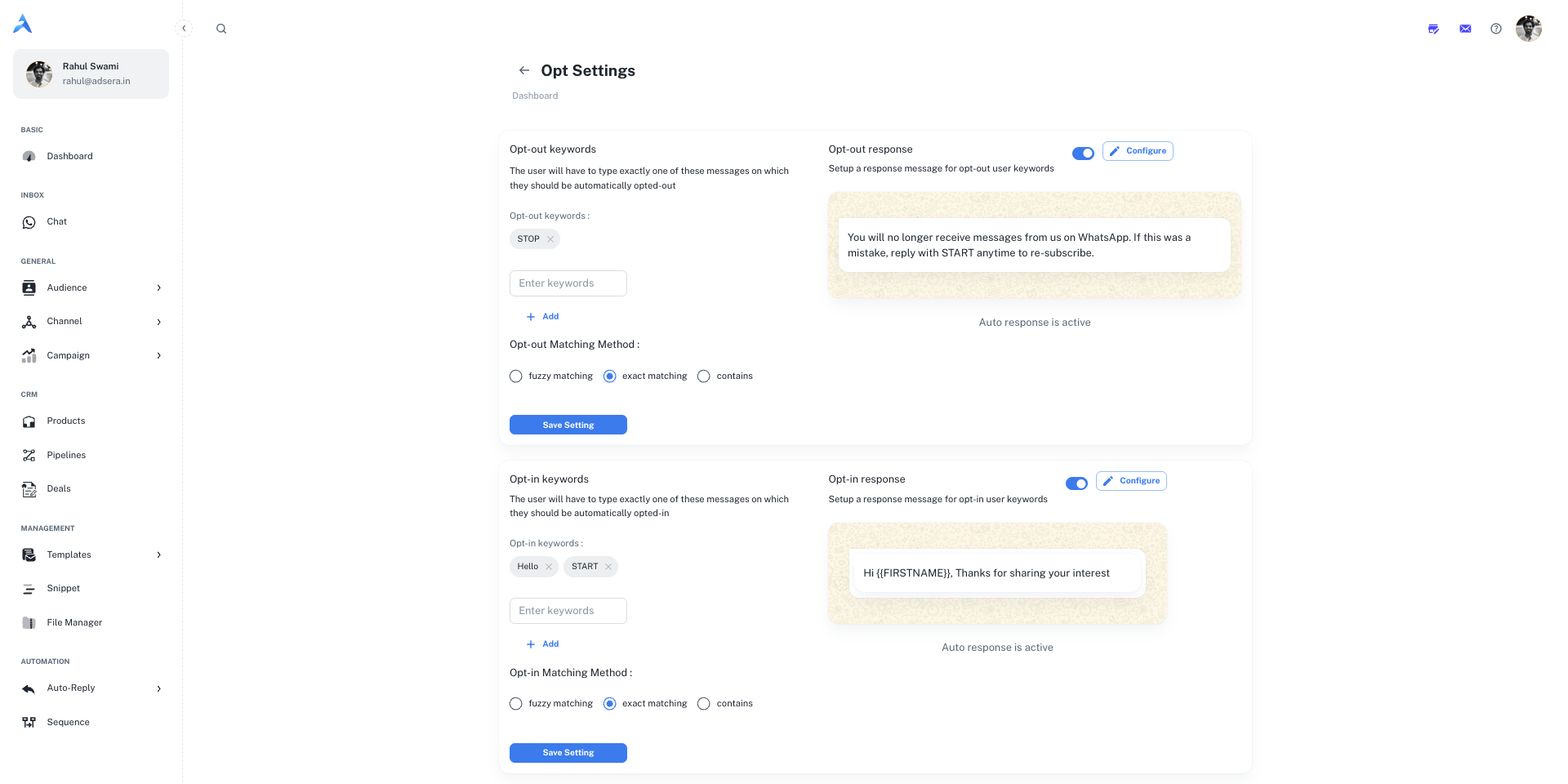
***
## Opt-Out Settings
This section controls how users can automatically unsubscribe from your messages.
Here you can define a list of keywords that will automatically trigger an opt-out. When a user sends a message containing one of these exact keywords (e.g., `STOP`), their WhatsApp subscription status will be updated to "unsubscribed."
* **To add a keyword:** Type it into the "Enter keywords" field and click **Add**.
* **To remove a keyword:** Click the `x` on the keyword's chip.
#### Opt-Out Matching Method
You can choose how strictly the system matches the keywords sent by users:
* **Fuzzy matching:** Allows for minor misspellings.
* **Exact matching:** The user's message must match your keyword perfectly.
* **Contains:** The user's message must contain your keyword anywhere within it.
#### Opt-Out Response Message
You can configure an automatic message that is sent to a user immediately after they opt out.
* **Enable/Disable:** Use the toggle switch to turn this automated response on or off.
* **Configure:** Click the **"Configure"** button to edit the content of the response message. A common best practice is to confirm the unsubscribe action and let them know how to re-subscribe, as shown in the preview.
***
## Opt-In Settings
This section controls how users can subscribe or re-subscribe to your WhatsApp messages.
Define a list of keywords that will automatically opt a user in. When a user who is not currently subscribed sends one of these keywords (e.g., `START`), their WhatsApp subscription status will be set to "subscribed."
* **To add a keyword:** Type it into the "Enter keywords" field and click **Add**.
* **To remove a keyword:** Click the `x` on the keyword's chip.
#### Opt-In Matching Method
Similar to the opt-out settings, you can define the logic for matching keywords: `fuzzy matching`, `exact matching`, or `contains`.
#### Opt-In Response Message
Set up an automated welcome message for new subscribers.
* **Enable/Disable:** Use the toggle switch to turn this automated welcome message on or off.
* **Configure:** Click the **"Configure"** button to edit the content of the response message. This is a great place to thank the user for subscribing and set expectations.
***
### Saving Your Changes
After configuring your keywords and responses for both Opt-Out and Opt-In, be sure to click the **"Save setting"** button within each respective card to apply your changes.
# Managing WhatsApp Accounts
Source: https://docs.adsera.in/help/channel/whatsapp/whatsapp
View your connected WhatsApp Business Accounts (WABA), check their status, and access settings.
The WhatsApp Channel page is where you manage all of your connected WhatsApp Business Accounts (WABAs). From here, you can get an at-a-glance view of your account's profile, check its connection status, and initiate the process of adding new numbers for different brands or departments.
**Want to Manage WhatsApp Account? [Go to the AdsEra WhatsApp Channel Page →](https://app.adsera.in/dashboard/channel/whatsapp)**
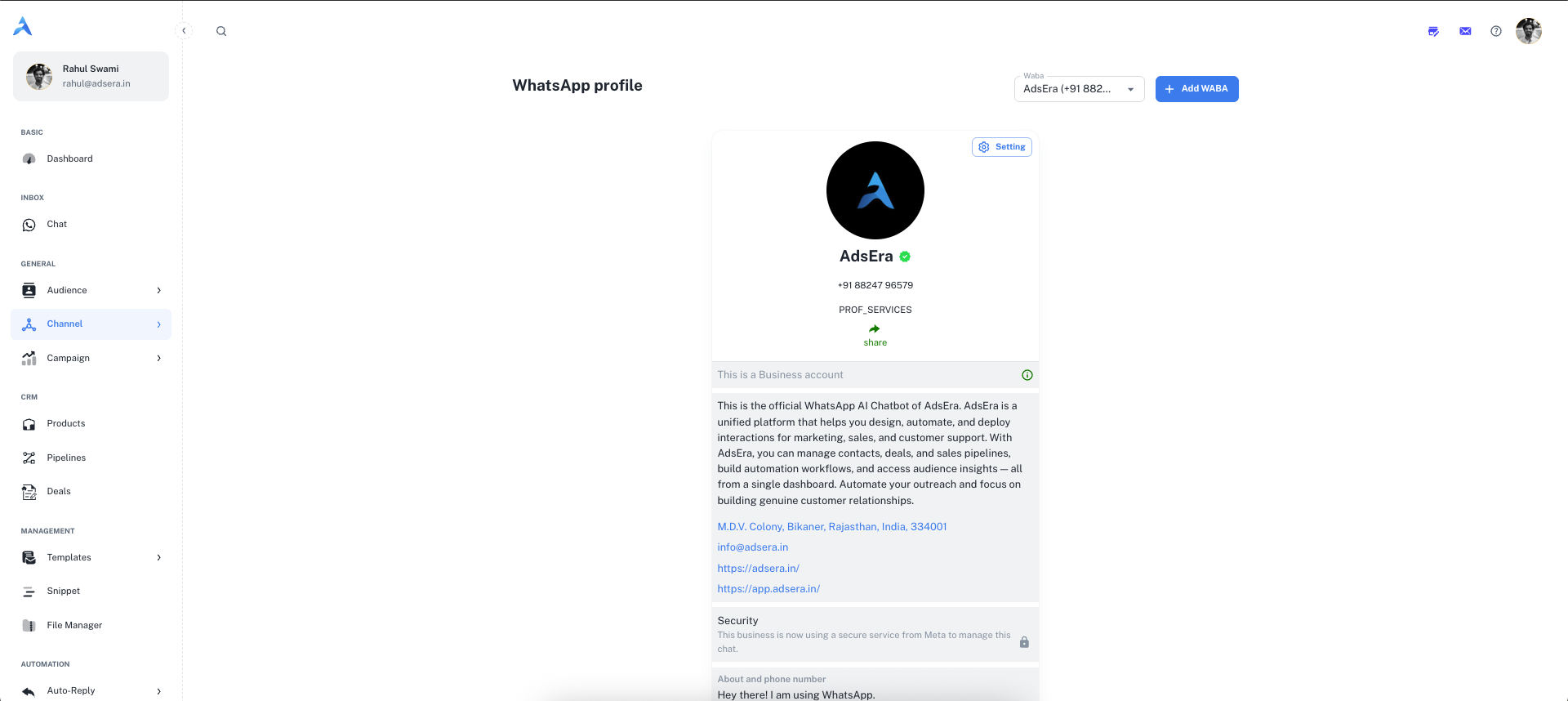
### At a Glance: Your WABA Profile
When you select a connected WABA from the dropdown at the top, its profile card is displayed. This card is a summary of your public presence and account health on WhatsApp.
This section displays your core public information, including your **profile picture** and **display name**. A green checkmark indicates you have a verified Meta Business Account, which builds trust with your customers.
Here you can see the "About" text and contact details associated with your WhatsApp profile, such as your address, email, and website links. This information helps customers understand and contact your business.
This provides key metrics for your account, including its connection **Status** (e.g., `connected`) and your official WhatsApp **Rating** (e.g., `GREEN`). Maintaining a high-quality rating is crucial for deliverability.
***
## Key Actions
There are two primary actions you can take from this page:
The **"Setting"** button is your gateway to fine-tuning your business presence on WhatsApp. Clicking this will take you to a dedicated settings area where you can manage:
* Opt-in and consent management settings.
For a full walkthrough, see our guide on [WhatsApp Profile Settings](/help/channel/whatsapp/opt).
Clicking the **"+ Add WABA"** button at the top of the page allows you to connect a new WhatsApp Business Account to AdsEra. This is perfect for businesses that operate multiple brands or have separate numbers for sales and support. This action opens Meta's secure Embedded Signup flow.
For a detailed guide, see [Connecting a New WhatsApp Business Account](/help/channel/whatsapp/connect).
***
## Pro Tips
Regularly check your WhatsApp Rating. A `GREEN` (High Quality) rating ensures the best deliverability. If your rating drops to yellow or red, it's a sign to review your messaging strategy to avoid being blocked by Meta.
Your WhatsApp profile is often a direct point of contact for customers. Ensure your "About" text, website, and contact details are always up-to-date to provide a professional and trustworthy experience.
# Managing Deals
Source: https://docs.adsera.in/help/crm/deal
Track and manage your sales opportunities visually using a Kanban board or a detailed list view.
**Want to Manage Deals? [Go to the AdsEra Deal Page →](https://app.adsera.in/dashboard/crm/deal)**
The **Deals** page is the heart of your CRM, providing a visual representation of your sales process. Here, you can track the progress of each sales opportunity (a "deal") as it moves through the stages of your [Pipelines](/help/crm/pipeline), from initial contact to a final win or loss.
### List View vs. Kanban View
You can visualize your deals in two different ways using the toggle buttons at the top of the page:
* **List View (📝):** A traditional table layout that provides a detailed, sortable list of all your deals. This view is great for seeing specific data points like `Subtotal`, `Discount`, and `GST` in a structured format.
* **Kanban View (📋):** A visual board that organizes your deals into columns representing each stage of your selected pipeline. This is the default and most popular view for tracking sales flow.
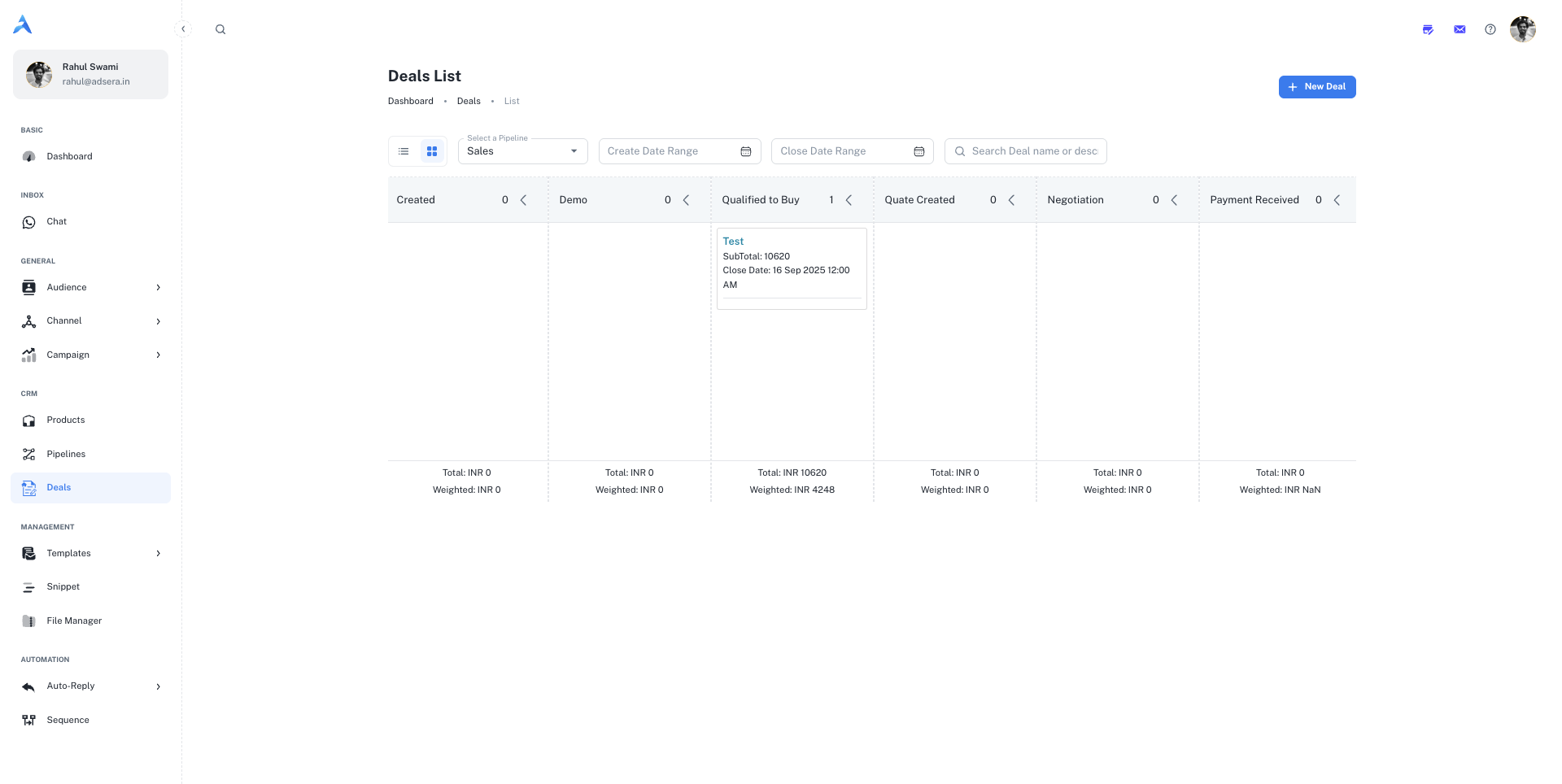
***
## The Kanban View
The Kanban view is designed for an active, visual approach to sales management.
#### Filtering Your View
At the top of the board, you can filter the deals that are displayed:
* **Select a Pipeline:** Choose which sales pipeline you want to view from the dropdown. The columns on the board will update to show the stages of the selected pipeline.
* **Date Range Filters:** Filter deals by their **Create Date** or **Close Date**.
* **Search:** Find a specific deal by its name or description.
#### Anatomy of a Kanban Column
Each column on the board represents a **stage** from your selected pipeline (e.g., `Created`, `Demo`, `Negotiation`).
* **Stage Title & Deal Count:** The header of each column shows the stage name and the number of deals currently in it.
* **Total & Weighted Value:** At the bottom of each column, you'll find:
* **Total:** The sum of the total value of all deals in that stage.
* **Weighted:** The total value multiplied by the stage's win probability (set in the [Pipeline settings](/help/crm/pipeline)). This provides a forecast of expected revenue.
#### Managing Deals with Drag-and-Drop
The power of the Kanban view is its simplicity. To move a deal from one stage to the next, simply **click and drag the deal card** and drop it into a new column. The Total and Weighted values for the columns will update automatically.
***
## Creating and Editing a Deal
Clicking the **"+ New Deal"** button or editing an existing deal opens a side panel where you can manage all its information.
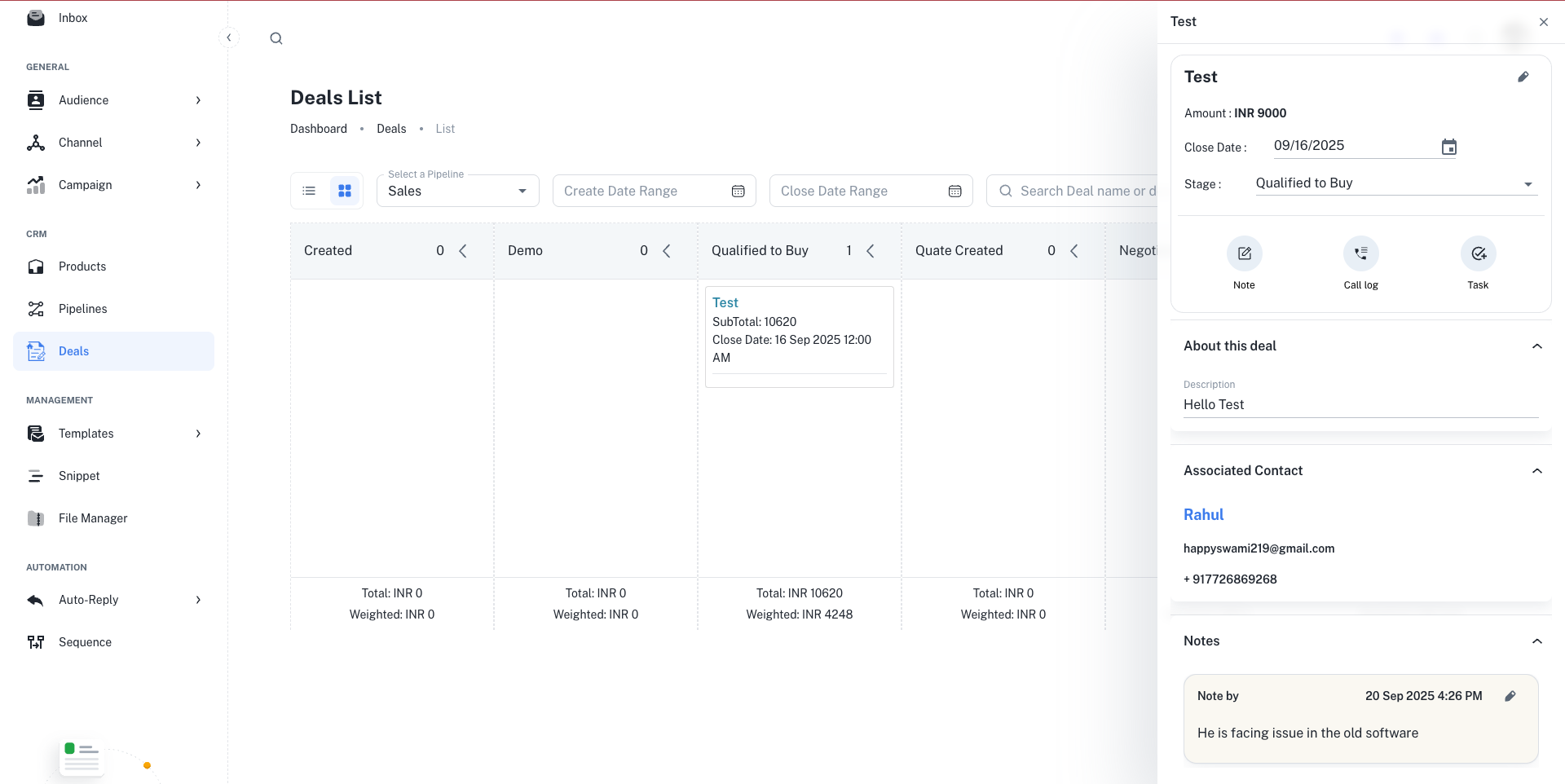
* **Title & Description:** Give your deal a clear name and add any relevant notes.
* **Contact:** Associate the deal with a specific contact from your audience list.
* **Select a stage:** Assign the deal to its current stage within the pipeline.
* **Closing Date:** Set an expected closing date for sales forecasting.
This is where you add the products or services the deal is for.
1. Select a **Currency**.
2. Click **"+ Add Product"** to add a line item.
3. Choose a product from your [Product Catalog](/help/crm/product).
4. Enter the **Quantity** and adjust the **Unit Cost** if needed. The Product Total will calculate automatically.
5. Repeat for all products in the deal.
* **Subtotal:** Automatically calculated from the sum of all product totals.
* **Discount:** Apply a discount amount to the subtotal.
* **GST:** Toggle the GST switch on to add tax. You can then select the GST type (`IGST` or `SGST`) and enter the percentage. The final tax amount and **Total** are calculated for you.
Once all details are filled in, click **"Create"** or **"Save Changes"** to add the deal to your pipeline.
# Managing Sales Pipelines
Source: https://docs.adsera.in/help/crm/pipeline
Create and customize sales pipelines to visually track the progress of your deals from initial contact to close.
**Want to Manage Pipelines? [Go to the AdsEra Pipeline Page →](https://app.adsera.in/dashboard/crm/pipeline)**
**Pipelines** are the foundation of your sales process in the AdsEra CRM. They provide a visual representation of your sales cycle, allowing you to track the progress of **Deals** as they move through different stages, from a new lead to a won customer.
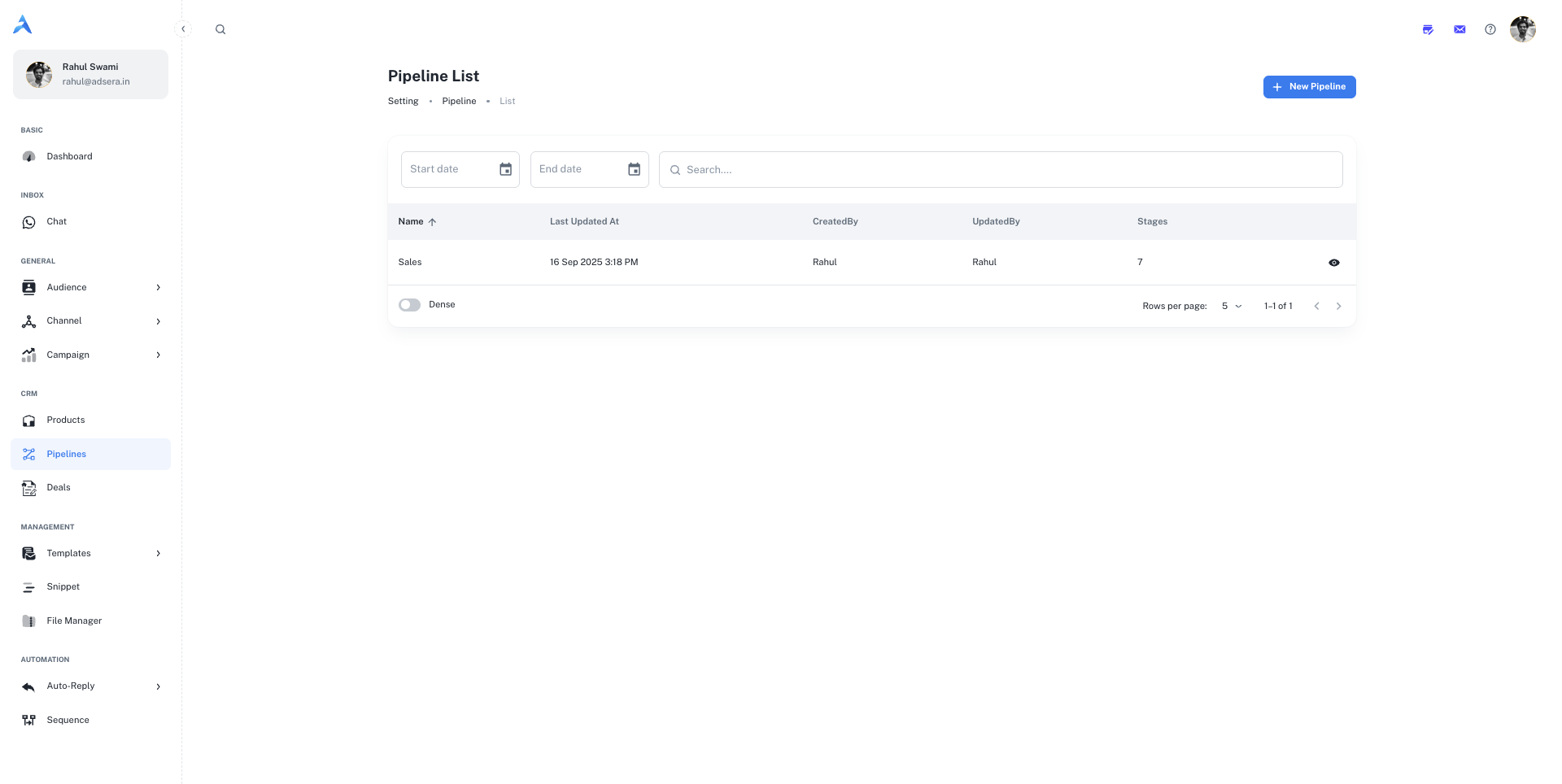
### The Pipeline List
This page gives you an overview of all the sales pipelines you have created. You can search for a specific pipeline or filter the list by a date range to see pipelines created within that period.
#### Understanding the Table Columns
| Column | Description |
| :------------------ | :-------------------------------------------------------------------------------------------------- |
| **Name** | The name of the sales pipeline (e.g., "Sales," "Enterprise Clients"). |
| **Last updated at** | The date and time the pipeline was last modified. |
| **CreatedBy** | The user who originally created the pipeline. |
| **UpdatedBy** | The user who last updated the pipeline. |
| **Stages** | The total number of stages defined within that pipeline. |
| **View (👁️)** | An icon to navigate to the visual board view of that specific pipeline to see all associated deals. |
***
## Creating and Editing a Pipeline
Clicking the **"+ New Pipeline"** button or editing an existing one opens a side panel where you can define the pipeline's structure.
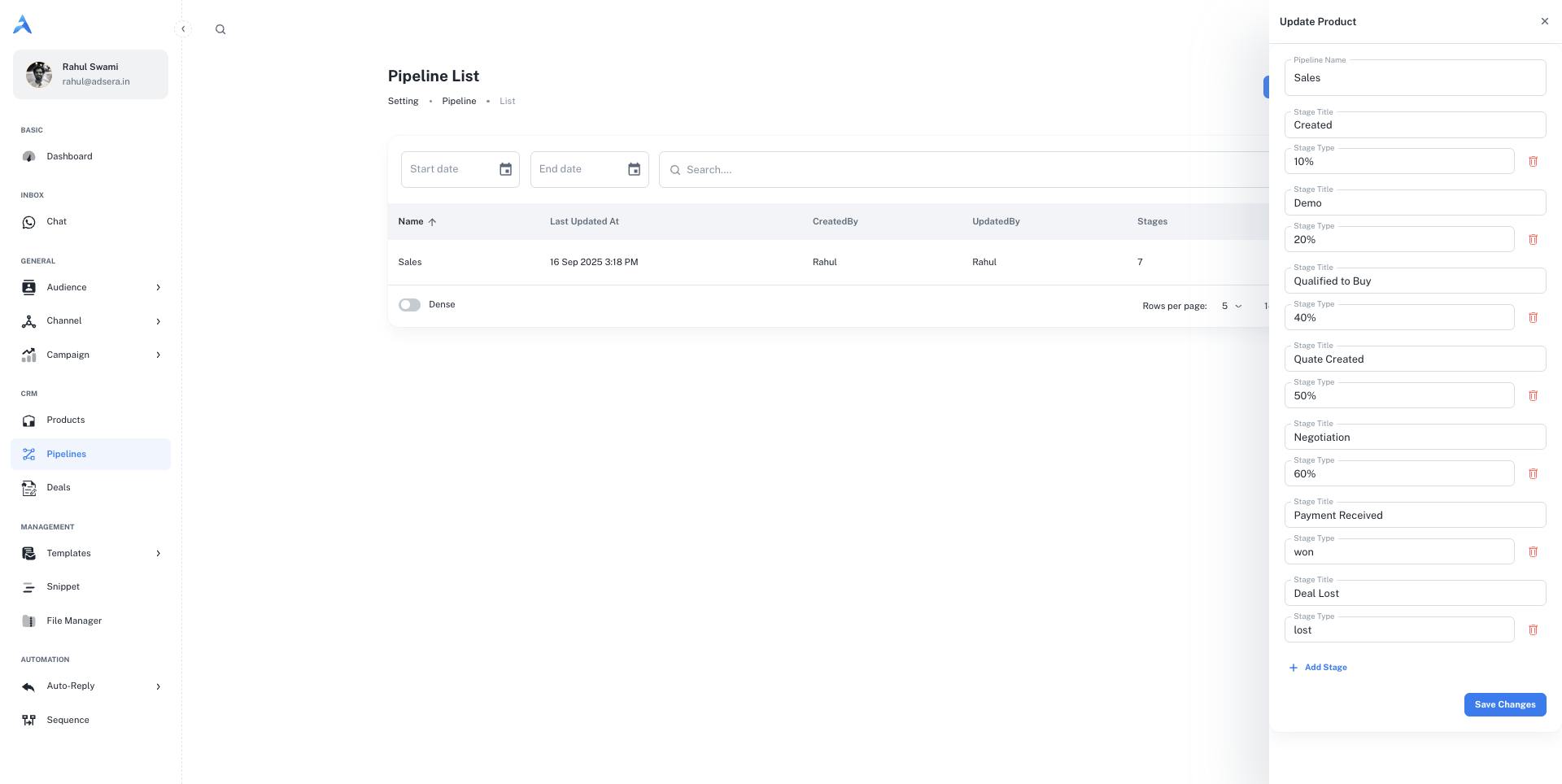
A pipeline consists of a name and a series of stages that a deal will move through.
### 1. Naming Your Pipeline
The first step is to give your pipeline a clear, descriptive name that reflects its purpose, such as "Standard Sales Process" or "Partnership Pipeline".
### 2. Defining Pipeline Stages
Stages represent the key milestones in your sales process. You can add, reorder, and customize each stage. For each stage, you must define:
* **Stage Title:** A short, clear name for the stage (e.g., `New Lead`, `Demo Scheduled`, `Contract Sent`).
* **Stage Type (Probability):** The likelihood of a deal in this stage being won, expressed as a percentage (e.g., `10%`, `50%`, `90%`). This is used for sales forecasting. You can also select `won` or `lost` for the final stages.
#### Managing Stages
* **Add a Stage:** Click the **"+ Add Stage"** button to add a new row to your pipeline.
* **Reorder Stages:** Use the drag-and-drop handles to rearrange the order of your stages to match your sales workflow.
* **Delete a Stage:** Click the **trash can icon (🗑️)** to remove a stage.
Deleting a stage with active deals will require you to move those deals to another stage.
Once you've defined your pipeline name and all its stages, click **"Create Pipeline"** or **"Save Changes"** to finish.
***
## How Pipelines Work with Deals
The pipelines you create here are the framework for managing your sales opportunities. Each opportunity is represented as a **Deal**, which is then placed in a specific stage of a pipeline. As the deal progresses, you simply drag and drop it from one stage to the next, giving your entire team a real-time visual update on your sales efforts.
[Learn more about Managing Deals](/help/crm/deal).
# Managing Products
Source: https://docs.adsera.in/help/crm/product
Create and manage your product or service catalog to associate them with deals in your CRM sales pipelines.
**Want to Manage Products? [Go to the AdsEra Products Page →](https://app.adsera.in/dashboard/crm/product)**
The **Products** page is your central catalog for all goods and services you offer. Creating products here allows you to associate them with specific **Deals** in your CRM pipelines, making it easy to track what you're selling and manage your sales process effectively.
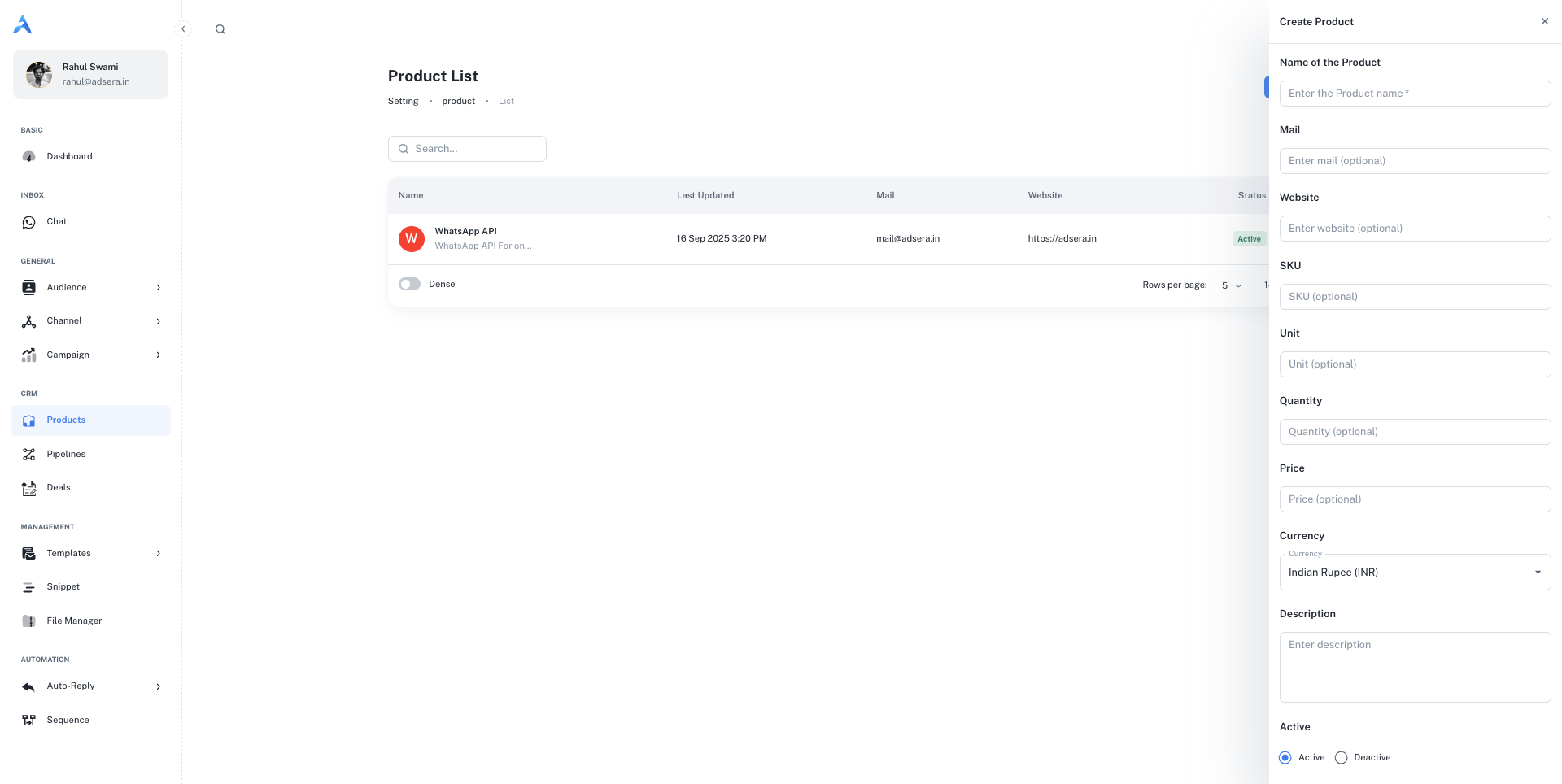
### The Product List
This page displays all the products you've created in a clear, sortable table.
* **Search:** Use the search bar at the top to quickly find a product by name.
* **New Product:** Click the **"+ New Product"** button in the top-right to open the creation panel.
#### Understanding the Table Columns
| Column | Description |
| :--------------- | :--------------------------------------------------------------------- |
| **Name** | The name of the product, along with its description. |
| **Last Updated** | The date and time the product was last modified. |
| **Mail** | The contact email associated with this product (optional). |
| **Website** | A link to the product's webpage (optional). |
| **Status** | A color-coded tag indicating if the product is `Active` or `Deactive`. |
| **⋮ (Actions)** | A menu to **Edit** or **Delete** the product. |
***
## Creating and Editing a Product
Clicking **"+ New Product"** or the **Edit** option on an existing item will open a side panel where you can define all the product's details.
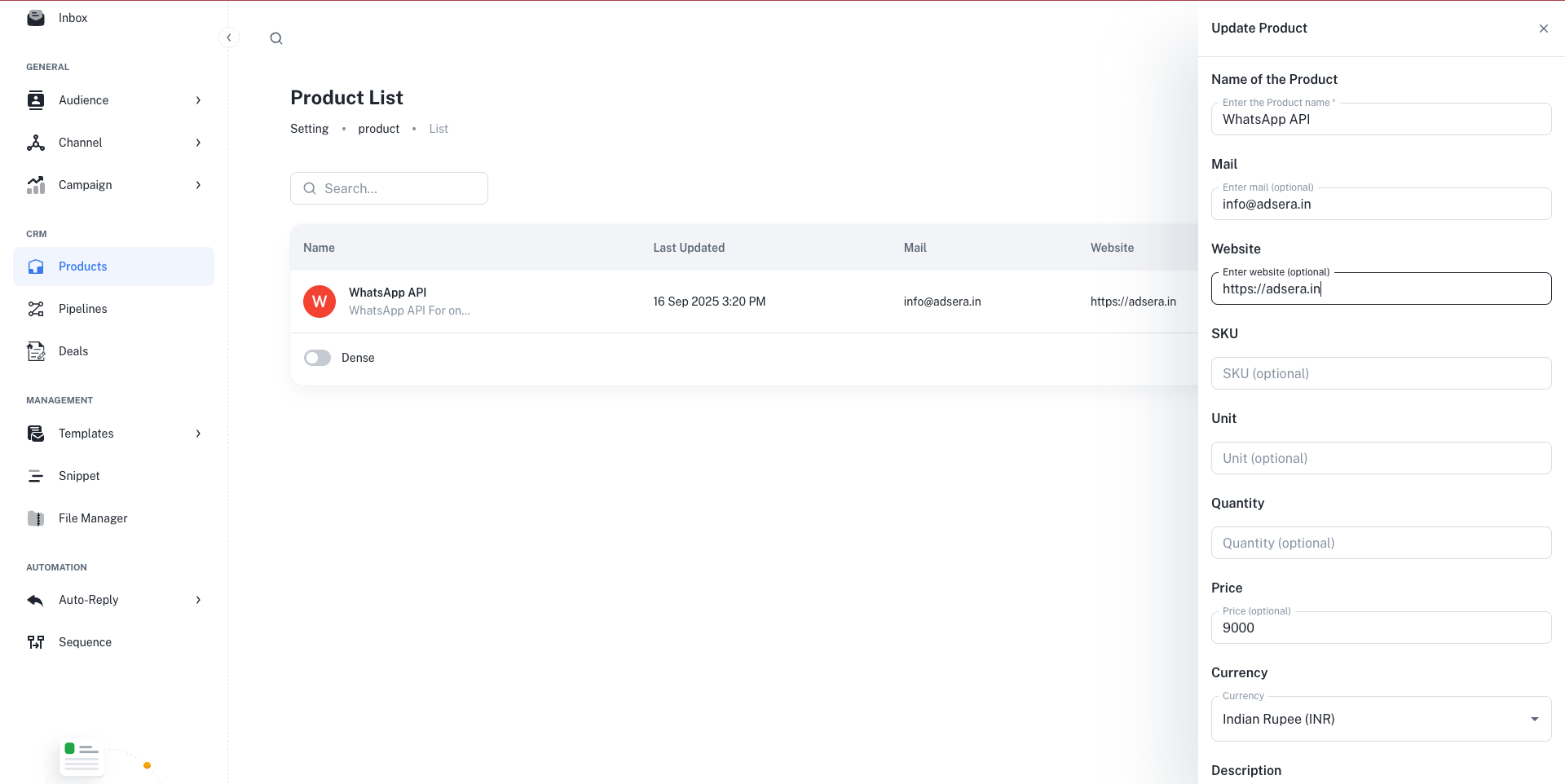
* **Name of the Product (Required):** A clear, descriptive name for your product or service.
* **Mail (Optional):** A contact email for product-specific inquiries.
* **Website (Optional):** A direct link to the product's landing page.
* **Description (Optional):** A multi-line field to add more detailed information about the product.
* **SKU (Optional):** The Stock Keeping Unit or any unique internal identifier for the product.
* **Unit (Optional):** The unit of measurement (e.g., "per user," "kg," "license").
* **Quantity (Optional):** The available stock quantity.
* **Price (Optional):** The price of a single unit.
* **Currency:** The currency for the price (e.g., INR, USD).
* **Active:** The product is available and can be added to new deals.
* **Deactive:** The product is archived or unavailable and cannot be added to new deals.
Once you've filled in the details, click **"Create Product"** or **"Save Changes"** at the bottom of the panel to save your work.
### How Products Integrate with Deals
The primary purpose of creating products in AdsEra is to link them to your sales process.
When you create or edit a **Deal** in one of your [Pipelines](/help/crm/pipeline), you can associate one or more of these products with it. This helps you:
* Automatically calculate the deal's total value.
* Track which products are selling the most.
* Provide your sales team with clear information about what's included in each potential sale.
# Dashboard Overview
Source: https://docs.adsera.in/help/dashboard
Your central hub for getting started, monitoring campaign performance, and viewing key metrics at a glance.
Welcome to your AdsEra Dashboard! This is the first page you see after logging in. It serves as your mission control, providing either an onboarding guide to get you started or a high-level overview of your recent activity and performance.
**Want to See Dashboard? [Go to the AdsEra Dashboard Page →](https://app.adsera.in/dashboard/app)**
The content on your dashboard will evolve as you use the platform.
***
When you first sign up, the dashboard is designed to guide you through the essential setup steps to launch your first campaign successfully.
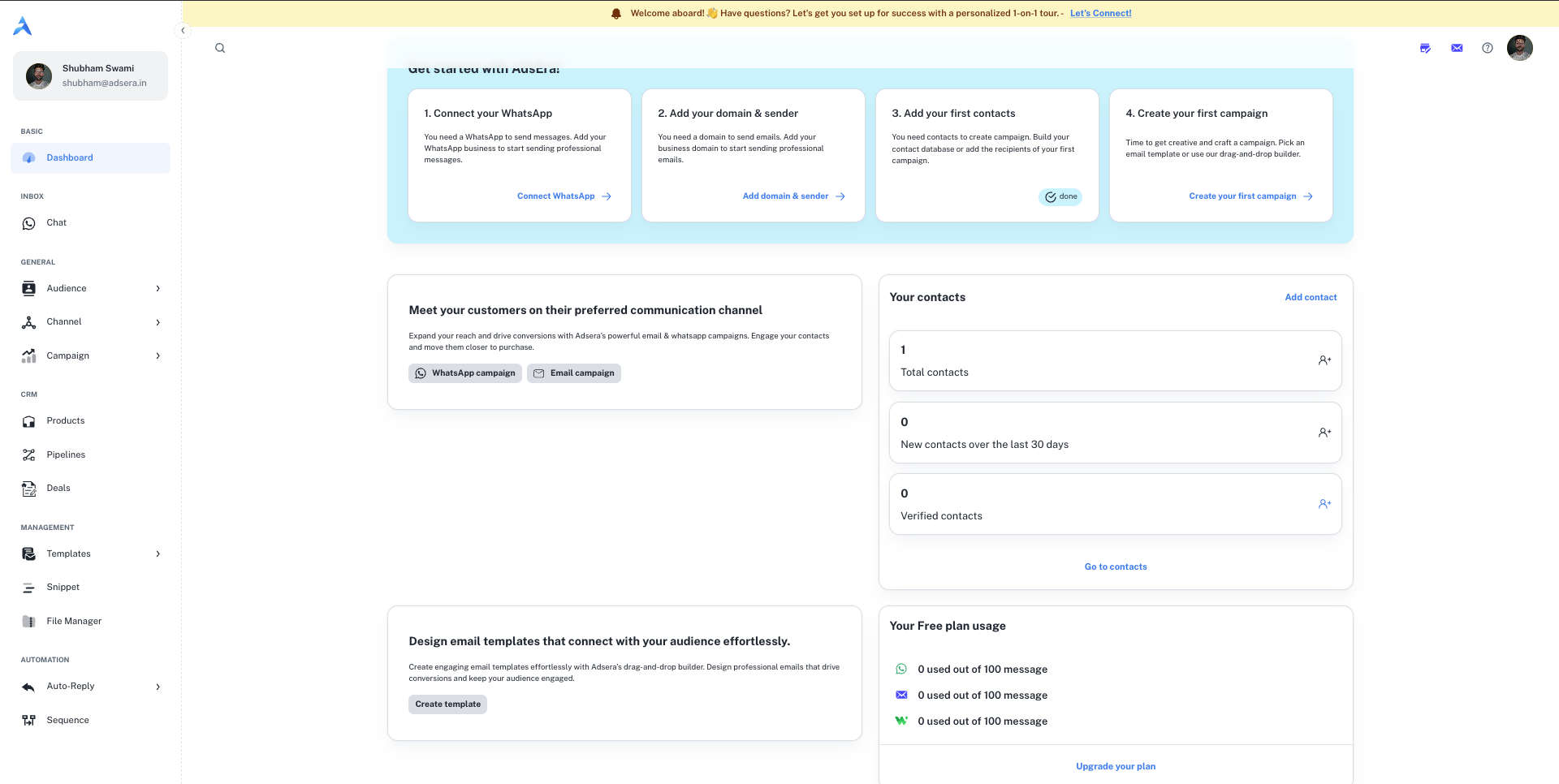
### The "Get Started" Checklist
This is your primary onboarding tool. It tracks your progress on four crucial setup tasks:
1. **Connect your WhatsApp:** Link your WhatsApp Business account to enable messaging campaigns.
2. **Add your domain & sender:** Configure and verify your email domain to send emails professionally.
3. **Add your first contacts:** Upload your audience list to start building your contact database.
4. **Create your first campaign:** Design and launch your first WhatsApp or Email campaign.
### Other Key Sections
* **Quick-Start Cards:** You'll find cards that prompt you to start a **WhatsApp or Email campaign**, create an **email template**, or **add contacts**.
* **Plan Usage:** This card shows the limits of your current plan (e.g., the Free plan) so you can track your usage.
* **Upgrade CTA:** A prominent **"Upgrade Now"** button allows you to explore paid plans with higher limits and more features.
Once you've started sending campaigns and building your audience, the dashboard transforms into a data-rich overview of your marketing performance.
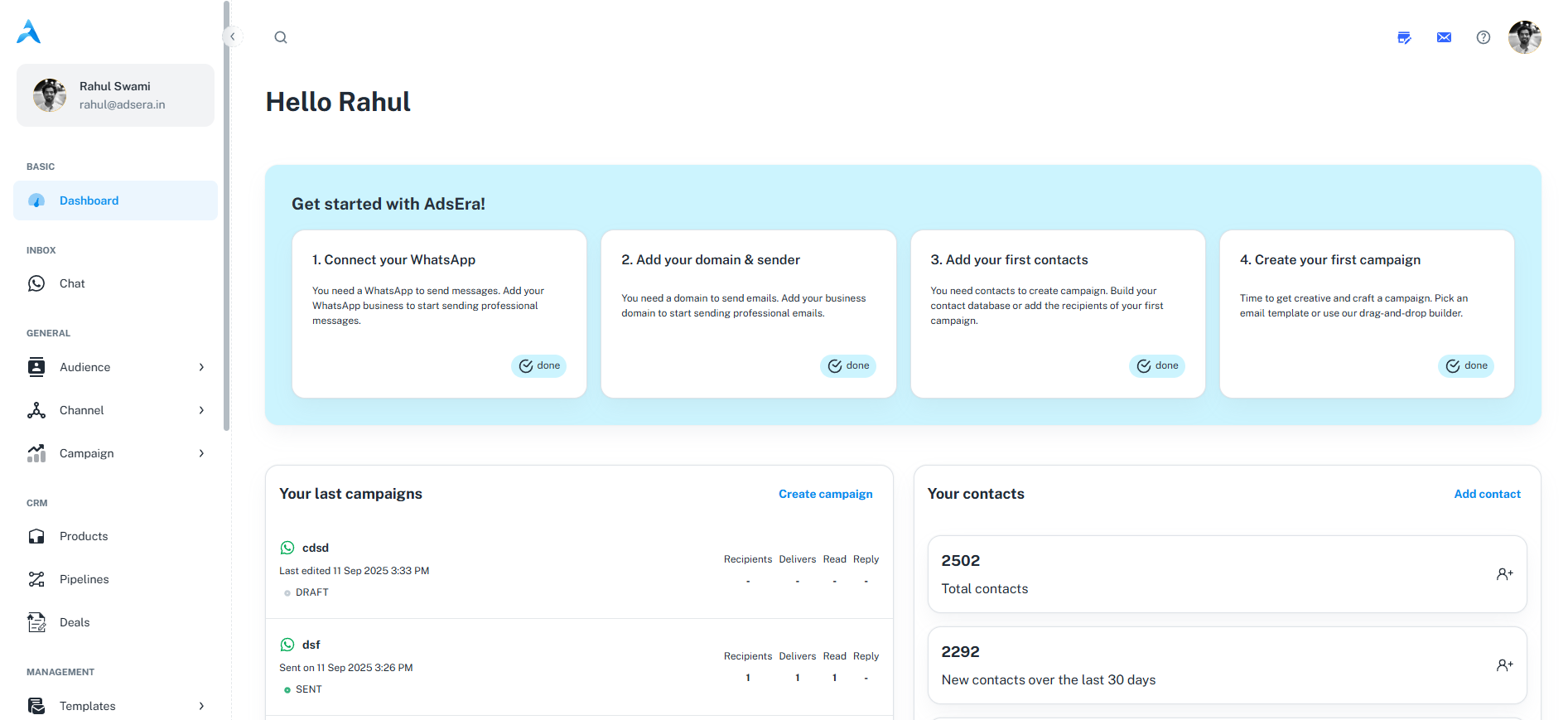
### Key Performance Cards
Your dashboard will be populated with several cards that provide at-a-glance insights:
This card displays a list of your most recent campaigns. For each one, you can quickly see its **channel** (WhatsApp or Email), **status** (Draft or Sent), and key **metrics** like Recipients, Delivers, Read, and Reply.
Get a snapshot of your audience health. This card shows your **total contacts**, the number of **new contacts** from the last 30 days, and the count of **verified contacts**.
This provides quick access to your most recently edited email templates, showing the template name and subject line.
View details about your current subscription plan, including its expiry date and a summary of its main features (e.g., number of WhatsApp accounts or domains).
# File Manager
Source: https://docs.adsera.in/help/file/manager
Upload, organize, and manage all your marketing assets like images, videos, and documents in one central library.
The **File Manager** is your central library for all the digital assets you use in your marketing efforts. Here, you can upload and organize images, videos, documents, and audio files into folders, making them easy to find and reuse in your email campaigns, WhatsApp templates, and snippets.
**Want to manage Files & Folders? [Go to the AdsEra File Manager Page →](https://app.adsera.in/dashboard/folder/list)**
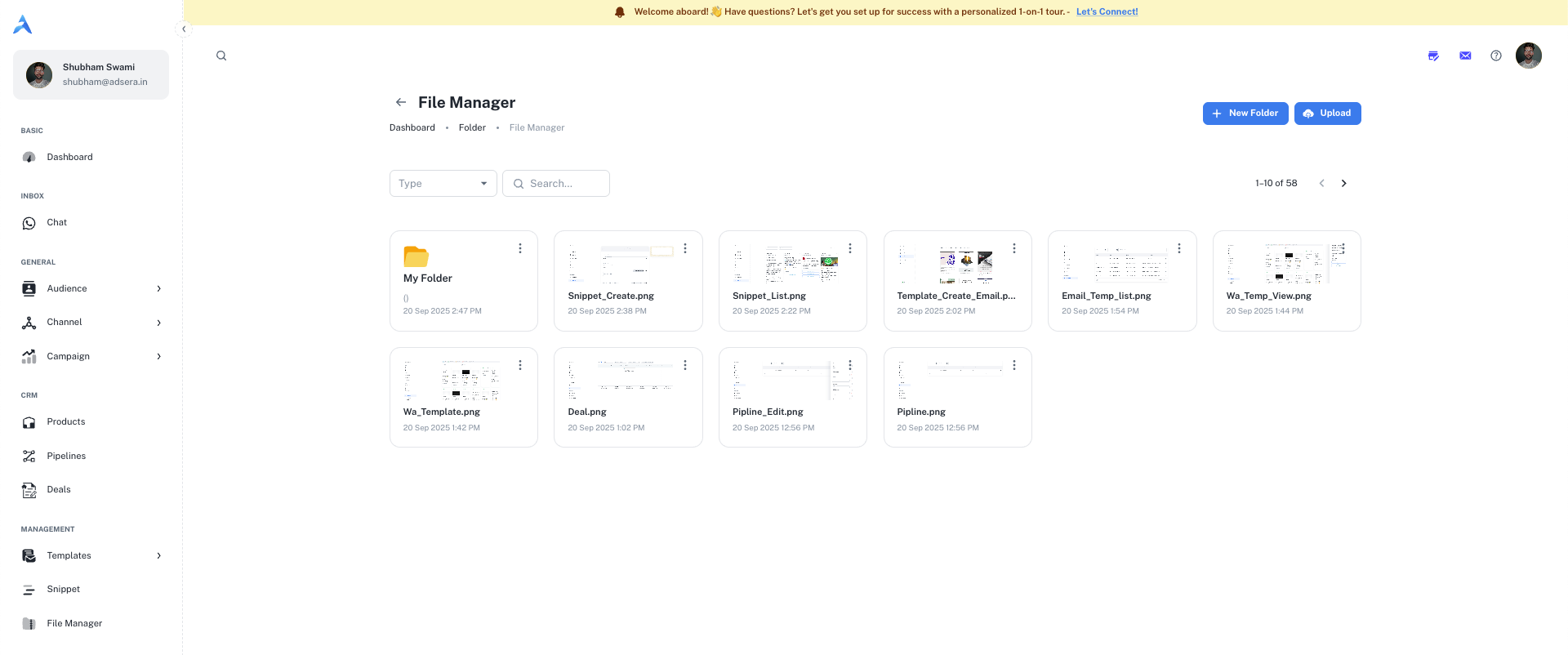
### Navigating Your File Manager
The File Manager uses a standard folder-based system.
* **Root View:** The main page displays all your top-level folders.
* **Folder View:** Clicking on a folder will take you inside it, showing all the files and sub-folders it contains. Use the breadcrumbs at the top to navigate back to parent folders.
***
## Managing Folders and Files
You can manage your assets using the actions at the top of the page and on individual items.
Click the **"New Folder"** button to create a new folder. A pop-up will appear asking for a **Folder name** and an optional **Description**.
Click the **"Upload"** button to add new files. This will open a modal where you can select the file type and choose whether the file should be **Public** or **Private**.
Use the **Search...** bar to quickly find a specific file or folder by its name within your current view.
#### File & Folder Actions (⋮)
Each file and folder has a **three-dots (...) menu** that appears when you hover over it. This menu contains two actions:
* **View:** Opens the file in a new browser tab for a full preview.
* **Delete:** Permanently removes the file or folder from your library.
This action cannot be undone and will break any existing campaigns or snippets that use this file.
***
## Public vs. Private Files
When uploading a file, you must choose its visibility. This is a critical security setting.
* **Accessibility:** Public files are accessible to anyone with the direct link.
* **Use Case:** Ideal for images in email campaigns, marketing materials, or any asset you intend to share widely. The URL for these files does not expire.
* **Accessibility:** Private files are secure and cannot be accessed directly via a public URL.
* **Use Case:** Perfect for sensitive documents like invoices, contracts, or internal reports.
* **Secure Viewing:** When you need to view a private file, AdsEra generates a **temporary, secure URL that expires after 60 seconds**. This ensures the file cannot be shared or accessed later.
The File Manager is your single source of truth for assets. When you build a **Snippet** or an **Email Template** and need to add an image or document, you can select it directly from your File Manager.
# WhatsApp Chat Inbox
Source: https://docs.adsera.in/help/inbox/chat
Engage with customers, manage conversations, and use templates in the unified WhatsApp Chat Inbox.
The AdsEra WhatsApp Chat Inbox is your central hub for all real-time customer conversations. From here, you can reply to inquiries, send rich media, use pre-approved templates, and manage your contacts efficiently.
**Want to Manage WhatsApp Chats? [Go to the AdsEra Chat Inbox Page →](https://app.adsera.in/dashboard/whatsapp/chat)**
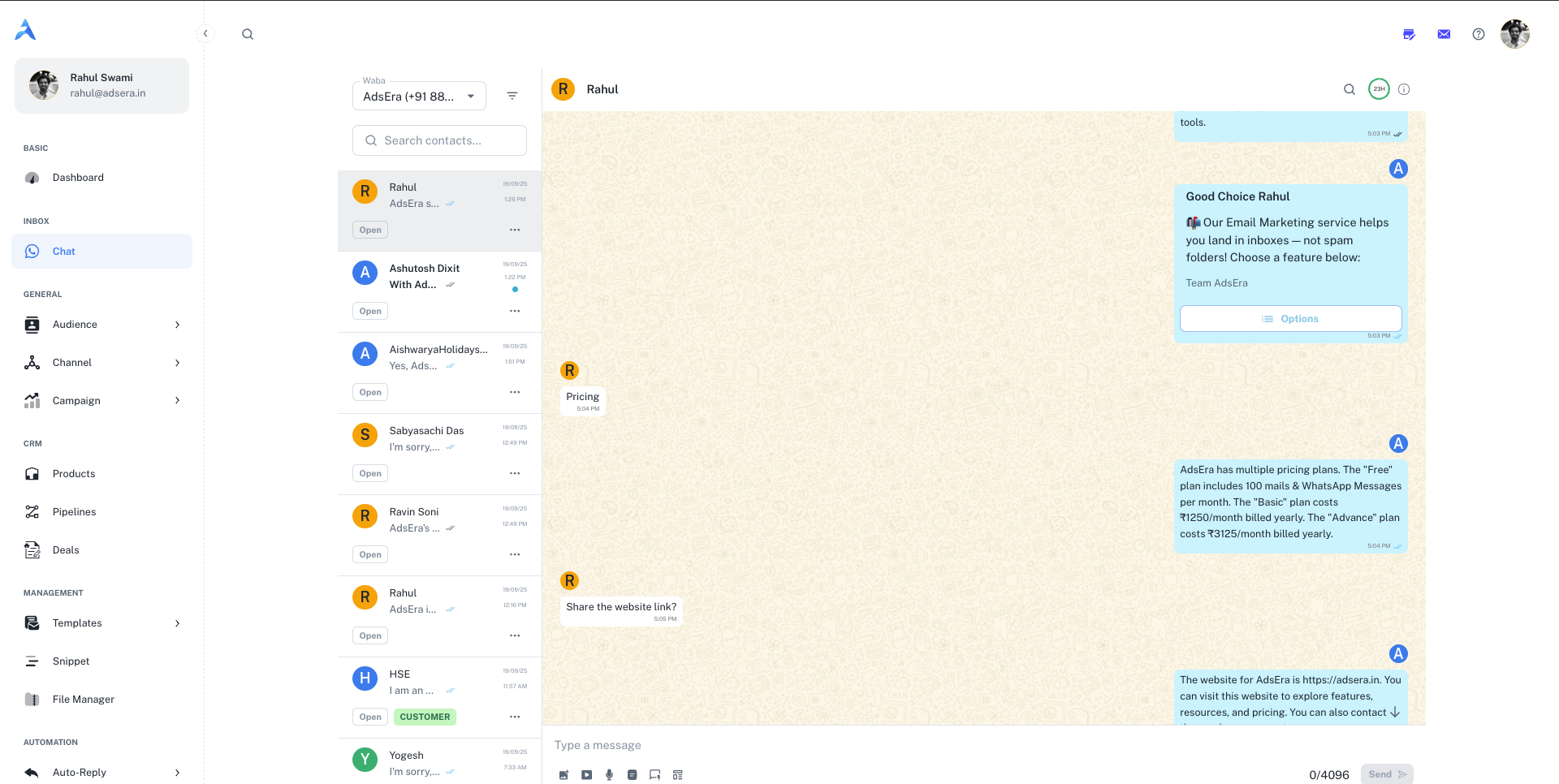
The inbox is organized into three main panels: the **Conversation List**, the **Chat Window**, and the **Contact Details** panel. Each is packed with tools to make your workflow faster and more organized.
***
## 1. The Conversation List (Left Panel)
This panel on the left displays all your ongoing conversations. It's designed to help you quickly find and prioritize customer chats.
#### WABA Selector
At the very top, you'll find a dropdown menu to select your **WhatsApp Business Account (WABA)**. If you have multiple WhatsApp numbers connected to AdsEra, you can switch between them here to view and respond from the correct number.
#### Searching and Advanced Filtering
* **Simple Search:** Use the **Search contacts...** bar to quickly find a conversation by name or phone number.
* **Advanced Filters:** Click the **filter icon** (ᯤ) next to the search bar to open the "Chat Filters" modal. This powerful tool allows you to create specific views of your inbox based on multiple criteria.
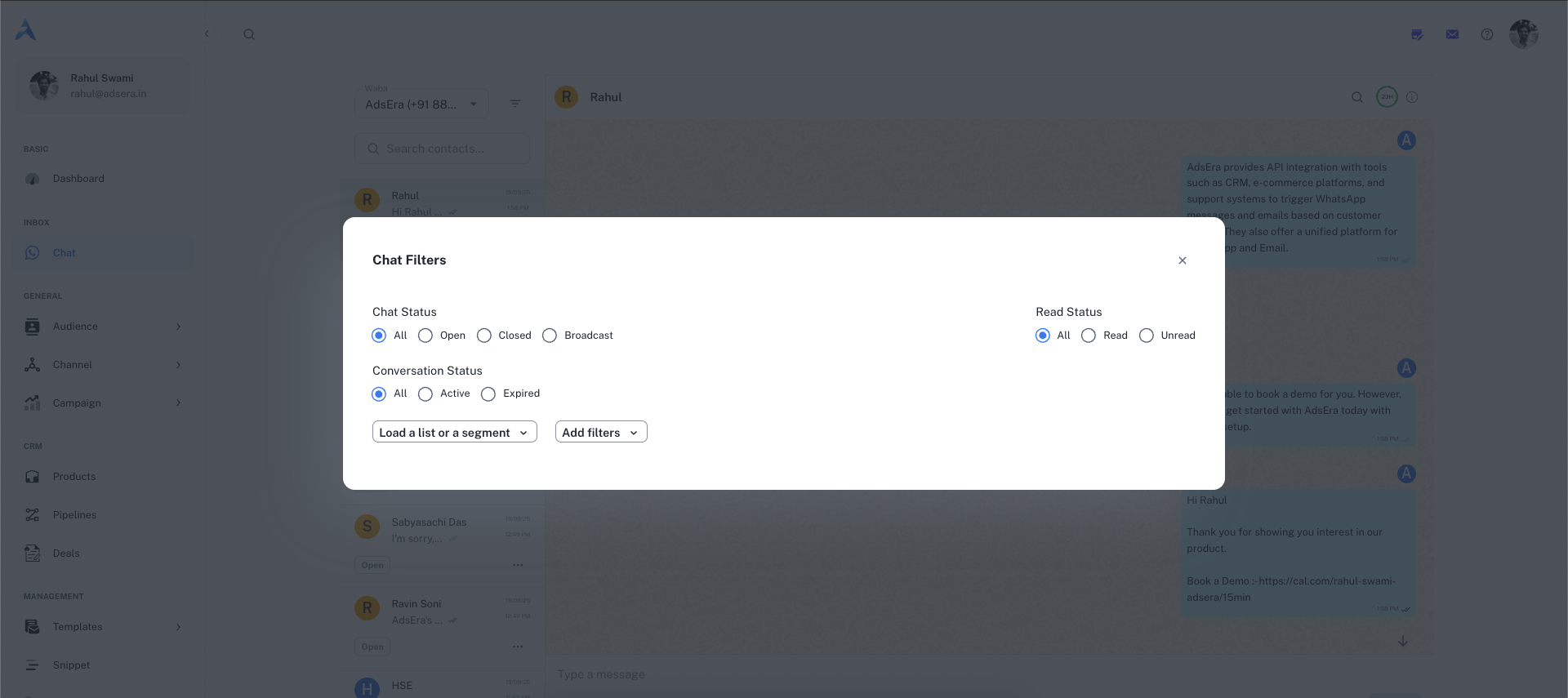
* **Chat Status:** Find conversations that are `All`, `Open`, `Closed`, or part of a `Broadcast`.
* **Read Status:** Isolate `All`, `Read`, or `Unread` messages.
* **Conversation Window:** Filter for `All`, `Active` (within the 24-hour window), or `Expired` conversations.
Use the **"Load a list or a segment"** dropdown to instantly view chats from contacts who are part of a specific list or dynamic segment you've created in the Audience section.
For the most granular control, you can build your own filter logic:
1. Select a condition (e.g., "Recipient of campaign(s)", "Email address", "Subscribed whatsapp").
2. Choose an operator (e.g., "is equal to", "contains").
3. Provide a value to filter by.
4. Chain multiple rules together using the **AND** / **OR** buttons to create complex queries.
***
## 2. The Chat Window (Center Panel)
This is where the direct interaction with your customer happens.
#### Chat Header
* **Contact Info:** Shows the name and avatar of the customer.
* **Message Search:** Click the **search icon** to find specific text within the current conversation history.
* **24-Hour Session Timer:** A circular progress bar that shows how much time is left in WhatsApp's 24-hour customer service window.
* **Contact Details:** Click the **information icon (`ⓘ`)** to open the full Contact Details panel on the right.
#### Message Timeline & Status
To see the exact delivery timeline of a message you've sent, **hover over the message bubble**. An **info icon (`ⓘ`)** will appear. Clicking it opens a "Message info" drawer from the left.
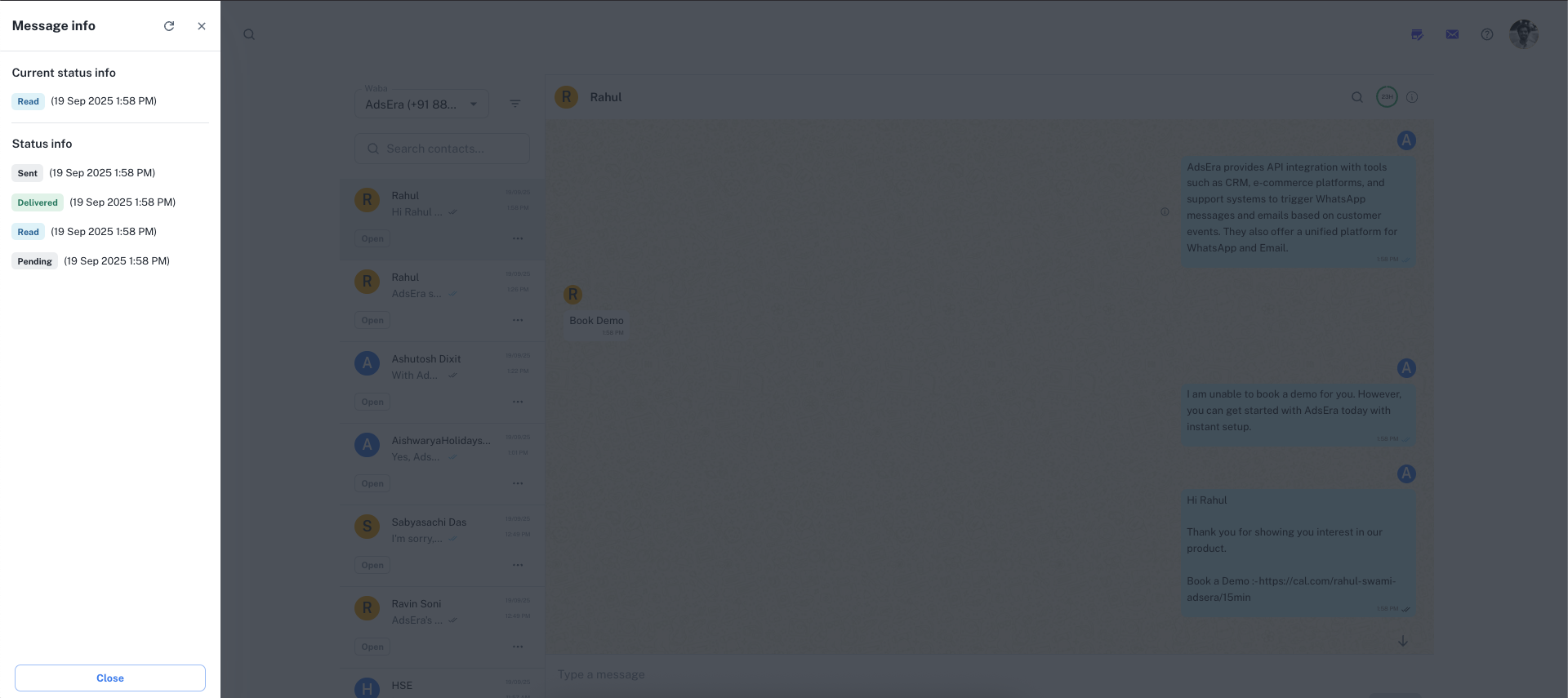
This drawer shows the precise timestamps for each status:
* **Sent:** The time the message left AdsEra's servers.
* **Delivered:** The time the message was successfully delivered to the recipient's device.
* **Read:** The time the recipient opened and read the message.
#### The Message Composer
This is where you write your replies. The composer's functionality changes based on the 24-hour session window.
While the session timer is active, you have full access to the composer:
* **Text Area:** Type any free-form message up to 4096 characters.
* **Attachments:** Send rich media like **images (5MB)**, **videos (16MB)**, **audio (16MB)**, or **documents (100MB)**.
* **Snippets & Templates:** Use quick replies or pre-approved templates to respond faster.
Once the 24-hour window closes, the normal text area is disabled. You will see a message explaining that you must use a template to re-initiate the conversation. Your only option is to click the **Send Template** button.
#### Using Snippets and Message Templates
Snippets are saved, reusable text blocks for answering common questions quickly and consistently.
1. Click the **snippet icon** in the composer.
2. In the "Snippets" modal, search or select the snippet you need. They can include personalization variables like `{{FIRSTNAME}}`.
3. Clicking a snippet will instantly populate it in your message composer.
To learn how to create and manage your own snippets, see our [Snippets Management](/help/snippet/list) guide.
Message Templates are required to start a new conversation or to reply to a customer after the 24-hour window has expired. These must be pre-approved by Meta.
1. Click the **template icon** in the composer.
2. In the "Select template" modal, browse and choose your desired template.
3. If the template contains variables (e.g., `{{name}}`), a new "Variables" modal will appear. Here you can fill in the dynamic content. You can either select a contact property (like `First Name`) or enter static text.
4. Preview the final message and click **Send**.
***
## 3. Contact & Conversation Details (Right Panel)
Clicking the info icon (`ⓘ`) in the chat header opens this powerful CRM panel, giving you a full 360-degree view of the contact.
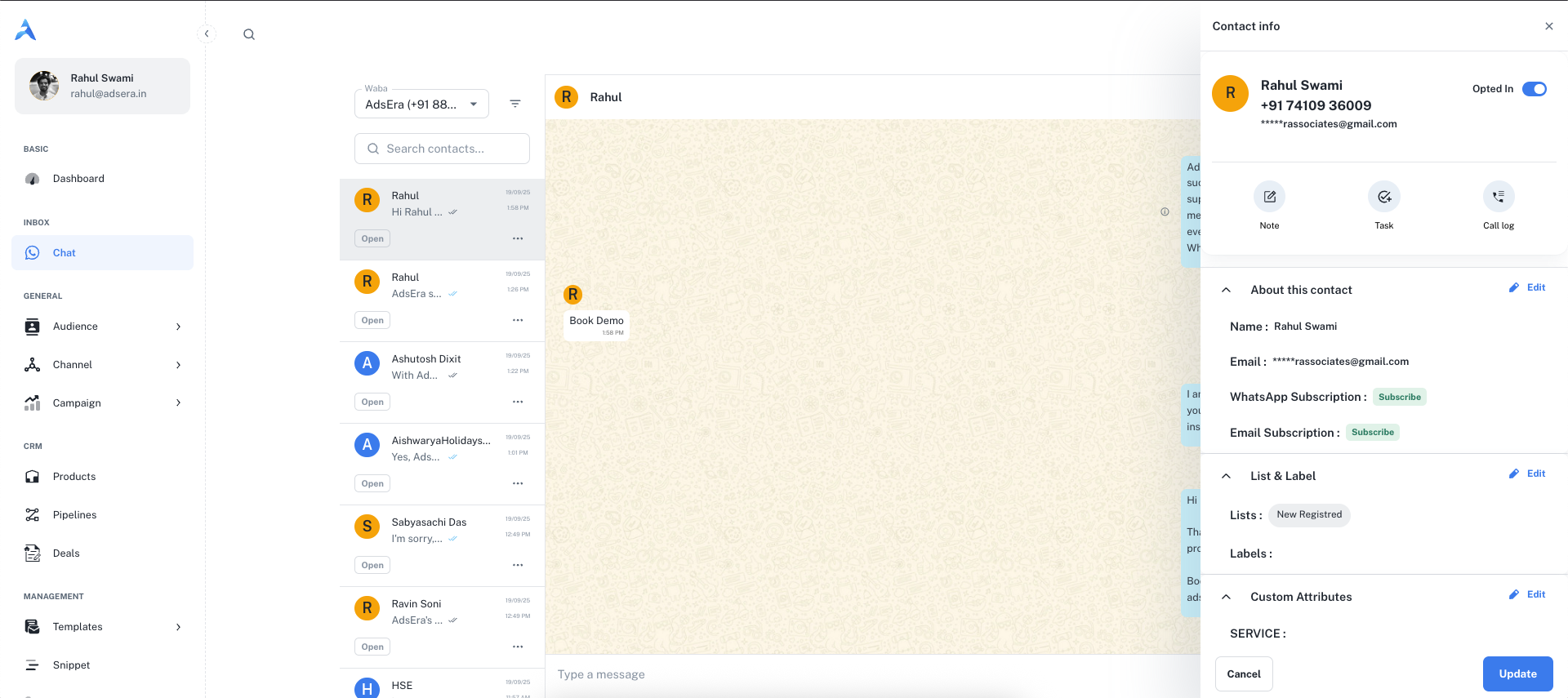
View and **edit** the contact's core information, such as their name, email, and subscription status for both WhatsApp and Email.
See which contact **Lists** the user belongs to and which **Labels** (tags) have been applied. This helps you understand their customer segment at a glance.
View any custom data fields you've stored for this contact, such as `LEAD_STATUS` or `SERVICE_TYPE`, for highly personalized conversations.
Quickly add CRM activities without leaving the chat:
* **Note:** Add an internal note for your team.
* **Task:** Create and assign a follow-up task.
* **Call Log:** Log details from a phone call.
***
# Introduction
Source: https://docs.adsera.in/help/introduction/adsera
Learn about AdsEra, the unified customer engagement platform designed to streamline your marketing, sales, and support.
## What is AdsEra?
AdsEra is a unified customer engagement platform designed to help businesses of all sizes streamline, automate, and personalize their communication across multiple channels. We bring your marketing, sales, and support efforts into a single, powerful dashboard, eliminating the need to juggle multiple disconnected tools.
At its core, AdsEra helps you build and manage your audience, launch targeted campaigns on channels like **Email** and **WhatsApp**, and track your sales process from lead to loyal customer with an integrated CRM.
***
## Who is AdsEra For?
AdsEra is built for teams who want to grow their business by building stronger customer relationships. Our tools are designed for:
Who need to create, automate, and analyze multi-channel campaigns with powerful audience segmentation and personalization.
Who want to visualize their sales process, manage deals through custom pipelines, and track their product catalog without leaving their workspace.
Who need to provide fast, consistent support through a unified inbox, using tools like snippets and auto-replies to boost efficiency.
Developers who need a robust and reliable API to integrate multi-channel communication (WhatsApp, Email, SMS) into their own applications, CRMs, or custom workflows without building the complex infrastructure from scratch.
***
## What Problems Does AdsEra Solve?
We focus on solving the common challenges that growing businesses face in an increasingly complex digital landscape.
**Problem:** Your customer data is in a CRM, your email marketing is in another tool, and your WhatsApp conversations are somewhere else entirely. This leads to a disjointed customer experience.
**AdsEra's Solution:** We provide a single platform with a unified audience database and inbox, ensuring you have a complete view of every customer interaction in one place.
**Problem:** Your team spends hours sending the same follow-up emails, answering common questions, and manually nurturing leads.
**AdsEra's Solution:** Our automation tools, like **Sequences** and **Auto-Replies**, handle the repetitive work for you, while **Snippets** allow for instant, consistent responses in live chats.
**Problem:** Leads and potential sales fall through the cracks because there's no clear, visual way to track their progress.
**AdsEra's Solution:** Our built-in CRM with customizable **Pipelines** and a visual **Deals** board gives your sales team a clear view of your sales funnel, helping them stay organized and close more deals.
***
## Key Features (Current)
Build and send beautiful campaigns through Email and WhatsApp.
Create automated email journeys (Sequences) and keyword-based WhatsApp Auto-Replies.
Manage your sales process with visual Pipelines, Deals, and a full Product catalog.
Import, organize, and segment your contacts with lists and custom properties.
Create reusable Email Templates, WhatsApp Templates, and Snippets, all supported by a central File Manager.
Connect to your favorite tools like Google Dialogflow, Dialogflow CX, Pabbly, and Slack.
***
## Our Vision & Future Plans
We are constantly working to expand AdsEra's capabilities. Our vision is to provide a truly comprehensive platform that anticipates the future of customer communication.
#### What's Next?
We are actively working on adding **SMS** and **RCS** as new channels, giving you even more ways to reach your audience where they are.
Our next major feature will be a powerful Generative AI that studies your website and business data to act as an intelligent support and sales agent, answering questions and qualifying leads automatically.
***
## Why Try AdsEra?
AdsEra isn't just another tool—it's a growth partner. By centralizing your customer communication and sales activities, you can stop wasting time on manual tasks and start focusing on what truly matters: building meaningful relationships and growing your business.
Ready to see for yourself? [**Get Started with AdsEra Today!**](https://app.adsera.in/auth/register)
# Pricing & Plans
Source: https://docs.adsera.in/help/introduction/price
Choose a plan that works for you. Simple, transparent pricing with no hidden fees.
**Want to buy AdsEra Plan? [Go to the AdsEra Pricing Page →](https://adsera.in/pricing)**
At AdsEra, we believe in simple and transparent pricing. Our plans are designed to scale with your business, from individuals just starting out to large enterprises needing advanced features and support.
### Monthly & Yearly Billing
You can choose the billing cycle that works best for you using the toggle at the top of the pricing section.
* **Monthly:** Pay on a month-to-month basis for maximum flexibility.
* **Yearly:** Pay for a full year upfront and receive a significant discount (up to 35% off).
You can also toggle between **INR (₹)** and **USD (\$)** to see pricing in your preferred currency.
***
## Plans Overview
We offer four distinct plans tailored to different needs.
**₹0 / monthly**
Perfect for exploring AdsEra's tools. Test campaigns and validate results before scaling.
[Get Started](https://app.adsera.in/auth/register)
**Starts at ₹1,250 / monthly (billed yearly)**
Best for beginners who need to support and engage with clients using WhatsApp and Email.
[Get Started](https://app.adsera.in/auth/register)
**Starts at ₹3,125 / monthly (billed yearly)**
Ideal for businesses that need to send messages from multiple numbers or on behalf of clients.
[Get Started](https://app.adsera.in/auth/register)
**Custom Pricing**
A tailored solution for businesses with unique requirements for features, volume, and support.
[Contact Us](https://adsera.in/contact-us)
**Note on WhatsApp API Charges:** Our plans cover the use of the AdsEra platform. Conversation charges from the WhatsApp Business API are separate and are billed by Meta. [Learn more about WhatsApp's pricing](https://developers.facebook.com/docs/whatsapp/pricing/).
***
## Feature Comparison
Use the table below to compare the key features available in each plan.
| Feature | Free | Basic | Advance |
| ---------------------------------- | ------------------ | -------------------------------- | -------------------------------- |
| **Users** | 1 | 1 | 3 |
| **WhatsApp Business API** | ✗ | 1 Number | 2 Numbers |
| **WhatsApp Bulk Sender** | 1 Number | 1 Number | 3 Numbers |
| **Domains & Senders** | 1 Domain, 1 Sender | 1 Domain, 5 Senders | 5 Domains, 5 Senders each |
| **Campaigns** | Bulk Sender Only | WhatsApp API, Bulk Sender, Email | WhatsApp API, Bulk Sender, Email |
| **Chatbot** | Basic | Basic | Advanced |
| **Automation (Sequence/Workflow)** | ✗ | ✗ | ✓ |
| **Reporting & Analytics** | Basic | Basic | Advanced |
| **APIs** | ✗ | ✓ | ✓ |
**Want to see full Comparison? [Go to the AdsEra Pricing Page →](https://adsera.in/pricing)**
***
## Frequently Asked Questions
With AdsEra, you choose a plan that matches your contact volume. You can then send unlimited emails to those contacts until your plan expires.
Craft compelling subject lines that are relevant and personalized. Consider using emojis, questions, or creating a sense of urgency to encourage opens.
Domains are authenticated using protocols like SPF, DKIM, and DMARC. In AdsEra, configuring DMARC and DKIM records is mandatory to add a domain, which helps protect your sender reputation and improve deliverability.
We accept various payment methods including credit cards, PayPal, and other secure payment options.
# Managing Email Sequences
Source: https://docs.adsera.in/help/sequence/sequence
A complete guide to creating, managing, and populating your automated email sequences for lead nurturing and customer engagement.
The **Sequences** feature is your dedicated hub for managing automated email journeys, drip campaigns, and lead nurturing flows. Sequences allow you to send a series of pre-defined emails to your contacts over time, triggered by specific actions or additions to a list.
**Want to manage Sequences? [Go to the AdsEra Sequences Page →](https://app.adsera.in/dashboard/sequence/list)**
This guide will cover everything you need to know, from managing your list of sequences to building a new one and enrolling contacts.
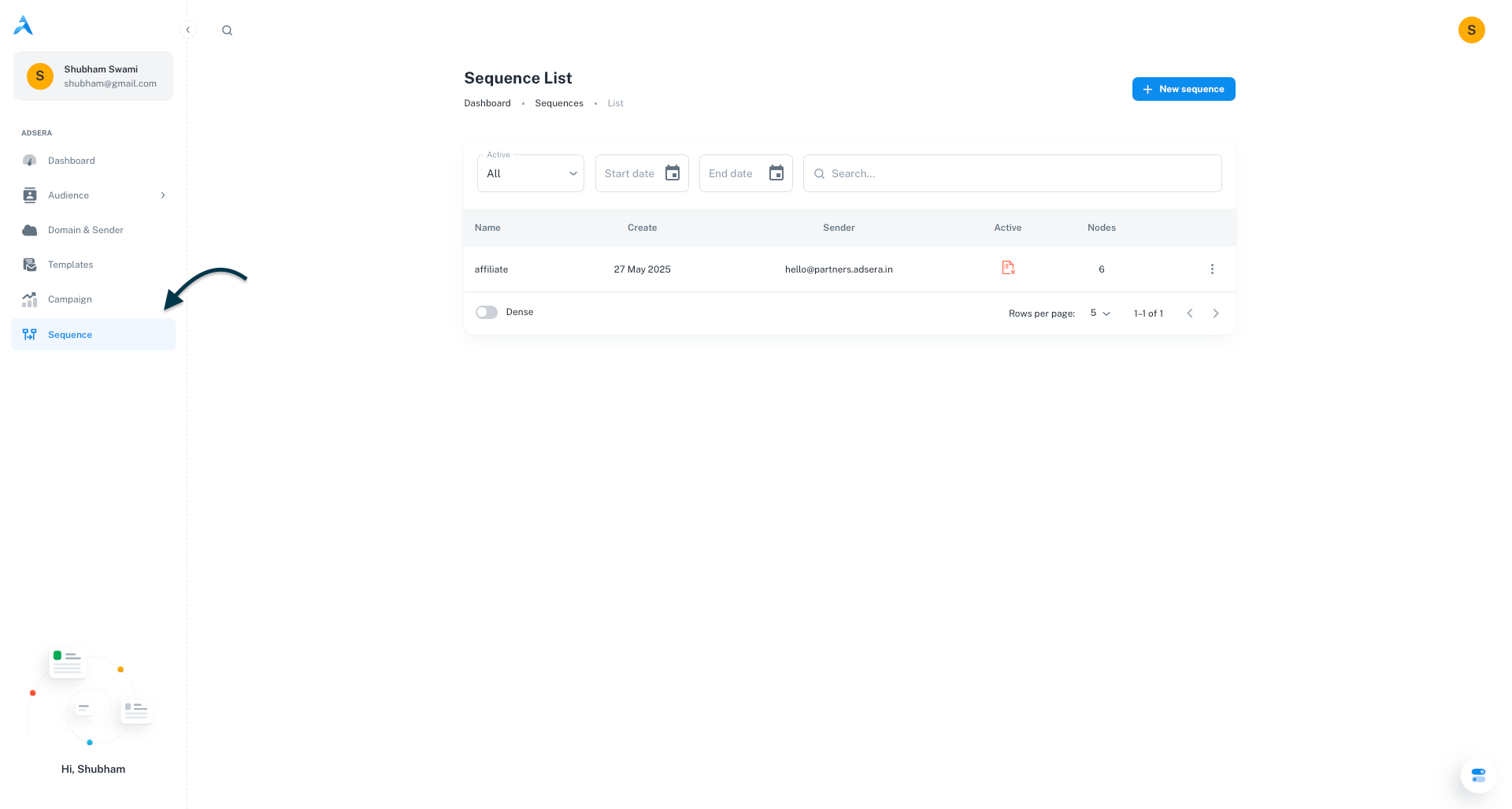
## The Sequence Dashboard
This is your main view for all your automated email sequences. From here, you can get a high-level overview of your automations, see their status, and jump into editing or creating new ones.
#### Understanding the Sequence List
| Column | Description |
| :--------- | :---------------------------------------------------------------------------------------- |
| **Name** | The unique internal name you've given to your sequence (e.g., "New Customer Onboarding"). |
| **Create** | The date and time when the sequence was originally created. |
| **Sender** | The default sender email address configured for this sequence. |
| **Active** | A toggle switch indicating if the sequence is currently `ON` and enrolling new contacts. |
| **Nodes** | The total number of steps or emails configured within the sequence. |
#### Filtering Your Sequences
At the top of the page, you can filter your list to find specific sequences:
* **Active / All Toggle:** Switch between viewing only `Active` sequences or `All` of them.
* **Date Range Filters:** Use the **Start date** and **End date** pickers to find sequences created within a specific period.
***
## How to Create a New Sequence
Click the **"+ New sequence"** button to launch the creation wizard, which will guide you through building your automated journey.
A pop-up will appear, prompting you for the core properties of your sequence:
* **Name:** An internal name for your sequence (e.g., "Post-Purchase Follow-up").
* **Choose a Sender:** Select the default "From" email address for this sequence.
* **Choose a List (Optional):** This is a powerful auto-enrollment trigger. If you select a list here, any contact who is added to this list will automatically be enrolled in this sequence.
Click **Next** to proceed to the sequence builder canvas.
You will now see a visual canvas where you can build out the steps (or "nodes") of your sequence. A node is a combination of an email template and a time delay.
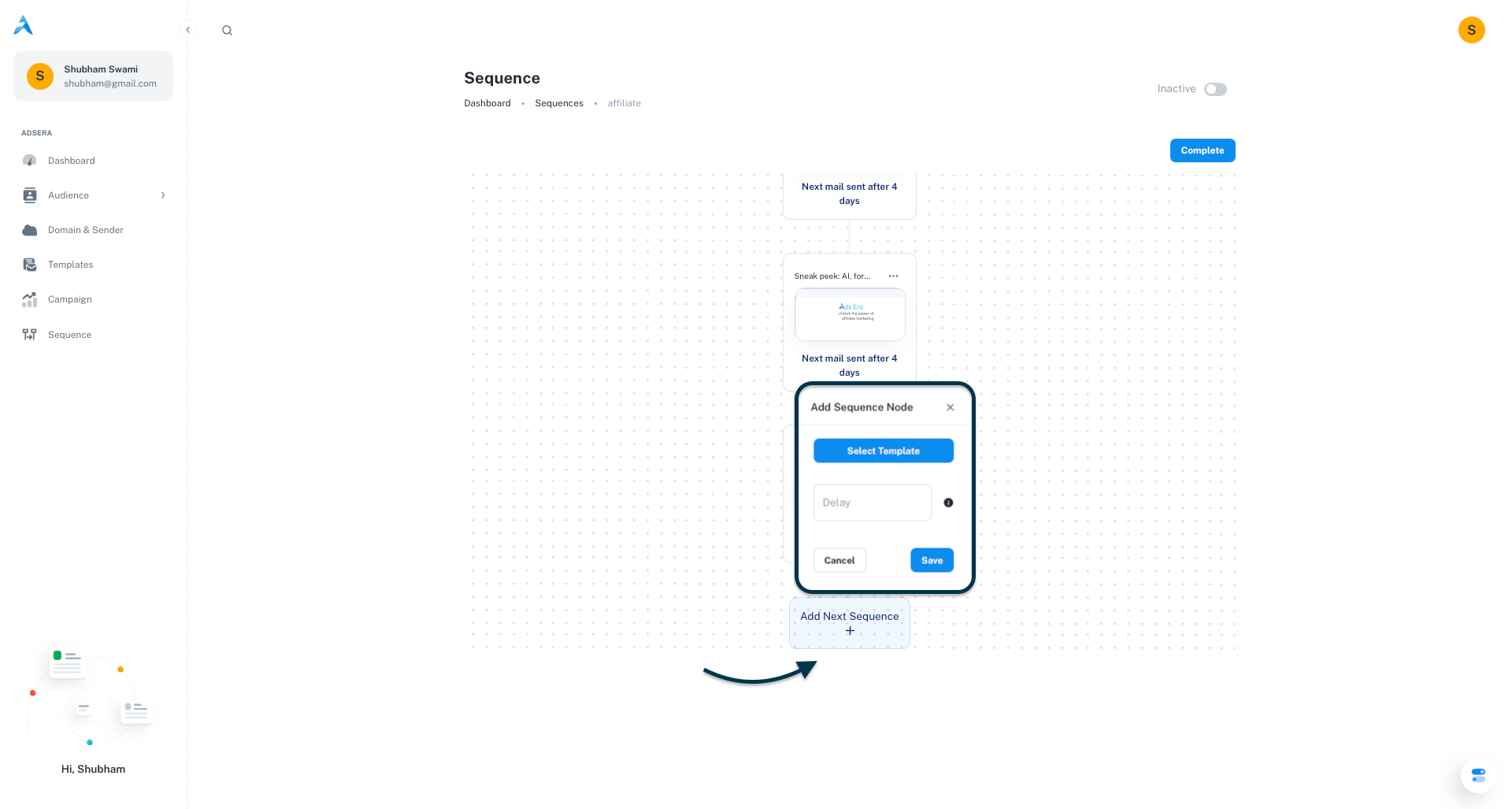
* **Add a Node:** Click the **"Add Next Sequence"** button.
* **Select Template:** In the pop-up, choose the email template for this step from the dropdown. You should create your templates beforehand in the [Templates](/help/template/email-list) section.
* **Set Delay:** Enter the number of days to wait before sending this email.
* For the *first* step, a delay of `0` sends the email immediately after a contact is enrolled.
* For all subsequent steps, the delay is calculated from when the *previous* email was sent.
Continue adding nodes until your entire email journey is mapped out on the canvas.
* **Complete:** Once your flow is designed, click the **"Complete"** button at the top right. This saves the sequence and returns you to the list.
* **Activate:** Your new sequence is **INACTIVE** by default. To start it, find it in the list and either click the **toggle switch** under the "Active" column or use the **three-dots (...) menu** and select **Activate**.
An inactive sequence will not enroll contacts or send any emails. You must activate it manually for it to start working.
***
## Enrolling Contacts into a Sequence
There are two primary ways to add contacts to an active sequence:
This is the easiest method for ongoing enrollment. If you selected a contact list in the "Choose a List..." field during the initial setup (Step 1), any new contact added to that list will be automatically enrolled into this sequence. This is perfect for welcome series or onboarding flows.
This method is for adding existing contacts to a sequence.
Navigate to **Audience > All**.
Use the checkboxes to select one or more contacts.
Click the **"More action"** button and select **"Add to a sequence"** from the menu.
In the pop-up, choose the target sequence and click **"Add"**.
# Creating a WhatsApp Snippet
Source: https://docs.adsera.in/help/snippet/create
A detailed, step-by-step guide to building rich, interactive, and text-based snippets for your WhatsApp conversations.
Creating snippets in AdsEra allows you to build a library of powerful, reusable message blocks that your agents can use to respond to customers quickly and consistently. The creator provides a live preview on the right, so you can see your message take shape as you build it.
**Want to create Snippets? [Go to the AdsEra Snippet Create Page →](https://app.adsera.in/dashboard/snippets/create)**
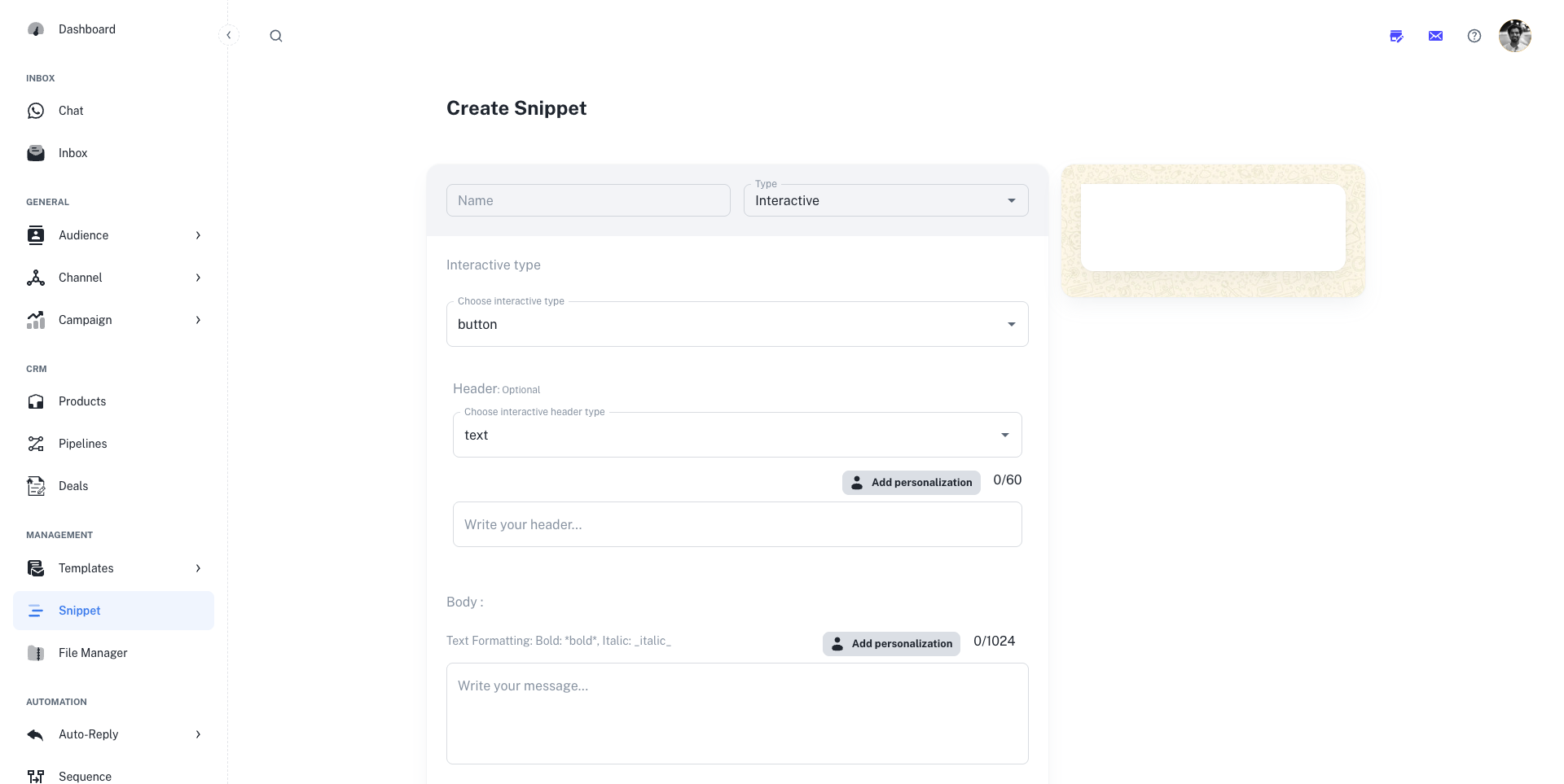
### The Snippet Creation Process
After navigating to the [Snippets](https://app.adsera.in/dashboard/snippets/list) page and clicking **"+ Create Snippet"**, you will be guided through the following steps.
Every snippet starts with two essential settings:
* **Name:** A clear, internal name for the snippet (e.g., "Welcome Message," "Pricing Inquiry"). This is what your agents will search for in the Chat Inbox to find the right quick reply.
* **Type:** The kind of message you want to create. The options available in the builder will change based on the type you select here. The available types are:
* **Text:** A simple text-only message.
* **Image:** An image with an optional caption.
* **Video:** A video with an optional caption.
* **Document:** A document (like a PDF) with an optional caption.
* **Interactive:** A message that includes a header, body, footer, and interactive buttons or lists.
This is where you'll build the actual message. The interface will adapt based on the **Type** you selected in Step 1.
This is the most straightforward snippet type, perfect for simple text replies.
* **Text:** Write your message in the main text box. You have up to 4096 characters.
* **Add personalization:** Click this button to insert variables like `{{FIRSTNAME}}` or `{{CODE}}` that will be automatically replaced with the contact's data.
* **Link Preview:** If your text contains a URL (e.g., `https://adsera.in`), check this box to automatically generate a rich link preview thumbnail in the WhatsApp chat.
These snippets allow you to send files as quick replies.
* **Adding Media:** You have two options to attach your file:
* **Link:** Paste a direct public URL to your media file.
* **Select Media:** Click this button to open the **File Manager** and choose a file you've already uploaded to AdsEra.
* **Caption:** Add an optional text message (up to 1024 characters) that will be sent along with your media file. This field also supports personalization.
These are the most powerful snippets for guiding a conversation and prompting specific user actions.
First, choose the **Interactive Type**:
* **Button:** A message with up to 3 quick reply buttons.
* **List:** A message with a single button that, when tapped, opens a list of up to 10 options for the user to choose from.
Next, configure the components of your message:
Add a header to your message. The header type can be **Text**, **Image**, **Video**, or **Document**. This is great for adding a title or visual element to grab attention.
Write the main text content of your message (up to 1024 characters). You can use formatting (like `*bold*` and `_italic_`) and personalization variables here.
Add a short line of text (up to 60 characters) at the bottom of your message, often used for a signature or a brief closing note.
This is where you configure the interactive elements:
* **If Button Type:** You can add up to 3 quick reply buttons. Each button has a title with a 20-character limit.
* **If List Type:** You must first set the main **Button Text** (e.g., "View Options"). Then, you can create one or more **Sections**, each with its own title. Within each section, you can add up to 10 **Rows**, each with a title and an optional description.
As you build your snippet, use the **live Preview** on the right side of the screen to see exactly how your message will look on a mobile device.
Once you are satisfied with your snippet, click the **"Create"** button at the bottom to save it to your library. It will now be available for your agents to use in the [WhatsApp Chat Inbox](/help/inbox/chat).
# Managing Snippets
Source: https://docs.adsera.in/help/snippet/list
Create and manage reusable message blocks (snippets) to answer common questions and speed up your conversations.
**Snippets** are pre-written, reusable message blocks that your agents can quickly insert into conversations in the **WhatsApp Chat Inbox**. Think of them as "quick replies" for your most common questions and responses.
**Want to manage Snippets? [Go to the AdsEra Snippets Page →](https://app.adsera.in/dashboard/snippets/list)**
Using snippets is a powerful way to:
* **Save Time:** Drastically reduce the time it takes to answer frequently asked questions.
* **Ensure Consistency:** Maintain a consistent brand voice and ensure accuracy across all agent responses.
* **Improve Efficiency:** Allow your team to handle more conversations by streamlining their workflow.
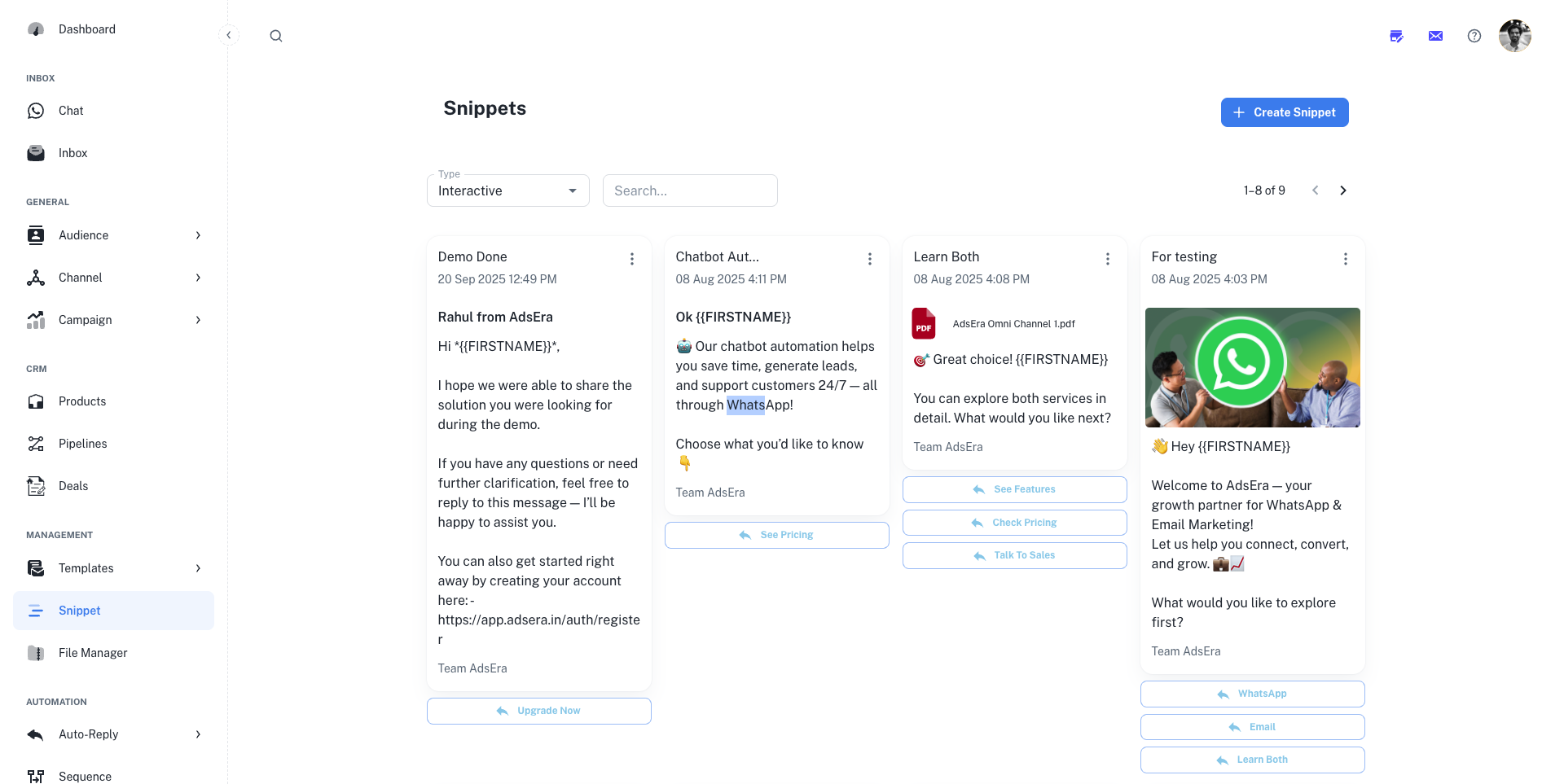
### Managing Your Snippet Library
This page provides a visual gallery of all your snippets, allowing you to quickly find, review, and manage your saved replies.
#### Filtering and Searching
At the top of the page, you can filter the gallery to find specific snippets:
* **Type:** Filter by the type of snippet. The most common type is **Interactive**, which can include text, media, and buttons.
* **Search:** Use the search bar to find a snippet by its title or content.
#### Snippet Actions
Click the **"+ Create Snippet"** button to build a new reusable message. Our step-by-step guide will walk you through the entire creation process.
Use the **three-dots (...) menu** on any snippet card to open the editor and make changes, or to permanently delete it from your library.
***
## How to Use Snippets
Snippets are designed to be used directly within the **WhatsApp Chat Inbox**. When composing a reply to a customer, your agents can access the snippet library, search for the appropriate response, and insert it into the conversation with a single click.
# Creating Email Templates
Source: https://docs.adsera.in/help/template/email-create
A complete guide to managing your template library and creating beautiful, effective email templates from scratch.
The Email Templates page is your creative hub for all email messaging. This is where you'll find all your email templates, ready to be used or customized for your marketing campaigns and automation sequences. From here, you can manage your existing library and create new, engaging designs.
**Want to create Email Templates? [Go to the AdsEra Email Template Create Page →](https://app.adsera.in/dashboard/template/create)**
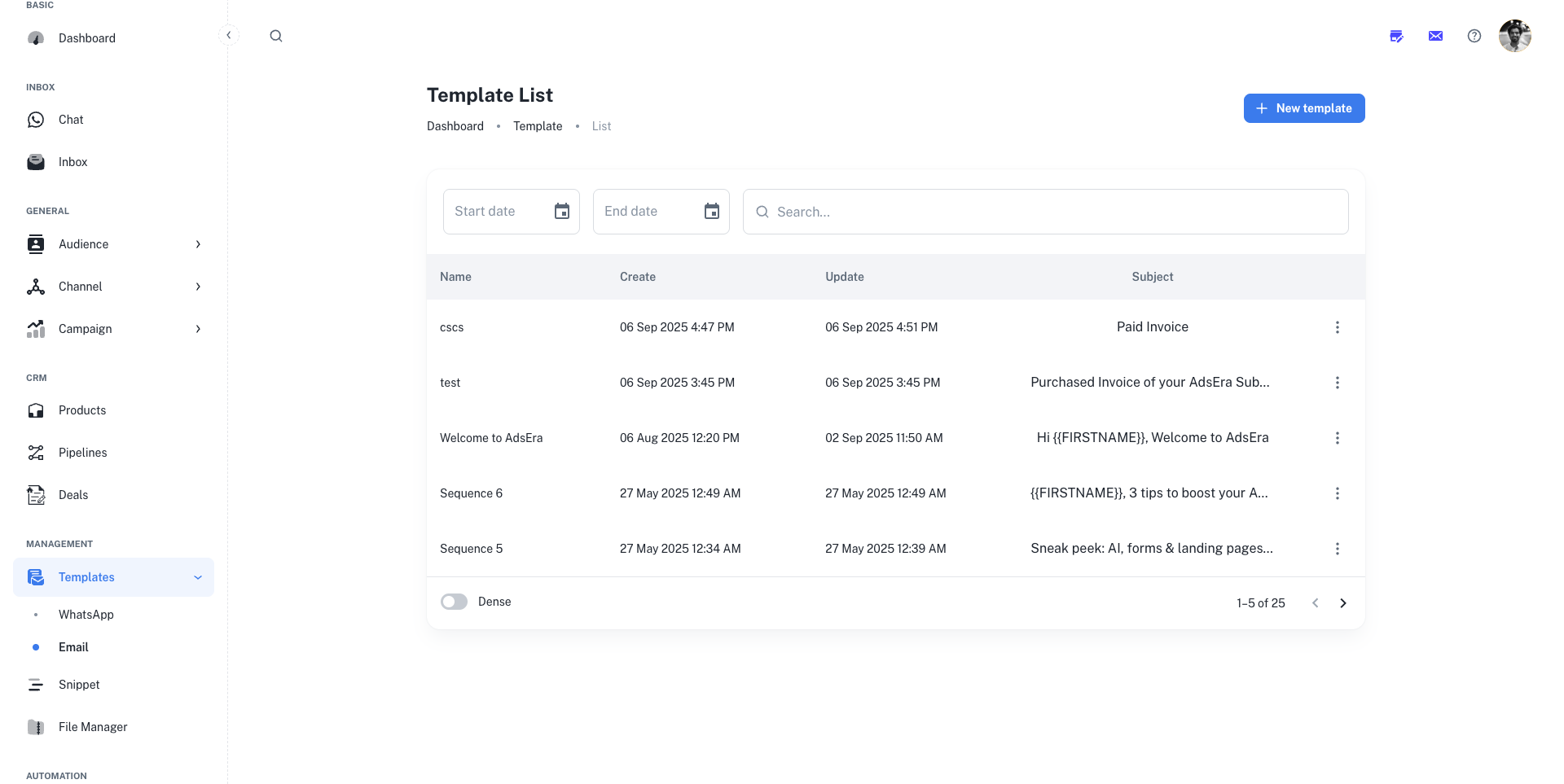
## Your Template Library
The main page gives you an organized view of all your existing templates in a table format, allowing you to quickly find what you need.
#### Understanding the Template List
| Column | Description |
| :-------------- | :---------------------------------------------------------------------------------------- |
| **Name** | The unique internal name you've given to your template to help you identify its purpose. |
| **Create** | The date and time when the template was originally created. |
| **Update** | The date and time when the template was last modified, helping you track recent changes. |
| **Subject** | The email subject line associated with the template, giving you a preview of the message. |
| **Actions (⋮)** | A menu to perform actions like **Edit** or **Delete**. |
#### Filtering and Searching
* **Search Bar:** Use the search bar at the top to find a template by its **Name** or **Subject**.
* **Date Range Filters:** Use the **Start date** and **End date** fields to narrow down your list to templates created or updated within a specific period.
***
## Creating a New Template: Step-by-Step Guide
Clicking the **"+ New template"** button launches the creation wizard, which is broken down into two main phases: Setup and Design.
The first screen focuses on the essential details of your template: its internal name and the subject line your recipients will see.
* **Template Name:** Enter a clear and descriptive internal name. This is only for you and your team.
*Pro Tip: Use names that reflect the template's purpose, like "Welcome Series - Email 1" or "Monthly Newsletter - August."*
* **Subject Line:** Craft your subject line. To make it more engaging, click the **"Add personalization"** button to insert dynamic variables like `{{FIRSTNAME}}`.
*Example: `Hello {{FIRSTNAME}}, here are your weekly insights!`*
Once you've set the name and subject, click **"Next step"** to move to the design phase.
AdsEra offers four flexible ways to design your template, catering to all needs and skill levels. Choose one of the following tabs:
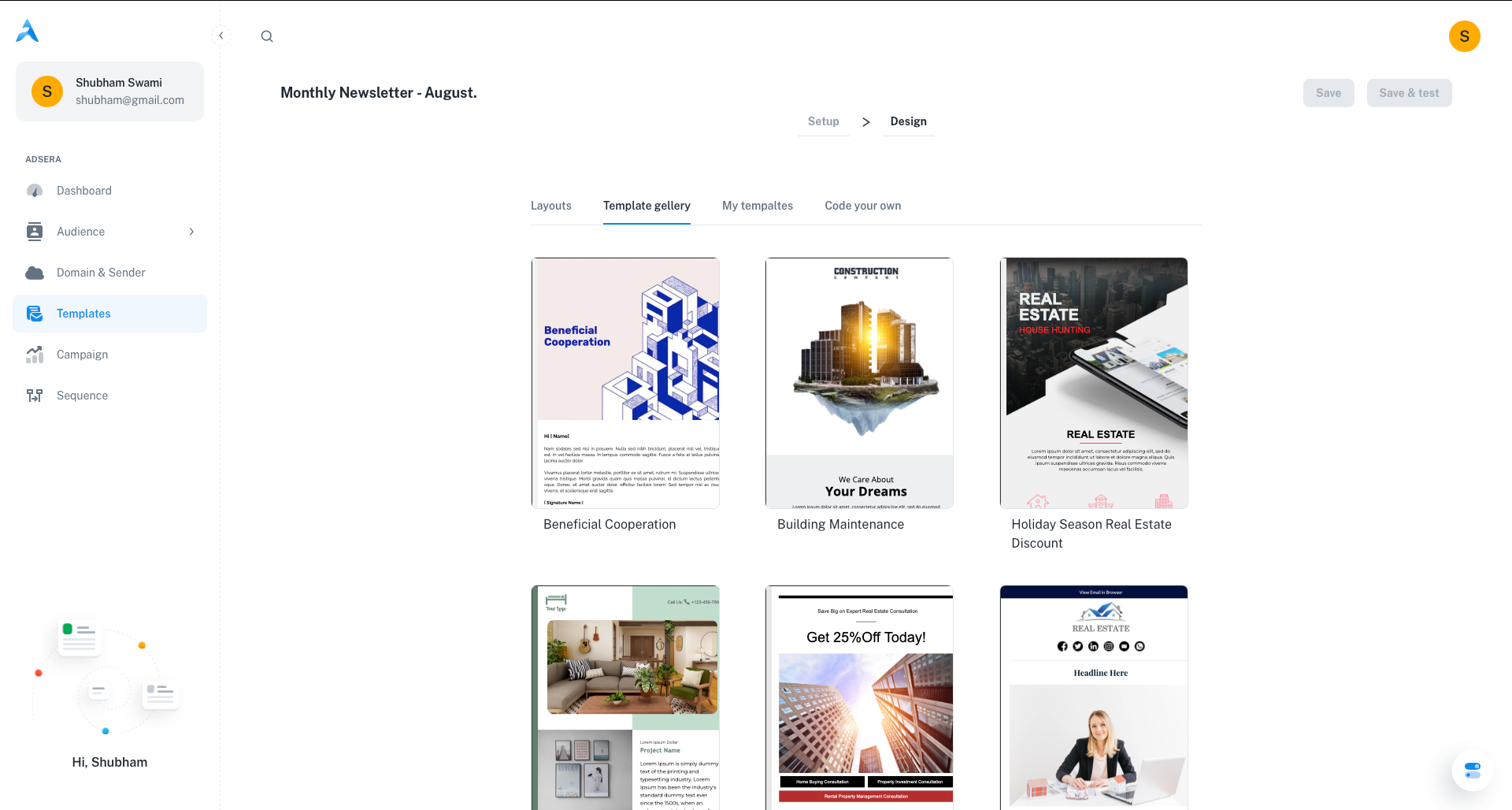
* **Layouts:** Start with a basic, pre-defined structure. Layouts provide a clean foundation with placeholders for you to drag and drop your own content blocks, images, and text.
* **Template Gallery:** Browse a collection of professionally designed, pre-built templates for various use cases (e.g., newsletters, promotions). These are fully customizable and a great way to get started quickly.
Select one of your previously saved templates to edit or duplicate. This is the best option for maintaining consistent branding across your campaigns and saving time.
For advanced users, this option provides maximum flexibility with three different editors:
* **Email Builder:** Use our intuitive drag-and-drop editor to build a template visually.
* **Paste your code:** Switch to the HTML editor to paste in your own custom code directly.
* **Text builder:** A rich text editor for creating simple, text-based emails. This is great for a more personal, less-designed feel.
Once you've chosen a starting point, you'll enter the template design environment.
* **Using the Drag & Drop Email Builder:** Drag content blocks (text, images, buttons) onto your template. Click on any block to edit its content and styling. This requires no coding knowledge.
* **Using the HTML / Text Editor:** If you chose to paste your own code or use the text builder, you can write and format your content directly in the editor provided.
Once you're satisfied with your design, use the buttons at the top right of the screen.
Saves the template to your "My Templates" library for future use in campaigns or automations.
**Highly Recommended!** This allows you to send a test version to a contact (like yourself) to check for typos, broken links, correct personalization, and how it renders in a real inbox.
***
## Pro Tips for Effective Templates
Always keep mobile users in mind. Use responsive templates or test your custom HTML to ensure it looks great on all devices, as a majority of emails are opened on mobile.
Incorporate your brand's colors, logos, and fonts to maintain a consistent look and feel across all your communications. This builds recognition and trust.
Make your CTAs prominent and easy to understand. Use action-oriented language on your buttons to tell recipients exactly what you want them to do next (e.g., "Shop Now," "Read More," "Get Your Free Trial").
# Managing Email Templates
Source: https://docs.adsera.in/help/template/email-list
Your central hub for managing all your email templates, ready to be used or customized for your marketing efforts.
The Email Templates page is your creative hub for all your messaging. From here, you can view, search, and manage all of your existing templates, as well as create new ones for your email campaigns and automation sequences.
**Want to Manage Email Templates? [Go to the AdsEra Email Templates Page →](https://app.adsera.in/dashboard/template/mail/list)**

### Understanding the Template List
Your Template List displays important information about each template in an easy-to-read table format.
| Column | Description |
| :-------------- | :---------------------------------------------------------- |
| **Name** | The unique internal name you've given to your template. |
| **Create** | The date and time when the template was originally created. |
| **Update** | The date and time when the template was last modified. |
| **Subject** | The email subject line associated with the template. |
| **Actions (⋮)** | A menu to perform actions like **Edit** or **Delete**. |
#### Filtering and Searching
To find a specific template quickly:
* **Search Bar:** Use the search bar at the top to find a template by its **Name** or **Subject**.
* **Date Range Filters:** Use the **Start date** and **End date** fields to narrow down your list to templates created or updated within a specific period.
***
## Template Actions
Click the **"+ New template"** button to launch the design wizard and build a new template from scratch.
To modify a template, simply click on its name in the list or use the **Edit** option in the three-dots (⋮) menu. This will open the template in the editor.
Select **Delete** from the three-dots (⋮) menu to permanently remove a template. This action cannot be undone.
# Managing WhatsApp Templates
Source: https://docs.adsera.in/help/template/wa
Manage, sync, and preview your Meta-approved WhatsApp message templates for use in campaigns and automations.
The **Templates** page is your central library for all the WhatsApp Message Templates associated with your business accounts. To initiate a conversation with a customer or to reply after the initial 24-hour window has closed, you **must** use a template that has been pre-approved by Meta.
**Want to Manage WhatsApp Templates? [Go to the AdsEra WhatsApp Templates Page →](https://app.adsera.in/dashboard/template/whatsapp/list)**
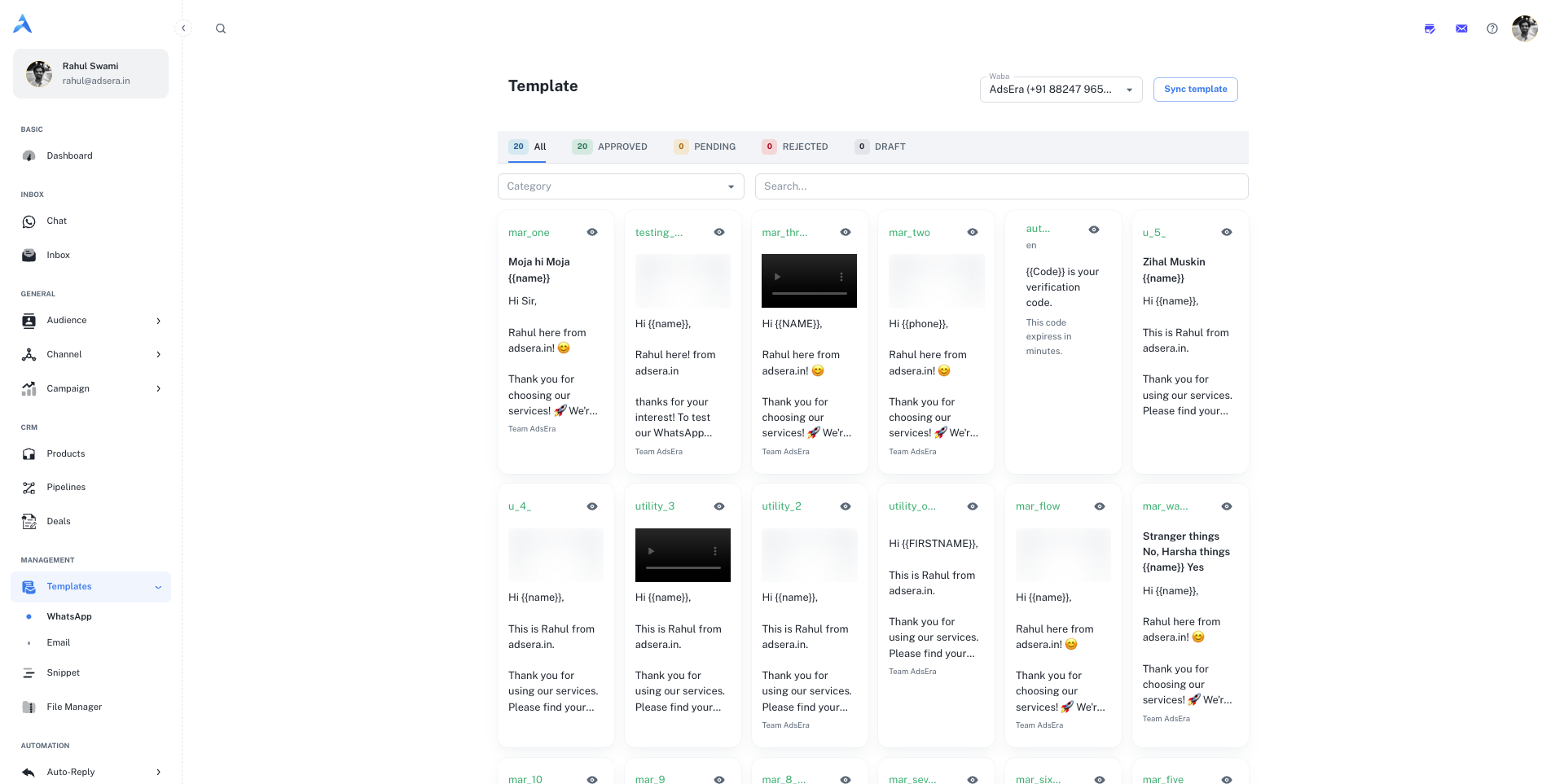
### Managing Your Templates
This page provides a visual gallery of all your templates, allowing you to quickly find the one you need.
Use the **Waba** dropdown at the top of the page to select the specific WhatsApp Business Account whose templates you want to view.
Click the **"Sync template"** button to fetch the latest status of all your templates directly from Meta. This is useful after you've submitted a new template for approval or made changes in the Meta Business Manager.
All templates must be created and submitted for approval directly on Meta's platform. You can create a new one here: **[Create Template ](https://business.facebook.com/latest/whatsapp_manager/message_templates)**.
***
## Filtering and Viewing Templates
To help you organize and find templates quickly, you can filter the gallery in several ways:
#### Filter by Status
Use the tabs at the top of the gallery to filter templates by their current approval status:
* **All:** Shows every template associated with the selected WABA.
* **APPROVED:** Shows only templates that are approved by Meta and ready to use.
* **PENDING:** Shows templates you have submitted that are still under review by Meta.
* **REJECTED:** Shows templates that Meta did not approve. You will need to edit and resubmit them.
* **DRAFT:** Shows templates you have started but not yet submitted for approval.
#### Filter by Category and Language
* **Category:** Use the category dropdown to filter for `Marketing`, `Utility`, or `Authentication` templates.
* **Search:** Use the search bar to find a template by its name.
***
## Understanding a Template Card
Each card in the gallery gives you a preview and key details about the template.
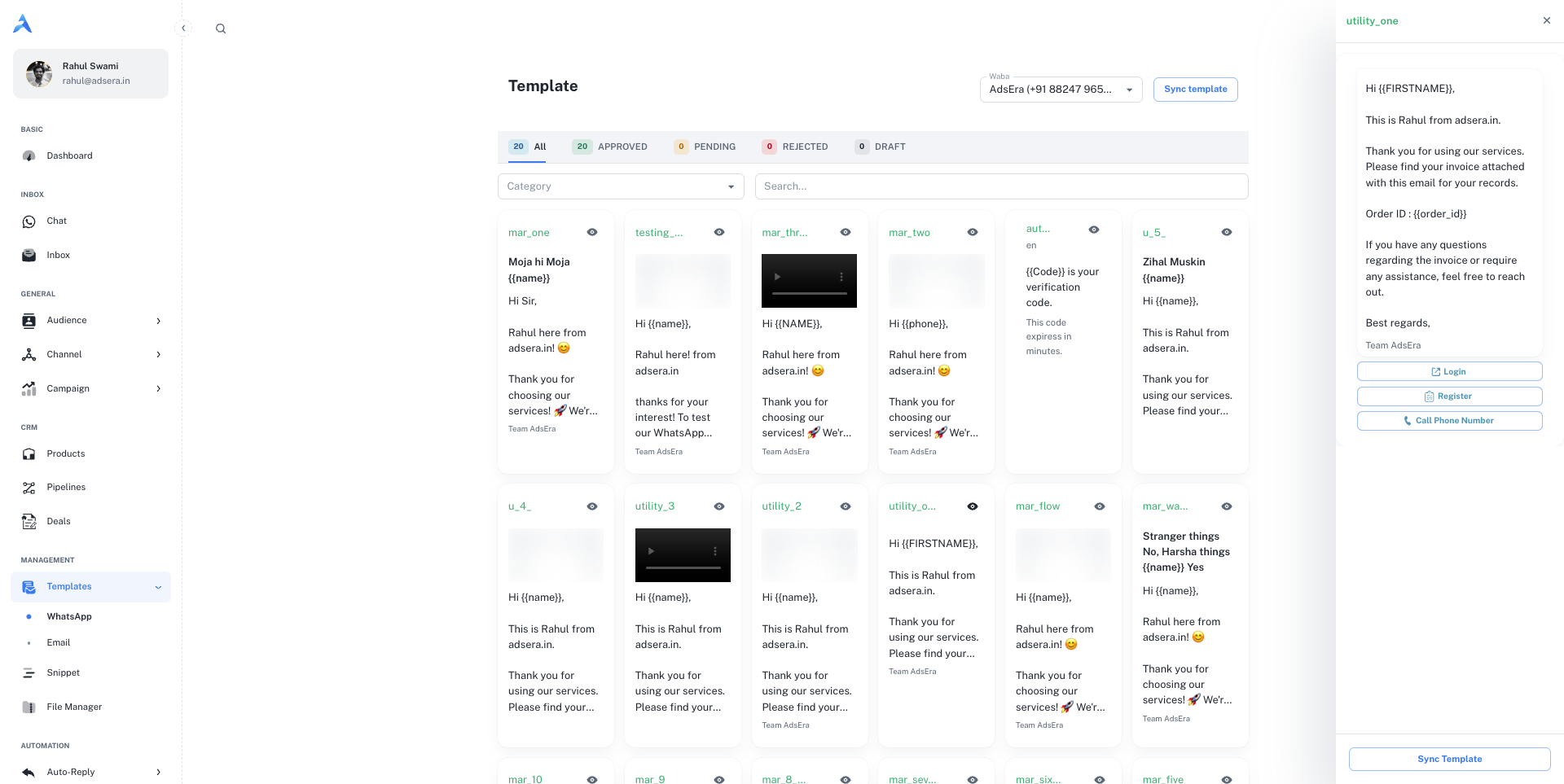
* **Template Name:** The unique internal name for the template.
* **Preview (👁️):** Click the **eye icon** to open a side panel with a full, device-sized preview of how the message will look, including any media, buttons, and variables.
* **Header:** If the template includes a header, it will display the rich media type (e.g., Image, Video, Document).
* **Body Content:** A preview of the main text message. Variables like `{{name}}` are shown as placeholders.
* **Footer:** Any footer text included in the template.
* **Buttons:** Interactive buttons like "Call Now" or "Check Now" are displayed at the bottom.
When viewing a template's full preview in the side panel, you can also click the **"Sync template"** button at the bottom to refresh its status individually.