> ## Documentation Index
> Fetch the complete documentation index at: https://docs.adsera.in/llms.txt
> Use this file to discover all available pages before exploring further.
# Managing WhatsApp Templates
> Manage, sync, and preview your Meta-approved WhatsApp message templates for use in campaigns and automations.
The **Templates** page is your central library for all the WhatsApp Message Templates associated with your business accounts. To initiate a conversation with a customer or to reply after the initial 24-hour window has closed, you **must** use a template that has been pre-approved by Meta.
**Want to Manage WhatsApp Templates? [Go to the AdsEra WhatsApp Templates Page →](https://app.adsera.in/dashboard/template/whatsapp/list)**
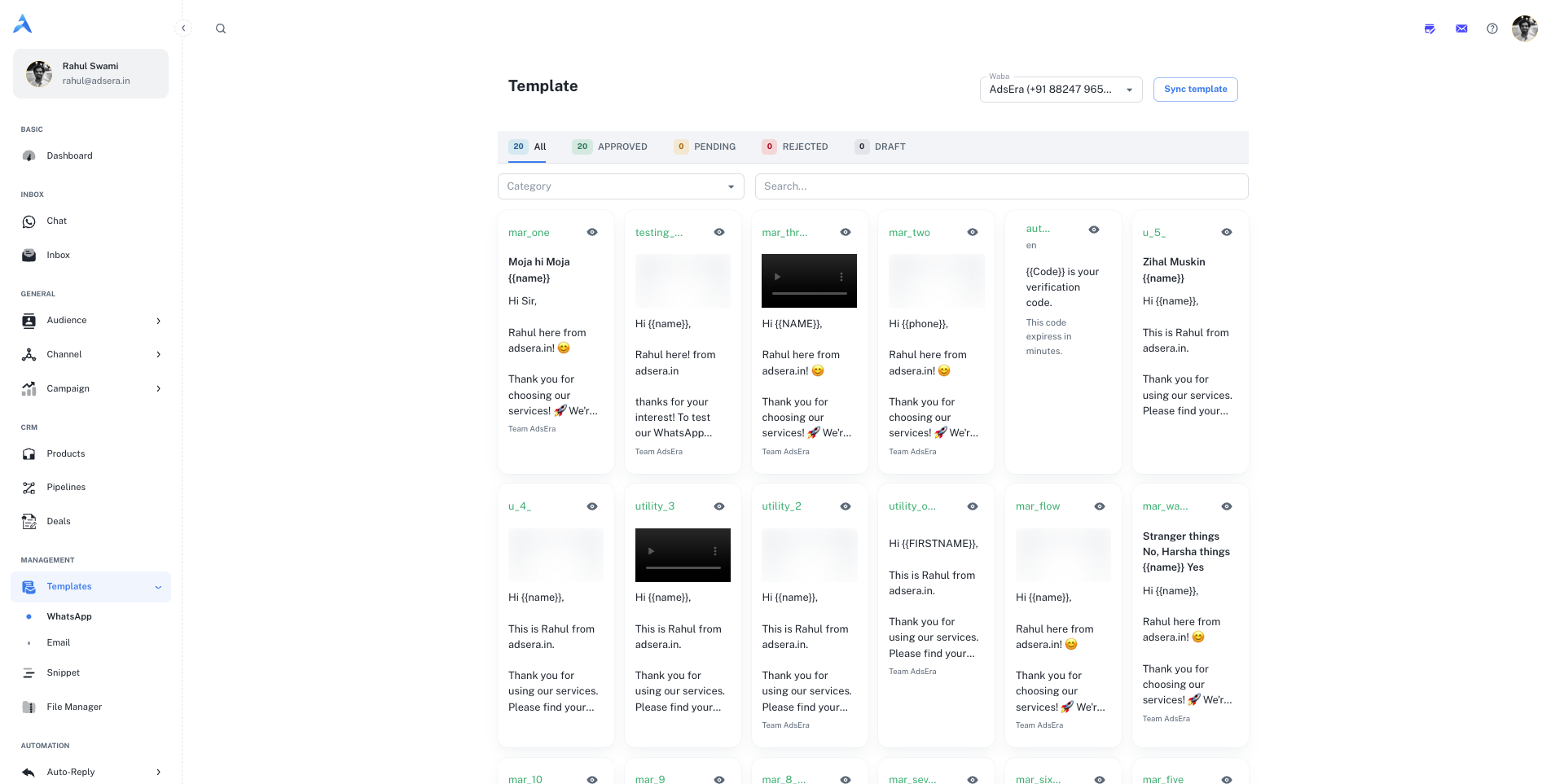
### Managing Your Templates
This page provides a visual gallery of all your templates, allowing you to quickly find the one you need.
Use the **Waba** dropdown at the top of the page to select the specific WhatsApp Business Account whose templates you want to view.
Click the **"Sync template"** button to fetch the latest status of all your templates directly from Meta. This is useful after you've submitted a new template for approval or made changes in the Meta Business Manager.
All templates must be created and submitted for approval directly on Meta's platform. You can create a new one here: **[Create Template ](https://business.facebook.com/latest/whatsapp_manager/message_templates)**.
***
## Filtering and Viewing Templates
To help you organize and find templates quickly, you can filter the gallery in several ways:
#### Filter by Status
Use the tabs at the top of the gallery to filter templates by their current approval status:
* **All:** Shows every template associated with the selected WABA.
* **APPROVED:** Shows only templates that are approved by Meta and ready to use.
* **PENDING:** Shows templates you have submitted that are still under review by Meta.
* **REJECTED:** Shows templates that Meta did not approve. You will need to edit and resubmit them.
* **DRAFT:** Shows templates you have started but not yet submitted for approval.
#### Filter by Category and Language
* **Category:** Use the category dropdown to filter for `Marketing`, `Utility`, or `Authentication` templates.
* **Search:** Use the search bar to find a template by its name.
***
## Understanding a Template Card
Each card in the gallery gives you a preview and key details about the template.
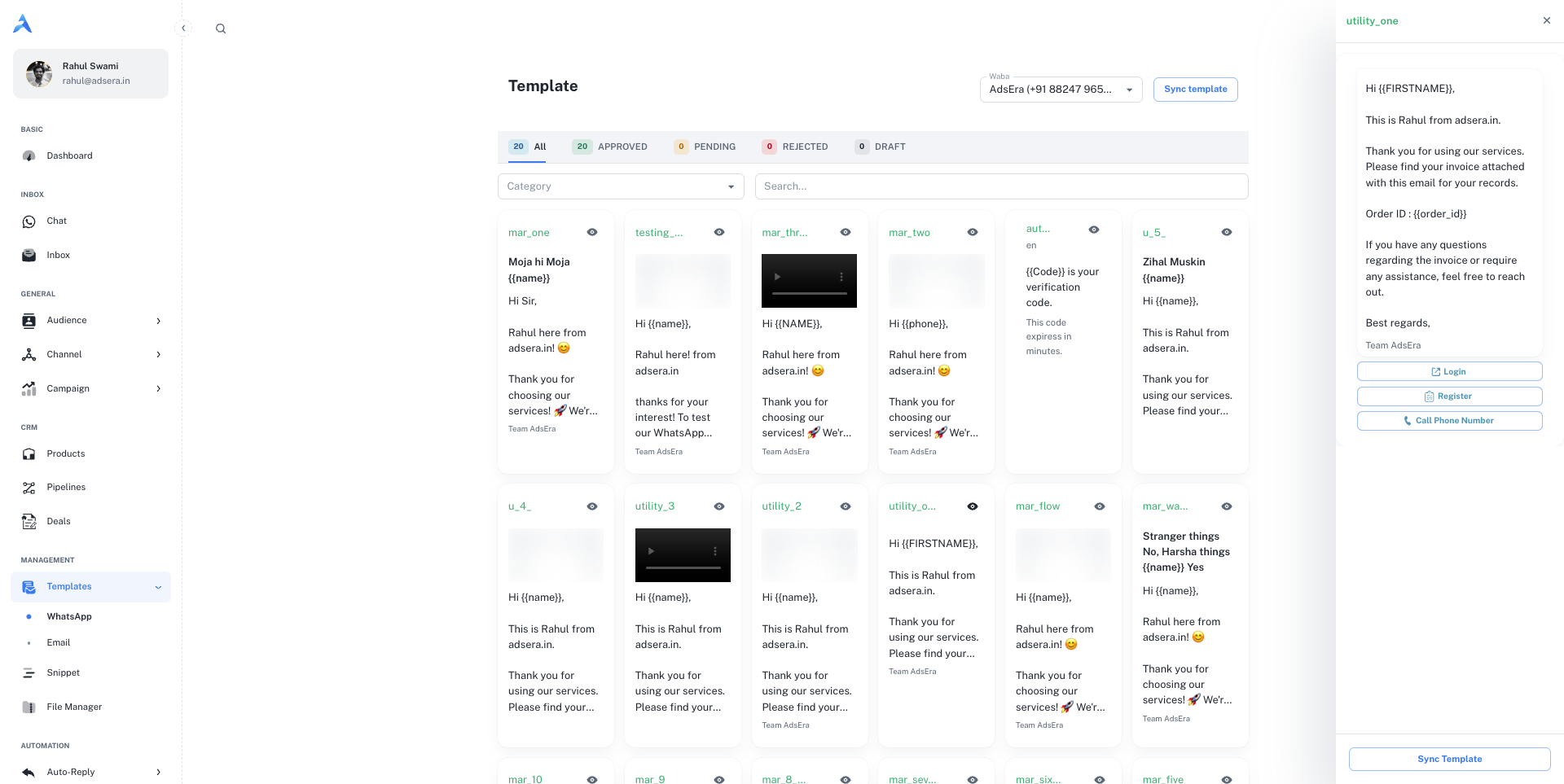
* **Template Name:** The unique internal name for the template.
* **Preview (👁️):** Click the **eye icon** to open a side panel with a full, device-sized preview of how the message will look, including any media, buttons, and variables.
* **Header:** If the template includes a header, it will display the rich media type (e.g., Image, Video, Document).
* **Body Content:** A preview of the main text message. Variables like `{{name}}` are shown as placeholders.
* **Footer:** Any footer text included in the template.
* **Buttons:** Interactive buttons like "Call Now" or "Check Now" are displayed at the bottom.
When viewing a template's full preview in the side panel, you can also click the **"Sync template"** button at the bottom to refresh its status individually.