> ## Documentation Index
> Fetch the complete documentation index at: https://docs.adsera.in/llms.txt
> Use this file to discover all available pages before exploring further.
# WhatsApp Chat Inbox
> Engage with customers, manage conversations, and use templates in the unified WhatsApp Chat Inbox.
The AdsEra WhatsApp Chat Inbox is your central hub for all real-time customer conversations. From here, you can reply to inquiries, send rich media, use pre-approved templates, and manage your contacts efficiently.
**Want to Manage WhatsApp Chats? [Go to the AdsEra Chat Inbox Page →](https://app.adsera.in/dashboard/whatsapp/chat)**
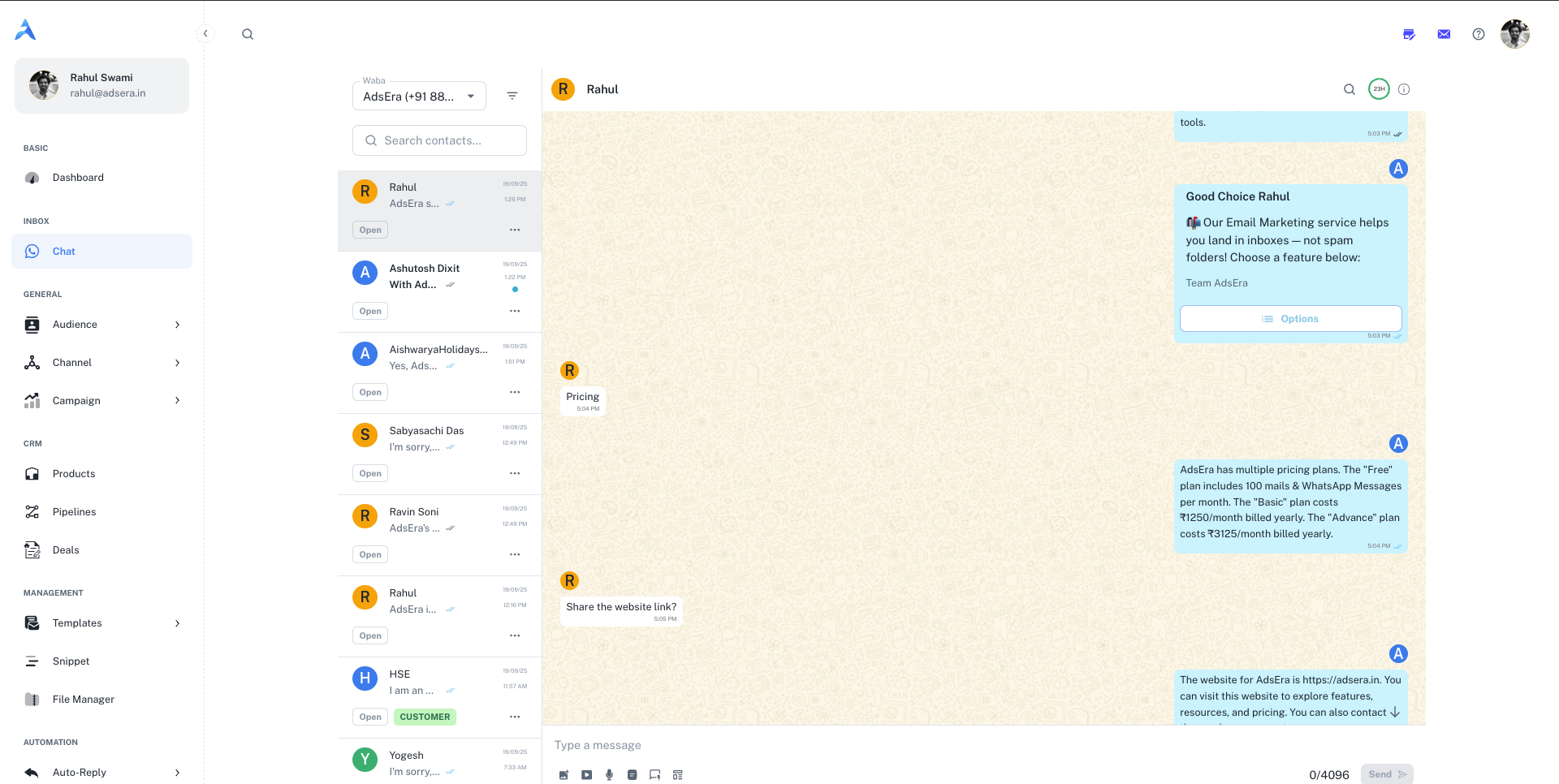
The inbox is organized into three main panels: the **Conversation List**, the **Chat Window**, and the **Contact Details** panel. Each is packed with tools to make your workflow faster and more organized.
***
## 1. The Conversation List (Left Panel)
This panel on the left displays all your ongoing conversations. It's designed to help you quickly find and prioritize customer chats.
#### WABA Selector
At the very top, you'll find a dropdown menu to select your **WhatsApp Business Account (WABA)**. If you have multiple WhatsApp numbers connected to AdsEra, you can switch between them here to view and respond from the correct number.
#### Searching and Advanced Filtering
* **Simple Search:** Use the **Search contacts...** bar to quickly find a conversation by name or phone number.
* **Advanced Filters:** Click the **filter icon** (ᯤ) next to the search bar to open the "Chat Filters" modal. This powerful tool allows you to create specific views of your inbox based on multiple criteria.
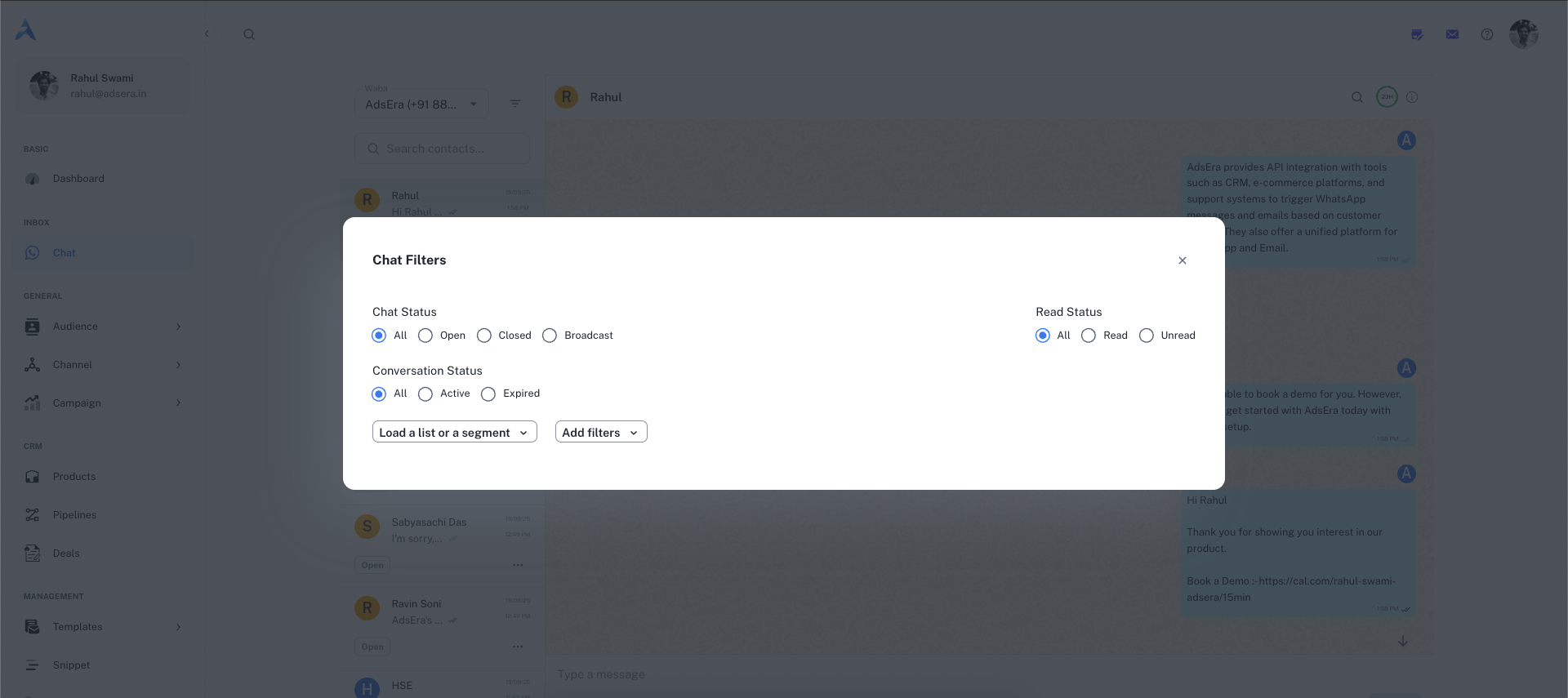
* **Chat Status:** Find conversations that are `All`, `Open`, `Closed`, or part of a `Broadcast`.
* **Read Status:** Isolate `All`, `Read`, or `Unread` messages.
* **Conversation Window:** Filter for `All`, `Active` (within the 24-hour window), or `Expired` conversations.
Use the **"Load a list or a segment"** dropdown to instantly view chats from contacts who are part of a specific list or dynamic segment you've created in the Audience section.
For the most granular control, you can build your own filter logic:
1. Select a condition (e.g., "Recipient of campaign(s)", "Email address", "Subscribed whatsapp").
2. Choose an operator (e.g., "is equal to", "contains").
3. Provide a value to filter by.
4. Chain multiple rules together using the **AND** / **OR** buttons to create complex queries.
***
## 2. The Chat Window (Center Panel)
This is where the direct interaction with your customer happens.
#### Chat Header
* **Contact Info:** Shows the name and avatar of the customer.
* **Message Search:** Click the **search icon** to find specific text within the current conversation history.
* **24-Hour Session Timer:** A circular progress bar that shows how much time is left in WhatsApp's 24-hour customer service window.
* **Contact Details:** Click the **information icon (`ⓘ`)** to open the full Contact Details panel on the right.
#### Message Timeline & Status
To see the exact delivery timeline of a message you've sent, **hover over the message bubble**. An **info icon (`ⓘ`)** will appear. Clicking it opens a "Message info" drawer from the left.
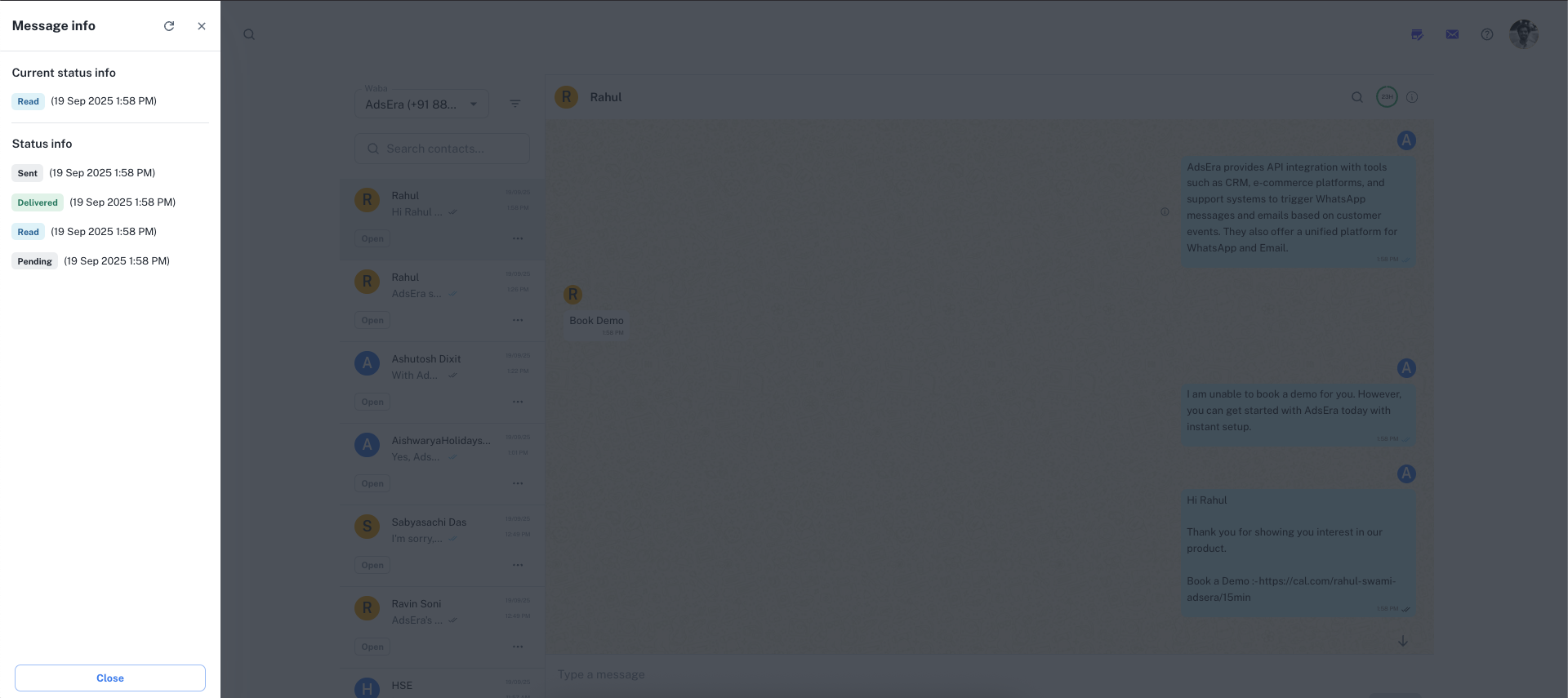
This drawer shows the precise timestamps for each status:
* **Sent:** The time the message left AdsEra's servers.
* **Delivered:** The time the message was successfully delivered to the recipient's device.
* **Read:** The time the recipient opened and read the message.
#### The Message Composer
This is where you write your replies. The composer's functionality changes based on the 24-hour session window.
While the session timer is active, you have full access to the composer:
* **Text Area:** Type any free-form message up to 4096 characters.
* **Attachments:** Send rich media like **images (5MB)**, **videos (16MB)**, **audio (16MB)**, or **documents (100MB)**.
* **Snippets & Templates:** Use quick replies or pre-approved templates to respond faster.
Once the 24-hour window closes, the normal text area is disabled. You will see a message explaining that you must use a template to re-initiate the conversation. Your only option is to click the **Send Template** button.
#### Using Snippets and Message Templates
Snippets are saved, reusable text blocks for answering common questions quickly and consistently.
1. Click the **snippet icon** in the composer.
2. In the "Snippets" modal, search or select the snippet you need. They can include personalization variables like `{{FIRSTNAME}}`.
3. Clicking a snippet will instantly populate it in your message composer.
To learn how to create and manage your own snippets, see our [Snippets Management](/help/snippet/list) guide.
Message Templates are required to start a new conversation or to reply to a customer after the 24-hour window has expired. These must be pre-approved by Meta.
1. Click the **template icon** in the composer.
2. In the "Select template" modal, browse and choose your desired template.
3. If the template contains variables (e.g., `{{name}}`), a new "Variables" modal will appear. Here you can fill in the dynamic content. You can either select a contact property (like `First Name`) or enter static text.
4. Preview the final message and click **Send**.
***
## 3. Contact & Conversation Details (Right Panel)
Clicking the info icon (`ⓘ`) in the chat header opens this powerful CRM panel, giving you a full 360-degree view of the contact.
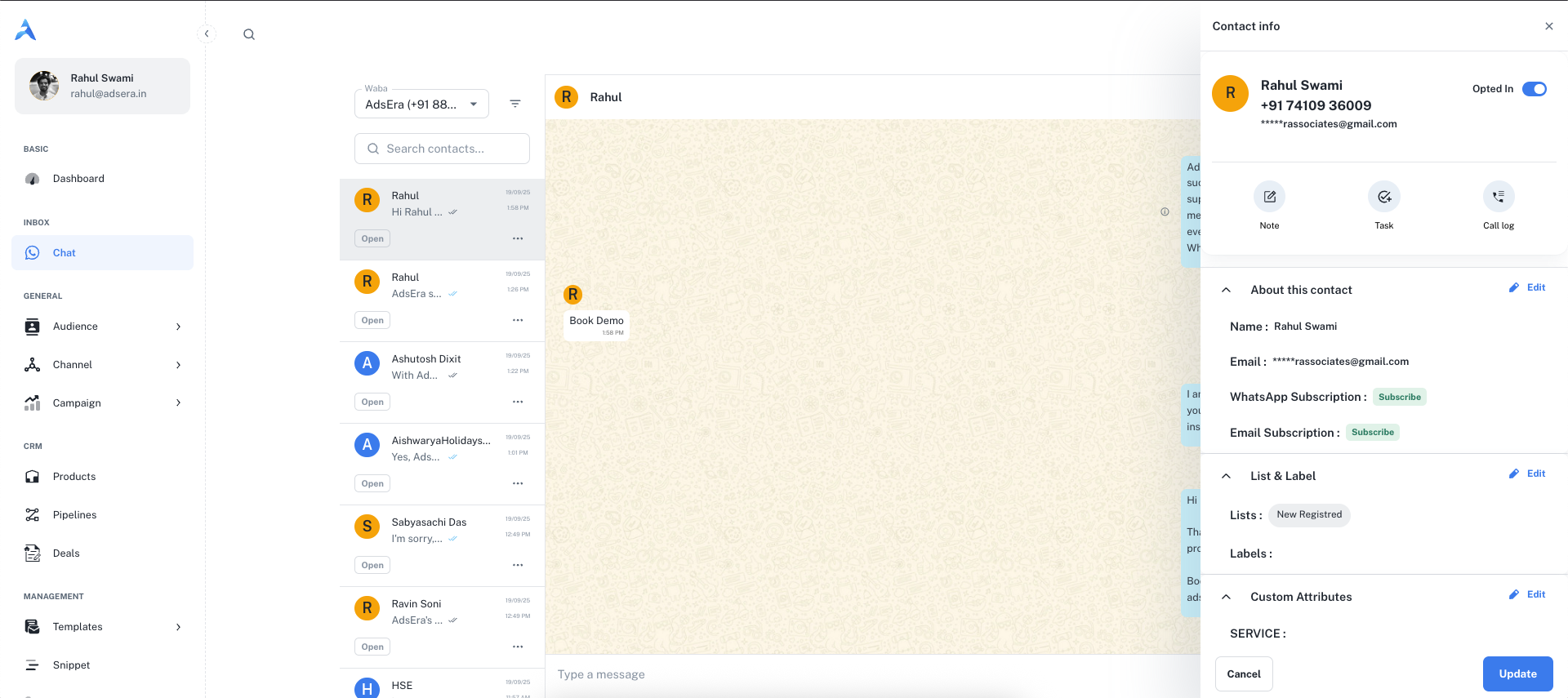
View and **edit** the contact's core information, such as their name, email, and subscription status for both WhatsApp and Email.
See which contact **Lists** the user belongs to and which **Labels** (tags) have been applied. This helps you understand their customer segment at a glance.
View any custom data fields you've stored for this contact, such as `LEAD_STATUS` or `SERVICE_TYPE`, for highly personalized conversations.
Quickly add CRM activities without leaving the chat:
* **Note:** Add an internal note for your team.
* **Task:** Create and assign a follow-up task.
* **Call Log:** Log details from a phone call.
***