> ## Documentation Index
> Fetch the complete documentation index at: https://docs.adsera.in/llms.txt
> Use this file to discover all available pages before exploring further.
# File Manager
> Upload, organize, and manage all your marketing assets like images, videos, and documents in one central library.
The **File Manager** is your central library for all the digital assets you use in your marketing efforts. Here, you can upload and organize images, videos, documents, and audio files into folders, making them easy to find and reuse in your email campaigns, WhatsApp templates, and snippets.
**Want to manage Files & Folders? [Go to the AdsEra File Manager Page →](https://app.adsera.in/dashboard/folder/list)**
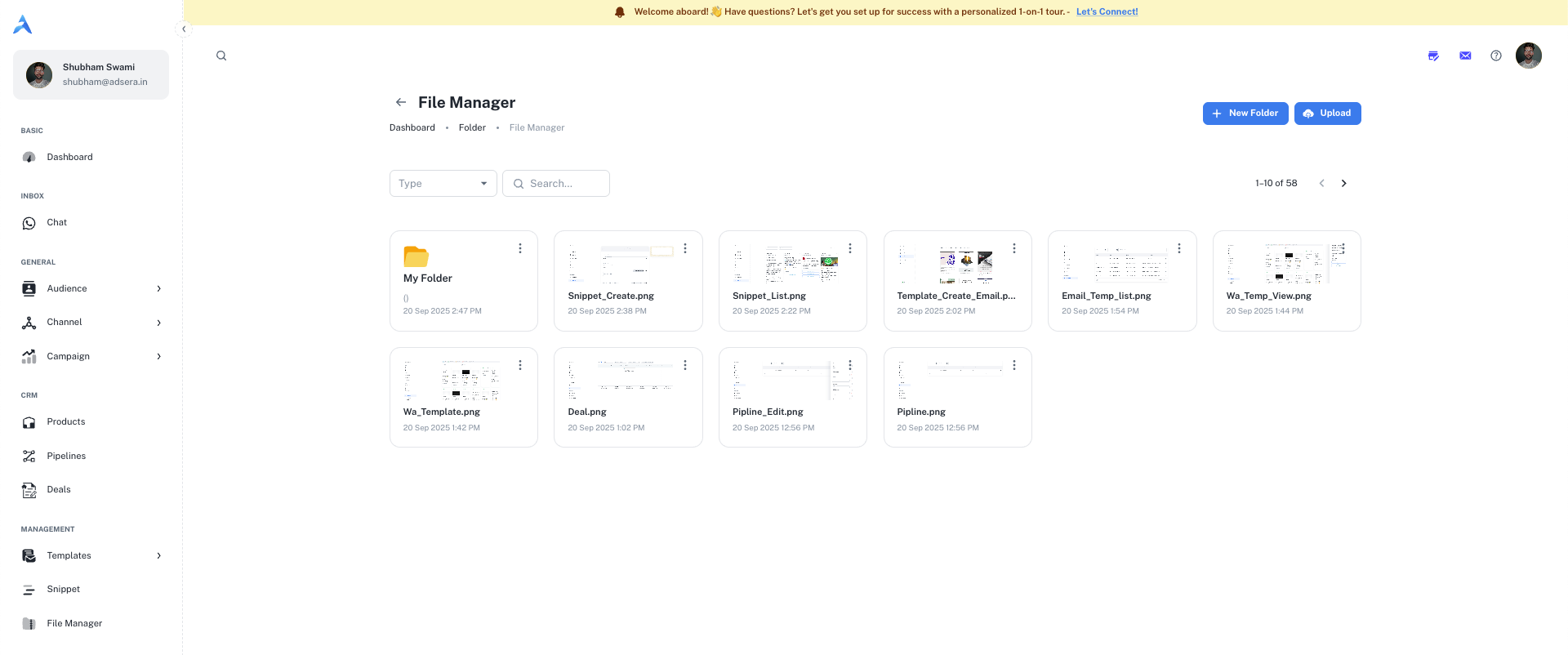
### Navigating Your File Manager
The File Manager uses a standard folder-based system.
* **Root View:** The main page displays all your top-level folders.
* **Folder View:** Clicking on a folder will take you inside it, showing all the files and sub-folders it contains. Use the breadcrumbs at the top to navigate back to parent folders.
***
## Managing Folders and Files
You can manage your assets using the actions at the top of the page and on individual items.
Click the **"New Folder"** button to create a new folder. A pop-up will appear asking for a **Folder name** and an optional **Description**.
Click the **"Upload"** button to add new files. This will open a modal where you can select the file type and choose whether the file should be **Public** or **Private**.
Use the **Search...** bar to quickly find a specific file or folder by its name within your current view.
#### File & Folder Actions (⋮)
Each file and folder has a **three-dots (...) menu** that appears when you hover over it. This menu contains two actions:
* **View:** Opens the file in a new browser tab for a full preview.
* **Delete:** Permanently removes the file or folder from your library.
This action cannot be undone and will break any existing campaigns or snippets that use this file.
***
## Public vs. Private Files
When uploading a file, you must choose its visibility. This is a critical security setting.
* **Accessibility:** Public files are accessible to anyone with the direct link.
* **Use Case:** Ideal for images in email campaigns, marketing materials, or any asset you intend to share widely. The URL for these files does not expire.
* **Accessibility:** Private files are secure and cannot be accessed directly via a public URL.
* **Use Case:** Perfect for sensitive documents like invoices, contracts, or internal reports.
* **Secure Viewing:** When you need to view a private file, AdsEra generates a **temporary, secure URL that expires after 60 seconds**. This ensures the file cannot be shared or accessed later.
The File Manager is your single source of truth for assets. When you build a **Snippet** or an **Email Template** and need to add an image or document, you can select it directly from your File Manager.