> ## Documentation Index
> Fetch the complete documentation index at: https://docs.adsera.in/llms.txt
> Use this file to discover all available pages before exploring further.
# Managing Products
> Create and manage your product or service catalog to associate them with deals in your CRM sales pipelines.
**Want to Manage Products? [Go to the AdsEra Products Page →](https://app.adsera.in/dashboard/crm/product)**
The **Products** page is your central catalog for all goods and services you offer. Creating products here allows you to associate them with specific **Deals** in your CRM pipelines, making it easy to track what you're selling and manage your sales process effectively.
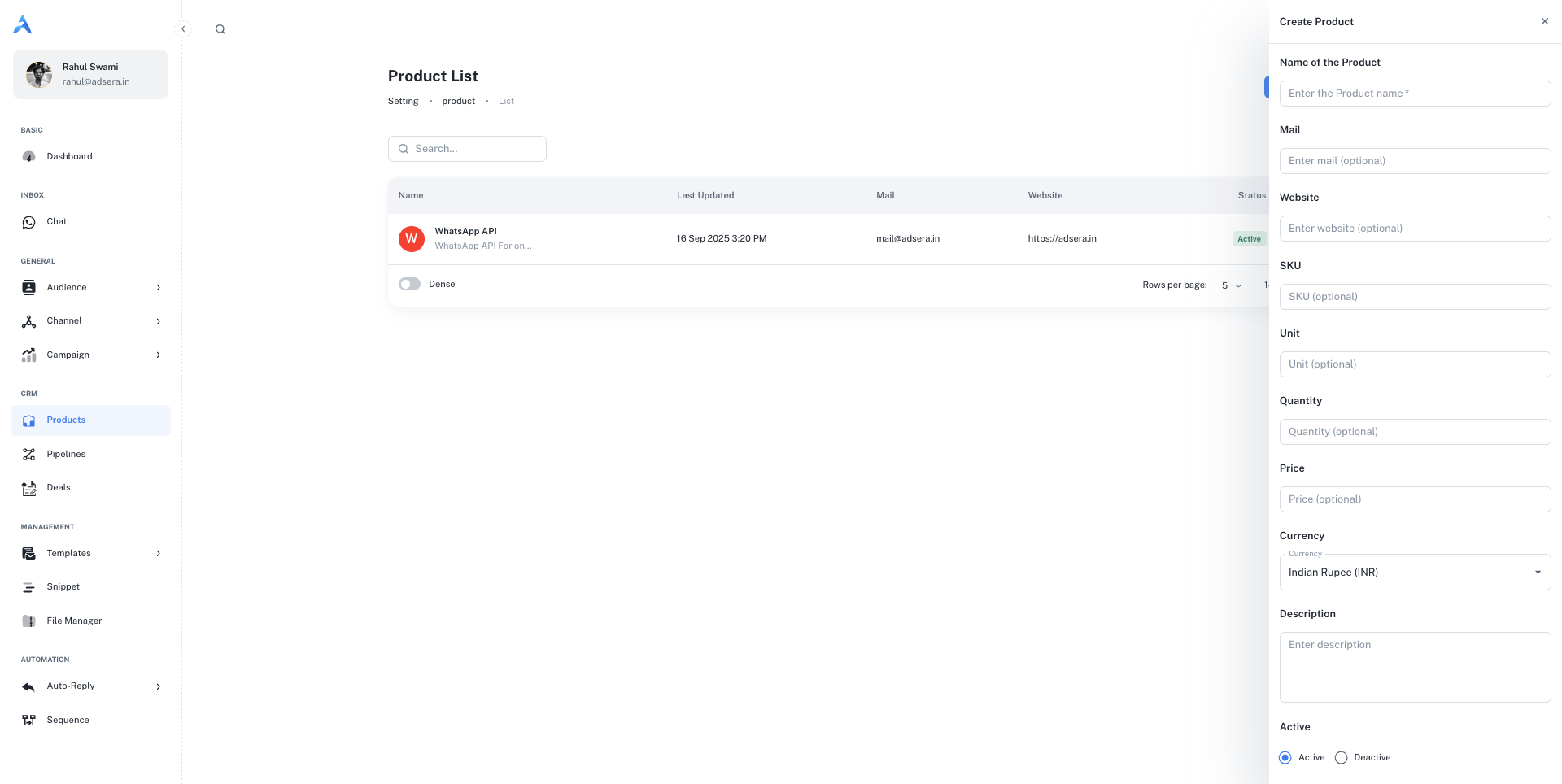
### The Product List
This page displays all the products you've created in a clear, sortable table.
* **Search:** Use the search bar at the top to quickly find a product by name.
* **New Product:** Click the **"+ New Product"** button in the top-right to open the creation panel.
#### Understanding the Table Columns
| Column | Description |
| :--------------- | :--------------------------------------------------------------------- |
| **Name** | The name of the product, along with its description. |
| **Last Updated** | The date and time the product was last modified. |
| **Mail** | The contact email associated with this product (optional). |
| **Website** | A link to the product's webpage (optional). |
| **Status** | A color-coded tag indicating if the product is `Active` or `Deactive`. |
| **⋮ (Actions)** | A menu to **Edit** or **Delete** the product. |
***
## Creating and Editing a Product
Clicking **"+ New Product"** or the **Edit** option on an existing item will open a side panel where you can define all the product's details.
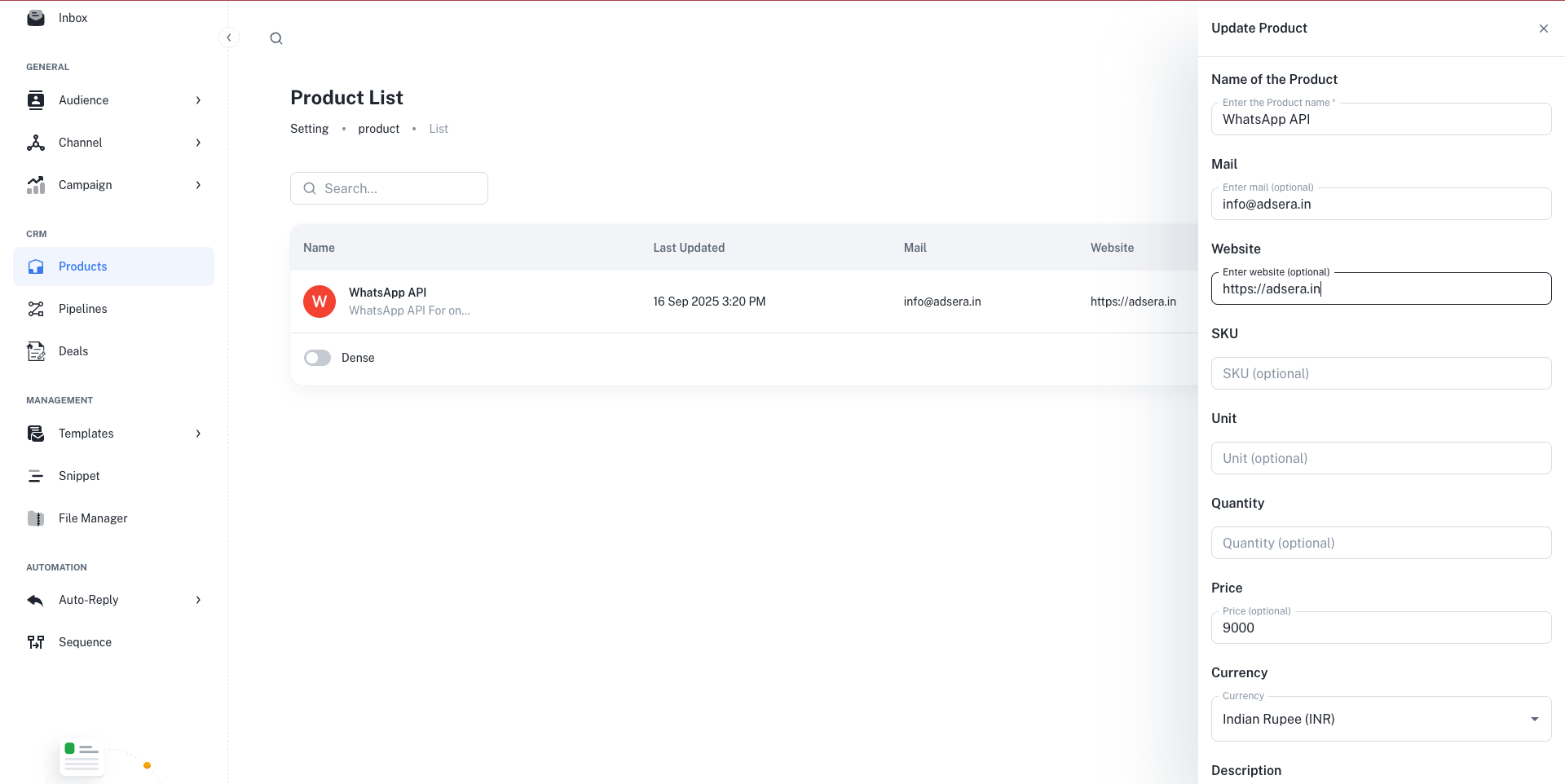
* **Name of the Product (Required):** A clear, descriptive name for your product or service.
* **Mail (Optional):** A contact email for product-specific inquiries.
* **Website (Optional):** A direct link to the product's landing page.
* **Description (Optional):** A multi-line field to add more detailed information about the product.
* **SKU (Optional):** The Stock Keeping Unit or any unique internal identifier for the product.
* **Unit (Optional):** The unit of measurement (e.g., "per user," "kg," "license").
* **Quantity (Optional):** The available stock quantity.
* **Price (Optional):** The price of a single unit.
* **Currency:** The currency for the price (e.g., INR, USD).
* **Active:** The product is available and can be added to new deals.
* **Deactive:** The product is archived or unavailable and cannot be added to new deals.
Once you've filled in the details, click **"Create Product"** or **"Save Changes"** at the bottom of the panel to save your work.
### How Products Integrate with Deals
The primary purpose of creating products in AdsEra is to link them to your sales process.
When you create or edit a **Deal** in one of your [Pipelines](/help/crm/pipeline), you can associate one or more of these products with it. This helps you:
* Automatically calculate the deal's total value.
* Track which products are selling the most.
* Provide your sales team with clear information about what's included in each potential sale.