> ## Documentation Index
> Fetch the complete documentation index at: https://docs.adsera.in/llms.txt
> Use this file to discover all available pages before exploring further.
# Managing Sales Pipelines
> Create and customize sales pipelines to visually track the progress of your deals from initial contact to close.
**Want to Manage Pipelines? [Go to the AdsEra Pipeline Page →](https://app.adsera.in/dashboard/crm/pipeline)**
**Pipelines** are the foundation of your sales process in the AdsEra CRM. They provide a visual representation of your sales cycle, allowing you to track the progress of **Deals** as they move through different stages, from a new lead to a won customer.
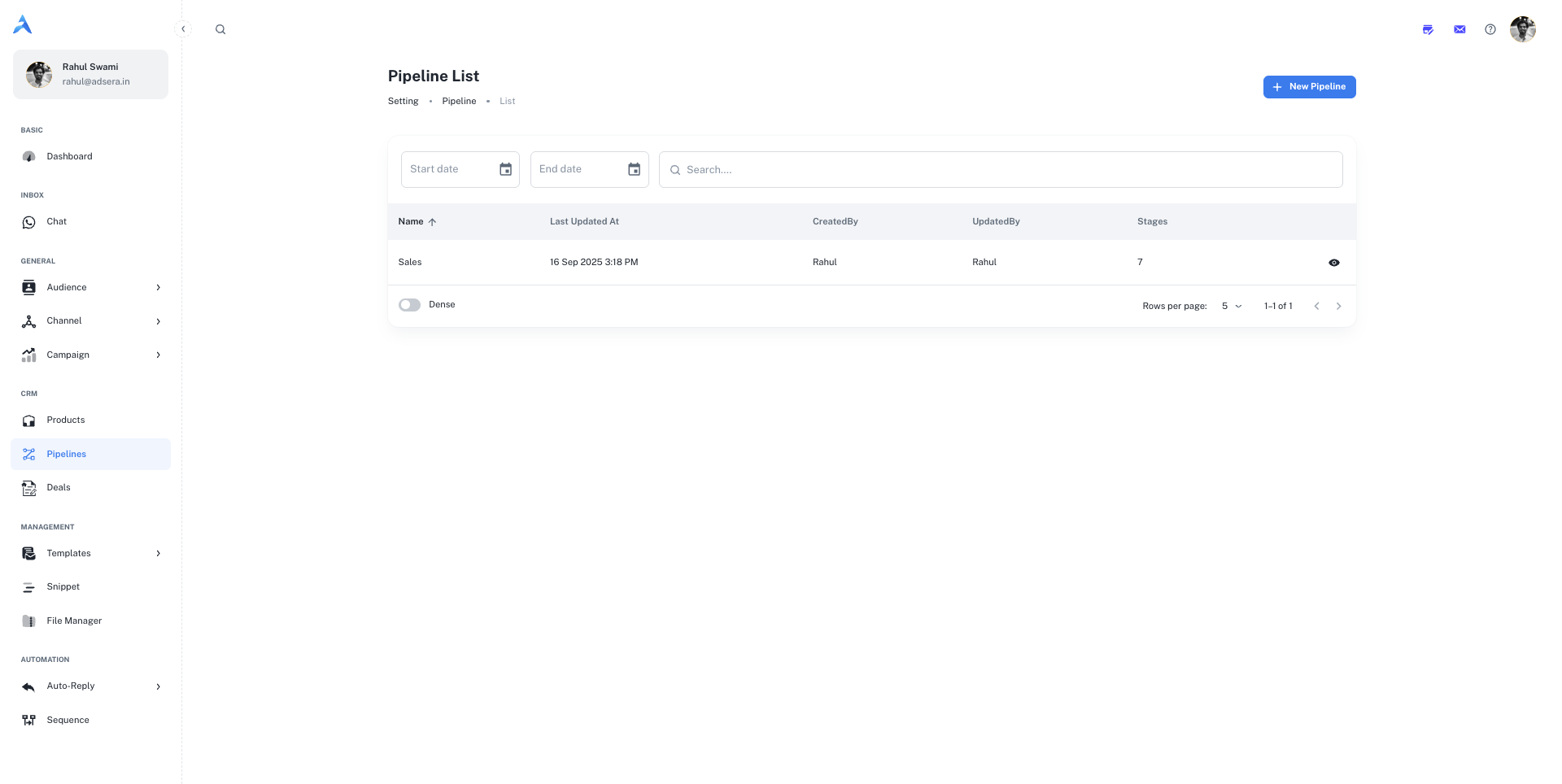
### The Pipeline List
This page gives you an overview of all the sales pipelines you have created. You can search for a specific pipeline or filter the list by a date range to see pipelines created within that period.
#### Understanding the Table Columns
| Column | Description |
| :------------------ | :-------------------------------------------------------------------------------------------------- |
| **Name** | The name of the sales pipeline (e.g., "Sales," "Enterprise Clients"). |
| **Last updated at** | The date and time the pipeline was last modified. |
| **CreatedBy** | The user who originally created the pipeline. |
| **UpdatedBy** | The user who last updated the pipeline. |
| **Stages** | The total number of stages defined within that pipeline. |
| **View (👁️)** | An icon to navigate to the visual board view of that specific pipeline to see all associated deals. |
***
## Creating and Editing a Pipeline
Clicking the **"+ New Pipeline"** button or editing an existing one opens a side panel where you can define the pipeline's structure.
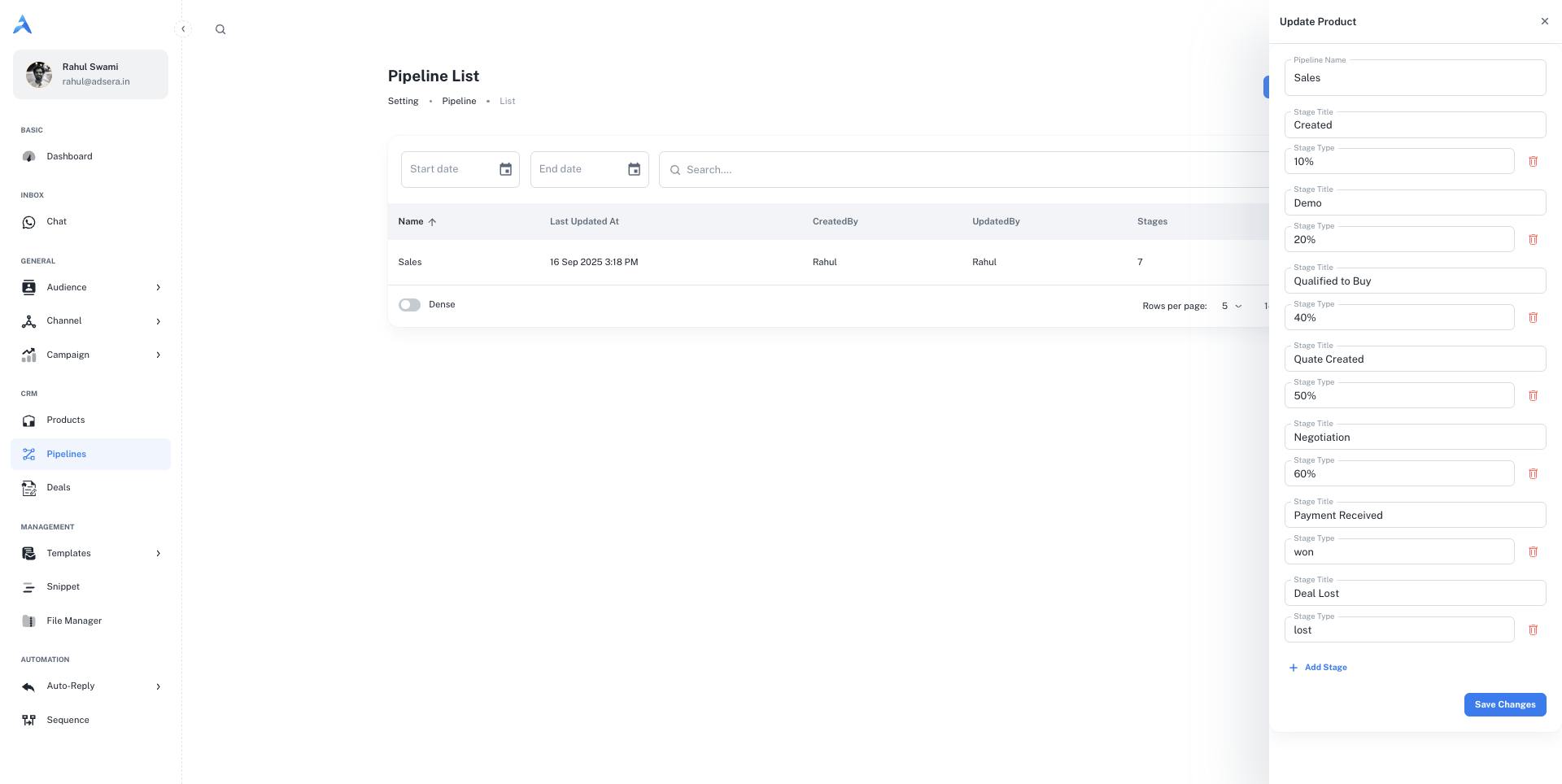
A pipeline consists of a name and a series of stages that a deal will move through.
### 1. Naming Your Pipeline
The first step is to give your pipeline a clear, descriptive name that reflects its purpose, such as "Standard Sales Process" or "Partnership Pipeline".
### 2. Defining Pipeline Stages
Stages represent the key milestones in your sales process. You can add, reorder, and customize each stage. For each stage, you must define:
* **Stage Title:** A short, clear name for the stage (e.g., `New Lead`, `Demo Scheduled`, `Contract Sent`).
* **Stage Type (Probability):** The likelihood of a deal in this stage being won, expressed as a percentage (e.g., `10%`, `50%`, `90%`). This is used for sales forecasting. You can also select `won` or `lost` for the final stages.
#### Managing Stages
* **Add a Stage:** Click the **"+ Add Stage"** button to add a new row to your pipeline.
* **Reorder Stages:** Use the drag-and-drop handles to rearrange the order of your stages to match your sales workflow.
* **Delete a Stage:** Click the **trash can icon (🗑️)** to remove a stage.
Deleting a stage with active deals will require you to move those deals to another stage.
Once you've defined your pipeline name and all its stages, click **"Create Pipeline"** or **"Save Changes"** to finish.
***
## How Pipelines Work with Deals
The pipelines you create here are the framework for managing your sales opportunities. Each opportunity is represented as a **Deal**, which is then placed in a specific stage of a pipeline. As the deal progresses, you simply drag and drop it from one stage to the next, giving your entire team a real-time visual update on your sales efforts.
[Learn more about Managing Deals](/help/crm/deal).