> ## Documentation Index
> Fetch the complete documentation index at: https://docs.adsera.in/llms.txt
> Use this file to discover all available pages before exploring further.
# Managing WhatsApp Accounts
> View your connected WhatsApp Business Accounts (WABA), check their status, and access settings.
The WhatsApp Channel page is where you manage all of your connected WhatsApp Business Accounts (WABAs). From here, you can get an at-a-glance view of your account's profile, check its connection status, and initiate the process of adding new numbers for different brands or departments.
**Want to Manage WhatsApp Account? [Go to the AdsEra WhatsApp Channel Page →](https://app.adsera.in/dashboard/channel/whatsapp)**
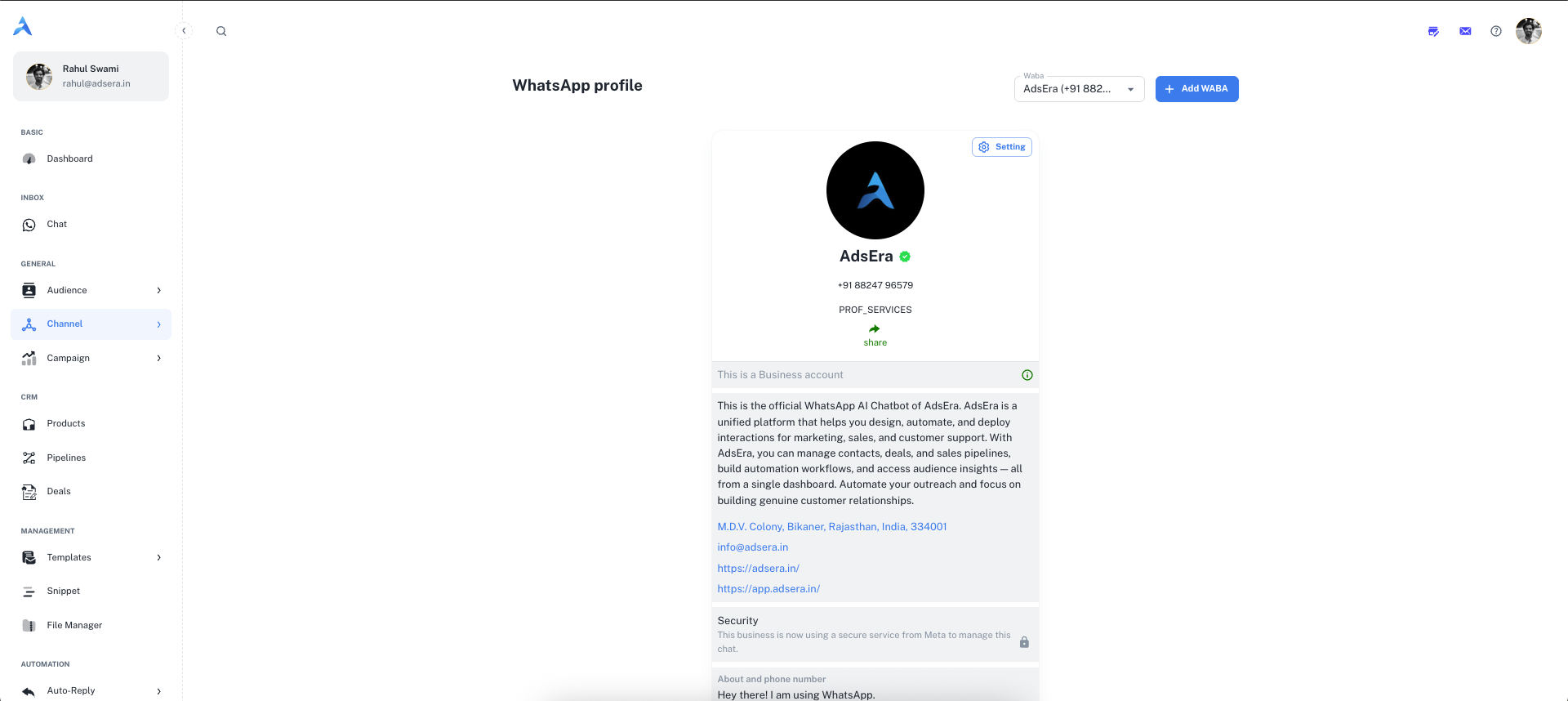
### At a Glance: Your WABA Profile
When you select a connected WABA from the dropdown at the top, its profile card is displayed. This card is a summary of your public presence and account health on WhatsApp.
This section displays your core public information, including your **profile picture** and **display name**. A green checkmark indicates you have a verified Meta Business Account, which builds trust with your customers.
Here you can see the "About" text and contact details associated with your WhatsApp profile, such as your address, email, and website links. This information helps customers understand and contact your business.
This provides key metrics for your account, including its connection **Status** (e.g., `connected`) and your official WhatsApp **Rating** (e.g., `GREEN`). Maintaining a high-quality rating is crucial for deliverability.
***
## Key Actions
There are two primary actions you can take from this page:
The **"Setting"** button is your gateway to fine-tuning your business presence on WhatsApp. Clicking this will take you to a dedicated settings area where you can manage:
* Opt-in and consent management settings.
For a full walkthrough, see our guide on [WhatsApp Profile Settings](/help/channel/whatsapp/opt).
Clicking the **"+ Add WABA"** button at the top of the page allows you to connect a new WhatsApp Business Account to AdsEra. This is perfect for businesses that operate multiple brands or have separate numbers for sales and support. This action opens Meta's secure Embedded Signup flow.
For a detailed guide, see [Connecting a New WhatsApp Business Account](/help/channel/whatsapp/connect).
***
## Pro Tips
Regularly check your WhatsApp Rating. A `GREEN` (High Quality) rating ensures the best deliverability. If your rating drops to yellow or red, it's a sign to review your messaging strategy to avoid being blocked by Meta.
Your WhatsApp profile is often a direct point of contact for customers. Ensure your "About" text, website, and contact details are always up-to-date to provide a professional and trustworthy experience.