> ## Documentation Index
> Fetch the complete documentation index at: https://docs.adsera.in/llms.txt
> Use this file to discover all available pages before exploring further.
# WhatsApp Opt-In Management
> Configure the automated opt-in and opt-out keywords and responses for all your WhatsApp Business Accounts.
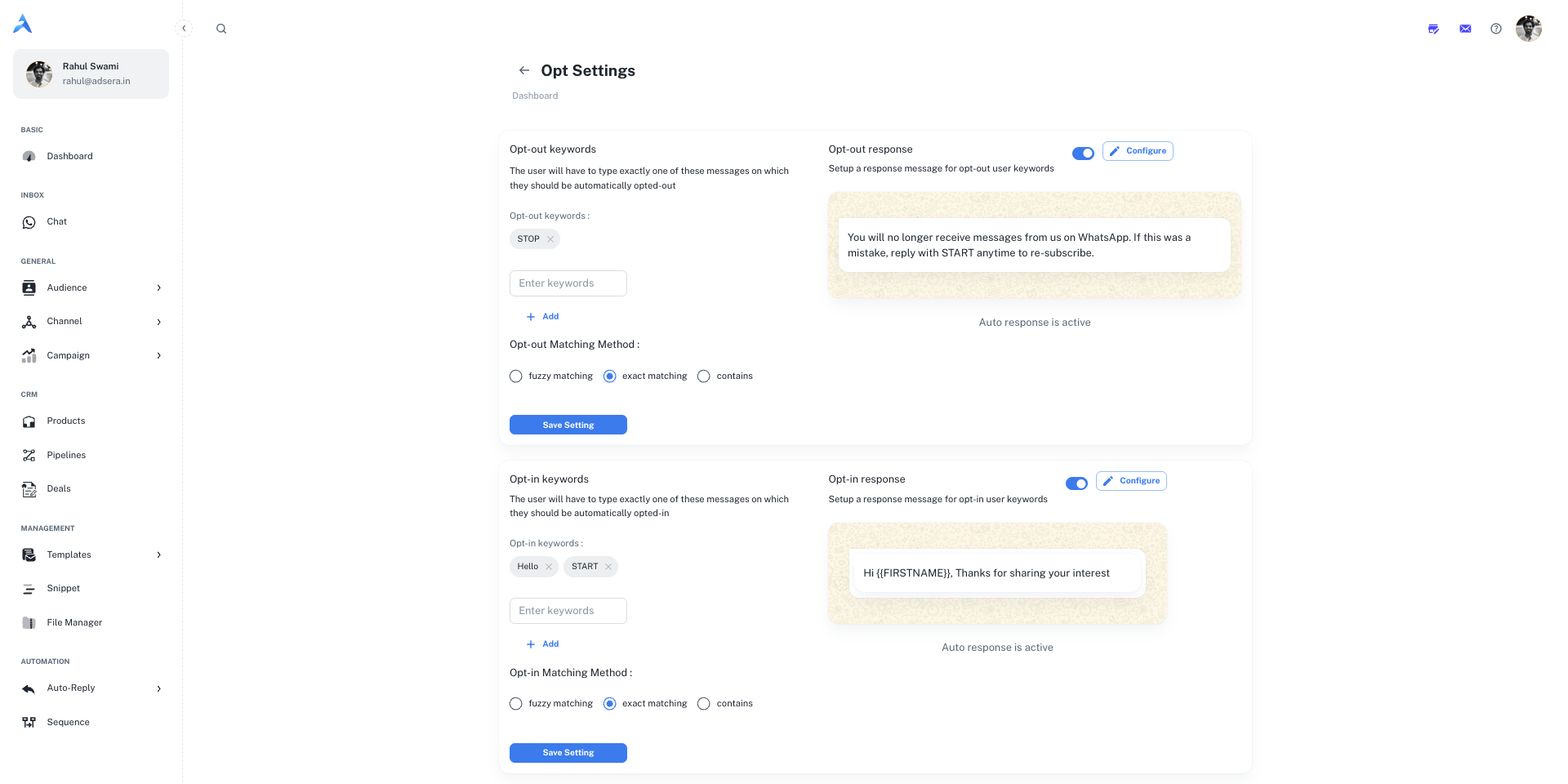
The **Opt Settings** page allows you to define and manage how users can subscribe (opt-in) to or unsubscribe (opt-out) from your WhatsApp communications. Properly configuring these settings is essential for respecting user consent and complying with messaging policies.
**Want to Manage WhatsApp WhatsApp Opt-In and Opt-Out? [Go to the AdsEra WhatsApp Opt-In and Opt-Out settings Page →](https://app.adsera.in/dashboard/whatsapp/opt-settings)**
**Global Setting:** Please note that the settings configured on this page are applied globally to **all** of your connected WhatsApp Business Accounts (WABAs).
***
## Opt-Out Settings
This section controls how users can automatically unsubscribe from your messages.
Here you can define a list of keywords that will automatically trigger an opt-out. When a user sends a message containing one of these exact keywords (e.g., `STOP`), their WhatsApp subscription status will be updated to "unsubscribed."
* **To add a keyword:** Type it into the "Enter keywords" field and click **Add**.
* **To remove a keyword:** Click the `x` on the keyword's chip.
#### Opt-Out Matching Method
You can choose how strictly the system matches the keywords sent by users:
* **Fuzzy matching:** Allows for minor misspellings.
* **Exact matching:** The user's message must match your keyword perfectly.
* **Contains:** The user's message must contain your keyword anywhere within it.
#### Opt-Out Response Message
You can configure an automatic message that is sent to a user immediately after they opt out.
* **Enable/Disable:** Use the toggle switch to turn this automated response on or off.
* **Configure:** Click the **"Configure"** button to edit the content of the response message. A common best practice is to confirm the unsubscribe action and let them know how to re-subscribe, as shown in the preview.
***
## Opt-In Settings
This section controls how users can subscribe or re-subscribe to your WhatsApp messages.
Define a list of keywords that will automatically opt a user in. When a user who is not currently subscribed sends one of these keywords (e.g., `START`), their WhatsApp subscription status will be set to "subscribed."
* **To add a keyword:** Type it into the "Enter keywords" field and click **Add**.
* **To remove a keyword:** Click the `x` on the keyword's chip.
#### Opt-In Matching Method
Similar to the opt-out settings, you can define the logic for matching keywords: `fuzzy matching`, `exact matching`, or `contains`.
#### Opt-In Response Message
Set up an automated welcome message for new subscribers.
* **Enable/Disable:** Use the toggle switch to turn this automated welcome message on or off.
* **Configure:** Click the **"Configure"** button to edit the content of the response message. This is a great place to thank the user for subscribing and set expectations.
***
### Saving Your Changes
After configuring your keywords and responses for both Opt-Out and Opt-In, be sure to click the **"Save setting"** button within each respective card to apply your changes.