> ## Documentation Index
> Fetch the complete documentation index at: https://docs.adsera.in/llms.txt
> Use this file to discover all available pages before exploring further.
# Connecting New WhatsApp
> A step-by-step guide to connecting your WhatsApp number to AdsEra using Meta Embedded Signup flow.
Connecting a new WhatsApp Business Account (WABA) to AdsEra is a streamlined process that uses Meta's secure **Embedded Signup** pop-up window. This guide will walk you through the prerequisites and steps to get your new number live.
**Want to Add WhatsApp Account? [Go to the AdsEra WhatsApp Login Page →](https://app.adsera.in/dashboard/whatsapp/login)**
### Before You Begin: The 3 Essentials
To ensure a smooth setup, please complete the following steps first.
You must have an **admin account** for your Meta Business Manager. This is required to grant the necessary permissions. If you don't have one, you can create it at [business.facebook.com](https://business.facebook.com).
The phone number you intend to use must meet these criteria:
* It is **not** currently registered on the personal WhatsApp or WhatsApp Business app.
* It can receive an OTP (One-Time Password) via SMS or a voice call.
* It will be used exclusively for the WhatsApp API.
If you use a number that was previously active on WhatsApp, your old chats, groups, and contact history **will not** be synced or restored. The number will start completely fresh on the API.
Have the following information ready, as you will need it during the setup process:
* A professional **Display Name** that clearly represents your brand.
* Your official **Business Website URL**.
***
## The Onboarding Flow
Once your prerequisites are met, you can begin the connection process.
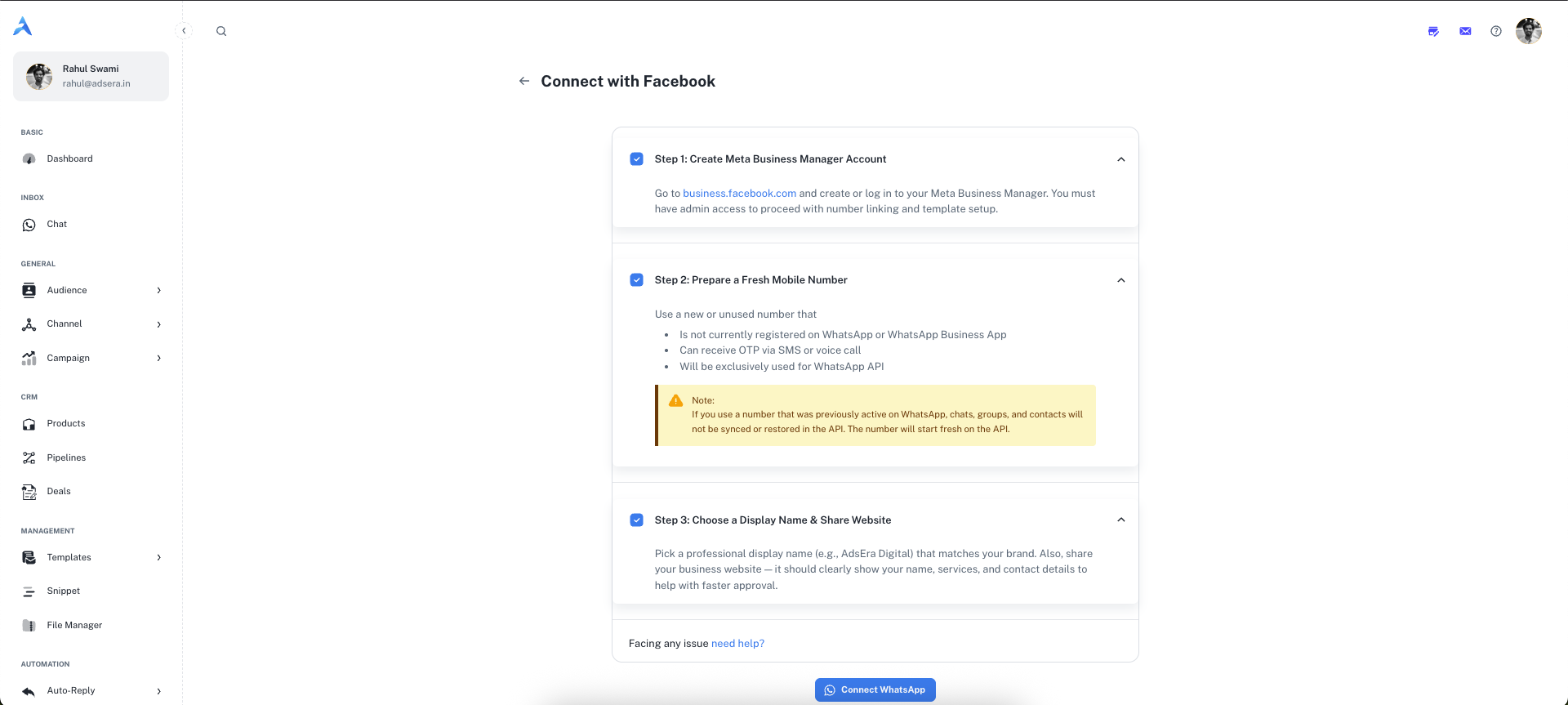
1. Navigate to the [WhatsApp Channel](/help/channel/whatsapp/whatsapp) page and click **"+ Add WABA"**.
2. On the "Connect with Facebook" page, review the steps and click the **"Connect WhatsApp"** button.
3. A secure pop-up window from Meta will open to guide you through the official onboarding.
**Official Meta Documentation:** This pop-up is a secure flow managed directly by Meta. For a detailed preview of each step within the pop-up, you can refer to Meta's official [Embedded Signup documentation](https://developers.facebook.com/docs/whatsapp/embedded-signup/).
4. Inside the pop-up, you will be asked to:
* Log in to your Facebook account.
* Create or select your Meta Business Account.
* Create or select your WhatsApp Business Account (WABA).
* Create or select your WhatsApp Business Profile.
* **Verify** your new WhatsApp Business phone number with an OTP.
5. After completing all steps, the pop-up will close automatically. Your new WABA will now be connected and will appear in the dropdown list on your AdsEra WhatsApp Channel page, ready to use!