> ## Documentation Index
> Fetch the complete documentation index at: https://docs.adsera.in/llms.txt
> Use this file to discover all available pages before exploring further.
# Analyzing WhatsApp Campaign Reports
> Understand your WhatsApp campaign performance with in-depth analytics on delivery, reads, replies, and more.
After sending a WhatsApp campaign, understanding its performance is key to optimizing your future messaging strategy. The Campaign Report provides in-depth analytics, offering crucial insights into how your recipients are engaging with your messages.
### How to Access Your Campaign Report
From your AdsEra Dashboard, click on **Campaigns > WhatsApp**.
On the Campaign List page, locate the sent campaign you wish to analyze.
On that campaign's card, click the **analytics icon (📊)** to open the detailed report.
***
## Understanding the Report Interface
At the top of your report, you'll find a preview of your message, essential campaign details, and a graph filter that applies to all tabs.
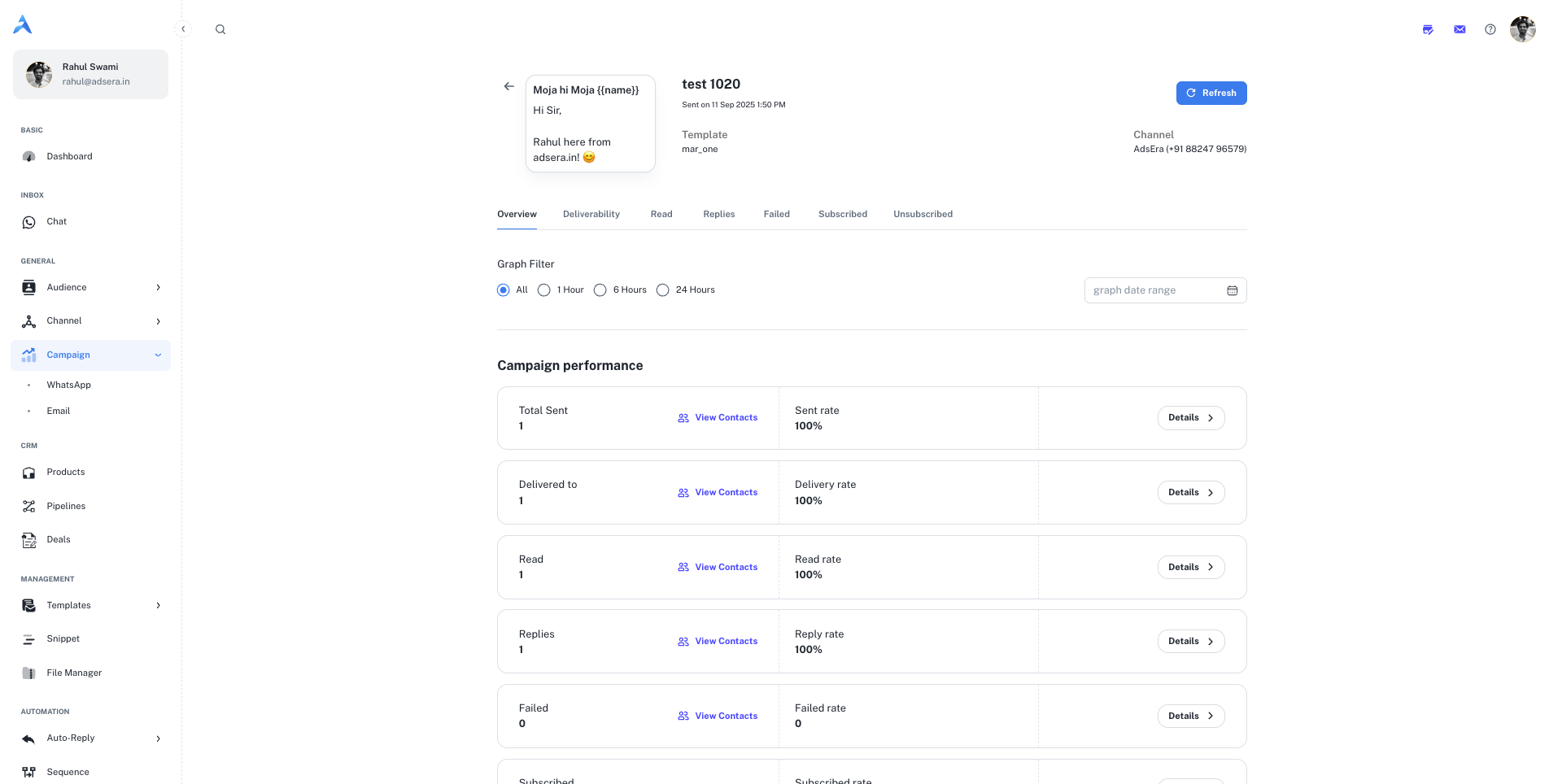
* **Campaign Details:** Includes the **Campaign Name**, **Sent On** time, the **Template** used, and the sending **Channel** (WABA).
* **Graph Filter:** Allows you to view performance data over specific timeframes: **1 Hour**, **6 Hours**, **24 Hours**, or a **custom date range**.
The main report is divided into the following tabs, each providing a unique view of your campaign's performance:
The **Overview** tab provides a high-level summary of your campaign's key performance indicators (KPIs).
| Metric | Description & Interpretation |
| :--------------- | :-------------------------------------------------------------------------------------------------------------- |
| **Total Sent** | The total number of messages dispatched from AdsEra. |
| **Delivered To** | The number of messages successfully delivered to recipients' devices. A high delivery rate is key. |
| **Read** | The number of unique recipients who have read your message (indicated by blue ticks). This measures engagement. |
| **Replies** | The number of unique contacts who replied to your campaign message. |
| **Failed** | The number of messages that failed to deliver (e.g., invalid number). |
| **Subscribed** | The number of users who opted-in as a result of this campaign. |
| **Unsubscribed** | The number of users who opted-out after receiving this campaign. |
Below the metrics, a graph visualizes these key activities over time, helping you identify trends.
This tab provides a detailed breakdown of your message delivery success. You can see the total **Recipients**, how many messages were **Sent**, and how many were successfully **Delivered**.
This section lists all contacts who received your message. You can filter this list by read status (`Has Read` / `Has not Read`) and by time frame. Use the checkboxes to select contacts and click **"Retargeting"** to create a new campaign for this specific audience.
This tab focuses on who has seen your message. It shows the total number of **Recipients**, how many have been **Delivered** to, and the final count of contacts who have **Read** the message. The **Read Rate** gives you a clear percentage of engagement. The list below allows you to segment and retarget users based on their read status.
This tab is crucial for measuring direct engagement and conversation starters. It shows the number of recipients who **Read** the message versus how many sent a **Reply**. The **Reply Rate** is a powerful indicator of how compelling your message and call-to-action were.
The **Smart Segregation** table on this tab shows the exact reply message (`Reply Msg`) from each contact, giving you direct insight into customer responses.
This tab lists all the contacts to whom the message could not be delivered. Reviewing this list is important for maintaining a clean and effective contact database. The table will show the contact details and the specific **Fail Reason** for each, helping you diagnose issues with invalid numbers.
These tabs help you track changes in your audience's consent status resulting from this campaign.
* **Subscribed:** Lists any contacts who opted-in.
* **Unsubscribed:** Lists any contacts who opted-out. Monitoring this tab is critical for understanding if your content is meeting audience expectations.
***
## Pro Tips for Analyzing Your Reports
Unlike email, WhatsApp's read receipts give you a very accurate measure of engagement. A high delivery rate but a low read rate might indicate that your message was sent at a bad time or that the contact is no longer active.
The "Replies" tab is a goldmine of customer feedback. Analyze the `Reply Msg` column to understand customer questions, feedback, and interest levels, which can inform your next campaign.
The "Retargeting" button is a powerful feature. Create follow-up campaigns for users who **read but did not reply**, or for those who **replied with specific keywords**, to create highly personalized customer journeys.