> ## Documentation Index
> Fetch the complete documentation index at: https://docs.adsera.in/llms.txt
> Use this file to discover all available pages before exploring further.
# WhatsApp Campaign List
> Your central hub for managing all WhatsApp campaigns, from drafts to sent, and monitoring their performance at a glance.
**Want to Manage WhatsApp Campaigns? [Go to the AdsEra WhatsApp Campaign Page →](https://app.adsera.in/dashboard/campaign/whatsapp/list)**
The WhatsApp Campaign List is your command center for managing all your WhatsApp marketing efforts. This page provides a real-time snapshot of all your campaigns, allowing you to quickly assess performance, create new campaigns, and manage existing ones with ease.
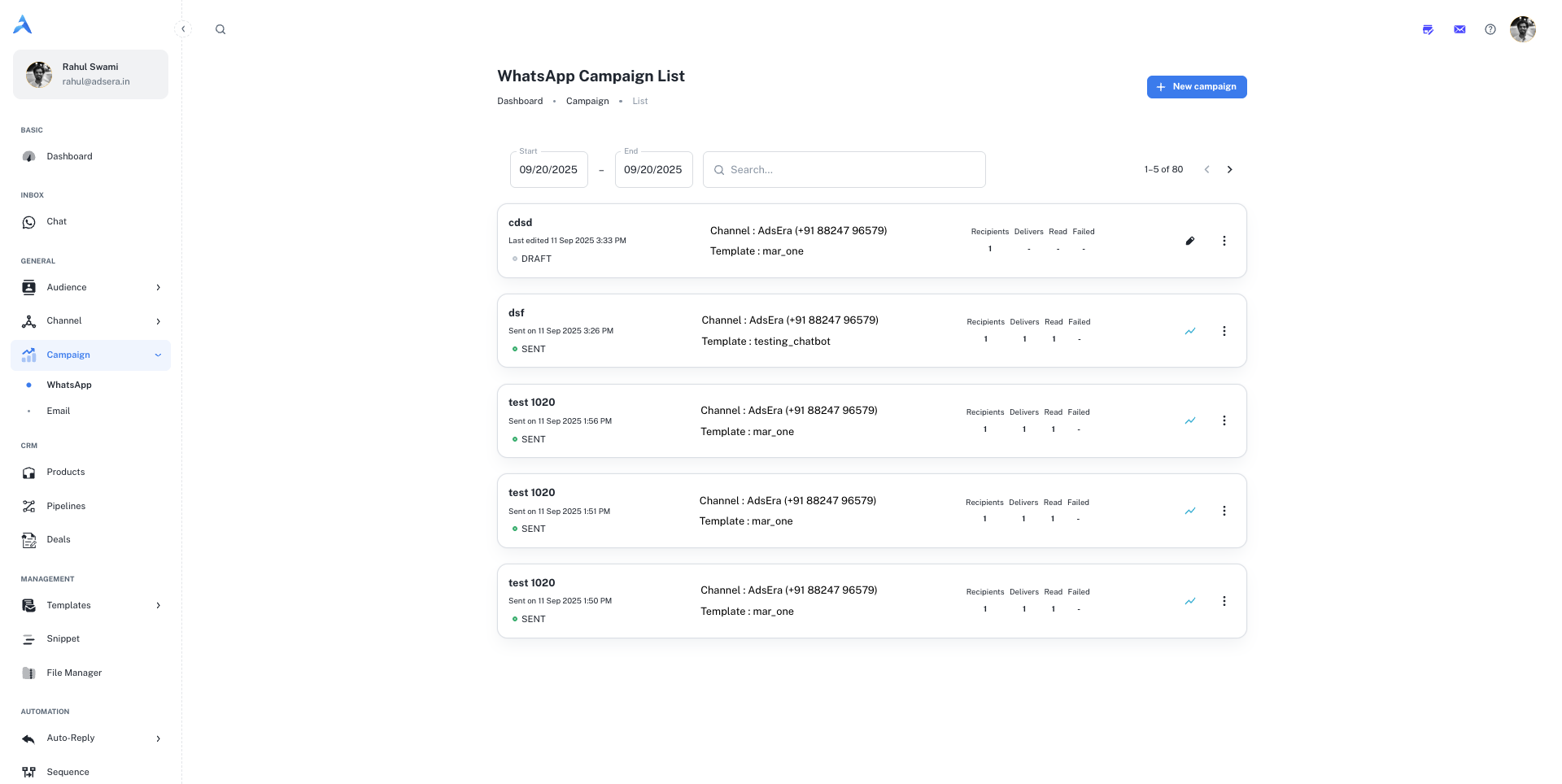
### Navigating to Your WhatsApp Campaigns
Accessing your list is simple:
From your AdsEra Dashboard, click on **Campaigns** in the left-hand navigation bar.
From the campaign submenu, select **WhatsApp** to view your list.
***
## Anatomy of a WhatsApp Campaign Card
Each card on the list represents an individual WhatsApp campaign and provides key information at a glance. Here's a detailed breakdown:
| Section | Field / Metric | Description |
| :---------- | :------------------------- | :--------------------------------------------------------------------------------------------- |
| **Header** | **Campaign Name** | The internal name you assigned to your campaign for easy identification. |
| | **Sent On / Last Updated** | The date and time the campaign was sent. For drafts, this shows the last time it was modified. |
| | **Status Tag** | A color-coded tag indicating the campaign's current status: `DRAFT` or `SENT`. |
| **Details** | **Channel** | The specific WhatsApp Business Account (WABA) number used to send the campaign. |
| | **Template** | The name of the pre-approved WhatsApp Message Template used for the campaign. |
| **Metrics** | **Recipients** | The total number of unique contacts the campaign was sent to. |
| | **Delivers** | The number of messages successfully delivered to the recipients' devices. |
| | **Read** | The number of recipients who have read the message (indicated by blue ticks). |
| | **Failed** | The number of messages that failed to deliver. |
***
## Searching and Filtering Your Campaigns
To help you find specific campaigns quickly, you have powerful filtering options at the top of the page:
* **Date Range Filters:** Use the **Start** and **End** date pickers to narrow down your list to campaigns sent within a specific period.
* **Search Bar:** Type into the **Search...** field to find campaigns by their name.
***
## Actions: Managing Your Campaigns
Each campaign card provides direct actions to help you manage your campaigns effectively.
To start building a new broadcast, click the **"+ New campaign"** button located at the top right of the page. This will take you to the WhatsApp campaign creation wizard.
For a full walkthrough, see our guide on [Creating a WhatsApp Campaign](/help/campaign/wa/create).
For any sent campaign, click the **analytics icon (📊)** to navigate to a detailed report. Here you can find in-depth statistics, including a timeline of delivery and read receipts for each contact.
Learn more in our guide to [Analyzing WhatsApp Campaign Reports](/help/campaign/wa/report).
The **three-dots (...) menu** on each card reveals a dropdown with several key actions:
* **Start:** For Draft campaigns, this allows you to initiate the sending or scheduling process.
* **Copy:** Creates an exact duplicate of the campaign, including its template, settings, and recipients.
* **Edit:** (Appears as a **pencil icon ✏️** on Drafts) Allows you to make changes to the campaign's setup before sending.
* **Delete:** Permanently removes the campaign from your list.
This action cannot be undone. All data associated with the campaign will be lost.