> ## Documentation Index
> Fetch the complete documentation index at: https://docs.adsera.in/llms.txt
> Use this file to discover all available pages before exploring further.
# The 360° Contact View
> A complete guide to viewing, editing, and interacting with a contact using the all-in-one 360° profile view.
The **Contact View** provides a complete, 360-degree profile of an individual in your audience. This is your central hub for understanding a contact's history, managing their information, and engaging with them across multiple channels. To access this view, simply click on any contact from your [Audience Lists](/help/audiance/audiance).
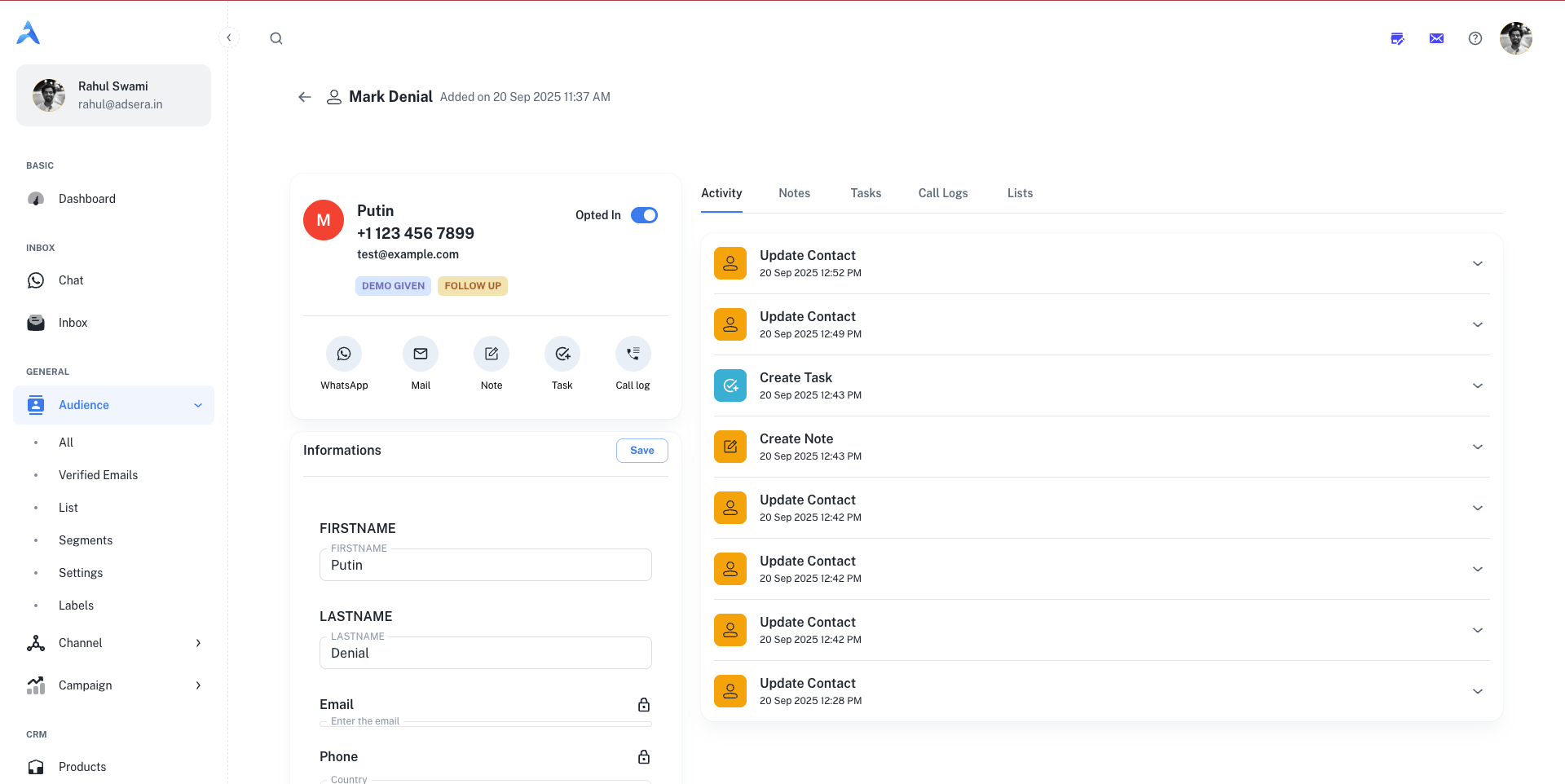
The page is divided into two main sections: the **Contact Information Panel** on the left and the **Activity & Engagement Panel** on the right.
***
## The Contact Information Panel
This left-hand panel contains all the stored data and properties associated with the contact.
#### Profile Header
* **Avatar, Name, and Contact Details:** At a glance, you can see the contact's name, phone number, and email address.
* **Opt-in Status:** A toggle switch shows if the contact is currently subscribed to your communications.
* **Labels:** Any labels you've assigned (e.g., `DEMO GIVEN`, `FOLLOW UP`) are displayed for quick context.
#### Quick Action Bar
Beneath the header, a row of icons allows you to instantly engage with the contact:
* **WhatsApp:** Opens the WhatsApp chat window to send a direct message.
* **Mail:** Opens the email composer to send an email.
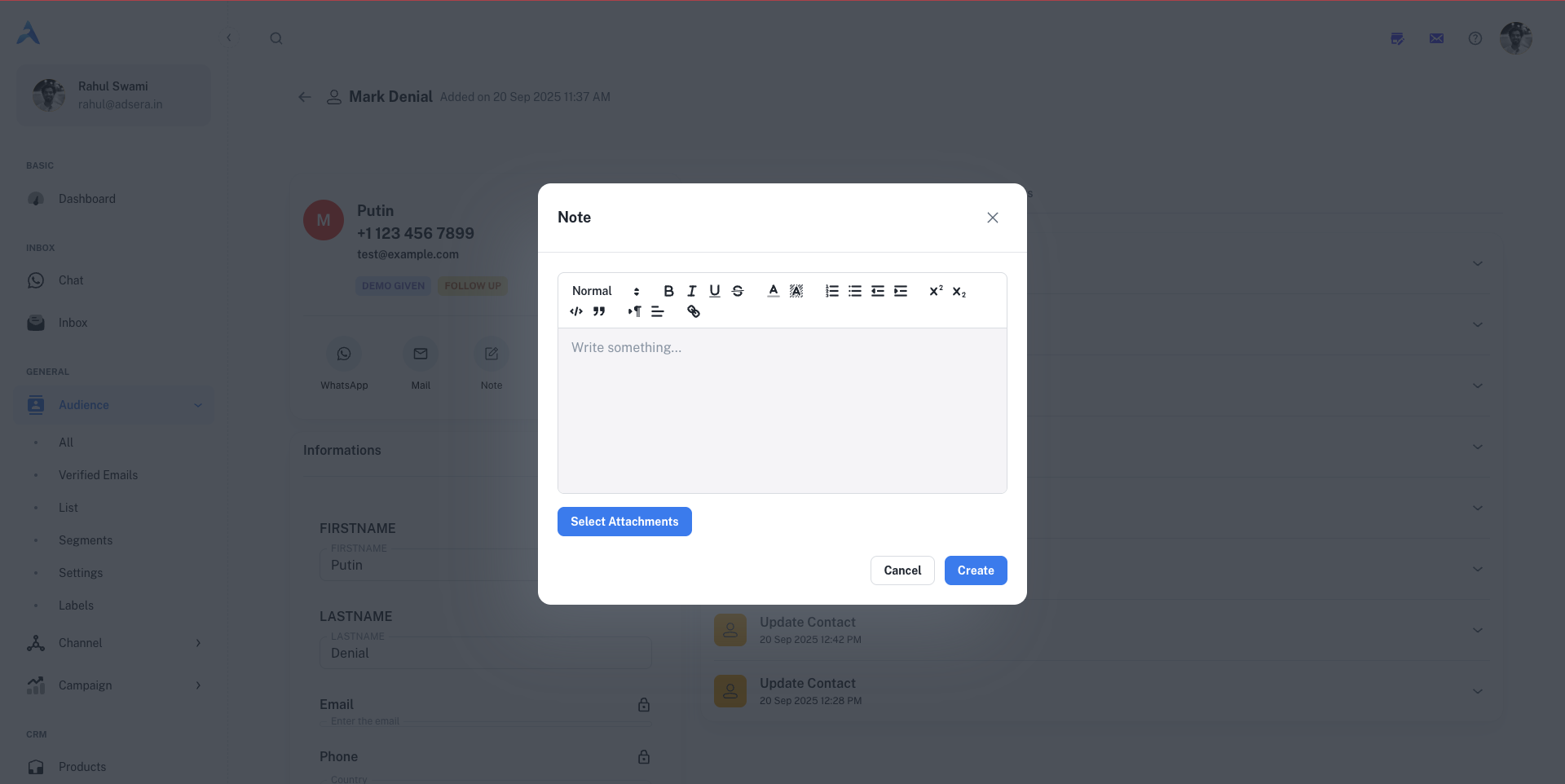
* **Note:** Opens a modal to add a private note to the contact's timeline.
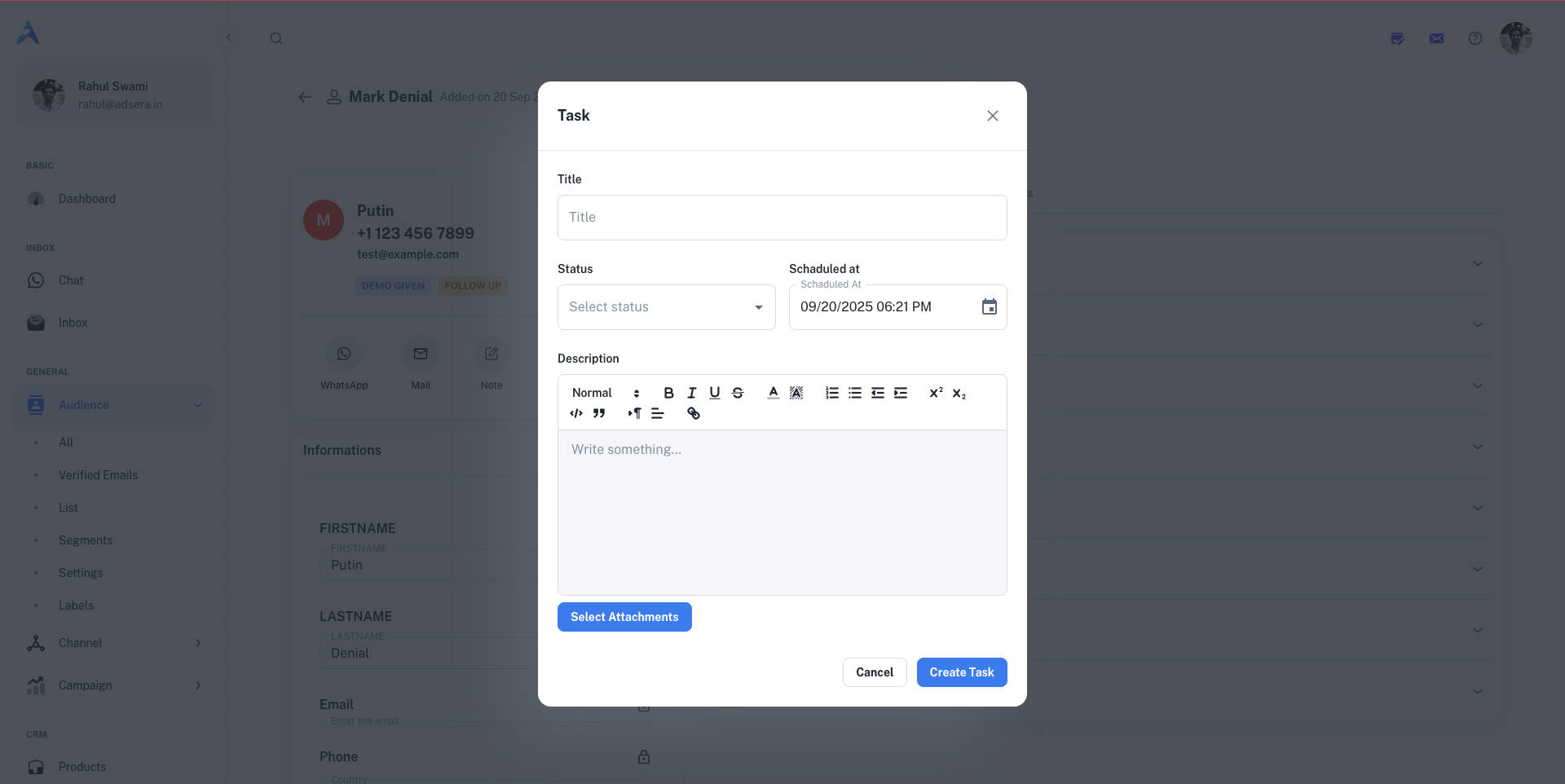
* **Task:** Opens a modal to create and assign a task related to this contact.
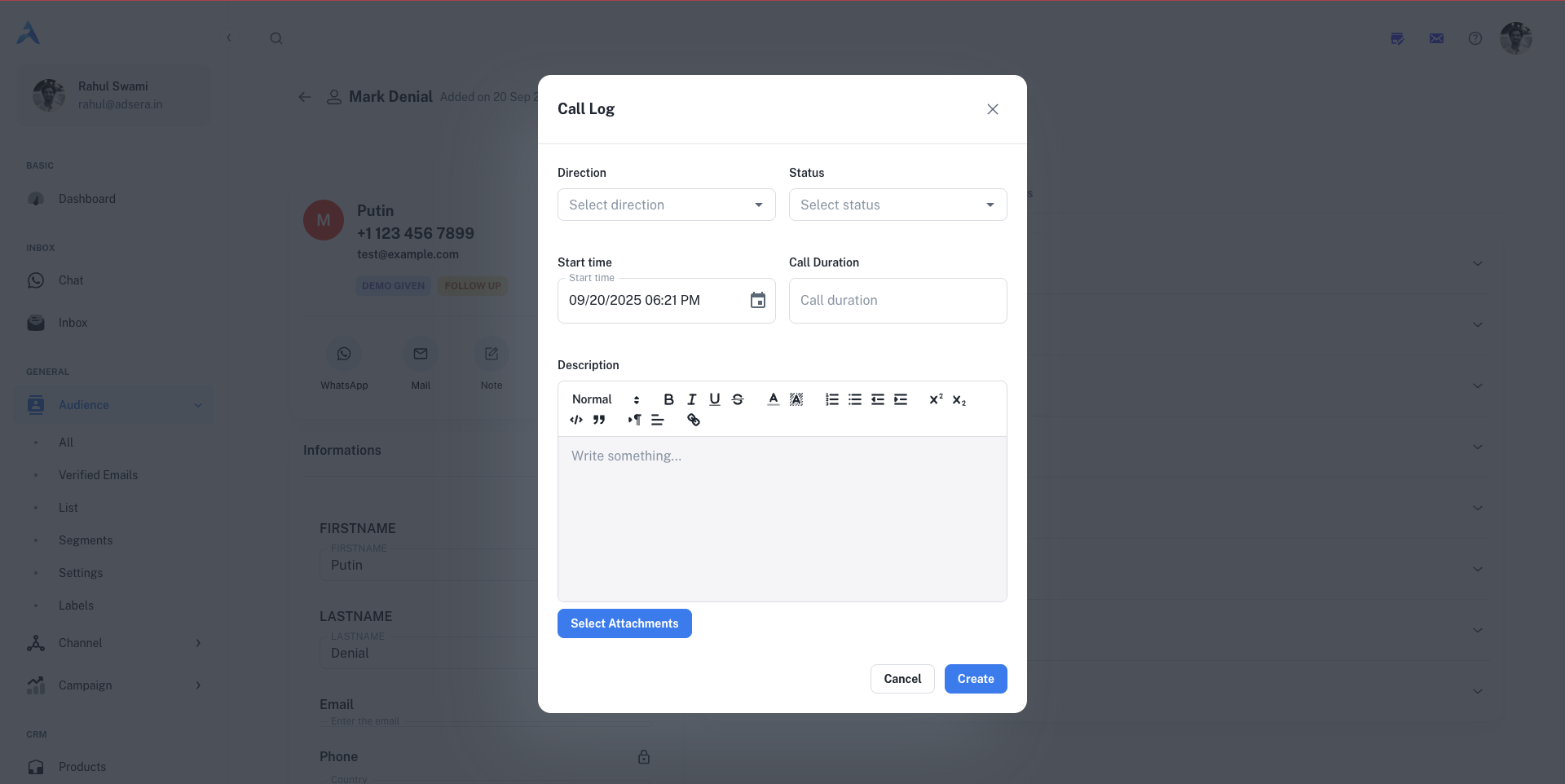
* **Call log:** Opens a modal to log a phone call you had with the contact.
#### Information Form
This section is a scrollable form containing all of the contact's attributes.
* **Default Fields:** Includes standard fields like `FIRSTNAME`, `LASTNAME`, `Email`, and `Phone`.
The primary Email and Phone number are locked and cannot be edited directly, as they are unique identifiers for the contact.
* **Custom Attributes:** Displays any custom fields you have created (e.g., `LEAD_TYPE`, `LEAD_STATUS`).
* **Lists & Labels:** Manage which lists the contact belongs to and add or remove labels.
* **Subscriptions:** Manually subscribe or unsubscribe the contact from your WhatsApp and Email marketing.
Click the **Save** button at the top of this section to apply any changes you make to the contact's information.
***
## The Activity & Engagement Panel
The right-hand panel is a tabbed interface that provides a complete history of all interactions and CRM-related activities for the contact.
This is a chronological timeline of every interaction you've had with the contact. It includes sent campaigns, status updates, notes, tasks, and conversations, giving you a complete historical record.
A focused view of only the notes that have been added to the contact's profile. Use the **"Note" icon** in the Quick Action Bar to add a new note using a rich text editor. Notes are internal and not visible to the contact.
View all tasks associated with this contact. Click the **"Task" icon** to create a new task. You can set a title, status (`To-do`, `In Progress`, `Done`), schedule a due date, and add a detailed description.
Keep a record of your phone conversations. Click the **"Call log" icon** to open a modal where you can log the call's direction (incoming/outgoing), status (completed, missed), start time, and duration, along with a detailed description.
See a simple list of all the contact lists this person is a member of.
#### Starting a Conversation
* **Clicking the WhatsApp icon** opens a side panel chat window, showing the entire conversation history with that contact. You can type a message, attach media, or use **Templates** and **Snippets** to reply instantly.

* **Clicking the Mail icon** opens a full-featured email composer, pre-filled with the contact's email address, allowing you to write and send a direct email.