> ## Documentation Index
> Fetch the complete documentation index at: https://docs.adsera.in/llms.txt
> Use this file to discover all available pages before exploring further.
# Managing Contact Lists
> Organize your contacts into static, reusable lists for targeted campaigns, personalization, and automation.
The **Contact List** page is your central hub for organizing your contacts within AdsEra. Its primary purpose is to help you create, manage, and group your contacts into customizable **Lists**. These lists are essential for sending targeted campaigns and implementing effective automation.
**Want to Manage Contact Lists? [Go to the AdsEra List Page →](https://app.adsera.in/dashboard/contact/list-listing)**
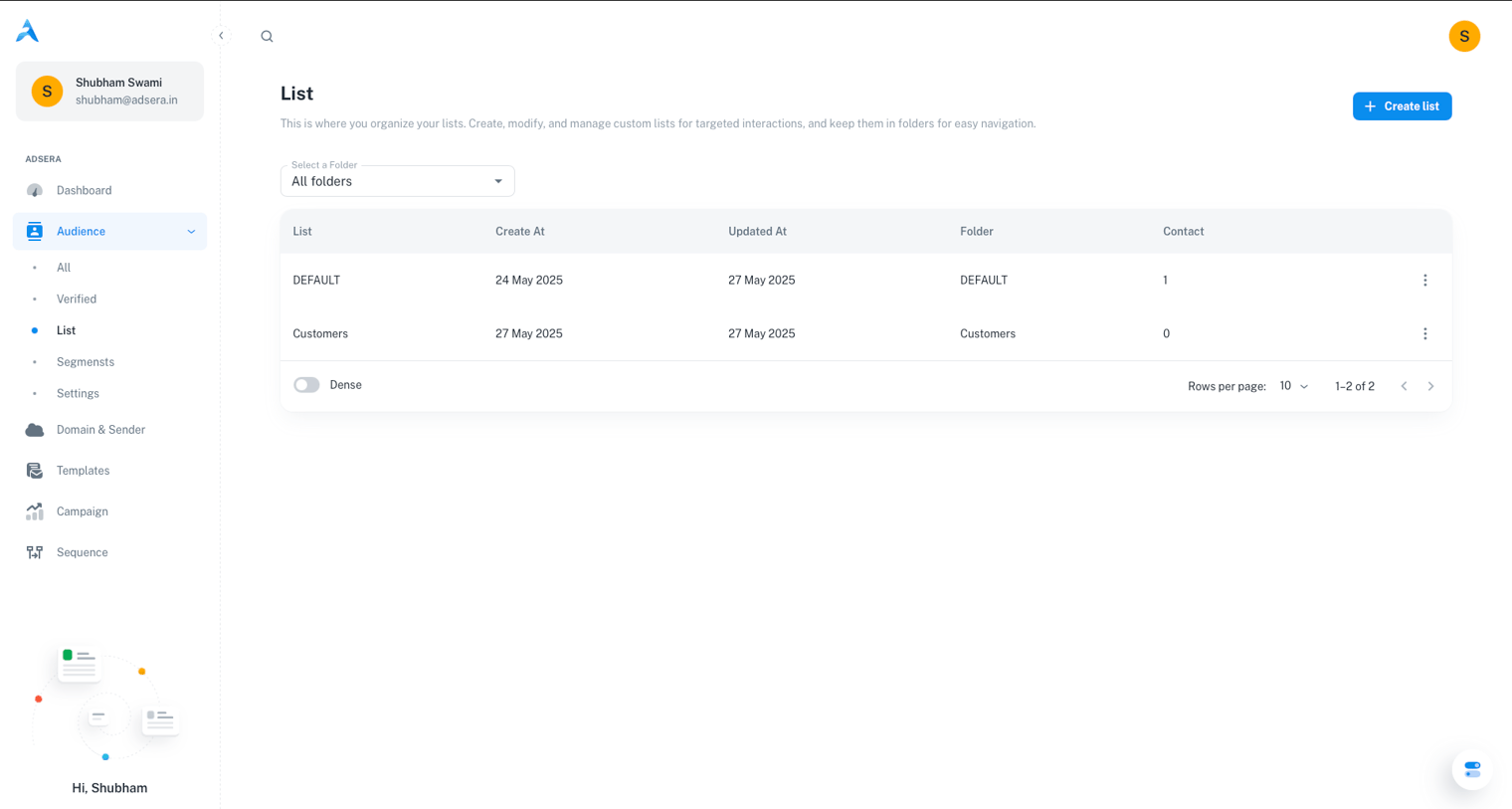
A key feature of AdsEra is flexibility: individual contacts can belong to multiple Lists. To keep your workspace tidy, Lists can be grouped into **Folders**, ensuring you can easily find the specific groups you need as your audience grows.
***
## Page Layout & UI Elements
The page is designed for clarity and ease of use. Here are the main elements:
Located in the top-right, this is your primary action for creating a new, empty contact list.
In the top-left, this menu allows you to filter the table view by folder or create new folders to organize your lists.
The main area of the page, displaying all your lists (within the selected folder) and their key details.
***
## Creating and Managing Lists & Folders
1. Click the **"Create List"** button in the top-right corner.
2. A modal window will appear, prompting you for:
* **List Name (required):** A descriptive name for your new list.
* **Select Folder (dropdown):** Choose an existing folder to organize your list in. You can also select "Create New Folder" from this menu.
3. Click **Create** to save your new list. It will now appear in the table.
Folders are essential for keeping your contact lists organized.
* **Switching Folders:** Use the **Folder Dropdown** in the top-left corner. Selecting a folder filters the table to show only the lists within it.
* **Creating Folders:** You can create a new folder from the "Select Folder" dropdown when creating a new list, or directly from the main Folder Dropdown.
***
## Understanding the List Table
The main table provides key information about each of your lists:
| Column | Description |
| :-------------- | :--------------------------------------------------- |
| **List Name** | The name you assigned to the list. |
| **Created At** | The date and time the list was originally created. |
| **Updated At** | The date and time the list was last modified. |
| **Folder** | The folder where the list is currently located. |
| **Contact** | The total number of contacts currently in that list. |
| **⋮ (Actions)** | A menu of actions you can perform on the list. |
**Performance at Scale:** The table uses **lazy loading** to handle massive datasets with ease. It loads a manageable number of lists initially and smoothly loads more as you scroll, ensuring a fast experience whether you have 10 lists or 10,000.
***
## List Actions (The ⋮ Menu)
Clicking the three-dot menu on any list row reveals several actions:
* **Duplicate:** Creates an exact copy of the list, including all its current contacts.
* **Rename:** Allows you to change the name of the list.
* **Move:** Lets you move the list to a different folder.
* **Add to a Sequence:** Enrolls all contacts currently in the list into a specific automation sequence.
***
## Lists vs. Segments: A Quick Refresher
It's important to understand the difference between the static **Lists** you create here and the dynamic **Segments** you create from the [All Audience](/help/audiance/audiance) view.
* **Lists (Static):** A manually curated group. Contacts only get on a list if you explicitly add them (e.g., via import, form, or bulk action). The group is fixed until you change it.
* **Segments (Dynamic):** A "smart" group defined by rules. Contacts automatically enter or leave the segment as their data and behavior change to match your rules.