> ## Documentation Index
> Fetch the complete documentation index at: https://docs.adsera.in/llms.txt
> Use this file to discover all available pages before exploring further.
# Managing Contact Labels
> Use labels (or tags) to organize contacts, trigger automations, and segment your audience for targeted messaging.
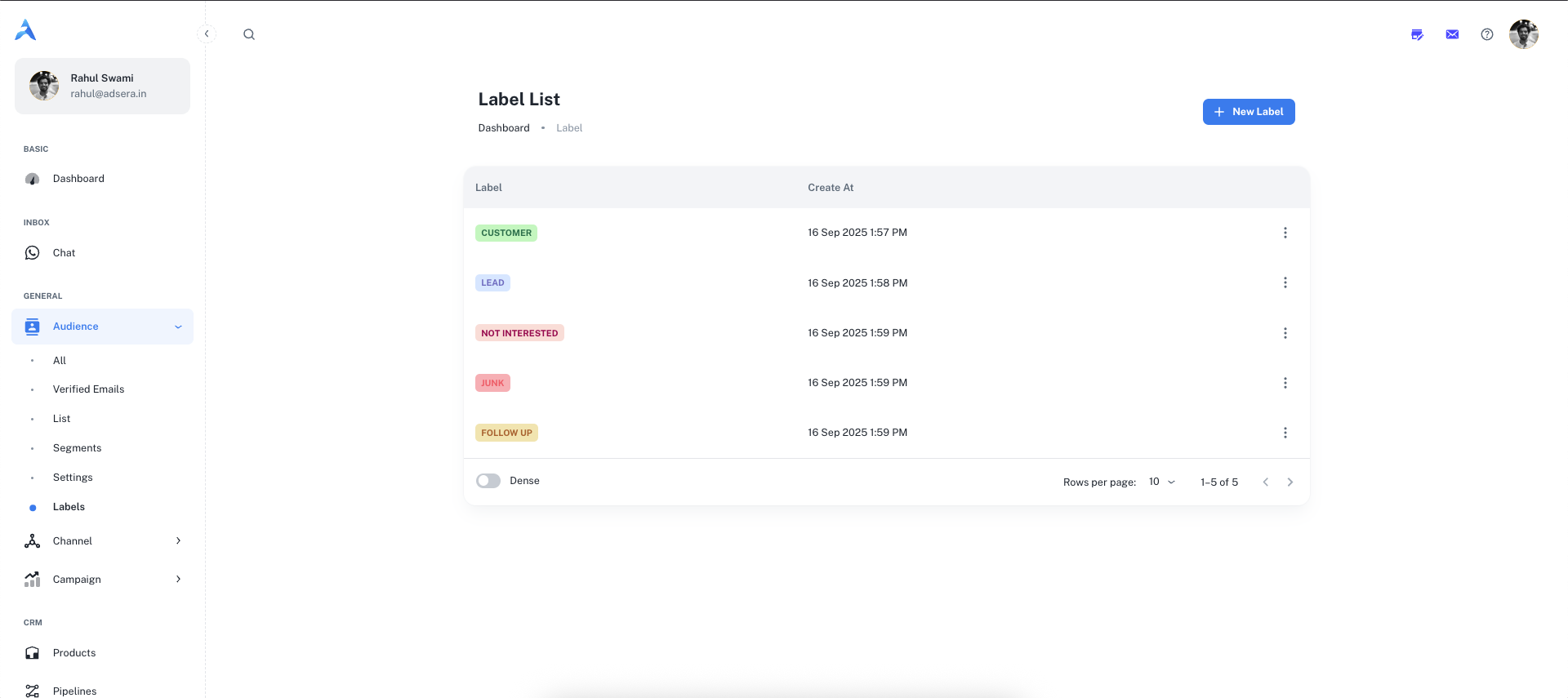
**Labels** (also known as tags) are a flexible way to categorize your contacts. You can use them to mark contacts based on their status, interests, or stage in the customer journey (e.g., `LEAD`, `CUSTOMER`, `FOLLOW UP`).
**Want to Manage Contact Labels? [Go to the AdsEra Labels Page →](https://app.adsera.in/dashboard/contact/labels)**
This system is crucial for organizing your audience, running targeted campaigns, and managing conversations in the Chat Inbox.
***
## Creating a New Label
Adding new labels to your system is quick and easy.
Click the **"+ New Label"** button located in the top-right corner of the page.
A "Create label" modal will appear. You need to provide two details:
* **Title:** The name of your label (e.g., `Lead`, `Support-Ticket`, `VIP`). This field has a 15-character limit.
* **Color:** Select a color from the palette to make your label easily identifiable.
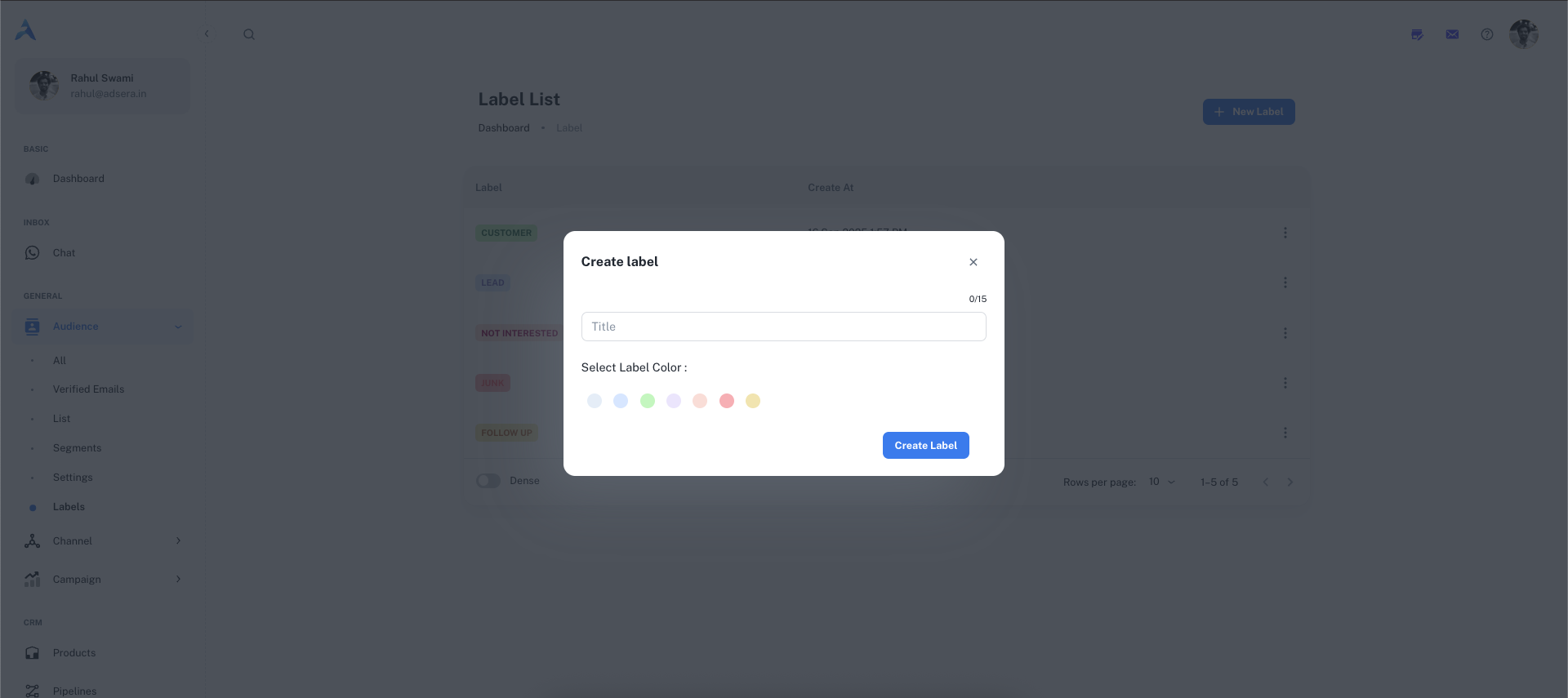
Click the **"Create label"** button to save it. It will now appear in your list of labels.
***
## Managing Your Labels
The main table on this page lists all the labels you have created.
| Column | Description |
| :-------------- | :----------------------------------------------------- |
| **Label** | A preview of the label, displayed in its chosen color. |
| **Create At** | The date and time the label was created. |
| **⋮ (Actions)** | A menu of actions you can perform on the label. |
#### Label Actions (The ⋮ Menu)
Clicking the three-dot menu on any label row allows you to manage it:
* **Edit:** This will open a modal allowing you to change the label's name and color.
* **Delete:** This permanently removes the label from the system.
Deleting a label will also remove it from all contacts it has been applied to. This action cannot be undone.
***
## How to Use Labels
Labels are integrated across the AdsEra platform to make your workflow more efficient.
Agents can apply labels directly to contacts during a conversation to categorize them in real-time. [Learn more in the Chat Inbox guide](/help/inbox/chat).
Select multiple contacts on the [All Audience](/help/audiance/audiance) page and apply or remove a label for all of them at once.
Labels are a powerful filter criterion. Create dynamic segments of contacts who have (or do not have) a specific label.