> ## Documentation Index
> Fetch the complete documentation index at: https://docs.adsera.in/llms.txt
> Use this file to discover all available pages before exploring further.
# Import Contacts via File Upload
> A step-by-step guide to adding contacts in bulk to AdsEra by uploading a CSV or XLSX file.
This guide will walk you through importing your contacts by uploading a file. This method is perfect for larger lists and ensures all your contact data is seamlessly integrated into AdsEra.
**Want to Import Contacts via File Upload? [Go to the AdsEra Contact Import Page →](https://app.adsera.in/dashboard/contact/import/option)**
### Prerequisites
Before you start, make sure you have the following:
Have your contact information ready in a spreadsheet (like Google Sheets or Excel) or a text editor.
Your data **must** include either an `EMAIL` or a `PHONE` column. At least one of these is required to identify and manage contacts.
Remember, you must have your contacts' consent to send them marketing campaigns.
***
## Step-by-Step Import Process
Follow these simple steps to import your contacts using a file upload.
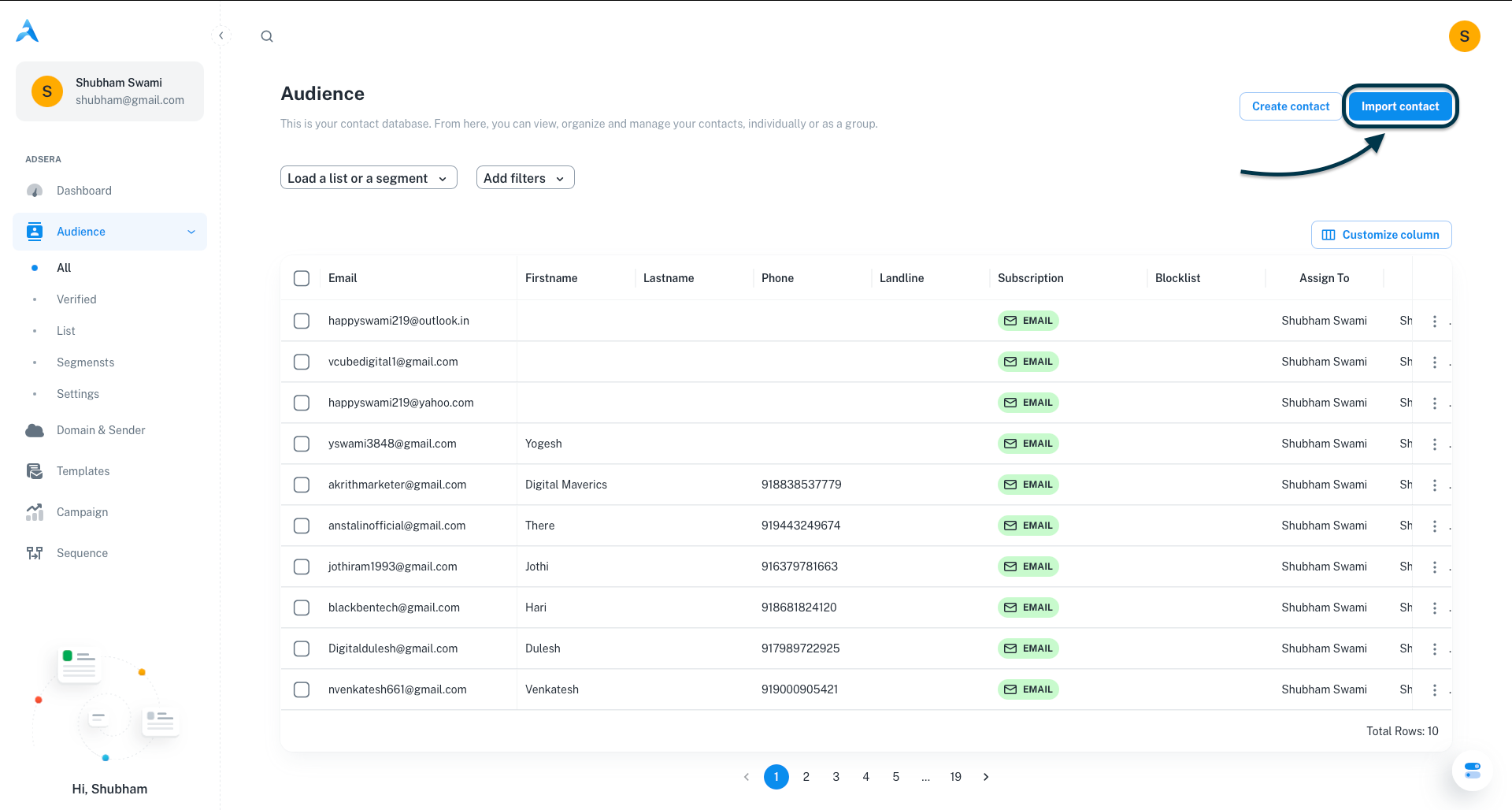
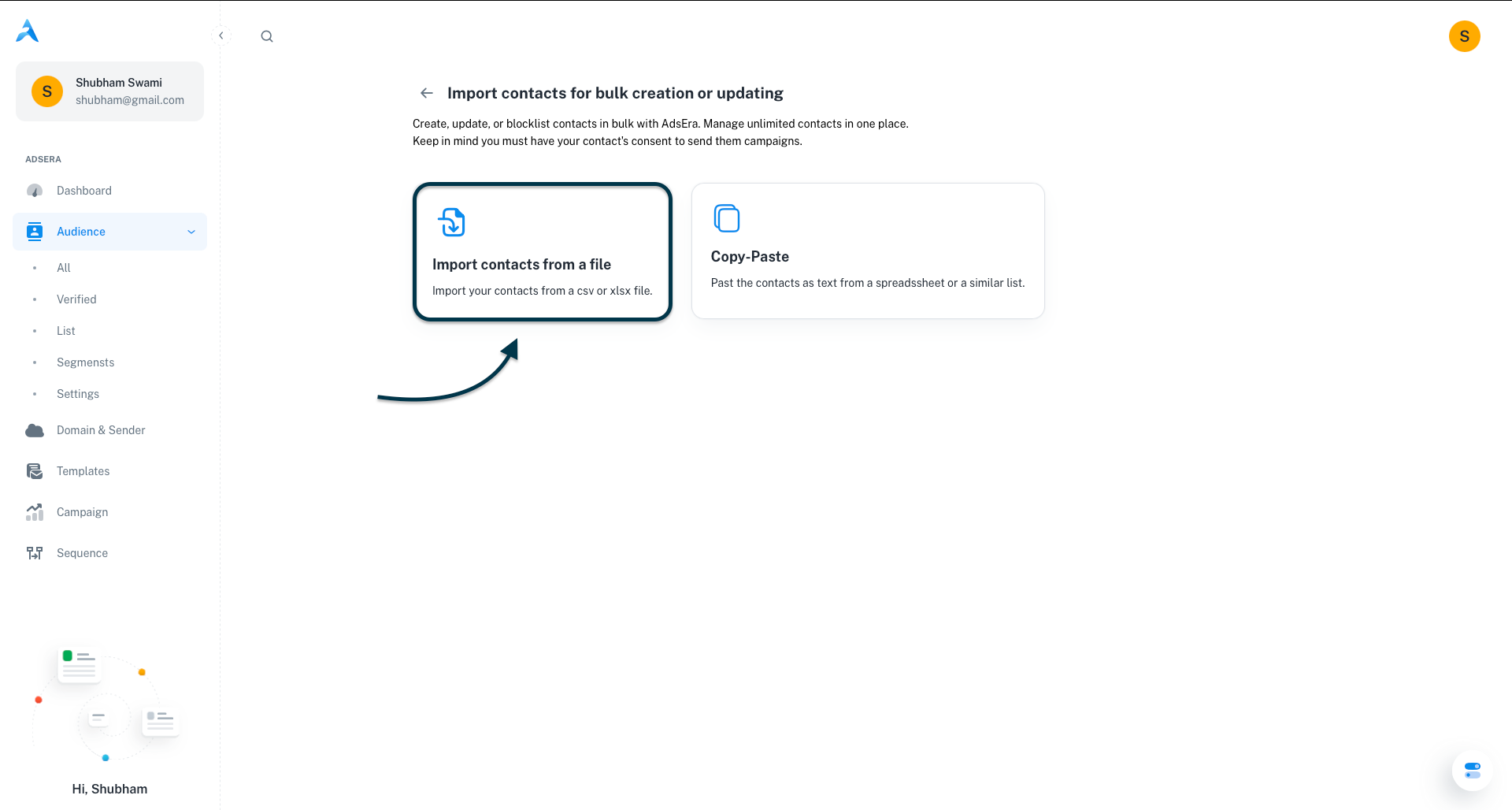
From your AdsEra Dashboard, navigate to **Audience > All**. In the top-right corner, click the **Import contact** button. On the next screen, select the **Import contacts from a file** option.
On the "Upload File" screen, either drag and drop your CSV or XLSX file into the designated area, or click "browse through your machine" to select it manually.
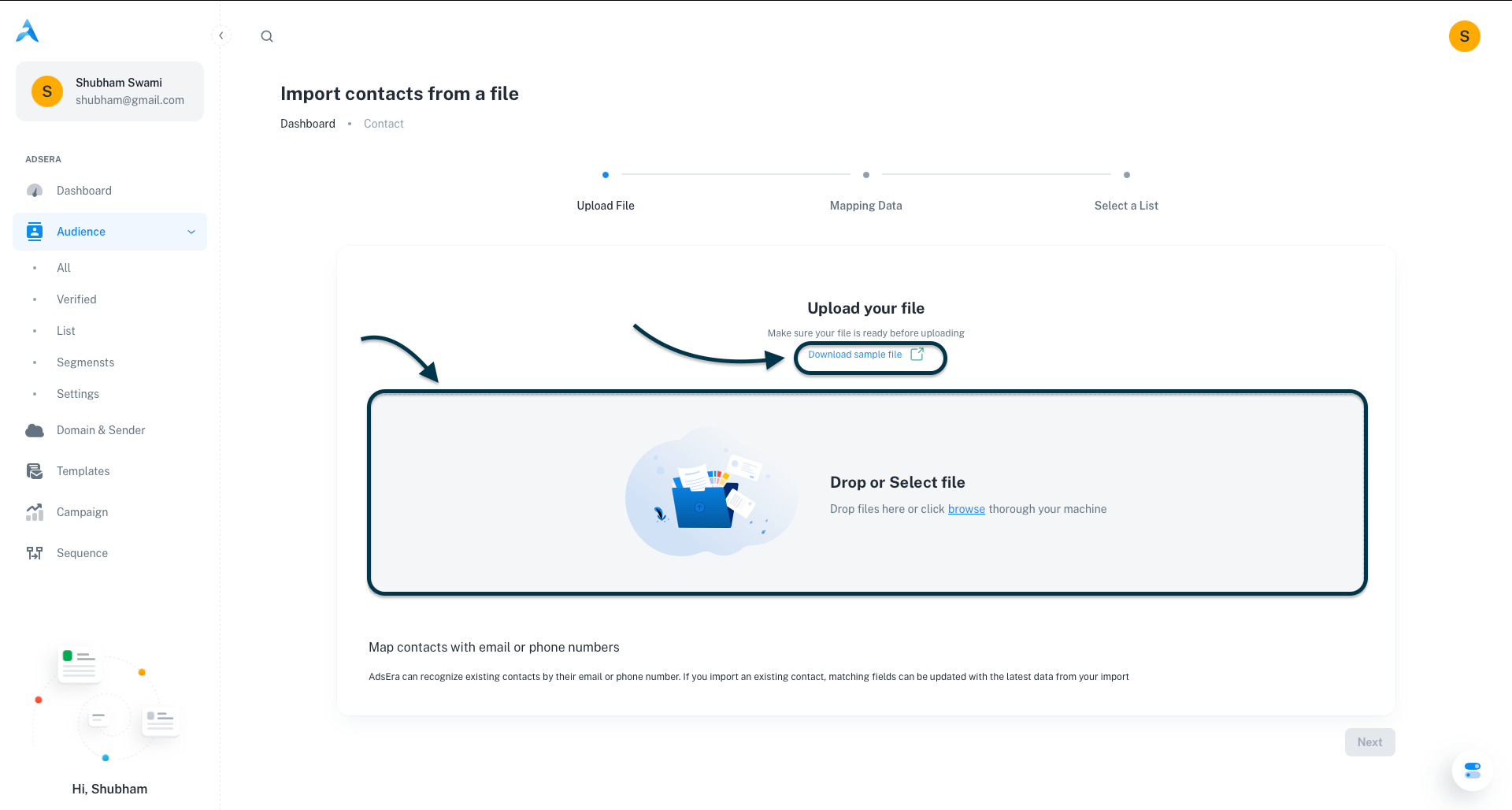
**Tip:** If you need a template to structure your data correctly, click the **"Download sample file"** link.
After a successful upload, AdsEra will display a preview of the first few rows of your data. Review the table to ensure your columns and data appear correctly, then click **Next**.
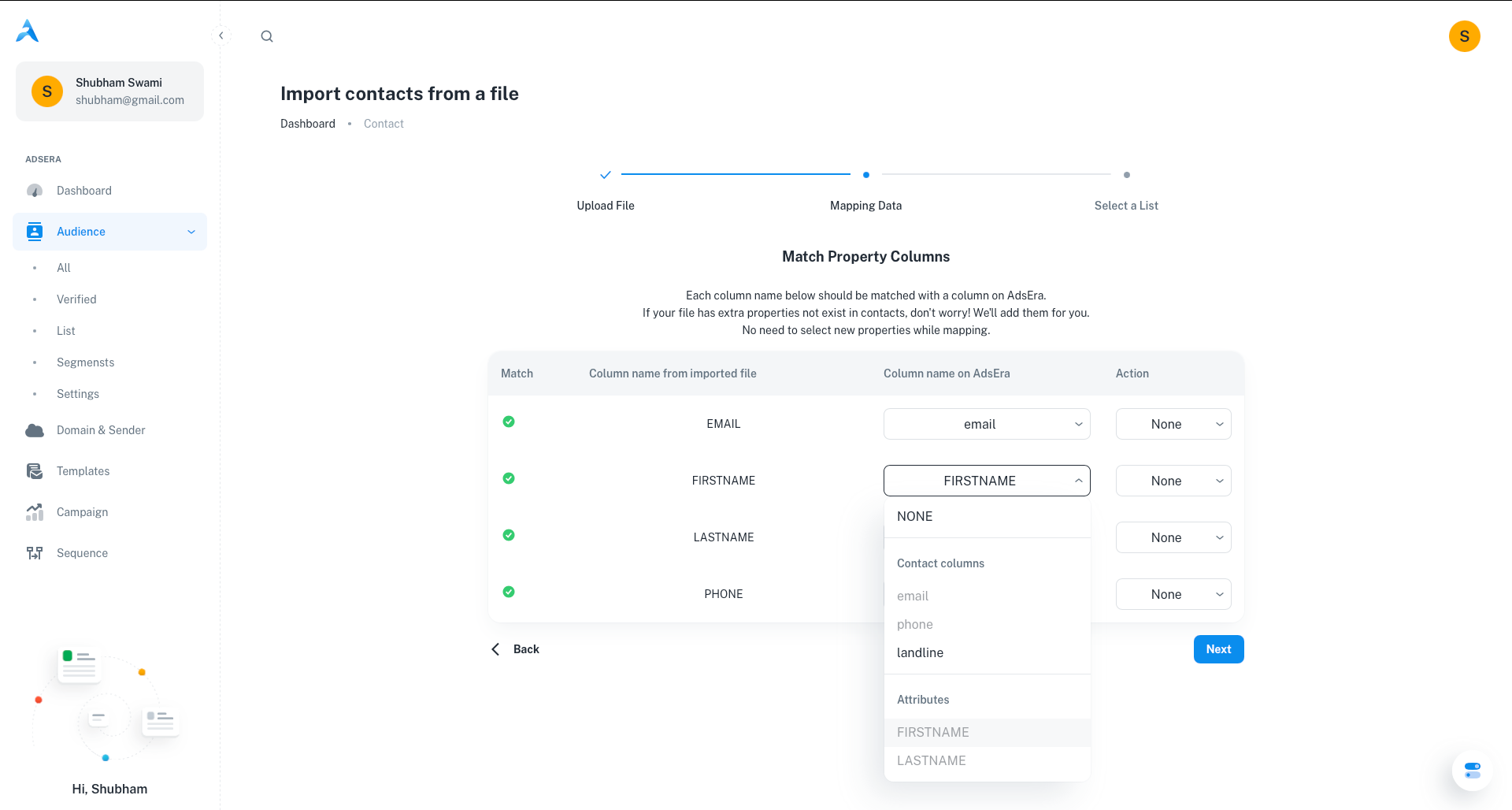
This crucial step matches your file's columns to the corresponding fields in AdsEra.
* **Verify Mapping:** The system will attempt to auto-map your columns. Double-check that each "Column name from imported file" is correctly matched to a "Column name on AdsEra".
* **Set Duplicate Handling:** For each column, choose an action for updating existing contacts:
* **Overwrite:** Replaces existing data with the new data.
* **Fill only if empty:** Only adds data if the field is currently blank.
* **Skip:** Ignores the new data for that field if the contact already exists.
Every contact you import must be assigned to at least one list.
* **Select an existing list:** Choose from your current contact lists.
* **Create a new list:** Click the **"Create A List"** button and give your new list a name.
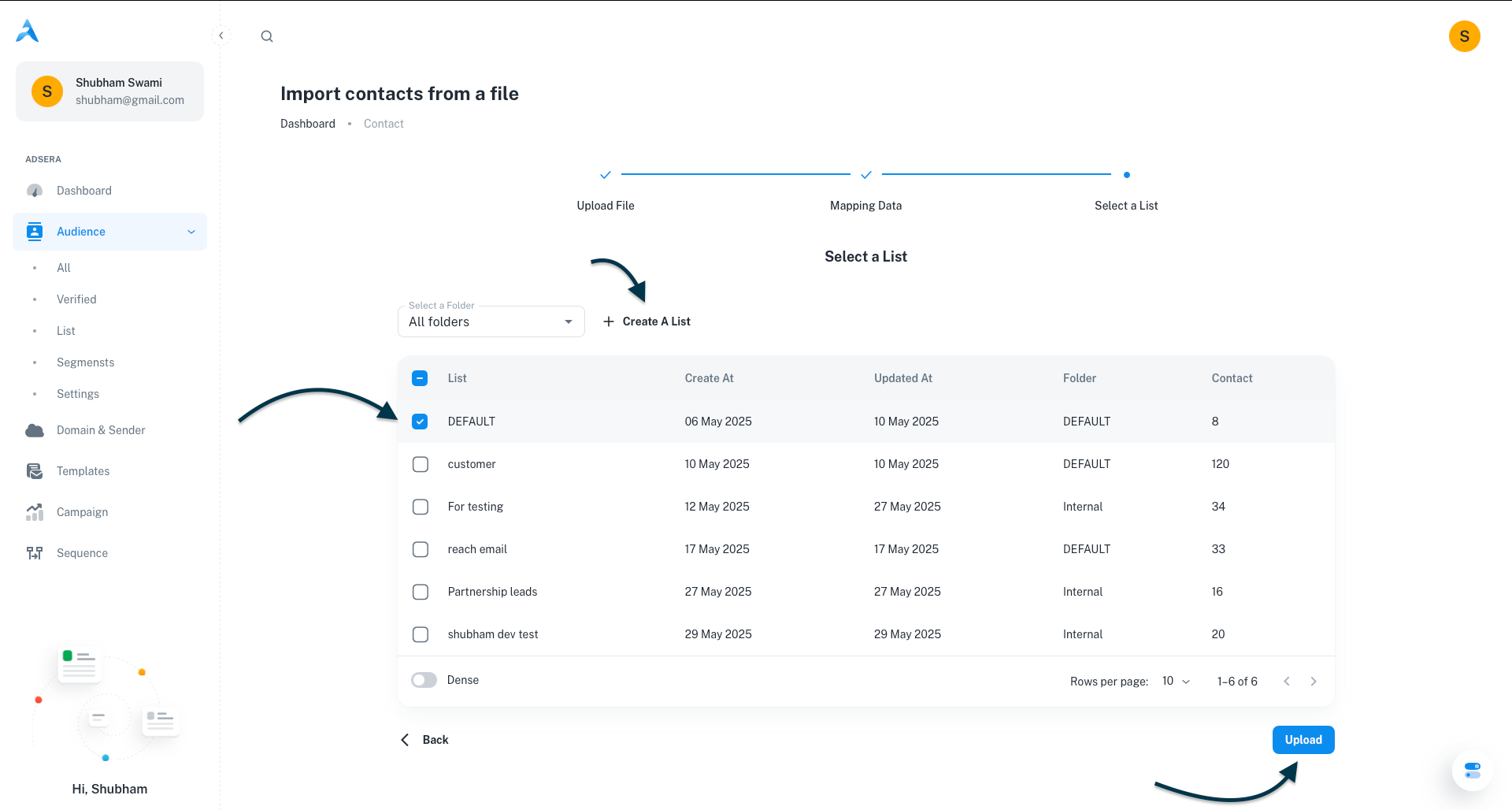
Once you've selected a list, click **Upload**.
***
## After the Upload
After clicking **Upload**, AdsEra will process your file. You will receive a **confirmation report** detailing the number of **successful** and **failed** imports, along with specific reasons for any failures.
### Troubleshooting Common Errors
| Common Error | Description & Solution |
| :---------------------- | :------------------------------------------------------------------------------------------------------------------------------------------------------------ |
| **Missing Identifier** | A row in your file is missing both an email and a phone number. **Solution:** Ensure every contact has a valid value in either the `EMAIL` or `PHONE` column. |
| **Incorrect File Type** | You've uploaded a file that isn't a CSV or XLSX. **Solution:** Ensure your file is saved in either `.csv` or `.xlsx` format. |
| **File Corrupted** | AdsEra could not read the file. **Solution:** Open your file in a spreadsheet program and save it again as a new, clean CSV or XLSX. |
| **Missing Headers** | Your file is missing the first row of column headers. **Solution:** Ensure your very first row contains clear column headers. |
***
## Pro Tips for a Smooth Import
Take a moment to clean your data first. Remove any unnecessary characters, extra spaces, or inconsistent formatting to ensure a smooth import.
If you're importing a very large list for the first time, try importing a small sample (5-10 contacts) to ensure everything maps and imports as expected.
The mapping step is critical! Double-check that your columns are correctly aligned with AdsEra's fields to avoid data discrepancies.