> ## Documentation Index
> Fetch the complete documentation index at: https://docs.adsera.in/llms.txt
> Use this file to discover all available pages before exploring further.
# Register a New Account
> A step-by-step guide to creating your AdsEra account using an email address or a Google account.
Welcome to AdsEra! Creating an account is a simple, multi-step process. You can either register with your **email and password** or use your **Google account** for a faster setup.
**Ready to create your account? [Go to the AdsEra Registration Page →](https://app.adsera.in/auth/register)**
Follow the guide below that matches your preferred method.
***
This is the standard method for creating an account. It involves filling out a form, verifying your email with a one-time password (OTP), and selecting a plan.
### Step 1: Fill Out the Registration Form
First, you'll need to provide your personal and account details.
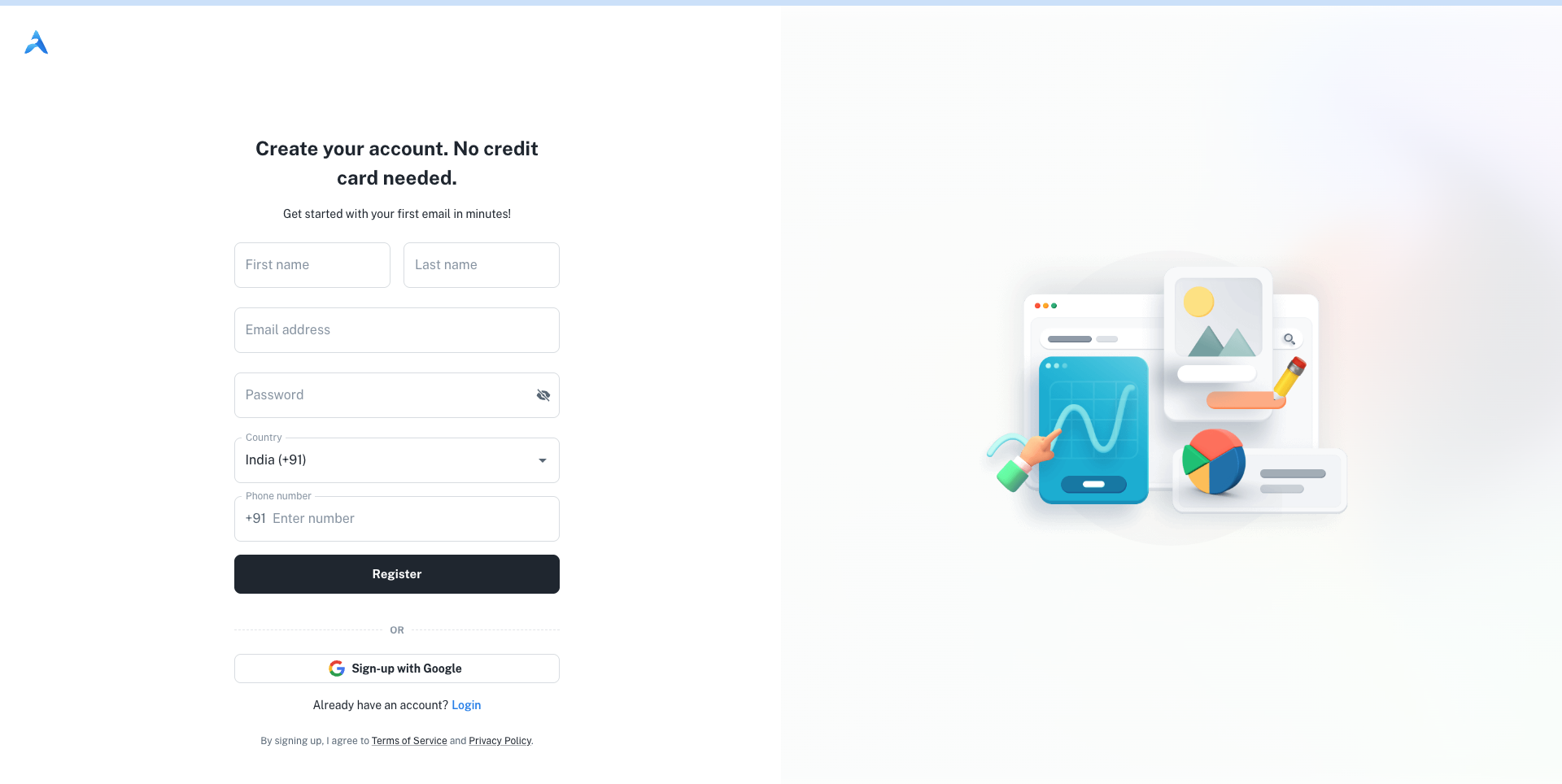
Fill in your **First name** and **Last name**.
Provide a valid **Email address** and create a secure **Password**.
Select your **Country** from the dropdown list and enter your **Phone number**.
After filling in all fields, click the **Register** button to proceed.
***
### Step 2: Verify Your Email Address
To ensure your email is valid, we'll send you a verification code.
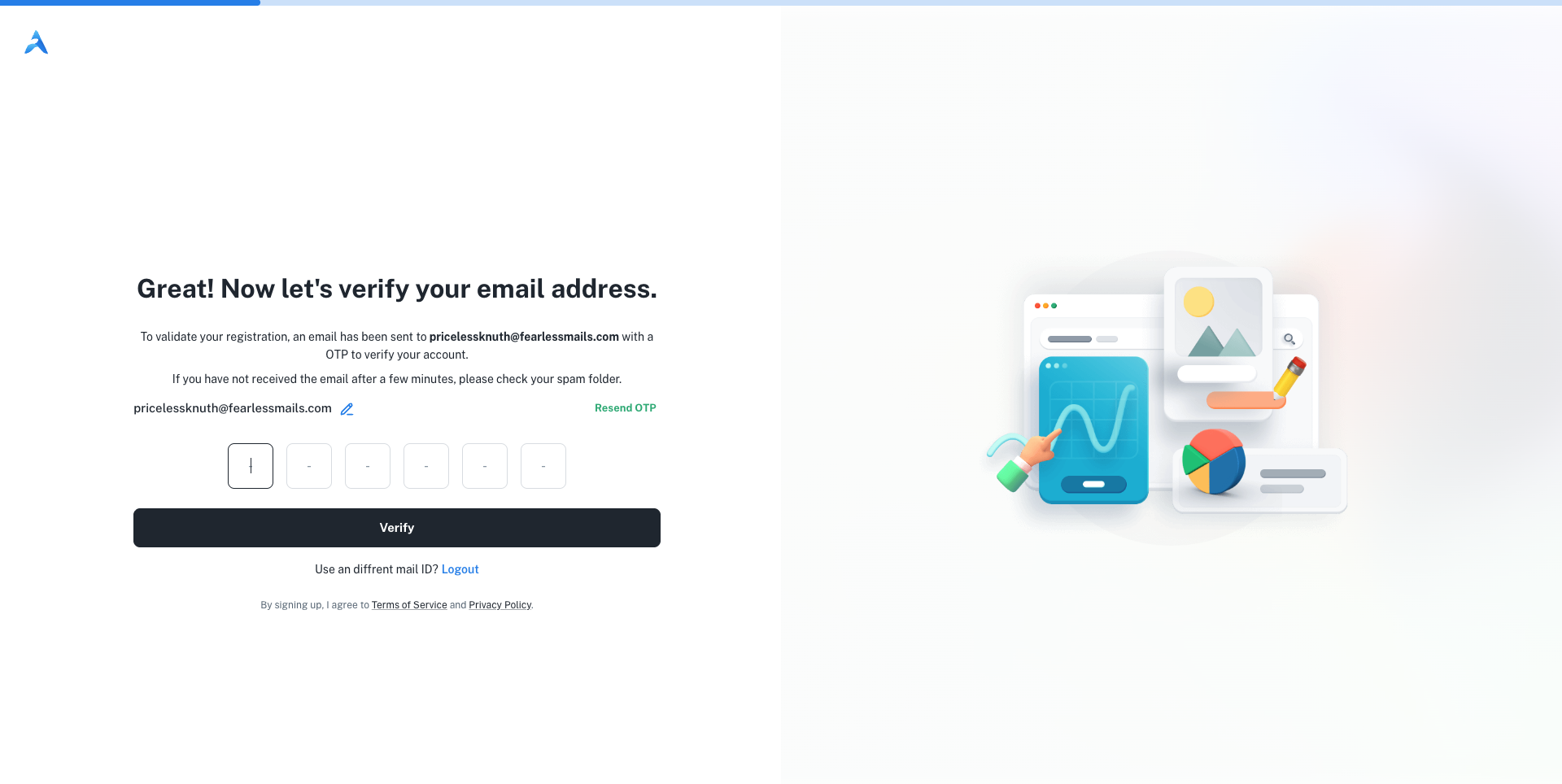
Look for an email from AdsEra containing a 6-digit one-time password (OTP). If you don't see it, check your spam folder.
Type the 6-digit code into the input fields on the verification page.
Click the **Verify** button. If the code is correct, your account will be successfully created.
If you haven't received the code, you can use the **resend OTP** button.
***
### Step 3: Select Your Plan
After successful verification, you'll be logged in and directed to the **Plans & Subscriptions** page.
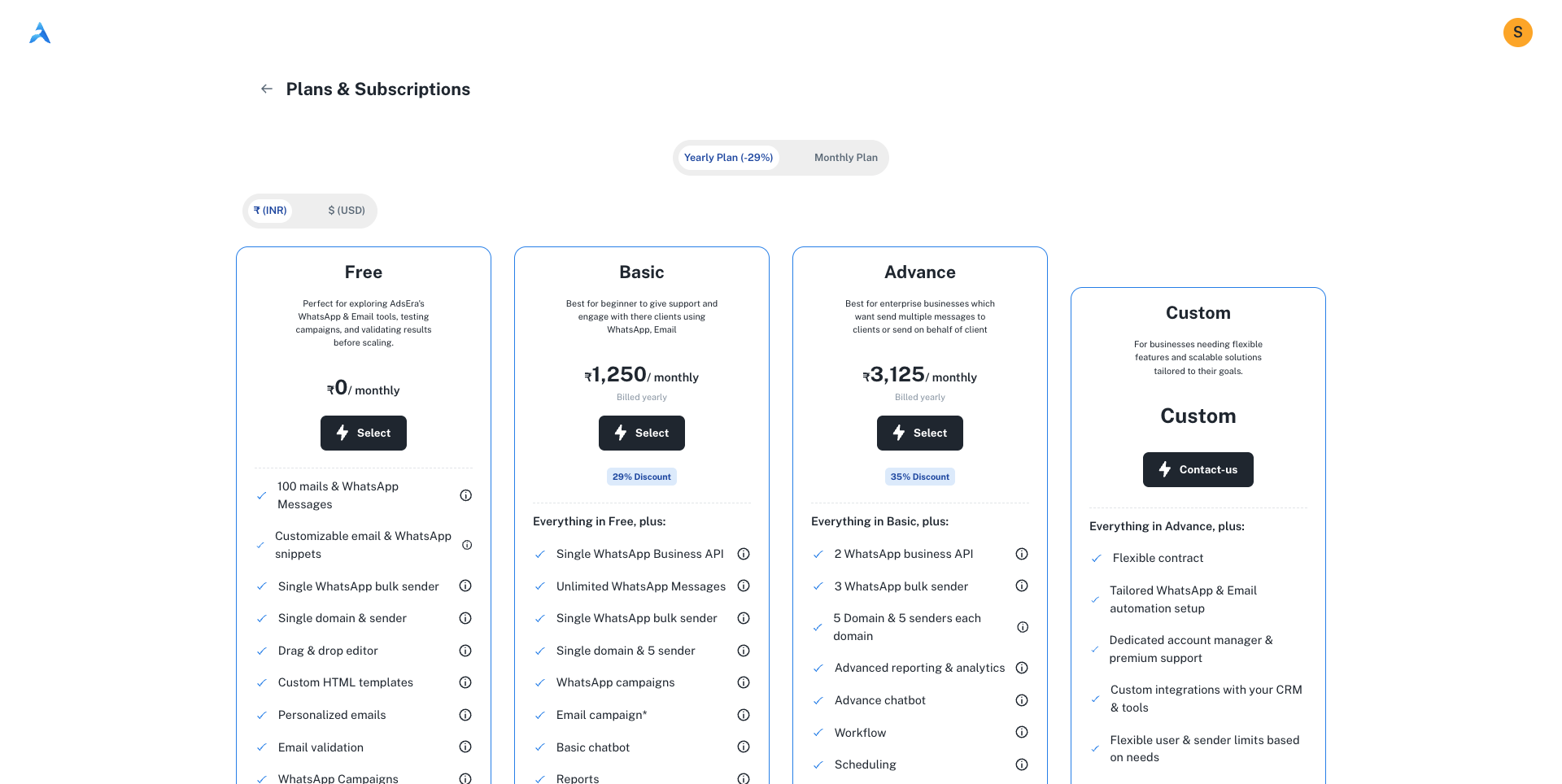
Your account is automatically placed on the **Free plan**, which allows you to start exploring AdsEra's features immediately. You can choose to upgrade to a paid plan at any time. Your registration is now complete!
This method allows you to create an account using your existing Google profile, which simplifies the initial steps.
### Step 1: Authenticate with Google
Begin by selecting the Google sign-up option on the registration page.
1. Click the **Sign-up with Google** button.
2. A pop-up window will appear. Choose the Google account you wish to use.
3. Grant the necessary permissions to link your Google account with AdsEra.
***
### Step 2: Provide Additional Details
After authenticating with Google, we just need a few more details to complete your profile.
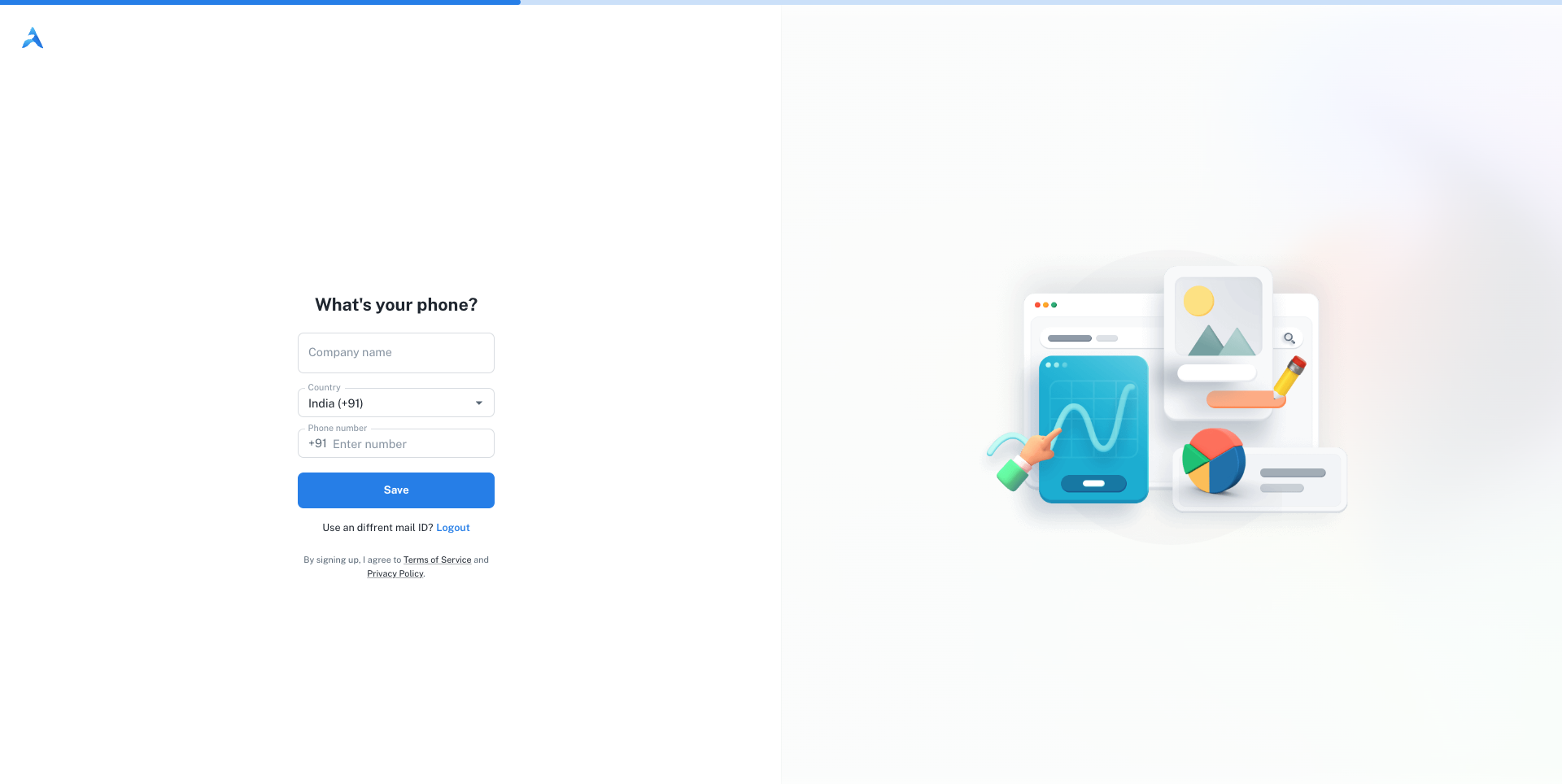
Fill in your **Company name** and **Phone number**. Your country should be pre-selected.
Click the **Save** button to finalize your account details.
***
### Step 3: Select Your Plan
Just like with the email sign-up, you'll be directed to the **Plans & Subscriptions** page after saving your details.

Your account is automatically started on the **Free plan**. You can begin using the platform right away or explore options to upgrade. Your registration is now complete!
***
### Next Steps
Now that your account is created, learn how to sign in.