> ## Documentation Index
> Fetch the complete documentation index at: https://docs.adsera.in/llms.txt
> Use this file to discover all available pages before exploring further.
# Forgot Password
> Learn how to reset your AdsEra account password if you have forgotten it or lost access.
If you've forgotten your password, you can easily reset it by requesting a secure link to be sent to your email address.
**Need to reset your password now? [Go to the Forgot Password Page →](https://app.adsera.in/auth/reset-password)**
***
## Password Reset Process
The process involves two main stages: requesting the reset link and creating your new password.
On the "Forgot Password" page, you'll see a field to enter your email.
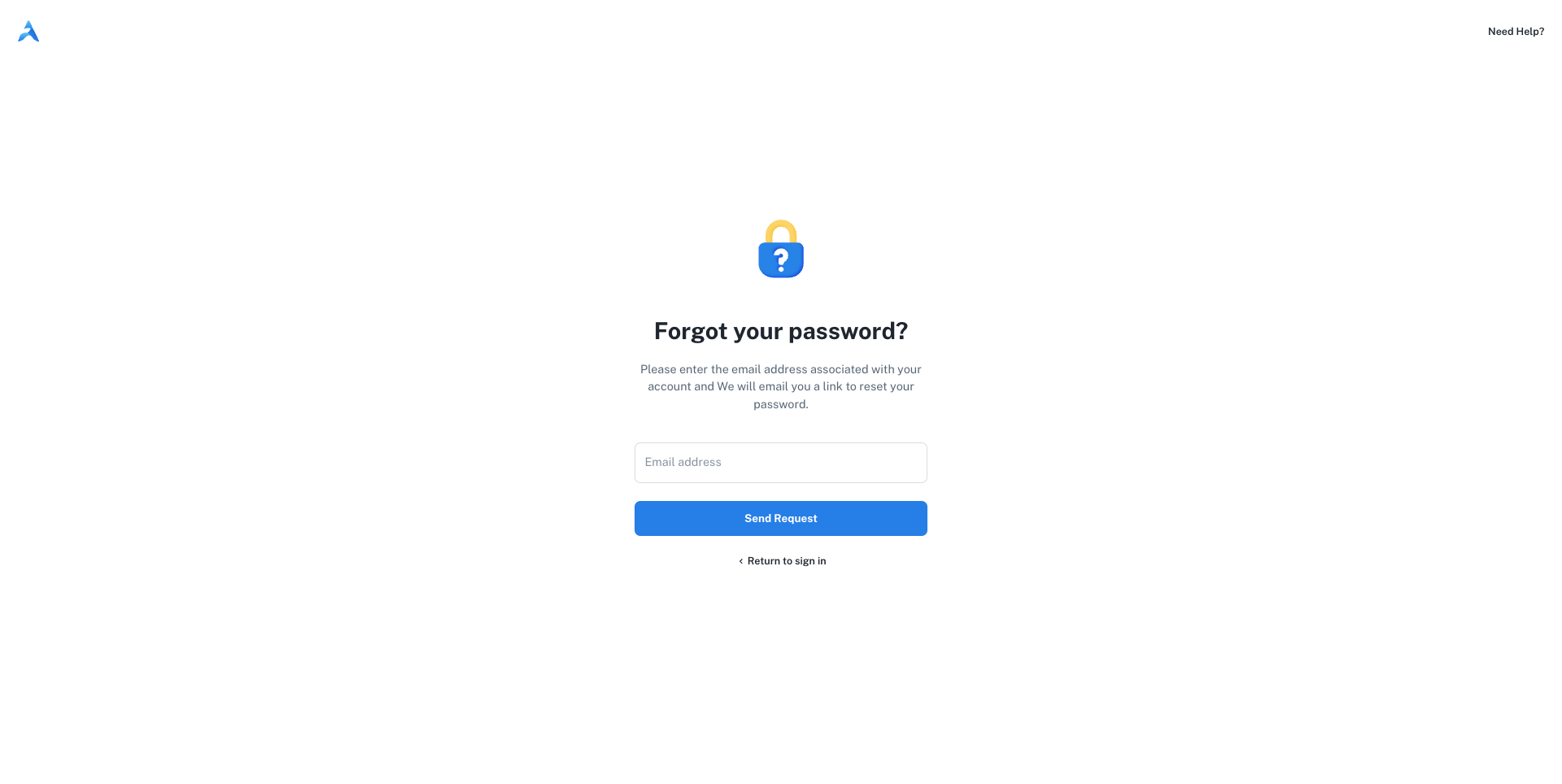
1. In the **Email address** field, type the email associated with your AdsEra account.
2. Click the **Send Request** button.
A confirmation will appear, and a password reset link will be sent to your email inbox.
Open your email client and look for a new email from AdsEra.
The password reset link is only **valid for 10 minutes**. If you don't use it within that time, you'll need to start the process over.
If you can't find the email, please check your spam or junk folder.
Click the reset link in the email to proceed to the final step.
Clicking the link will take you to the "Create your new password" page. Your email address will be pre-filled and disabled for security.
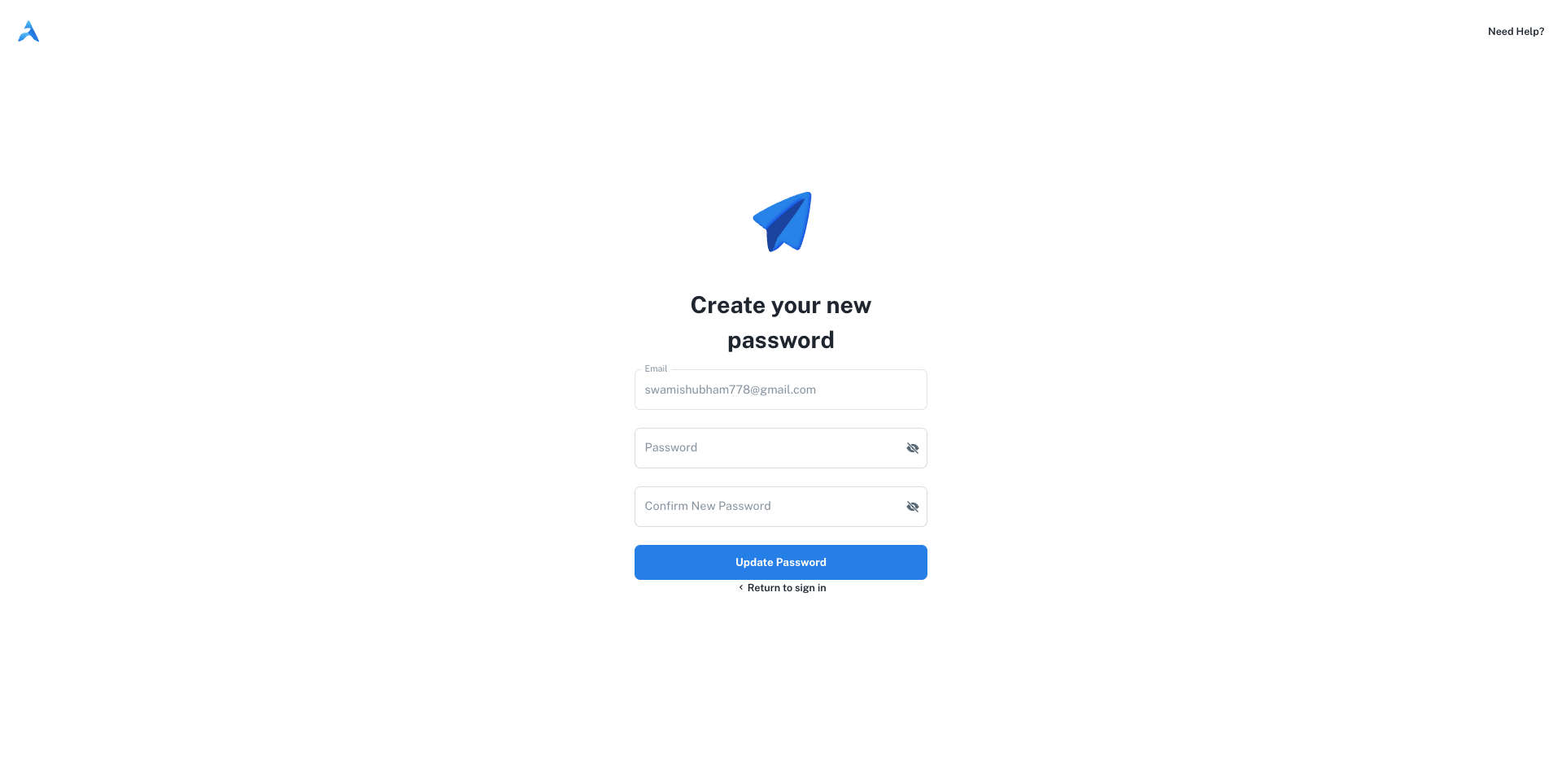
1. In the **Password** field, enter your new, secure password.
2. In the **Confirm New Password** field, enter the same password again to ensure it's correct.
3. Click the **Update Password** button.
***
### You're all set!
Once you update your password, you will be redirected to the login page. You can now sign in with your email and your new password.
After resetting your password, proceed to the sign-in page.