> ## Documentation Index
> Fetch the complete documentation index at: https://docs.adsera.in/llms.txt
> Use this file to discover all available pages before exploring further.
# Company Settings
> Update your company profile, contact details, and business information.
The **Company Settings** page allows you to manage the core details of your organization within AdsEra. Keeping this information accurate is important for billing, timezone-specific campaign scheduling, and overall account management.
**Want to manage billing & company profile? [Go to the AdsEra Company Page →](https://app.adsera.in/dashboard/company)**
### Navigating to Company Settings
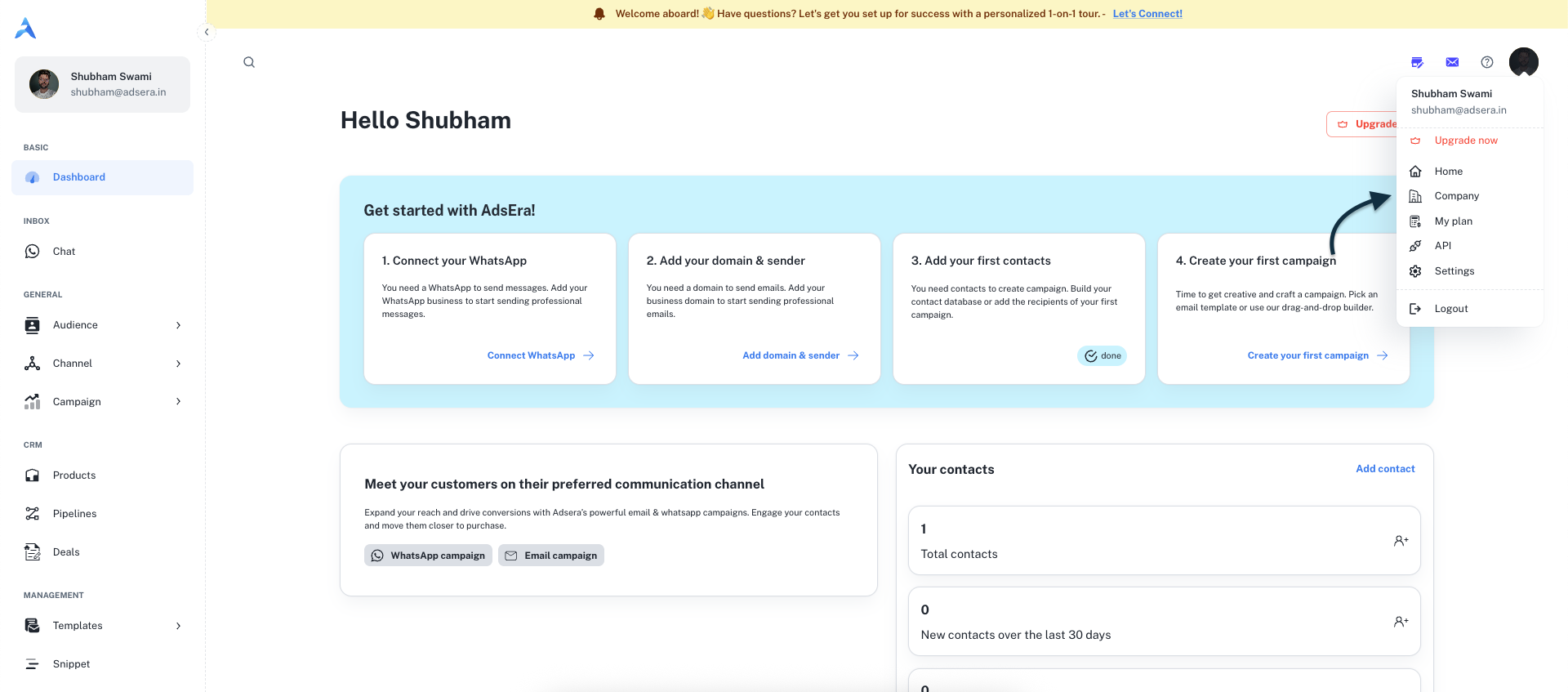
You can access your company's settings directly from the main header bar in your dashboard.
1. Click on your **profile avatar** in the top-right corner.
2. A dropdown menu will appear.
3. Select **Company** from this menu to open the Company Settings page.
***
## Company Information Form
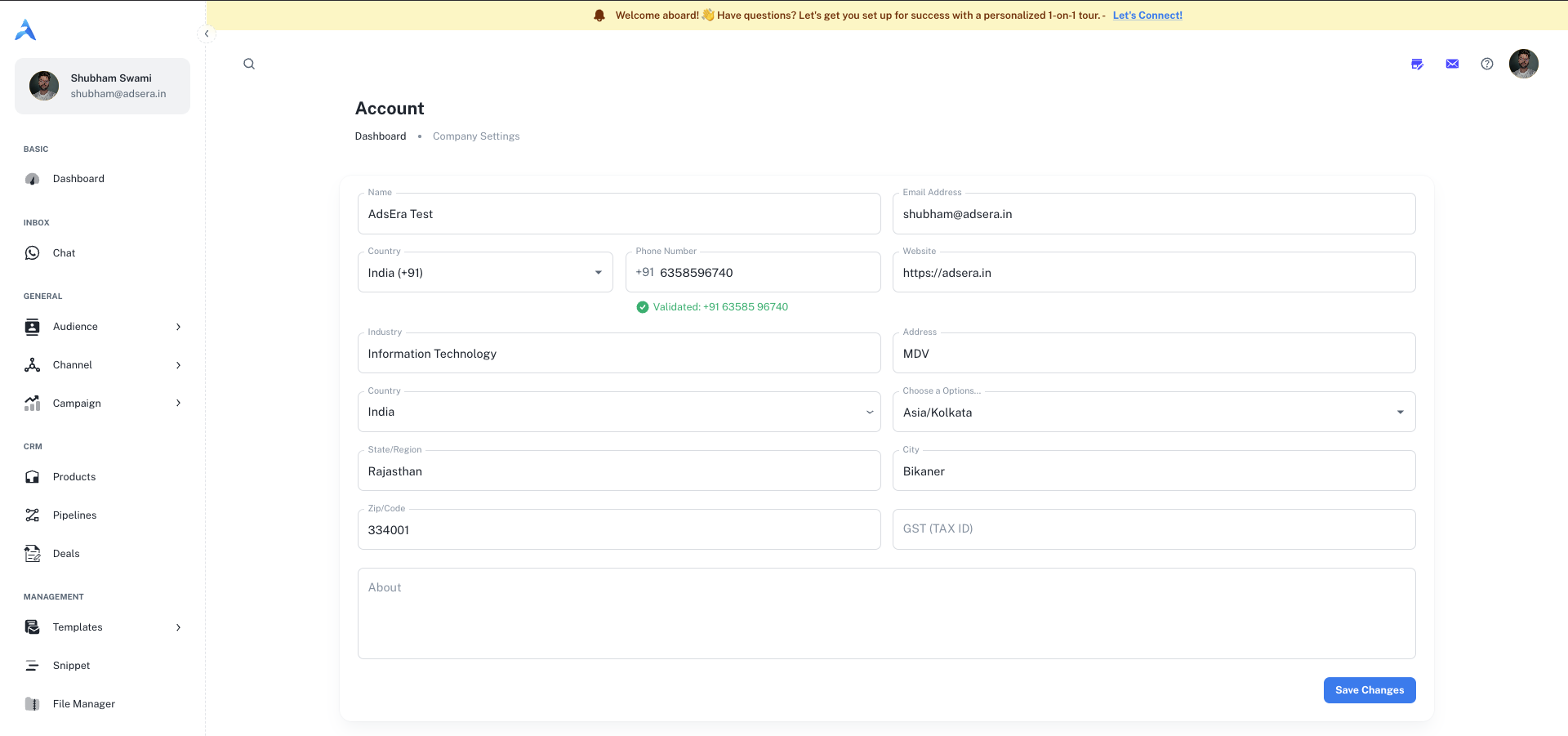
This page contains a single form to update all your company's details.
### Basic Details
The official name of your company or organization.
The primary email address for your company. This may be used for billing and important notifications.
Your company's primary contact phone number, including the country code.
The URL of your company's official website (e.g., `https://adsera.in`).
The industry your business operates in (e.g., "Information Technology", "E-commerce").
### Location & Timezone
The physical street address of your company.
The country where your company is located.
The state, province, or region.
The city where your company is based.
The postal or zip code for your address.
Select your company's primary time zone. This is crucial for accurate campaign scheduling and reporting.
### Billing & Invoicing
"Accuracy in your billing details isn't just about numbers; it's about seamless operations. The information here ensures your invoices are correct and your service remains uninterrupted."
Your company's Goods and Services Tax number or other relevant tax identification number. This will appear on all official invoices.
A brief description of your company. This is for internal reference.
***
### Saving Your Changes
After you have finished updating your company's information, click the **Save Changes** button at the bottom of the page to apply your updates.